By The Botseon team6 min read
Botseon 101
"From first sign-in to a first useful result: make a bot, give it a job, watch one run, approve one action and put it on a clock, with what a run costs and what the bot will not do without you."
The promise
By the end of this guide you have signed in, made one bot, given it a real job, watched it do that job once, answered the card it stops on before it does anything that matters, and put it on a schedule so it runs without you. You will also know what a run cost and what the bot will never do on its own.
Who this is for
Anyone new to Botseon, on their own or on a small team. You need one email address you can read and ten minutes. Nothing here assumes you have used a bot before, and one bot is enough for the whole guide.
Set up
Open the sign-in page and use the email form or one of the provider buttons. A new email address creates your account on the first successful sign-in, with one personal organisation. An email sign-in sends a six-digit code that works for ten minutes. A short welcome follows: Botseon shows what a bot is, you pick the kind of work you do from nine tiles, and you can mark the tools you already use or mark none. The role you pick decides which starter bots are suggested on the next window. The full walk-through of this first stretch is in the docs page Your first ten minutes.
The jobs
Make a bot
On the last welcome window you name your first bot, then pick a colour and a shape. A row of starter suggestions matched to your role sits beside the form, and clicking one fills in the name and the shape for you. For this guide pick Inbox Triage. Once it exists it greets you by first name and asks a question with a few lettered options and a free-text row, so you can answer in your own words.
Not measured. This job needs a person, a paid account or a real mailbox, so no run of it can be automated.
Give it a job
A bot's job is a short standing description, and Inbox Triage ships with one. It is in the bot's details pane once you have made it, where you can read it and change it. This is the exact text the starter ships with.
Triages the inbox: labels what's urgent, drafts replies to the routine messages, and leaves the
rest for a human to decide. Never sends a reply without approval.
The same starter also ships the three rules it works under. They are the ones to check first, because they say what the bot may do without asking.
Label and sort incoming mail: Always allow
Draft a reply, without sending it: Always allow
Send a reply: Ask first
Before it can read anything, the bot needs your mailbox. Open Plugins, install Gmail or Microsoft 365 and connect your account. The sheet lists the scopes it asks for before you agree.
Not measured. This job needs a person, a paid account or a real mailbox, so no run of it can be automated.
Watch one run
Send the bot a task in the conversation, or answer its opening question. The bot works the task through in the transcript, one step at a time: what it read, what it decided, what it drafted. The reply you see first says what it is about to do, before it does it.
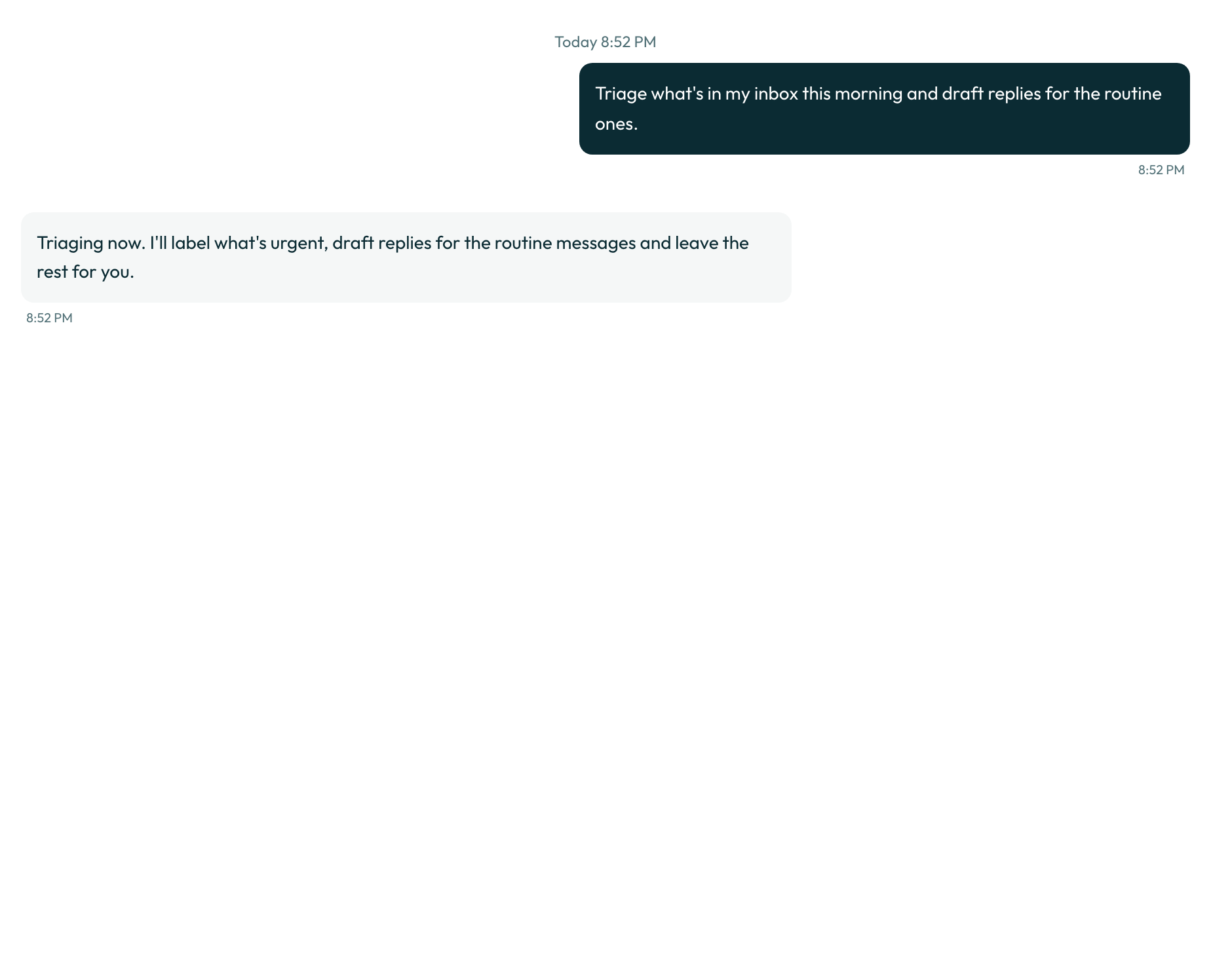
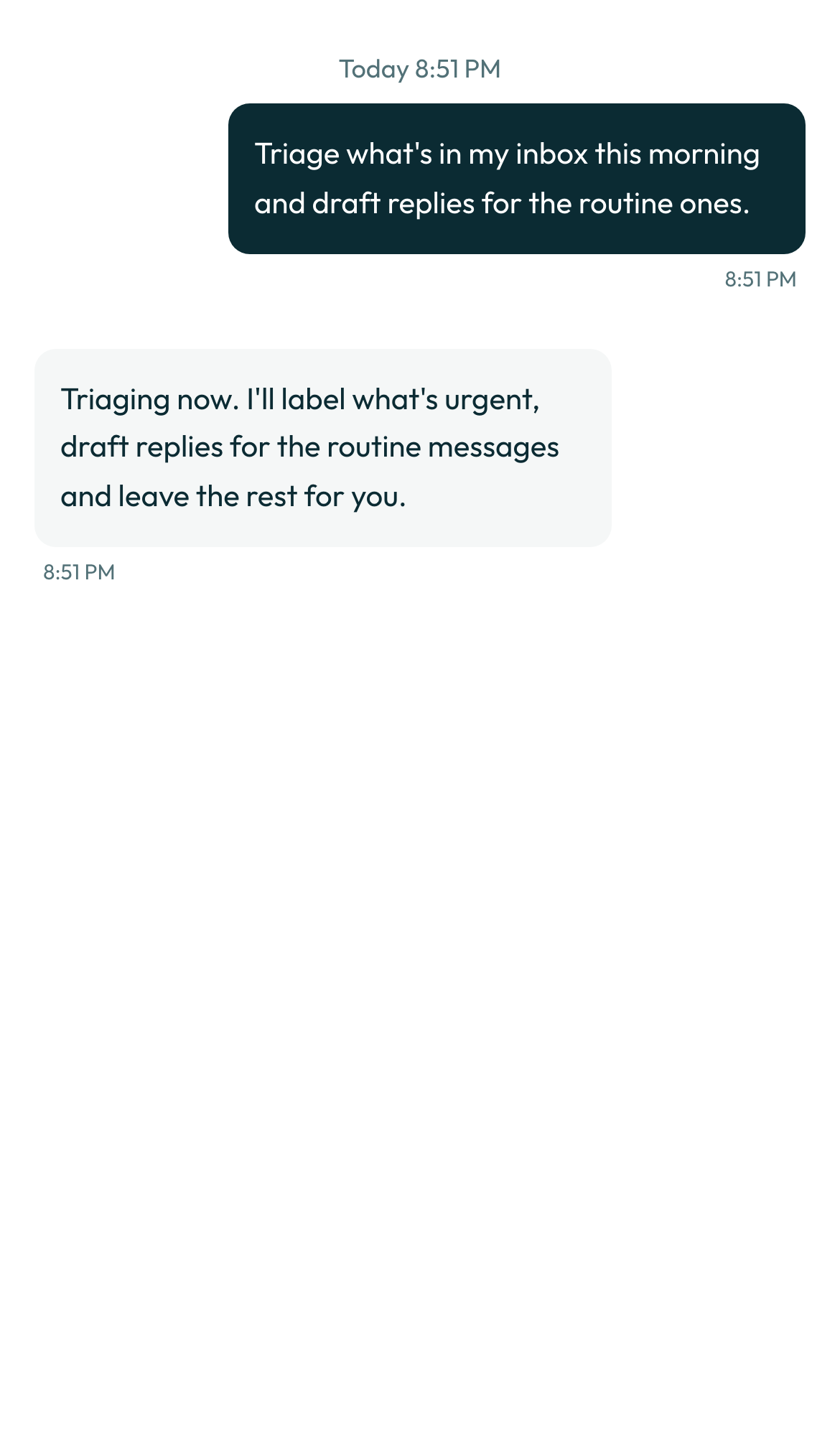
The meter at the top of the conversation shows what the run cost. Read the first few drafts closely: they are the bot's guess at your voice, and the guess improves fastest when you correct a draft on its card rather than after it.
0 credits
Approve one action
When a bot's next step is to send something, spend money, delete something, install something, sign in as you, or act on a person it has not dealt with before, it stops and posts a card in the conversation. The run pauses until you answer. Read the resource line, the reason if the bot gave one, and the input, which is shown cut off at 2,000 characters and never as a link. A coloured outline means this is the first time this bot has acted on that resource.
You have three answers, and the labels are fixed: "Allow once", "Always allow" and "Deny". "Always allow" creates a standing rule for exactly that kind of action, listed where you can read it and remove it, and it expires on its own.
Not measured. This job needs a person, a paid account or a real mailbox, so no run of it can be automated.
Put it on a clock
Once the drafts read the way you would have written them, give the job a schedule. This is the starter's own routine, so you can compare it with what you set up.
Morning triage: every day at 07:00. Triage what came in overnight and draft replies for the routine
messages. Never send a reply without approval.
Open Routines in the bot's details pane and choose "+ Create Routine". Name it, write the instruction and choose "+ Add trigger", then "On a schedule", and pick a preset such as "Every day". The editor closes the choice into a plain summary line such as "Every day at 8:00 AM".
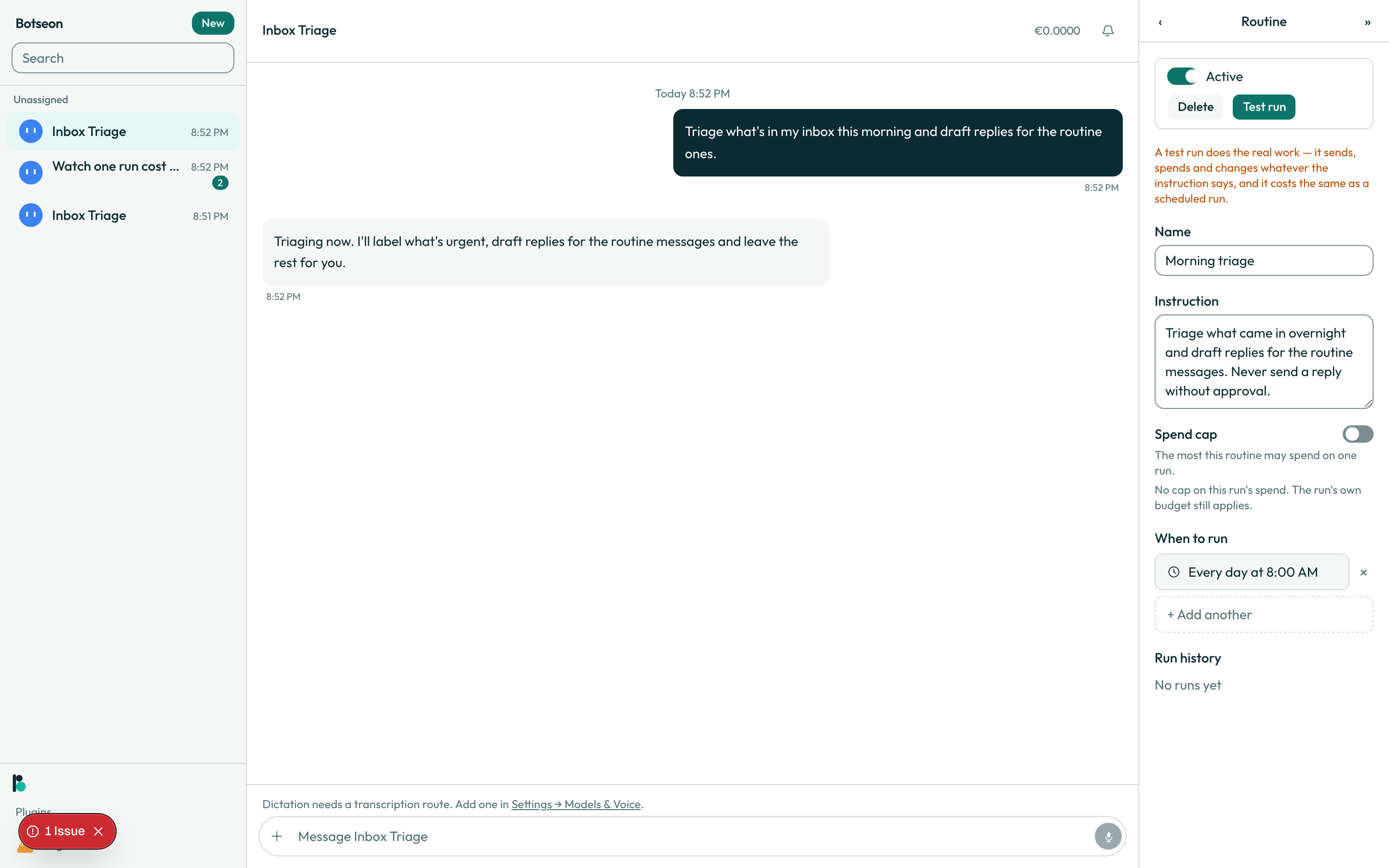
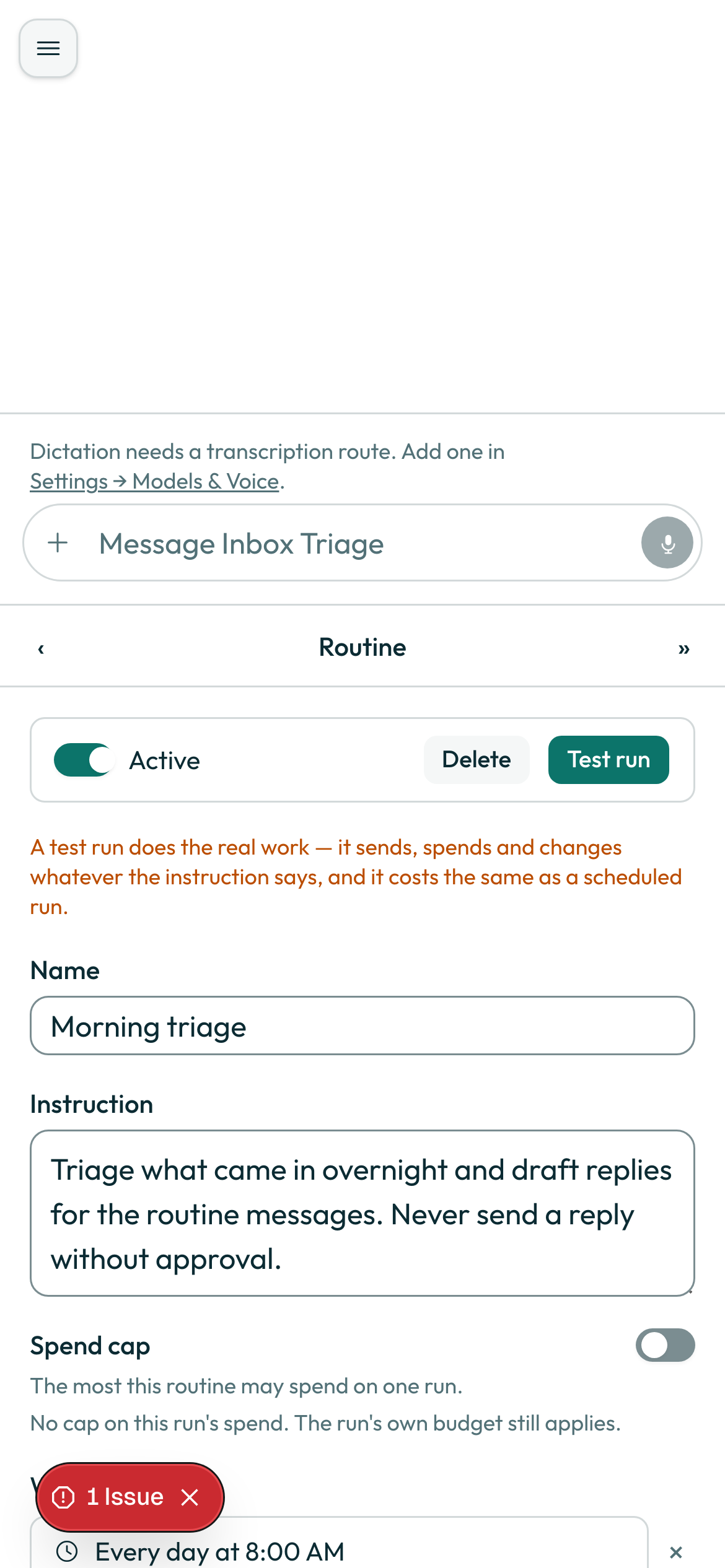
Use "Test run" once before you let the schedule take over, and know that a test run does the real work: it sends, spends and changes whatever the instruction says, and it costs the same as a scheduled run.
Not measured. This job needs a person, a paid account or a real mailbox, so no run of it can be automated.
Now let it run
A routine run is an ordinary run, and the bot stays quiet unless a card needs you or a run failed. Give the instruction a narrow scope, say what the bot should do when there is nothing new, and re-test after anything it depends on changes, such as a renamed folder or a reconnected plugin. The guide Routines, and what a run costs goes into the meter and the budget per run.
What the bot may not do
Every action that sends, spends or deletes stops at a card. Sending a reply carries the external_send permission tag, and reading mail carries read. Four tags are never honoured as an always-allow rule: spend, sign_in, delete and decides_about_person. For those the card appears every time, whatever you have set. Stored facts the bot keeps are data, never instructions: a fact can inform a bot but can never give it permission.
Where your data is
The bot reads and drafts through your own Gmail or Microsoft 365 connection, never a copy of your password. On the managed service everything it reads and stores follows the same rule as the rest of the product: EU/EEA storage, no non-EEA egress by default, US sub-processors under SCCs. The full position is on the data residency and rights page.
What can go wrong
| Symptom | Cause | What to do |
|---|---|---|
| A draft sits waiting and never sends | Sending always stops at a card, by design | Open the transcript and answer the card yourself |
| A card has a coloured outline | It is the first time this bot has acted on that resource | Read it more closely than usual, then answer |
| The bot asks again after you chose "Allow once" | "Allow once" covers one action only | Choose "Always allow" if you want a standing rule for that kind of action |
firstSeen: 'First time this bot has acted on this.',
allowOnce: 'Allow once',
alwaysAllow: 'Always allow',
Do it yourself in 10 minutes
- Sign in with your email and type the six-digit code.
- Pick your kind of work on the welcome window and continue.
- Name your first bot, then click the Inbox Triage suggestion.
- Connect Gmail or Microsoft 365 from Plugins and read the scopes before you agree.
- Open the details pane and read the job description and the three rules.
- Answer the opening question, then read the
job-replymoment in the transcript on the desktop and on a phone. - When a draft card appears, choose "Allow once" on one and read the meter afterwards.
- Open Routines, choose "+ Create Routine" and fill in the name and instruction.
- Add a schedule trigger, pick "Every day", and compare the editor with the
routine-editormoment. - Use "Test run" once, then let one scheduled run go by and read the transcript the next morning.