By The Botseon team4 min read
Botseon for support
"Three jobs a support team hands over: triaging the queue with first replies drafted, watching releases for regressions and checking a refund against the policy, with what each costs and what it will refuse."
The promise
By the end of this guide a bot is reading every new support ticket, labelling what is urgent and drafting replies for the routine ones, a second bot prepares refunds for your approval against the policy, and you know what each of them costs and what neither will ever do without you.
Who this is for
A support lead, or the person on a small team who answers the queue. One bot is enough to start; the refund bot is a second one you add when the first is trusted.
Set up
Sign in and create a bot from Support Triage. It needs to read your ticket system: open Plugins and connect it, and read the scopes the sheet lists before you agree. The bot uses your connection, never a copy of your credentials. If you are new to Botseon, Botseon 101 covers the first ten minutes.
The jobs
Triage the queue and draft replies
Support Triage reads each new ticket, labels what is urgent, and drafts a reply for the routine ones from the help centre and past replies. Anything unusual it leaves for a person. Its job description is in the bot's details pane once you have made it, where you can change it.
Reads every new support ticket, labels what's urgent, and drafts a reply for the routine ones from the help centre and past replies. Never sends a reply without approval.Hourly triage: every hour. Read the support tickets opened since the last run, label each one by
urgency and topic, draft a reply for the routine ones and leave anything unusual for a human.Read the support tickets: Always allow
Reply to a support ticket: Ask first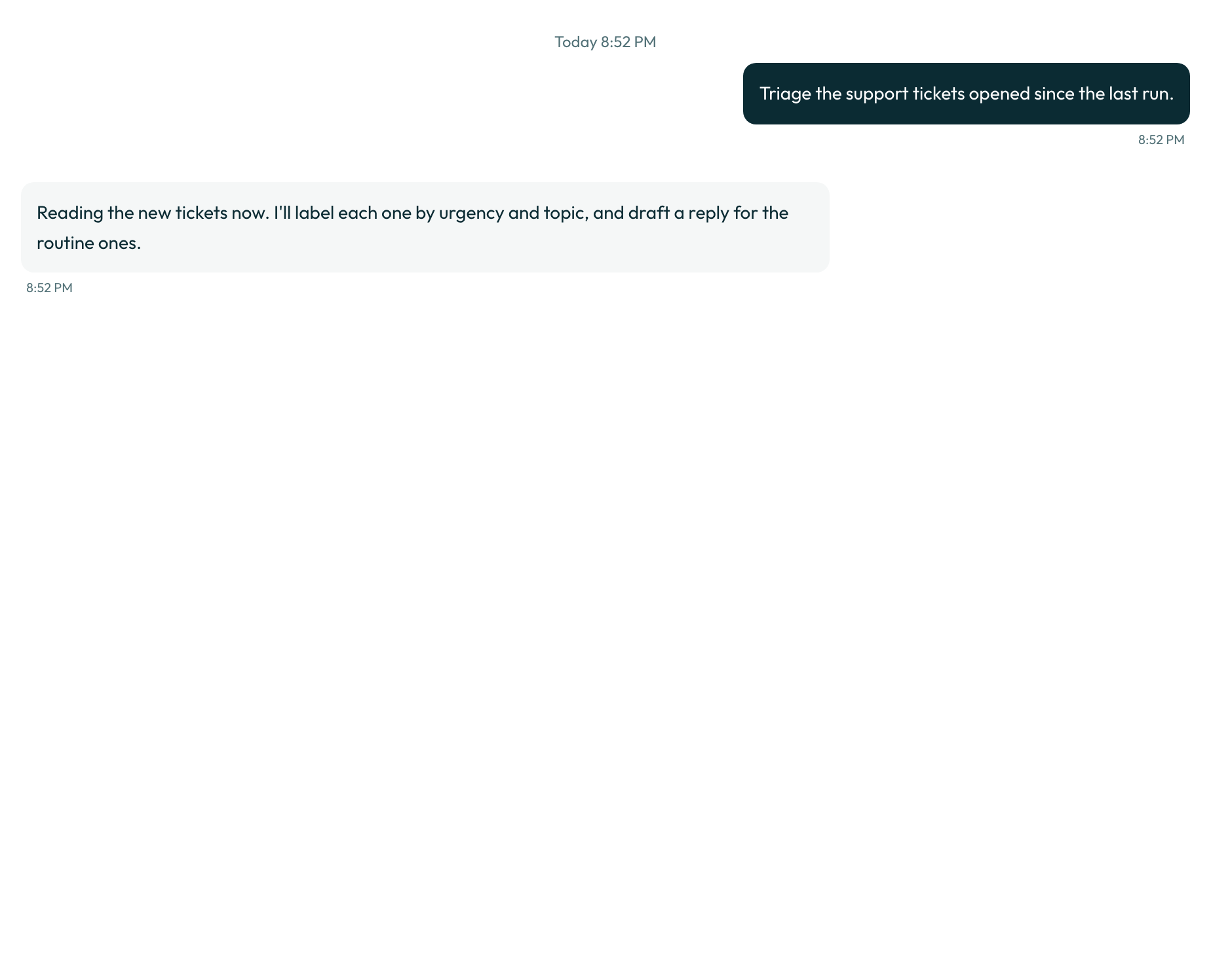

Read the first ten drafts closely. They are the bot's guess at your voice and the help centre's, and the guess improves fastest when you correct a draft on its card rather than after it.
0 credits
Watch releases for regressions
Release Watch reads the release notes page every half hour and posts an alert in the team chat when something looks like a regression. It is built for engineering teams first, so the engineering guide carries its template and rules rather than repeating them here. Support teams use it for one reason: the alert lands in the chat before the tickets about the same regression do.
Not measured. This job needs a person, a paid account or a real mailbox, so no run of it can be automated.
Check a refund against the policy
Refund Checker reads a refund request, checks it against the policy page and the order's own history, and prepares the refund for approval. It has no schedule: you hand it a request.
Checks a refund request against the policy page and the order's own history, and prepares the refund for approval. Never issues a refund without approval.Check the policy page: Always allow
Pay out a refund: Ask firstPaying out a refund carries the spend tag, and the product refuses to let you always-allow a spend rule, so the card comes back every single time. That is the point of the job: the bot does the checking and a person does the paying.
Not measured. This job needs a person, a paid account or a real mailbox, so no run of it can be automated.
Now let it run
Once the first drafts read right, put triage on a clock: open Routines in the bot's details pane, choose "On a schedule" and pick "Every hour" or "Weekdays". The editor closes the choice into a summary line such as "Every day at 8:00 AM".
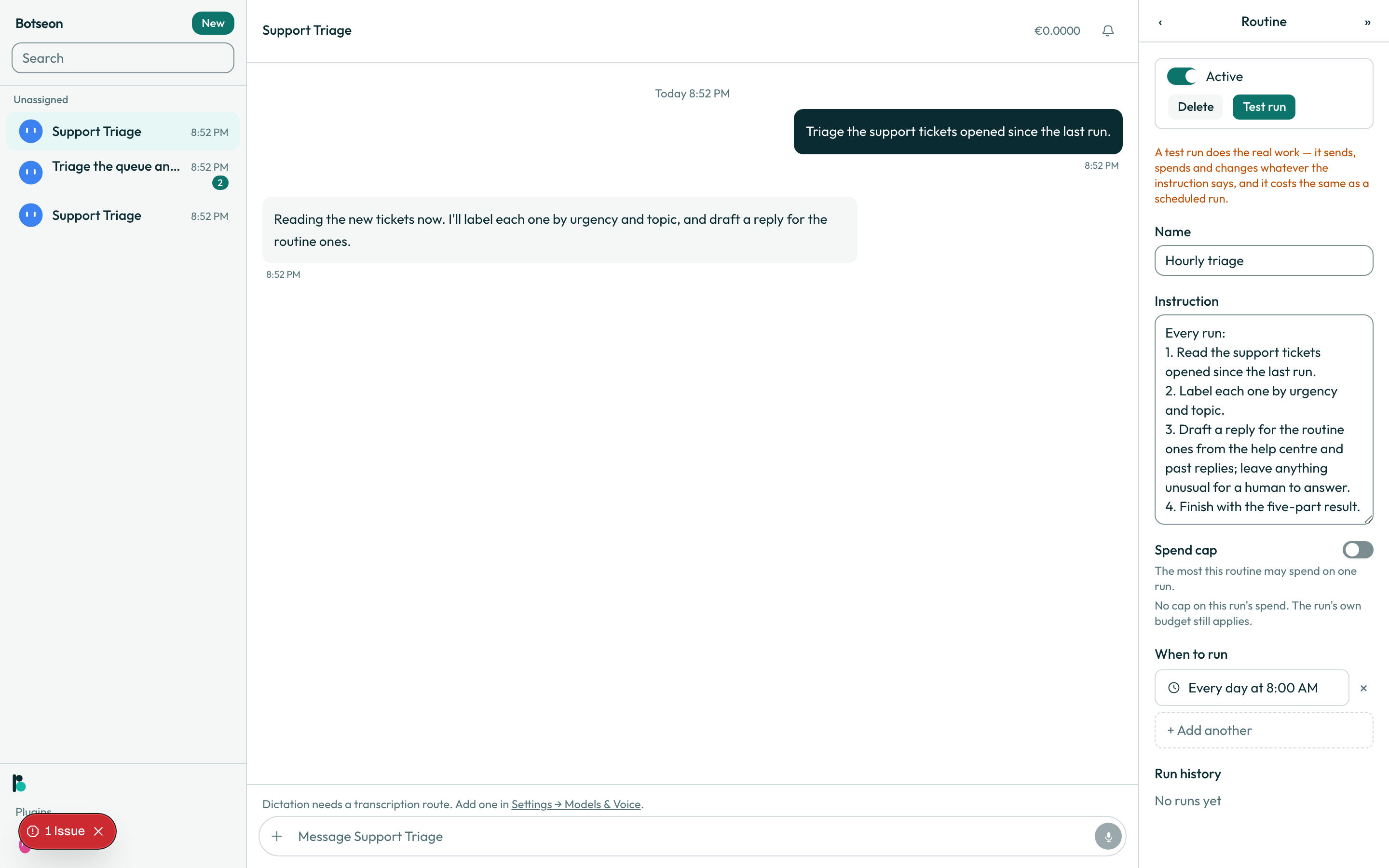
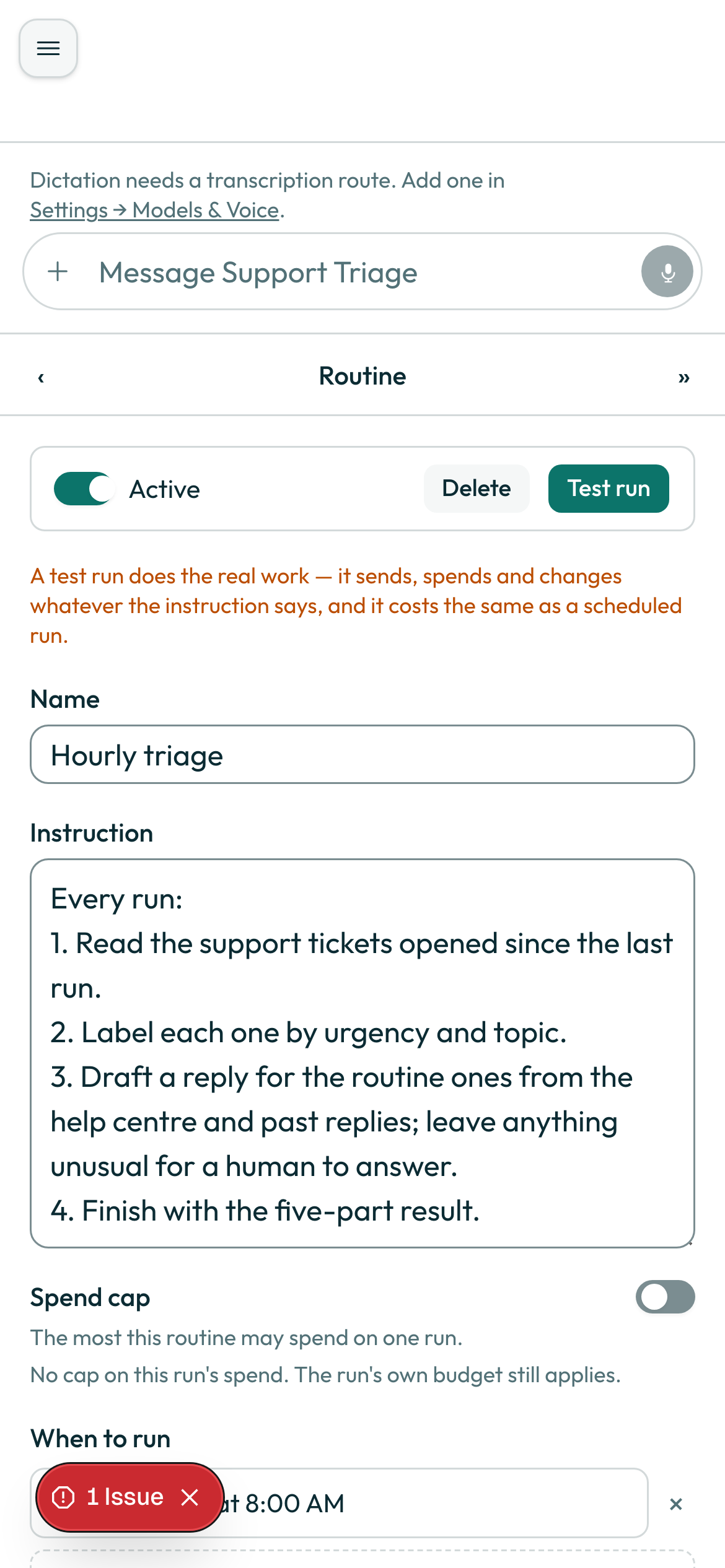
A routine run is an ordinary run. Run it once with "Test run" first, and know that a test run does the real work and costs the same as a scheduled one.
What the bot may not do
Replying to a ticket carries the external_send permission tag and stops at a card. Reading carries read. Refunding carries spend, one of four tags whose always-allow rule is never honoured: spend, sign_in, delete and decides_about_person. Neither bot here deletes, signs in as you or uses a computer.
Where your data is
The bots read tickets and orders through your own connections. On the managed service everything they read and store follows the same rule as the rest of the product: EU/EEA storage, no non-EEA egress by default, US sub-processors under SCCs. The full position is on the data residency and rights page.
What can go wrong
| Symptom | Cause | What to do |
|---|---|---|
| A reply sits waiting and never sends | Replying always stops at a card, by design | Open the transcript and answer the card yourself |
| The refund card comes back every time | Spending is never always-allowed | Keep answering the card; no setting removes it |
| The bot asks before touching a ticket it has not seen before | The first time it acts on a resource, it always asks | Read the card, then choose "Allow once" or "Always allow" |
allowOnce: 'Allow once',
alwaysAllow: 'Always allow',
firstSeen: 'First time this bot has acted on this.',
Do it yourself in 10 minutes
- Create a bot from Support Triage and connect your ticket system from Plugins.
- Read the scopes before you agree.
- Open the details pane and read the job description and the two rules.
- Send it one task and read the
job-replymoment on the desktop and on a phone. - When a draft card appears, correct one draft on the card.
- Create a second bot from Refund Checker and hand it one real request.
- Read the card it posts and answer it yourself.
- Open Routines on the triage bot and read the
routine-editormoment on the desktop and on a phone. - Add an hourly or weekday schedule and use "Test run" once.
- Let one scheduled run go by and read the transcript the next morning.