Approve an action
Member·6 minutes to read
This page is for members: it covers the card you answer when a bot's next step needs your decision. For the settings an administrator sets for the whole organisation, see The administrator security baseline.
What this does for you
When one of your bots is about to send something, spend money, delete something, install something, sign in as you, or act on someone it has not dealt with before, it stops and asks you to decide from a card in the conversation.
Before you start
- A bot with something to act on — a plugin, a channel, or a computer connected.
Inbox Triageis the starter template that reaches this card soonest, on its first pass over a real inbox. - Nothing to turn on: the card appears on its own, the first time a bot's next step needs it.
Steps
- Wait for the card. A bot that needs your decision posts a card into the conversation, in the same bot-bubble style as its other messages, and the run pauses until you answer it.
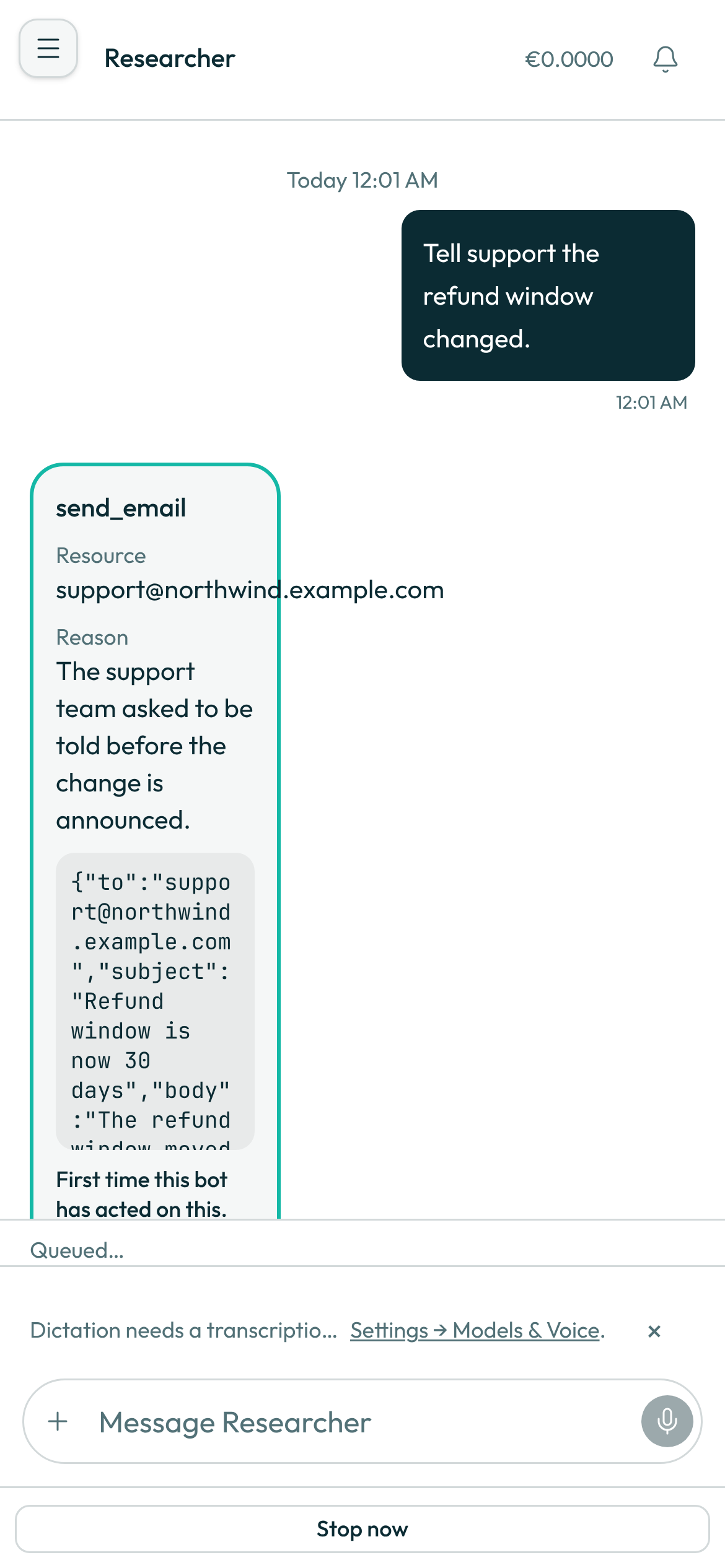
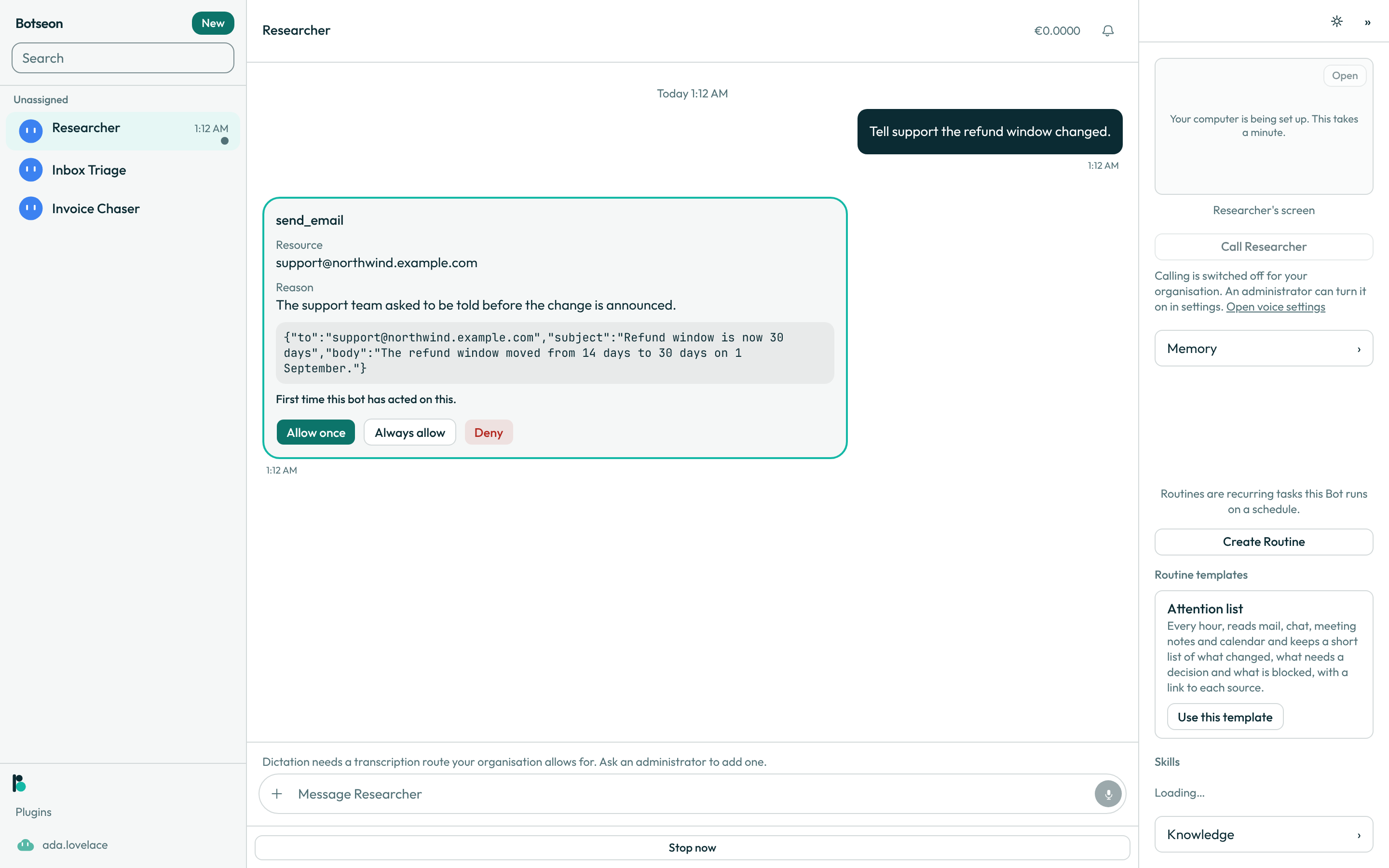
- Read the resource and, if the bot gave one, the reason. The resource line names what the action targets; a reason sits under its own heading when the bot supplied one.
- Read the input. The card shows what the bot will send or write, cut off at 2,000 characters — never rendered as a link or as formatted text, whatever the input contains.
- Notice a highlighted card. A card with a coloured outline means this is the first time this bot has acted on this particular resource.
- Choose Allow once, Always allow, or Deny. These three labels are fixed — the bot cannot rename them, reorder them, or add a fourth. Always allow is left off the card for anything a saved rule can never cover: spending, signing in, deleting, deciding about a person, or running something on your own computer.
- Read what happened. Allow once and Deny answer straight away. Always allow shows the rule it saved, in one line, where the buttons were. A decision that fails — the card was already answered, its time ran out, or the action turns out to be one no rule can cover — says why, and the buttons stay so you can try again.
A worked example
Always allow never reads anything you type: it compiles a rule from the card's own resource and
tags. For a card whose resource is mail:ida@example.test and whose tag is external_send, the
line the card shows once you choose Always allow reads:
send mail without asking for mail:ida@example.test, only for this bot.
The rule that line describes can also start covering a call with nobody pressing a button: once it is saved, a later action that matches the same resource and tag is allowed automatically, checked first by the same automatic review that checks every rule-released call — see The automatic reviewer for what that check does and what turns it off.
A team proposal
Some cards ask you to decide a whole team rather than one action: a bot's proposal for the bots, routines and connectors a goal you gave it needs, staffed in one go. It is one card for the whole team, not one per bot. The two controls are Approve and Edit — Approve creates every bot, its routines and the group together; Edit hands the proposal back to the composer and creates nothing. Always allow is never offered on this card: staffing a team is one of the decisions you make every time, not one a saved rule ever takes over.
Let one bot send without drafts
By default every email and Slack message a bot writes waits as a card for you to approve. For a bot you trust with its own messages, you can turn that off:
- Open the bot's details and find Send without drafts, under the spend limit. Only the bot's owner sees it.
- Turn it on. From the next send, the bot's email (from its own address, Gmail or Outlook) and its Slack posts and replies go out directly, without a card.
The bot knows the switch is on: when it writes an email from its own address it is told the mail goes out at once, so it writes the finished mail rather than a draft for you to check.
Some sends still wait for you even with the switch on:
- Anything after the bot has read someone else's words. If, in that conversation, the bot read an email, a web page, a document or a channel message, its next send is a card again. Instructions in mail it received never count as your permission.
- Conversations a channel message started, such as a Slack mention, because whoever wrote that message is not you.
- Conversations a teammate has with your bot. The switch covers your own conversations only.
- Anything your organisation requires approval for or blocks. An organisation's rule still wins.
- Spending money, deleting a message and signing in. No switch covers these.
Every change to the switch is recorded in the organisation's audit log.
What can go wrong
| What you see | Why | What to do |
|---|---|---|
This card no longer exists. | The approval row is gone, or the link you followed was stale. | Return to the conversation; the bot posts a fresh card if it still needs one. |
approval <id> is already decided | Someone already answered this card, on this device or another one. | Nothing to do — the transcript already shows the decision that was made. |
This approval expired, so it did not run and can no longer be approved. | The card came from work you did not start — a routine, an event trigger, or another bot's hand-off — and nobody answered within 10 minutes. The card is marked Expired. | Ask the bot to try again; it raises a new card. Always allow this in the future on the expired card saves the rule for next time, without running this action. |
Approve this purchase with your passkey or security key. Nothing was approved. | A purchase is approved with your passkey or security key, never with Allow once. | Approve it with your passkey or security key, or choose Deny. |
This action can never be always-allowed. Use Allow once instead. | The action carries a tag no saved rule may ever cover, so the button was never meant to be pressed. | Choose Allow once or Deny. |
That decision could not be recorded. | The save failed for a reason the card cannot narrow down further. | Try the same button again. |
See also
Last verified against build 71798d4.