Ask for help
Member·12 minutes to read
What this does for you
Send a report a person can act on, with your address, the version, the conversation and the request id already attached and every secret-shaped value stripped out of it before it leaves your screen.
Before you start
- Be signed in — the feedback dialog resolves the conversation and the request id under your own account, so it is only reachable from inside the app (Sign in).
- Know what you are reporting: a whole conversation, one result, or a page that failed. Each has its own way in, and each fills in a different part of the report.
- Have the reply address settled. The
I'd like a responseswitch is only usable when the deployment has a support address configured; the variable that carries it isBOTSEON_SUPPORT_EMAIL, and your administrator or operator sets it. Without one, feedback is still recorded — nobody can write back. - Know where the documentation lives. The account menu's
Help Centerrow opens the site named byBOTSEON_DOCS_URL; it is disabled when the operator has set none.
Steps
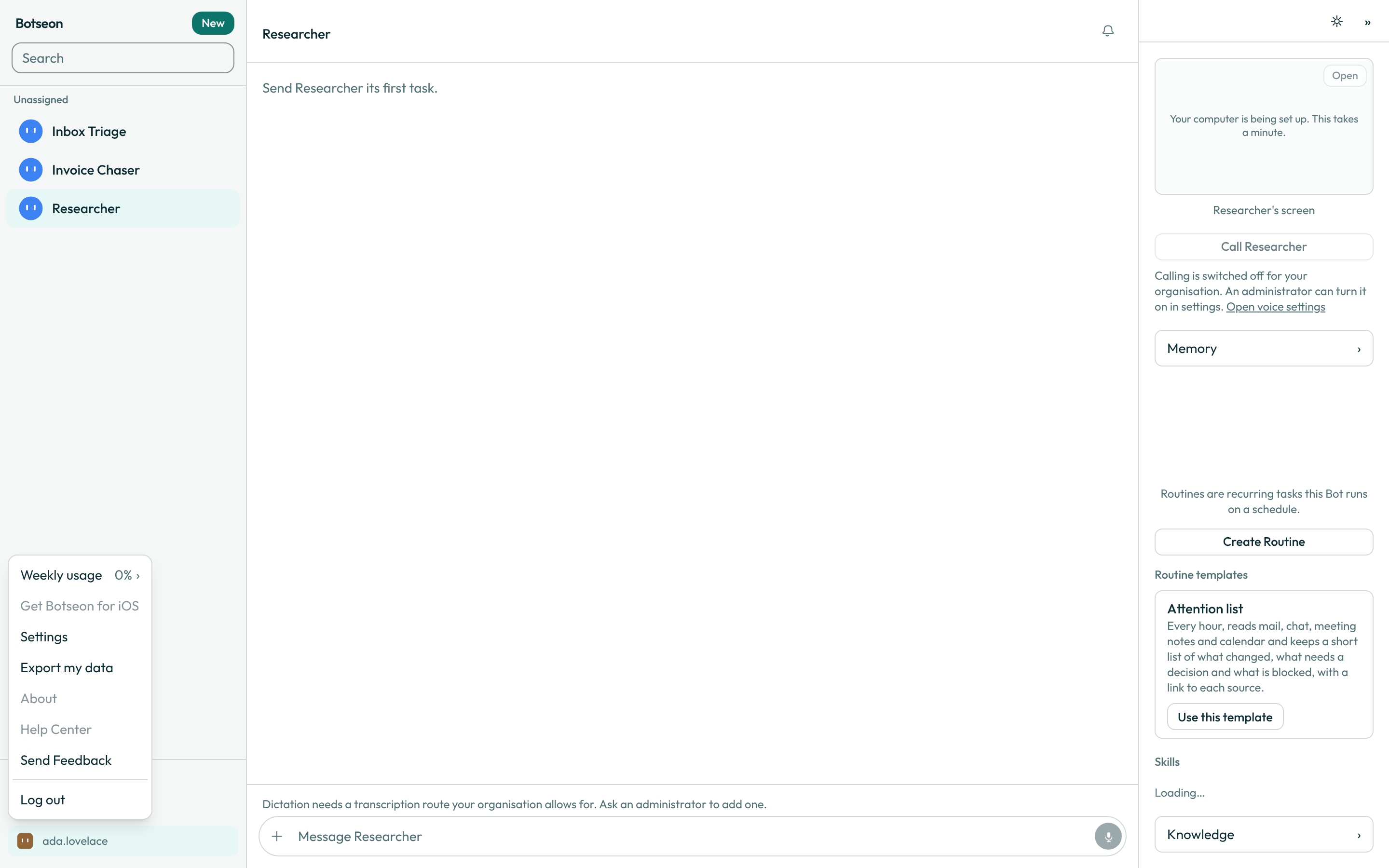
- Open the account menu. It is your avatar, the first of the three controls at the foot of the sidebar.


- Choose
Send Feedback. The bot on the page you were looking at is captured at that moment, so changing pages afterwards does not change what the report names.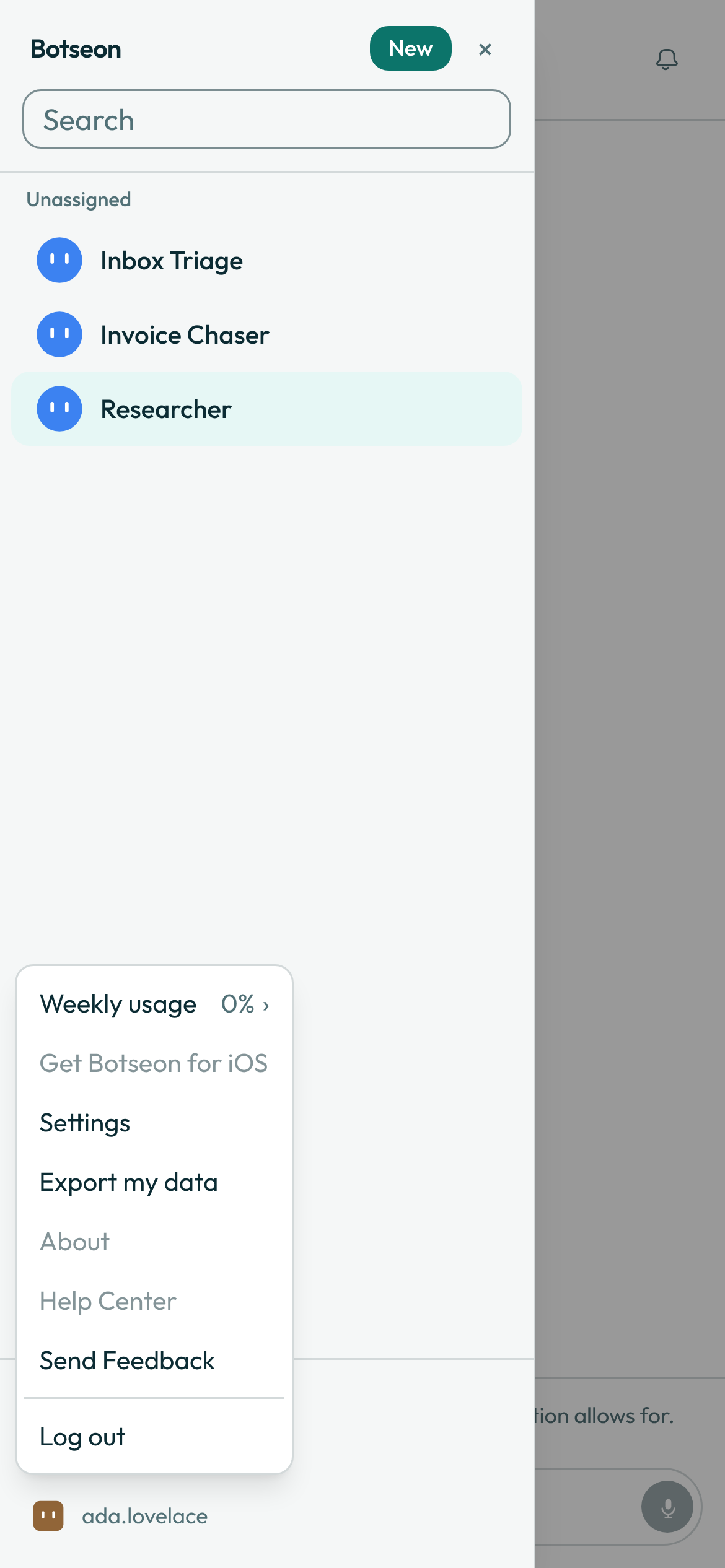
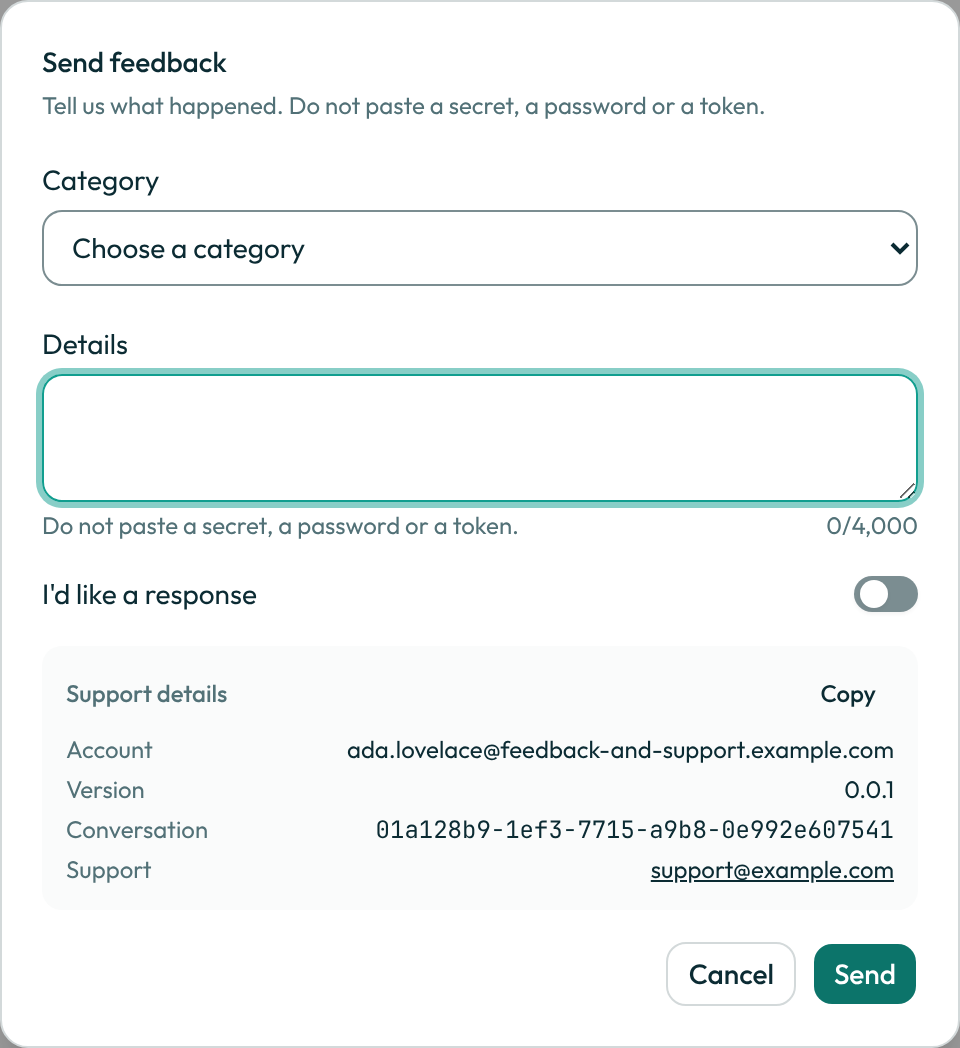
- Choose a category. The list is
Wrong or incomplete result,The bot did something it should not have,Too slow,Something in the app is broken,Billing or usageandSomething else.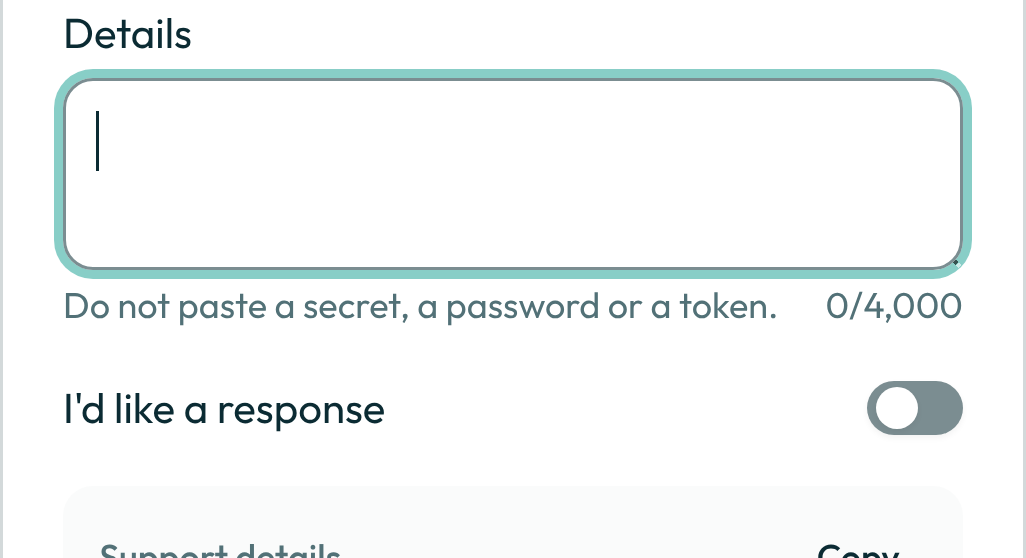
- Write what happened in
Details. The box holds 4,000 characters, and a counter under it shows how many you have used. - Do not paste a secret, a password or a token. The checklist below says what that covers.
- Decide whether you want a reply, and set the
I'd like a responseswitch. - Read the
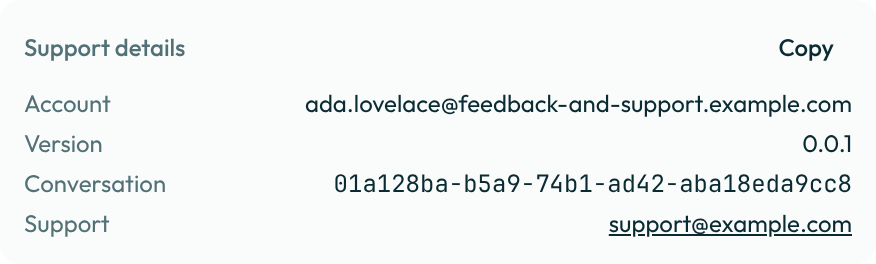
Support detailsblock above the buttons. It carries your address and the version always, and the conversation, the request id and the status page when there is one to carry.Copyputs the same lines on your clipboard, for a ticket or a message somewhere else.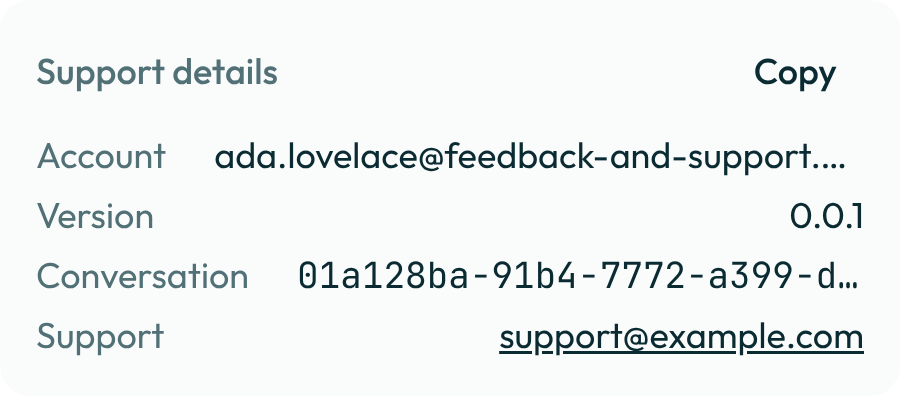
- Choose
Send. The button stays unusable until you have chosen a category or written something.
Reporting one result
A thumbs row sits under a result the bot produced. A plain reply has its thumbs in the meta row under it instead; a reply never shows both.
- Choose
Good resultorBad result. The rating is written the moment you choose it; choosing the same one again clears it locally and writes nothing. - Choose
Add detailson the line that follows. The dialog opens on that message, and a bad rating preselects theWrong or incomplete resultcategory. - Finish as in steps 4 to 8 above.
A card is left in the conversation for a rating that named a message, so you can return to it later and add details from there.
In the phone app the same card shows the rating you gave. Tap Add details, write what went wrong or right, and tap Send; a bad rating files it under Wrong or incomplete result, as the web dialog does. Each time you send, a new report is kept beside the earlier ones; nothing you sent before is changed. A report sent from the phone is kept with the others and read by the same people, but it does not send the copy to the support address that a report from the web sends.
Reporting a page that failed
- Read the line under the message. When the failure happened on the server it carries
Request ID:and the id itself. - Choose
Send Feedbackon that page. The request id is carried into the report without you copying it. - When the page shows no request id, the failure happened in your browser and there is nothing to correlate; report it from the account menu instead and say what you were doing.
To take a request id from a single message rather than from a failed page, open the message's More menu and choose Copy request ID. The item is unusable on a message no run produced.
Telling your bot
You can also give feedback about the product in the chat, without opening the dialog.
- Tell your bot what you want the team to know — for example "Send the team some feedback: exporting to PDF never finishes."
- Your bot asks whether you would like a reply from support. Answer yes or no; it does not send anything until you have answered.
- Your bot sends it and says so. With a yes, support replies to your account's address; with a no, nobody writes back.
What your bot sends is recorded exactly like a report from the dialog — the conversation is attached, secret-shaped values are stripped before it is written, and the same hourly ceiling applies. Your bot only sends feedback you asked it to send: if it has just read a web page or someone else's mail in that answer, it asks you to say it again in a new message.
When your bot keeps a rule
<!-- surface: cards/rule-learned -->In your one-to-one chat with a bot, you can tell it how you want something done from now on — for example "From now on, send drafts as bullet points." The bot can keep that as a rule for itself.
- A card appears in the chat saying what the bot learned and that it came from your message.
- To take it back, choose
Undoon the card. The card then readsUndone, and the rule is gone.
Rules are yours alone: an administrator of your organisation cannot read them.
What a rule changes
From the next run on, the bot follows your rules in everything it does for you: your chats with it, its background tasks, your routines and its follow-ups. A rule you turned off, replaced or deleted is no longer followed.
- Your rules for a bot apply to your work with that bot only. A teammate who uses the same Team Bot does not get them, your other bots do not get them, and a group chat follows no one's rules.
- Your organisation's rules come first, and whatever you say in your latest message wins over a rule.
- A rule is a preference, never a permission. A step that needs your approval still asks, whatever a rule says.
To see exactly what the bot was told, open a reply's More menu and choose Inspect prompt. The Learned rules section lists the rules that run followed; a run with no rule has no such section.
Seeing and changing your rules
<!-- surface: conversations/learned-rules -->- Open a bot's details and choose
Learned rules, beside Memory and Knowledge. The list holds the rules this bot learned from you — nobody else's — each with its words, whether it isOn,OfforReplaced, the day it was learned, and where it came from:from your 👎 on a reply, with the words you wrote, orfrom your message. Each one links to that reply or message; when the message has since been deleted, the words stay and the link goes. - Choose
Editto change the words. They are kept to one short line, the same as when you taught them; where the rule came from still shows, and the card in your chat can no longer undo it. - Choose
Turn offto pause a rule without losing it, andTurn onto bring it back. A bot keeps at most 30 rules on from you at once. - Choose
Deleteto remove a rule for good. A rule it had replaced comes back on.
To see the rules of all your bots at once, open Settings and choose Learned rules: the same list, grouped by bot, with the same actions. An administrator of your organisation has no view of it.
The no-secrets checklist
The product removes secret-shaped values twice — once in your browser before the report is sent, and once again on the server before it is written — and tells you how many it removed. Treat that as a safety net, not as permission.
- No password, for this product or for any other.
- No API key or access token, whether it is a provider's, a plugin's or your own.
- No private key block, and no certificate.
- No database or connection string that carries a user name and a password.
- No one-time code, and no session cookie.
- No personal data about somebody who is not part of what you are reporting — a whole mailbox pasted to show one line is five hundred people's data.
If the report needs a value you should not paste, describe it instead: say which setting it is and where it came from, and let whoever answers ask for it over a channel built for it.
A worked example
Ida is reporting a run that produced the wrong answer. She opens the dialog from the result, chooses Wrong or incomplete result, writes two sentences, and copies the support block before sending. This is what Copy puts on her clipboard:
Account: ida@example.test
Version: 0.0.1
Conversation: 018f2b1c-4d5e-7a8b-9c0d-1e2f3a4b5c6d
Request: req_018f2b1c-4d5e-7a8b-9c0d-1e2f3a4b5c6d.42
Only the rows with something in them appear: your address and the version are always there, and the conversation, the request id and the status page are added when the dialog could resolve them. The request id is the run's own id followed by the position of the step inside it — it means nothing on its own, which is why it is safe to paste into a ticket.
What can go wrong
| What you see | Why | What to do |
|---|---|---|
Choose a category or write a few words first. | Send needs one of the two before it will do anything. | Pick a category, or write a sentence. |
That submission could not be read. Choose a category or write a few words, up to 4,000 characters. | The report was empty, or the details were far past the limit. | Write something inside the limit and send again. |
You have sent a lot of feedback in the last hour. Try again later. | There is an hourly ceiling on how many reports one person can file. | Wait, then send the rest. |
That conversation is not here any more. | The conversation or the message the report named was deleted while the dialog was open. | Close the dialog, reopen it from somewhere that still exists, and send again. |
Feedback could not be sent. Try again. | The report did not reach the server, or the dialog could not resolve its context. | Retry. If it keeps failing, write to your administrator with the request id from Troubleshooting. |
This deployment has no support address, so nobody can reply. Your feedback is still recorded. | No support address is configured, so the switch has nothing to send to. | Send it anyway, and ask your administrator to configure one. |
This message has no request id yet. | That message was not produced by a run, so it has no id. | Copy the id from a message the bot wrote instead. |
Help Center opens the documentation site once this service has one set up. | The documentation address is unset on this deployment. | Ask your operator to set it. |
Something went wrong. | A page failed while it was being rendered. | Use the retry button, then report it from that page so the request id travels with the report. |
This page ran into a problem. Your other bots are unaffected. | The failure is scoped to the page in front of you. | Go back to your bots, then report the page that failed. |
There is nothing here. | The address does not exist, or it is not yours to see. | Check the link you followed, then go back to your bots. |
The page you asked for does not exist or is not yours to see. | The two causes are deliberately not distinguished. | Ask whoever sent you the link to check it. |
That bot is not here. | The bot was deleted, or the link is older than the bot. | Open a bot from the sidebar. |
See also
Last verified against build 2ba34c8.