The desktop app
Member·10 minutes to read
What this does for you
The desktop app puts Botseon in your dock, checks for its own updates on a track you choose and installs them from the account menu, and confirms every link before it opens one.
Before you start
- You're signed in on the web.
- Your account and appearance settings are shared with the browser — see Your account and settings.
- Know which build your operating system needs; the installers are signed for macOS, Windows and Linux separately.
Steps
-
Download the build for your computer from the download page. The download button on the botseon.com homepage names the system you are on and gets its build; the link beside it lists the other platforms. Install the signed build — a notarised disk image on macOS, a signed installer on Windows, or a
.deb,.rpmor AppImage on Linux — and open it. On macOS, if you open the app from Downloads or anywhere else outside the Applications folder, it asks once whether to Move to Applications Folder; moving it lets it update itself and relaunches it from Applications. Choose Do Not Move to keep it where it is; it does not ask again. -
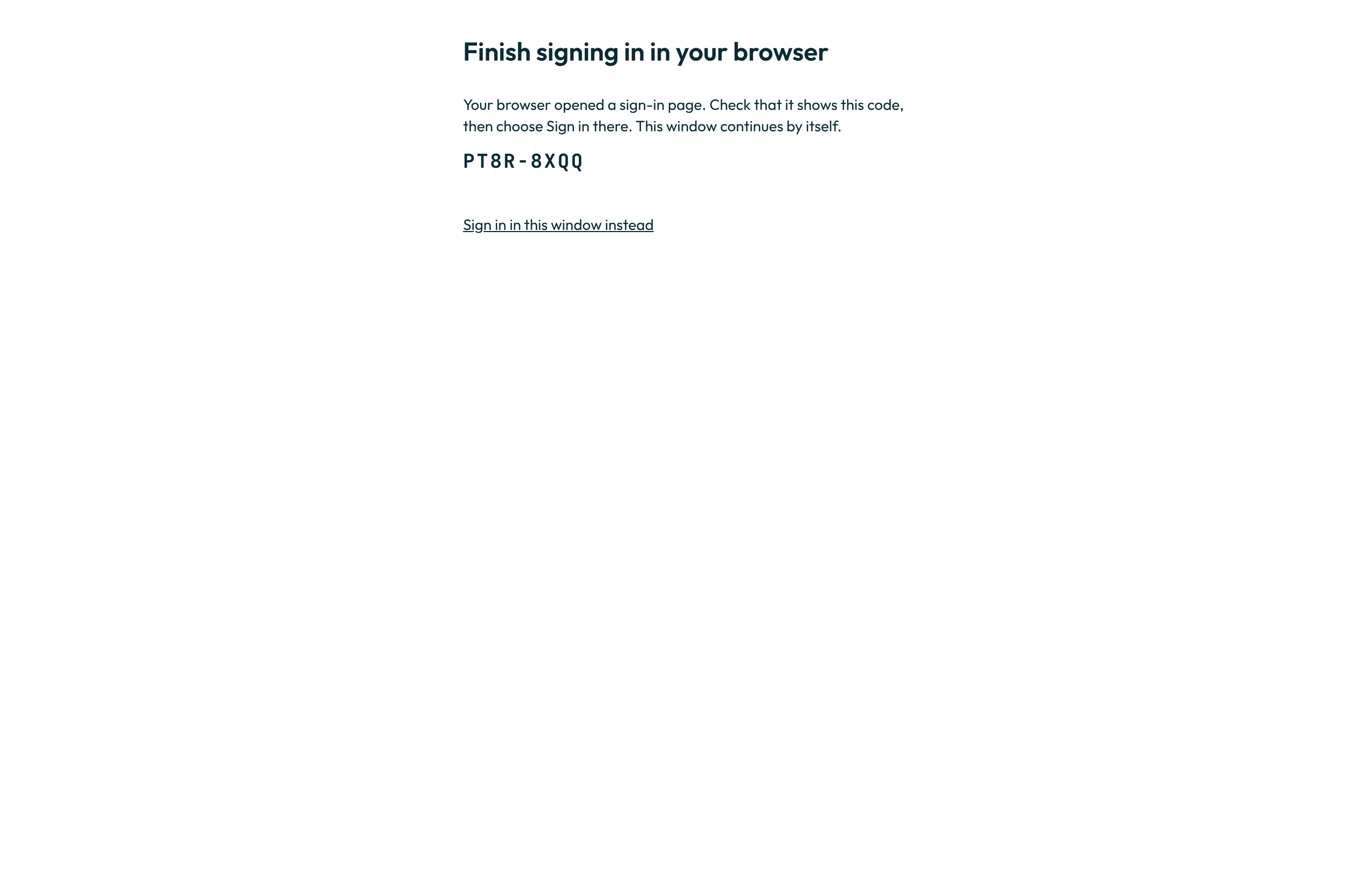
Sign in once; the desktop app and the browser share the same account. Signing in opens your system browser, where you approve the app on a page that names it and the account it would act as. The app window shows a short code while it waits; check the browser page shows the same code, then choose Sign in there. You don't need to switch back or let the browser open the app: the app notices the approval by itself within a few seconds, signs its window in once, automatically, and you land in Botseon. You can close the browser tab.
-
Use the tray icon to reopen the window, check for updates, or quit. While updates are on, the tray and the app menu also carry Install Updates While Away, a checkbox that is off until you turn it on.
-
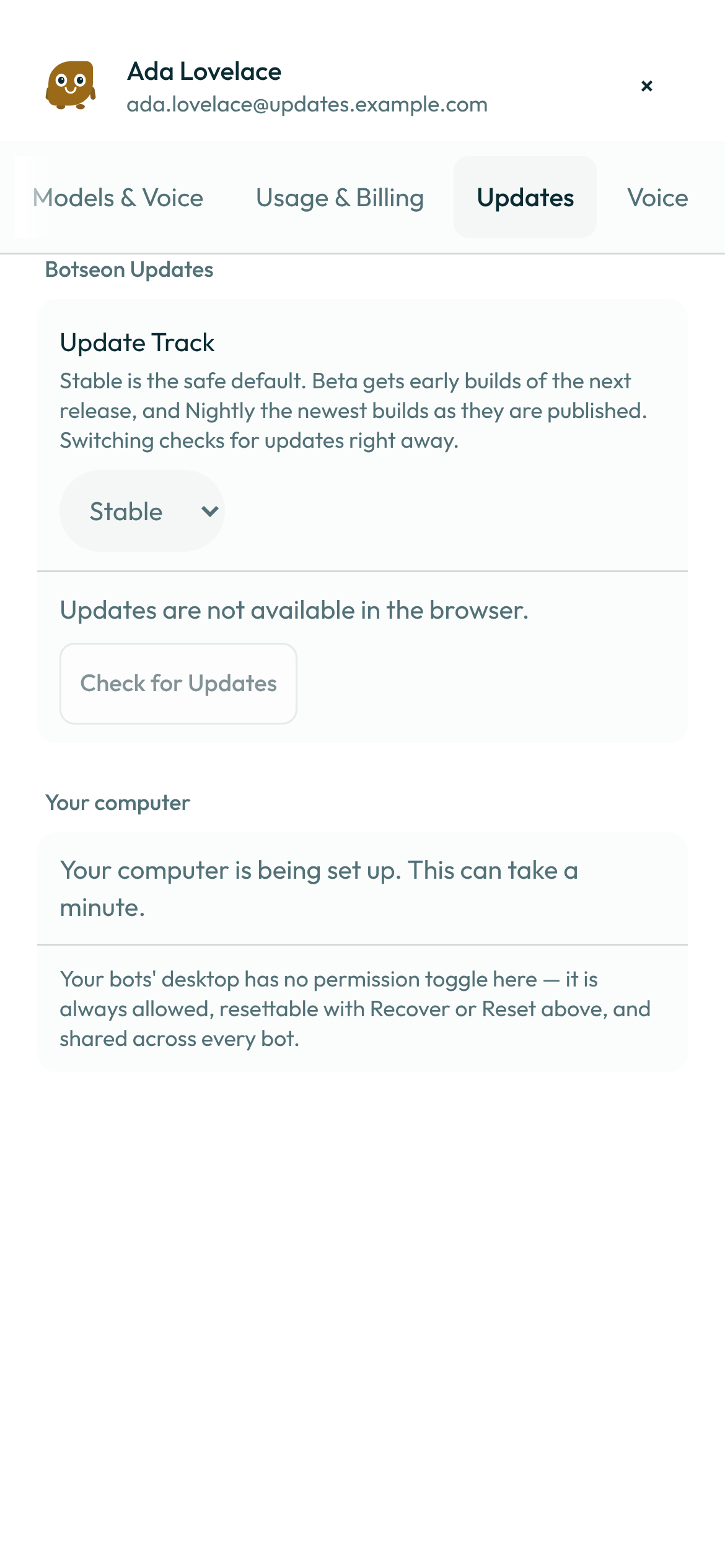
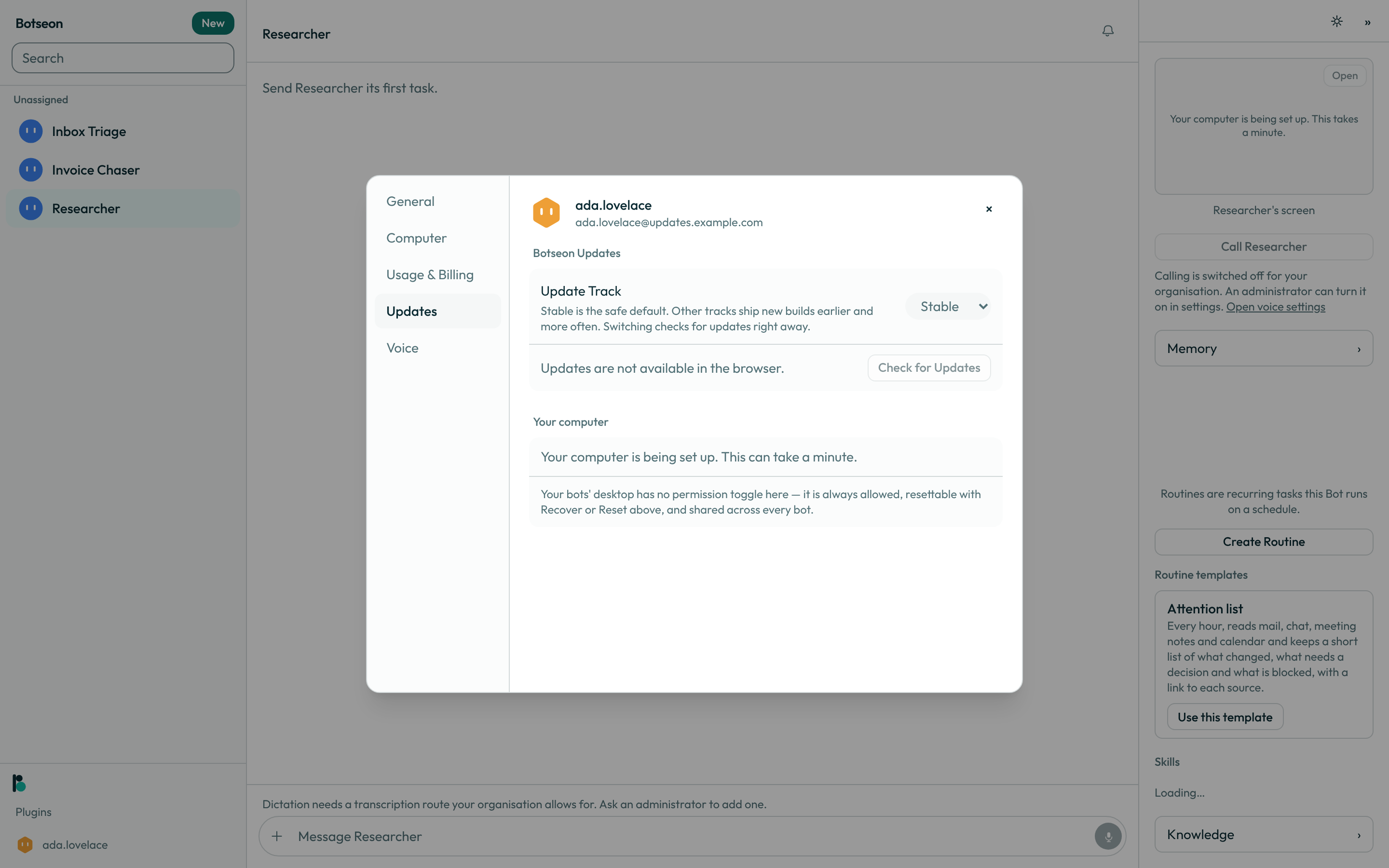
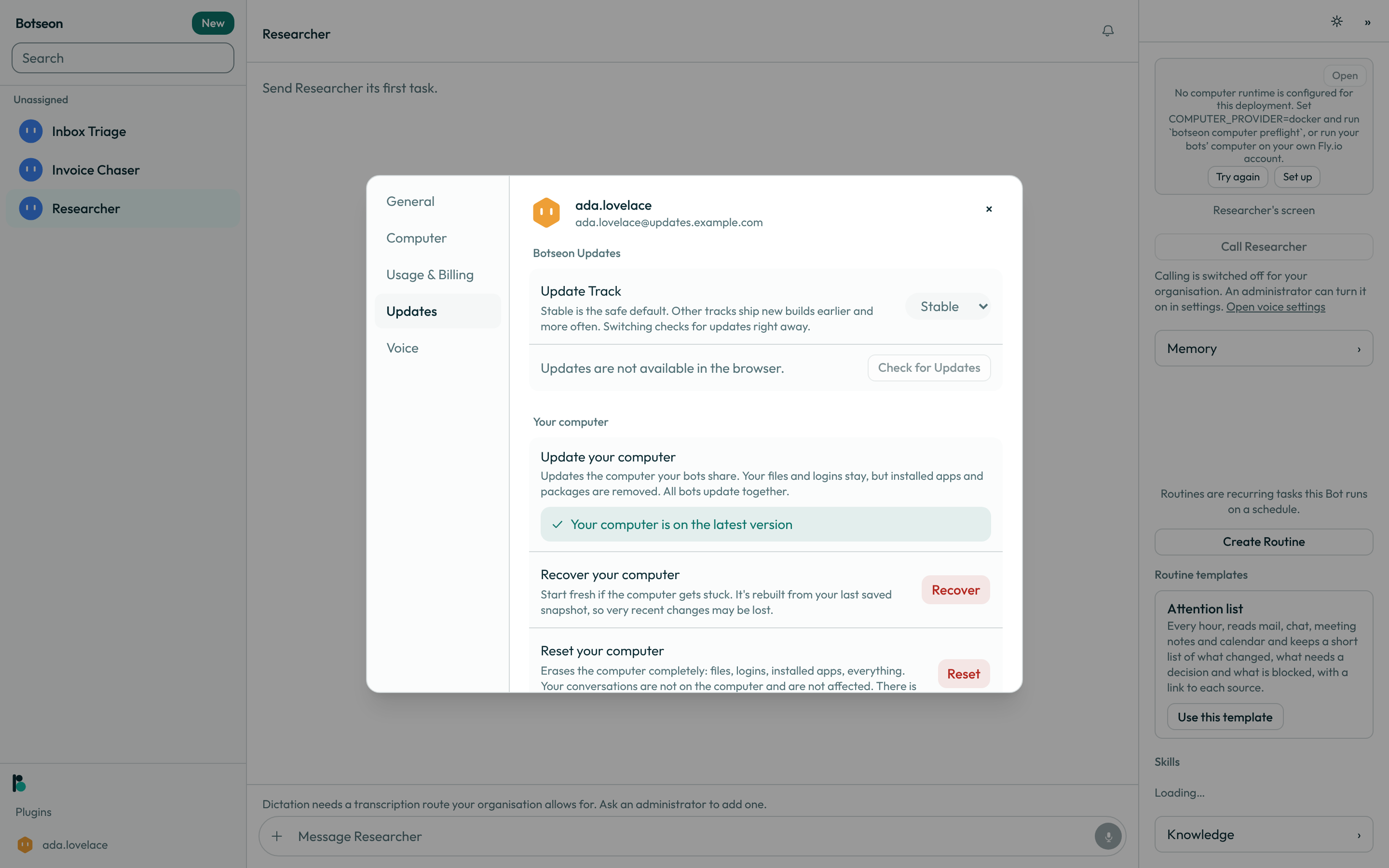
Open Settings → Updates to choose your Update Track — Stable is the safe default; Beta gets early builds of the next release and Nightly the newest builds as they are published, and switching checks for updates right away. Beta also carries every Stable release, and Nightly every Beta and Stable one, so you are always offered the newest build on your track or a more stable one. Going back to Stable never installs an older build: you are offered the next Stable release once it is out.
-
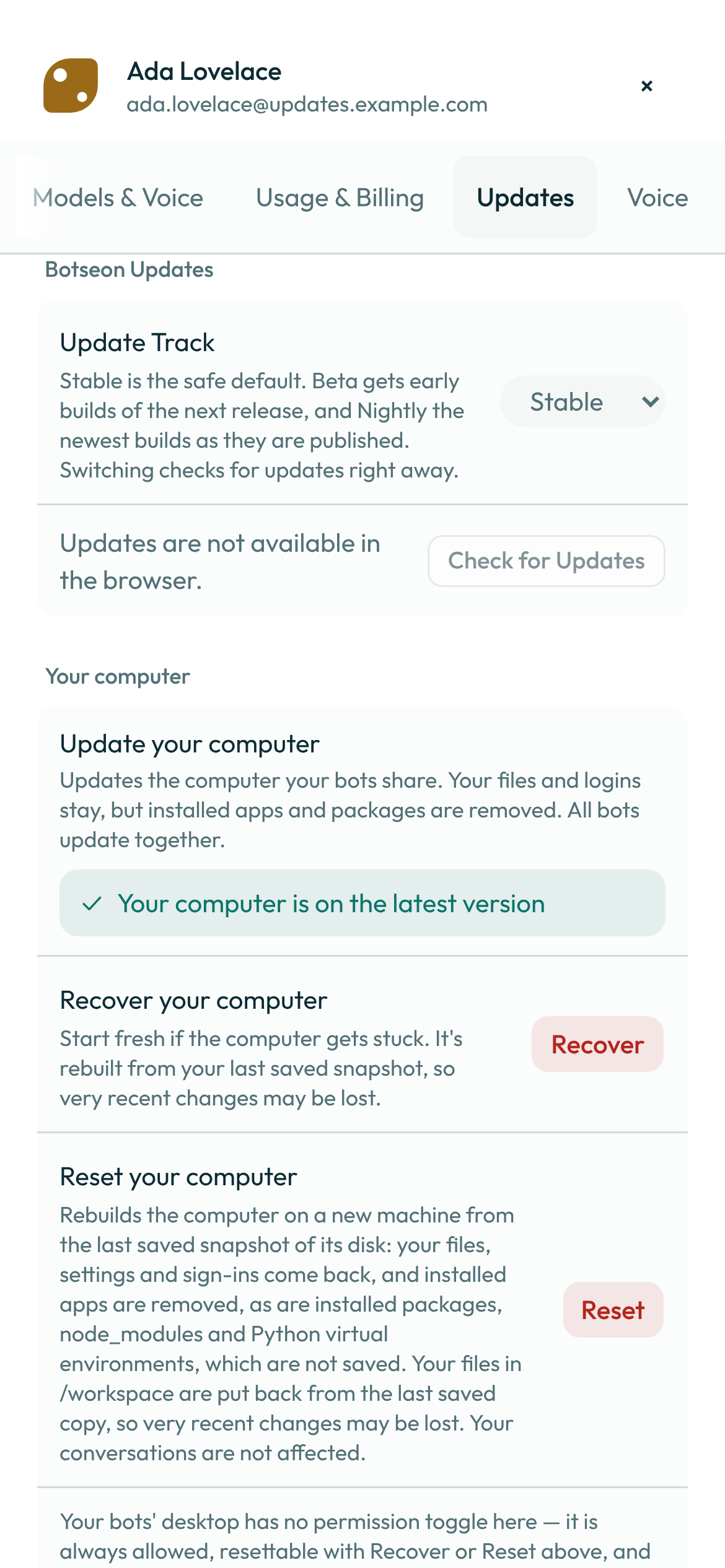
The same tab shows your running version and a status sentence — up to date, an update ready to install, or why a check offered nothing or failed — with a Check for Updates button that stays available even while you're current.
-
When a build is ready, install it: in the app menu and in the tray, Restart to Update takes the place of Check for Updates. Most installs restart the app for you; a
.debor.rpminstall instead shows Open Installer (in the menus, Install Update…), which opens your system's own package manager and asks you to confirm. Below it is the same install as a terminal command (sudo apt install …orsudo dnf install …, naming the downloaded file); choose Copy command and paste it into a terminal if you prefer. With Install Updates While Away on (a checkbox beside the update item in the app menu and the tray; off until you turn it on), a ready update installs itself once you have been away from the app for half an hour — never while a command from a bot is running on your computer or a reply is still arriving, and never for a.debor.rpm, which needs you to confirm.You don't have to open Settings to update. When a newer build is out, open the account menu: it shows New update available with the new version. Choose Install to download and verify that build, then Restart to update to restart the app into it. If you close the menu in between, it still shows Restart to update when you open it again. Once a downloaded build is ready, a dot on your account row says so. The app checks for updates on its own whether you use Botseon's hosted service or run your own server; to turn checking off on a computer, start the app with
BOTSEON_UPDATE_CHECK=0. Your work keeps running in the cloud while the app restarts. A Bot's run, a routine or a conversation that's already answering carries on on Botseon's servers; when the app is back, open it to see the result. Only something running on this computer itself (local execution) stops with the app. On Linux you usually don't need the Updates tab at all: installing the.debor.rpmalso adds Botseon's signed package repository to your system, sosudo apt upgrade(Debian, Ubuntu) orsudo dnf upgrade(Fedora, RHEL) updates Botseon along with everything else. The firstdnfrun asks you to accept Botseon's signing key; check that it says Botseon and answer yes. -
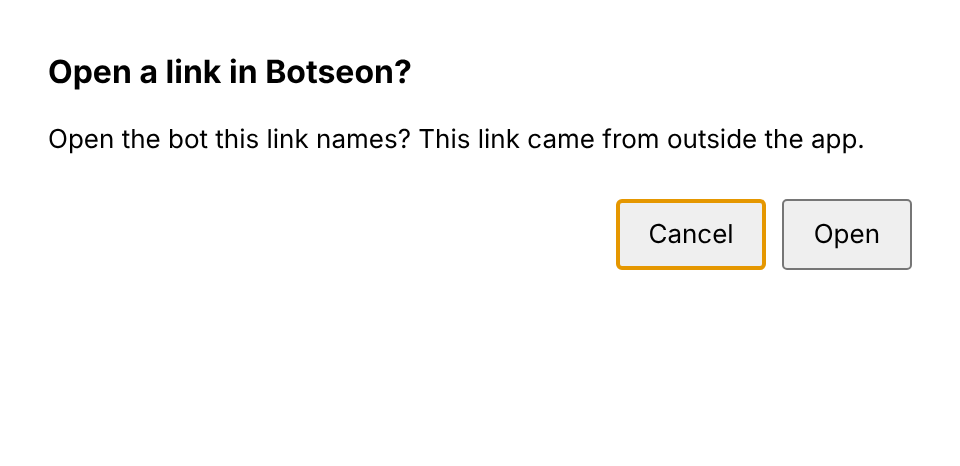
A link that tries to open inside the app — from a web page, a message or another application — asks you to confirm first, with one exception: the link that returns you from the browser after signing in (Step 2) opens directly, without asking. Beyond that one case, the app never shows you the raw link as something to click through blind.
Update required
If your version is no longer supported, if your organisation requires a newer version, or — on Botseon's hosted service — if your build is more than 14 days old and a newer release is out, the app shows Update required in place of Botseon until you update. On your own server there is no age limit unless you set BOTSEON_UPDATE_MAX_AGE_DAYS. The screen offers one of three buttons, depending on where the update is:
- Update downloads and verifies the new version;
- Restart to update installs the downloaded version and restarts the app into it;
- Try again appears when the download or the check failed, and checks again.
Download the latest version is always there and opens the download page in your browser. On Linux with a .deb or .rpm, Update opens your package installer, and the screen also shows the install command with Copy command. Your Bots keep running in the cloud meanwhile.
The app checks for updates by itself. To turn that off, set BOTSEON_UPDATE_CHECK=0 in the app's environment.
A worked example
A stable-track update that is ready to install reads like this on the Updates tab, before you press the button:
Version 1.4.0
Updates follow the Stable track
An update to 1.4.1 is ready to install
[ Install and Restart ]
What can go wrong
| What you see | Why | What to do |
|---|---|---|
Updates are not available in the browser. | You opened Botseon in a browser tab rather than the desktop app. | Open the desktop app to check for or install an update. |
This build does not check for updates. | This particular build carries no update-signing key. | Reinstall from a signed release if you need updates. |
This version is no longer supported. Install the update to continue. | Your build has aged past what the service still accepts. | Install the update shown; there is no way to postpone it further. |
Nothing has been published on this update track yet. You keep the version you have. | You picked Beta or Nightly, no build of that track has been published for your kind of installation yet, and no more stable track has anything newer than what you run. | Press Check for Updates later, or switch back to Stable if you would rather not wait. |
The update offered is older than the version you are running, so it was refused. | You moved from Beta or Nightly back to Stable, and your build is newer than the current Stable release. | Keep using the version you have; the next Stable release is offered once it is published. |
Could not check for updates. Try again. | The update check itself failed, usually a network problem. | Try again once you have a connection. |
Could not install the update. Try again. | The install step failed after a successful check. | Try again; if it keeps failing, reinstall from a fresh download. |
The update could not be installed. Try again from Settings → Updates. | The account menu's Install or Restart to update failed. | Open Settings → Updates and press Check for Updates, then install from there. |
Botseon could not be moved to the Applications folder. | On macOS, the move you chose at first launch failed, usually because the Applications folder could not be written to. | Quit the app, then drag it into the Applications folder in Finder. |
| The app still shows Finish signing in in your browser | Nobody chose Sign in on the browser page within ten minutes, or the browser page was closed. | Quit and reopen the app to get a fresh browser page, or choose Sign in in this window instead. |
apt says The following signatures couldn't be verified or NO_PUBKEY for the Botseon source | The key file /etc/apt/keyrings/botseon.asc was removed while the source in /etc/apt/sources.list.d/botseon.sources stayed. | Reinstall the .deb from the download page, which puts both back; or remove the source file if you no longer want updates through apt. |
| You want Botseon to stop updating through your package manager | The repository was added when you installed the package. | Set Enabled: no in /etc/apt/sources.list.d/botseon.sources, or enabled=0 in /etc/yum.repos.d/botseon.repo. Uninstalling Botseon (apt purge, dnf remove) removes the repository too. |
That sign-in did not complete. Try again. | The app window's automatic sign-in (Step 2) did not go through — most often because it was left more than a minute, or because the same sign-in had already been used once. | Sign in again from the app. Each approval signs the window in exactly once. |
On Ubuntu 24.04 or later, the app does not open, or a terminal shows The SUID sandbox helper binary was found, but is not configured correctly. | Ubuntu 24.04 lets an app use the sandbox Botseon runs in only when the app brings an AppArmor profile. The .deb installs one for you (/etc/apparmor.d/botseon); an AppImage cannot install anything. | Install the .deb rather than the AppImage. If you installed the .deb and it still does not open, reload the profile with sudo apparmor_parser -r /etc/apparmor.d/botseon, or reinstall the package. |
See also
Last verified against build 2ba34c8.