Install a plugin
Member·6 minutes to read
What this does for you
A plugin gives your bots a new connector, MCP server, or skill to use, and you install one from the same catalogue whichever kind it is.
Before you start
- You need at least one bot already made, from the sidebar's bot list, to grant the plugin to once it is connected.
- Some connectors need a provider account (a Google or Microsoft workspace, for example) to authorise against.
- An organisation admin may have blocked or required a plugin for your team; a blocked plugin's card carries no working
Add.
Steps
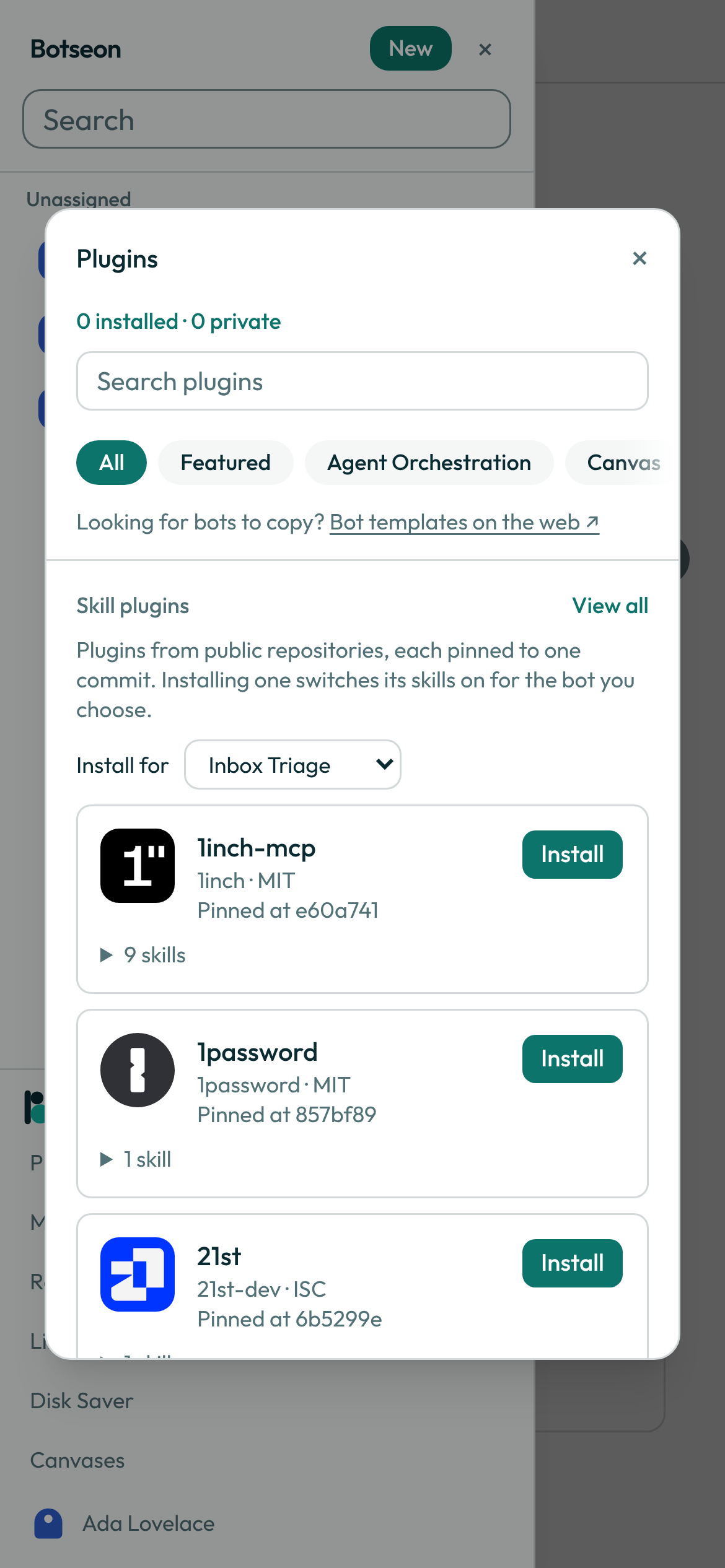
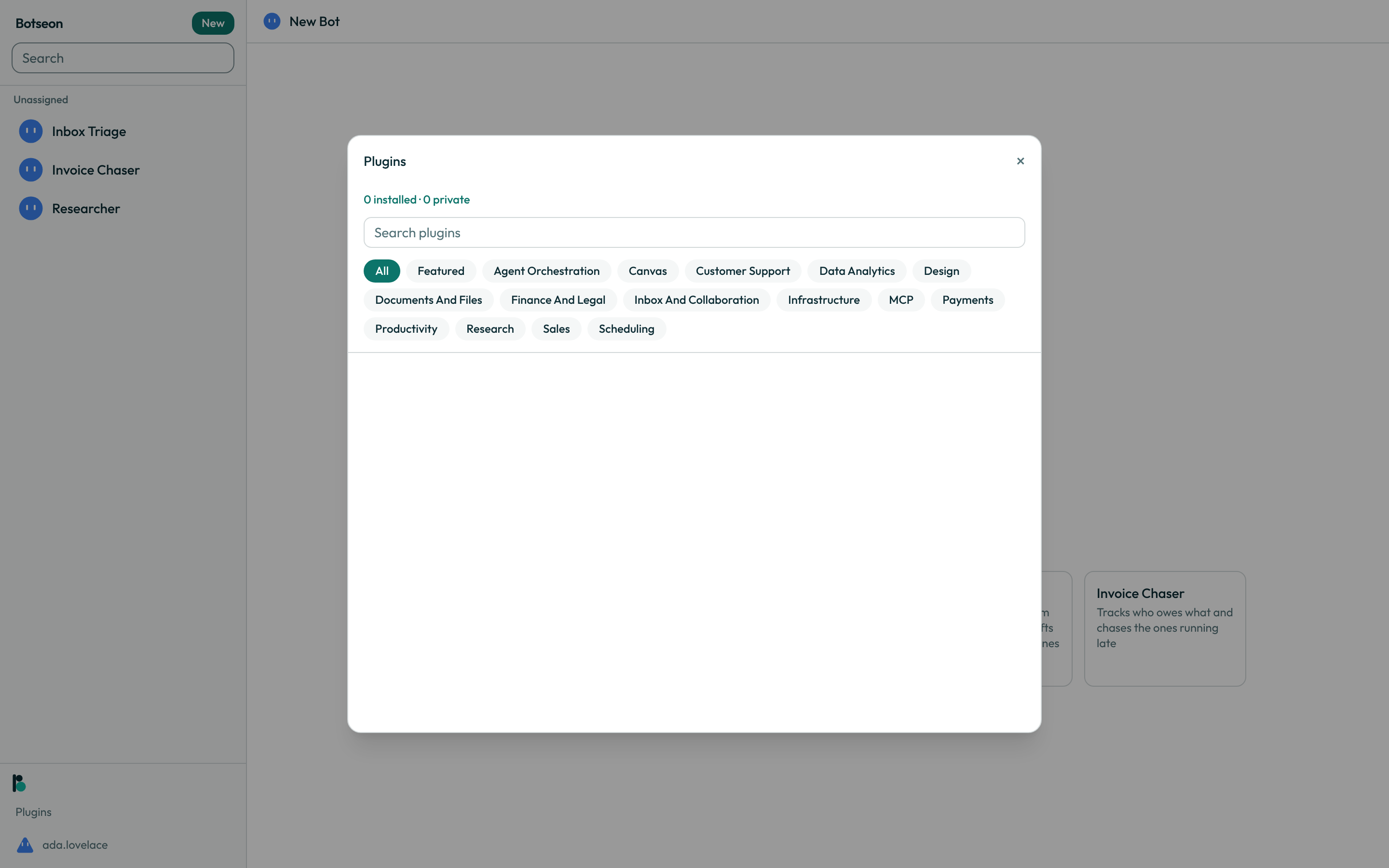
- Open Connect apps at the foot of the sidebar, or Marketplace in your account menu — the in-app marketplace lists plugins only. The sheet opens on the marketplace, with a search field and a row of category chips:
AllandFeatured, then fifteen categories in a fixed order (packages/core/src/connectors.ts:23-39,apps/web/components/plugins/sheet.tsx:34-35). On a phone the chips are a single row you swipe sideways, with a soft fade at whichever end has more chips past it; on a wider screen they wrap onto as many rows as they need (apps/web/components/plugins/sheet.tsx).
-
Browse or search. The
Allview groups entries into one labelled section per category, at most four cards per section, with aView alllink when a category holds more (apps/web/lib/catalogue-view.ts:24). On a phone the grid is a single column, and each card'sAddsits on its own line under the name rather than beside it (apps/web/components/plugins/card.tsx). Selecting a chip, orView all, swaps that grid for a single-column list of that one category alone. If your organisation has published its own packages, aTeam packagessection appears above the categories on this same view (apps/web/components/plugins/marketplace.tsx:182-183). -
A card in the
MCPcategory carriesAdd server…instead ofAdd. Pressing it does not install anything by itself — it moves you to the Installed page with an add-server form already filled in with that entry's name and address, ready to review (apps/web/components/plugins/card.tsx:289,300,apps/web/components/plugins/sheet.tsx:360-366). A connector this deployment has not configured yet is set up the waydocs/connectors/README.mddescribes. -
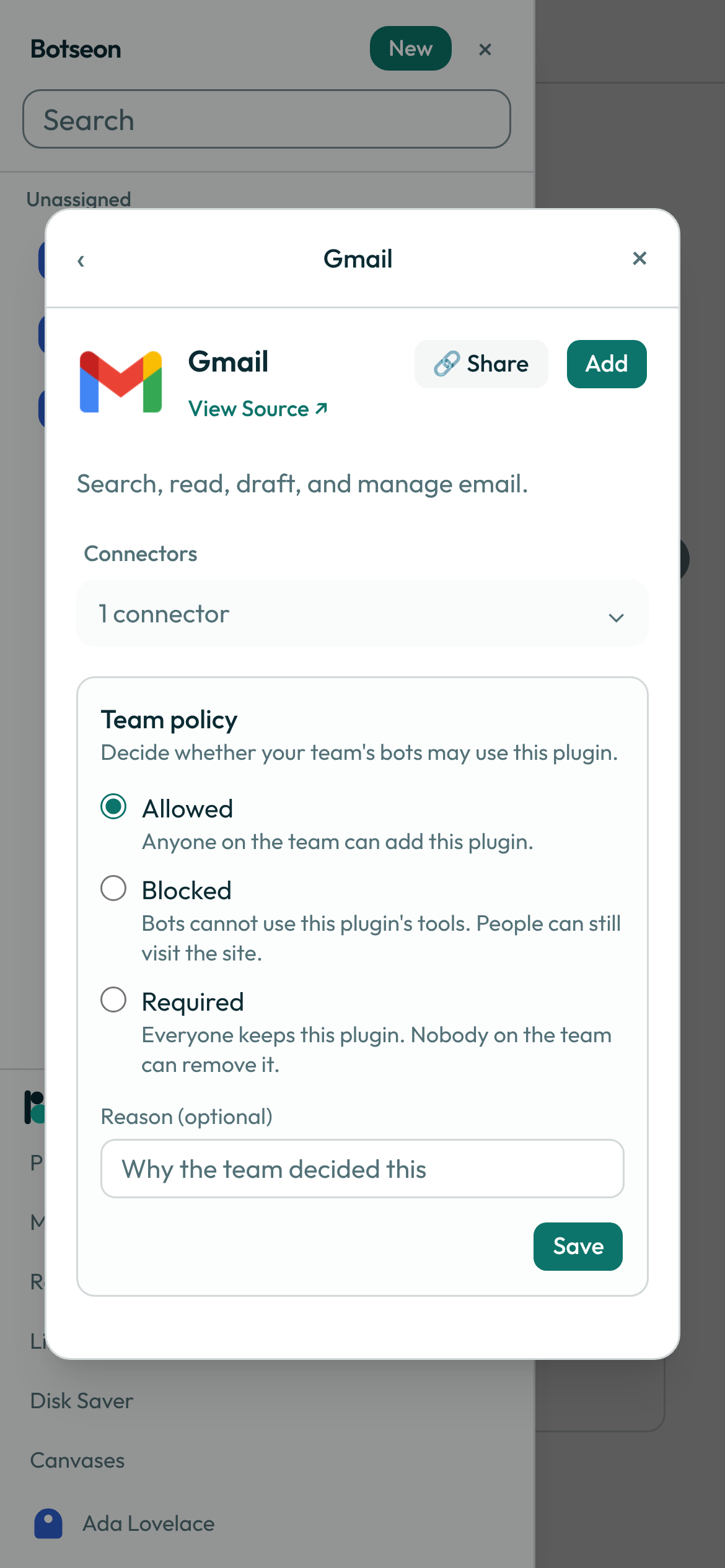
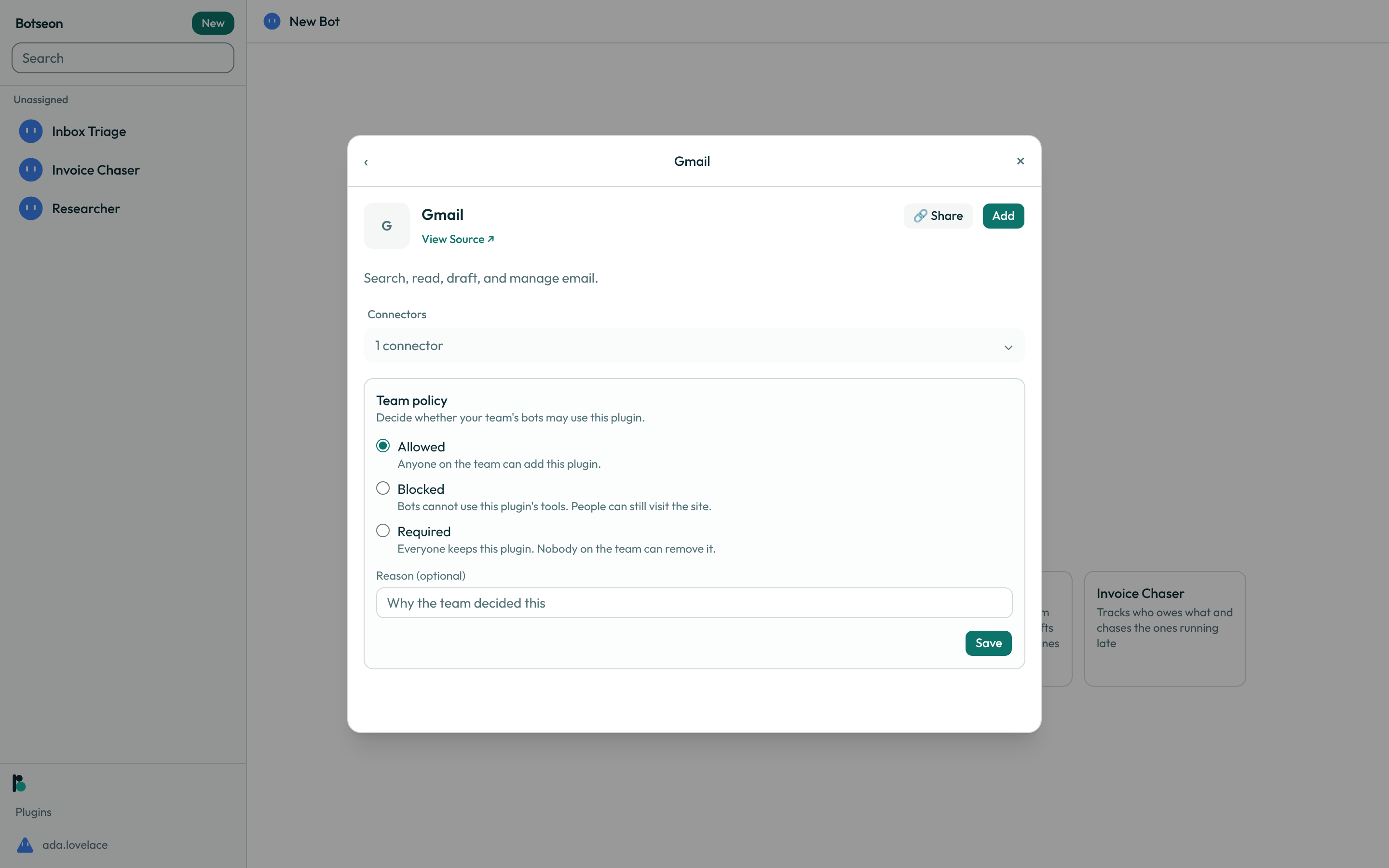
For a connector, press its card, or its name, to open the plugin's detail page: the icon, the full description, a
View Source ↗link when the catalogue records one, and aConnectorsdisclosure — collapsed by default — naming the connector's slug and type (apps/web/components/plugins/detail.tsx:543,696-698,apps/web/components/plugins/connectors-disclosure.tsx:28-72). The disclosure carries no scopes; once the plugin is added, the account row under Accounts lists what Botseon will request before you authorise (apps/web/components/plugins/accounts.tsx:1114-1130).
-
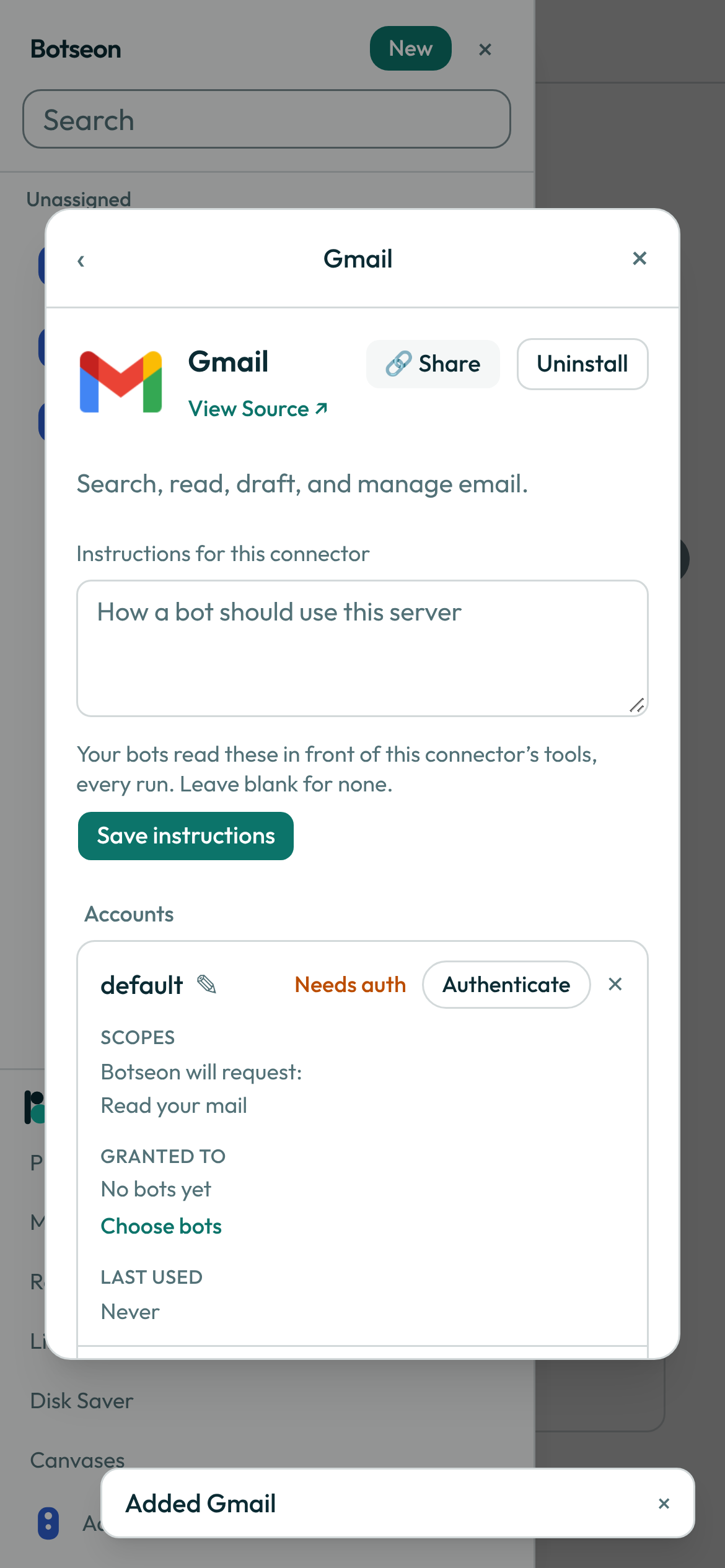
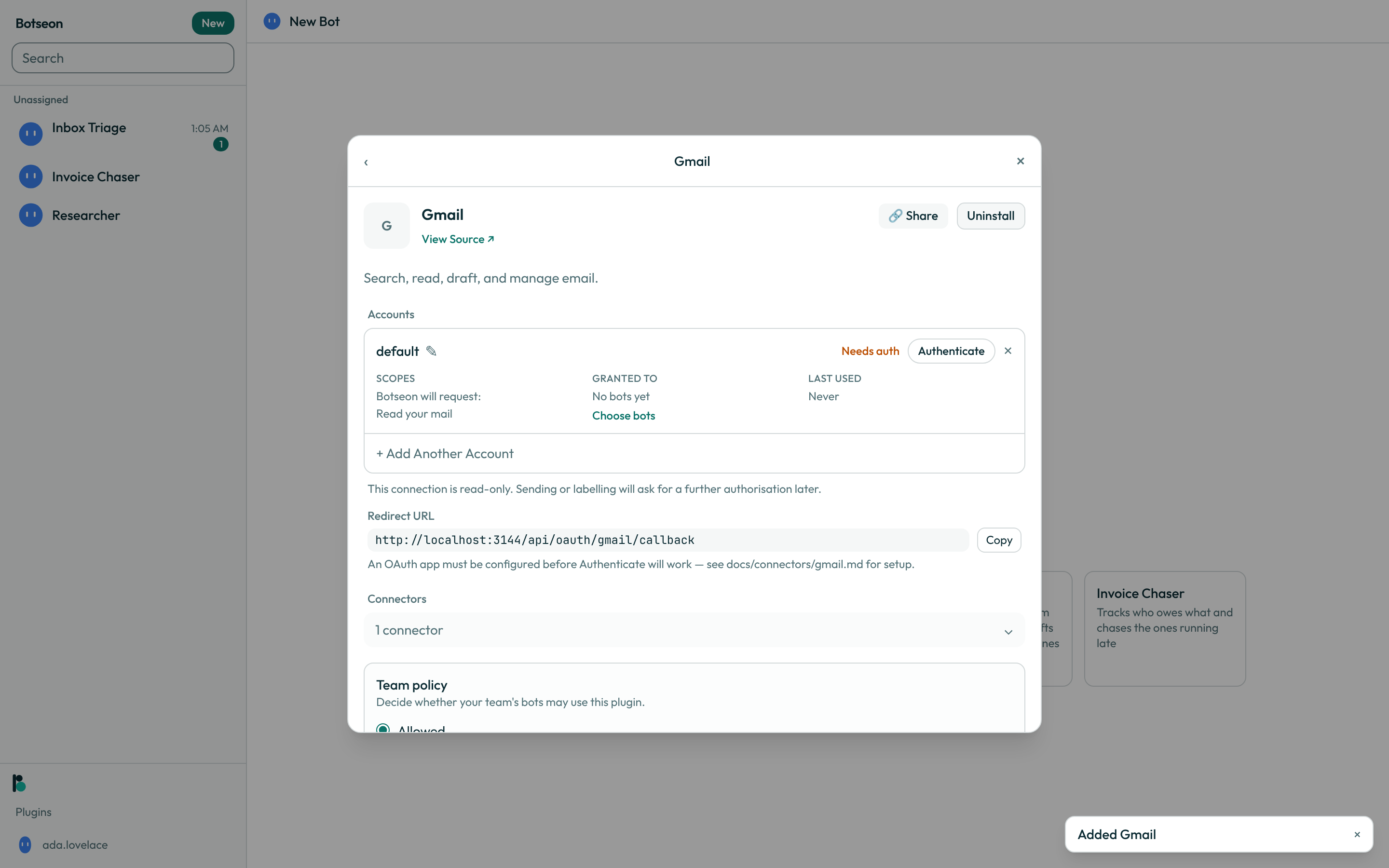
Press Add. Installing is instant: no OAuth, no dialog and no confirmation. The button flips to
✓ Added, a toast confirms it, and an account nameddefaultis created in theNeeds authstate, not yet authorised (apps/web/lib/strings.ts:1230,1251,packages/db/migrations/0020_connectors.sql:31-33). -
Under Accounts, press Authenticate next to the account you want to connect. It opens
/api/oauth/<slug>/start?accountId=<id>in a new tab, which redirects to the provider's own consent screen; meanwhile the row readsWaiting for authorisation, withReopento bring that tab back (apps/web/app/api/oauth/[connector]/start/route.ts:11-16,apps/web/components/plugins/accounts.tsx:486-516). Approve the request there to finish connecting.
-
For an MCP server, finish the add-server form from step 3 and press Continue. Under
Tools this server publishesyou are shown every tool name and description the server intends to publish, so you can read what it will hand your bots before anything reaches a run; press Install to add it (apps/web/components/plugins/mcp.tsx:782-826). -
Grant the account, or the MCP server, to a bot from its Choose bots control. A bot can only use a connector or an MCP server through a grant, and two bots can hold two different accounts of the same plugin (
apps/web/components/plugins/grants.tsx:12-26). -
If the plugin brings its own commands, each one appears in the composer's
<!-- surface: plugins/specialists -->/menu once you have installed it; picking one puts the command's text in the field as your message. If it brings its own specialists, your bot can hand a stage of its task to one of them, inside the same run and under the same approvals. The hand-off shows in the conversation (packages/runtime/src/specialist-tools.ts).
When your bot suggests a connector
When your bot could do more with a connector you have not added, it says so in the chat with a
card that names the connector and gives its reason in one line, and offers Connect and the
connector's name. On the web this opens the plugins sheet at that connector. In the phone app it
opens the connector's own screen, where you add it and sign in. A connector that signs in with a
key you paste, rather than through the vendor's own sign-in page, says it signs in on the web or
in the desktop app instead. Adding a connector starts nothing by itself: your bot still asks before
it acts.
When your bot names several connectors at once, the web card lists them under one
Connect button that counts them and opens the plugins sheet. In the phone app each connector
on the card has its own Connect and the connector's name, so you can add any, all or none of
them; tapping one opens that connector's own screen. A connector that signs in only on the web or
in the desktop app shows its name and This connector signs in on the web or in the desktop app.
instead of a button.
A worked example
Once an account is connected, its row in Accounts shows what it can do in plain language rather than a raw scope string:
Scopes
  Read your mail
  Send mail as you
Granted to
  Inbox Triage
Last used
  2 hours ago
What can go wrong
| What you see | Why | What to do |
|---|---|---|
That plugin is not available yet. | The catalogue entry is not yet wired to installation on this deployment. | Check back in a later release. |
Your team admin has disabled this plugin. | Your organisation's team policy blocks it. | Ask your admin, or use a different plugin. |
This entry has no server address yet. Add the server to connect it. | An MCP catalogue entry has no recorded server URL. | Press Add server… on the card and enter one. |
An OAuth app must be configured before Authenticate will work — see docs/connectors/gmail.md for setup. | The connector's provider credentials are not configured for this deployment. | Ask your operator to complete the connector's setup. |
See also
Last verified against build c0f77aa.