Make a routine
Member·7 minutes to read
What this does for you
A routine runs an instruction on a schedule, or when something happens, so a bot does a job without you starting it by hand.
Before you start
- The bot or group this routine belongs to, open in its details pane.
- An instruction ready to give — the same words you'd use if you asked the bot directly.
- Fewer than 50 existing routines on that bot or group; a bot or a group may have at most 50 (
packages/db/src/repos/routines.ts). - A minute to read the checklist below. A routine runs unattended, so the six habits that make one worth trusting are worth having before you build it, not after it has already run a few times:
- Draft it first. Give the routine a narrow instruction, run it once with Test run, and read what it did before you let the schedule take over.
- Decide what it does with no data. If the thing it looks for (an unread email, an open ticket) isn't there, say so in the instruction — otherwise the bot improvises.
- Decide what it does with stale data. A routine that reads the same feed every hour needs to know whether to re-report something it already reported.
- Ask for idempotent retries. A routine that failed partway and fires again on schedule should not resend what it already sent.
- Say where partial completion is reported. If the instruction has several parts, say what the bot should tell you when only some of them finished.
- Re-test after anything the routine depends on changes — a renamed sheet, a moved folder, a plugin re-authenticated.
Steps
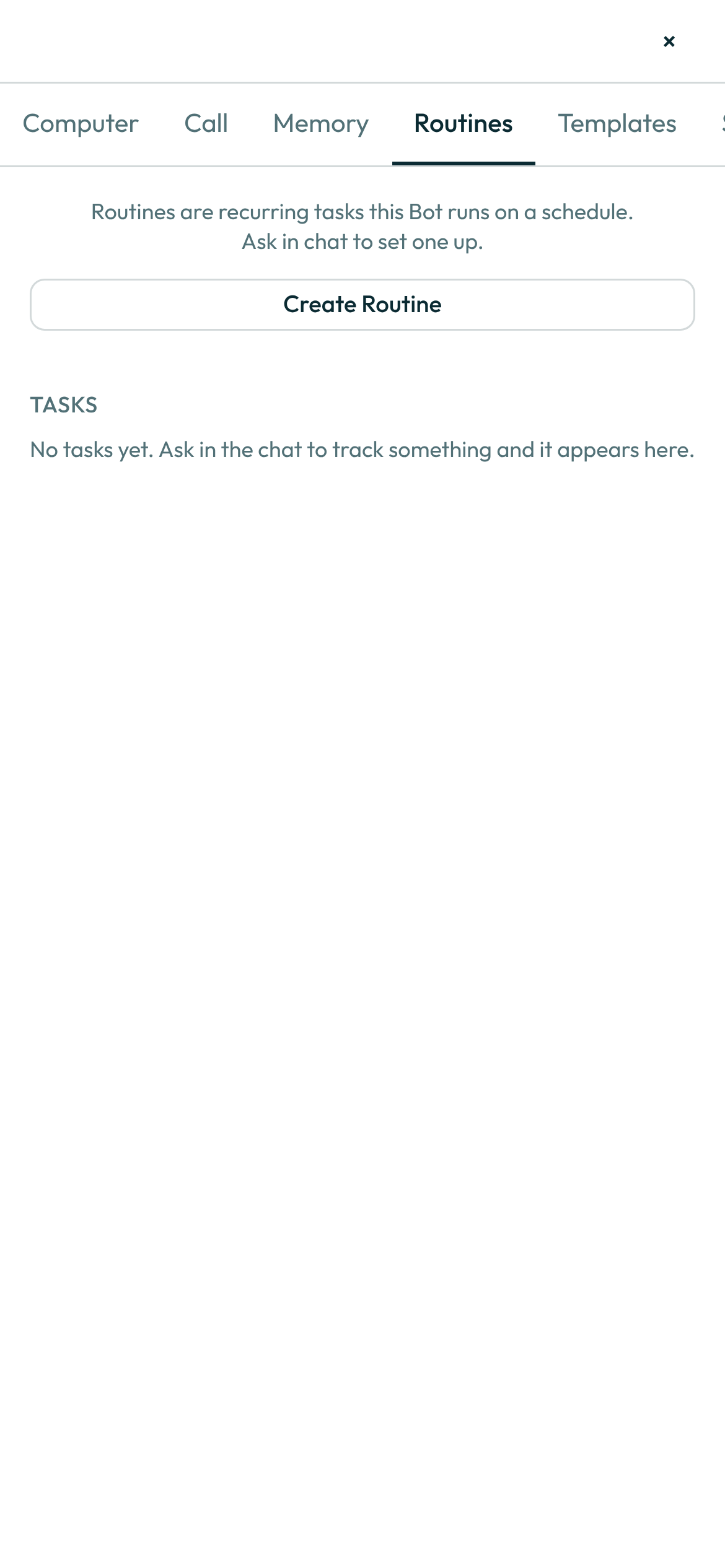
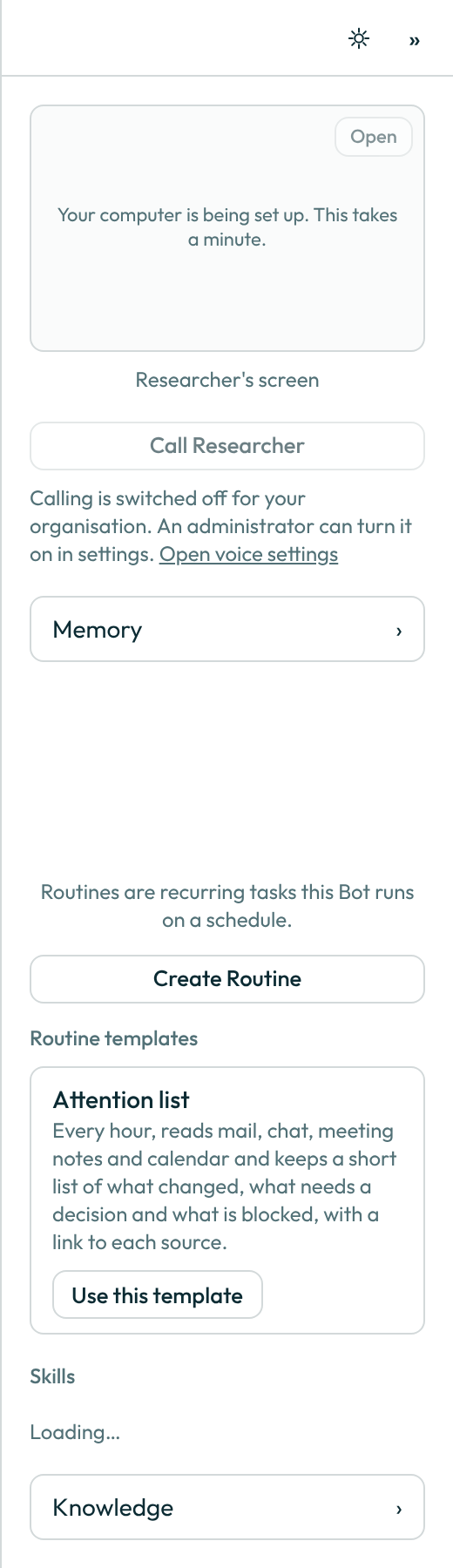
- Open the bot's or group's details pane and choose Create Routine under its routines. For a bot, choose Routines on the panel's Details tab first: its routines, Create Routine and the routine templates are there (see The bot panel). On a phone-width screen, a bot's panel opens from Details at the top of its conversation, as a sheet.
- Name the routine and write its instruction. Both save as you leave the field — there is no separate Save button.
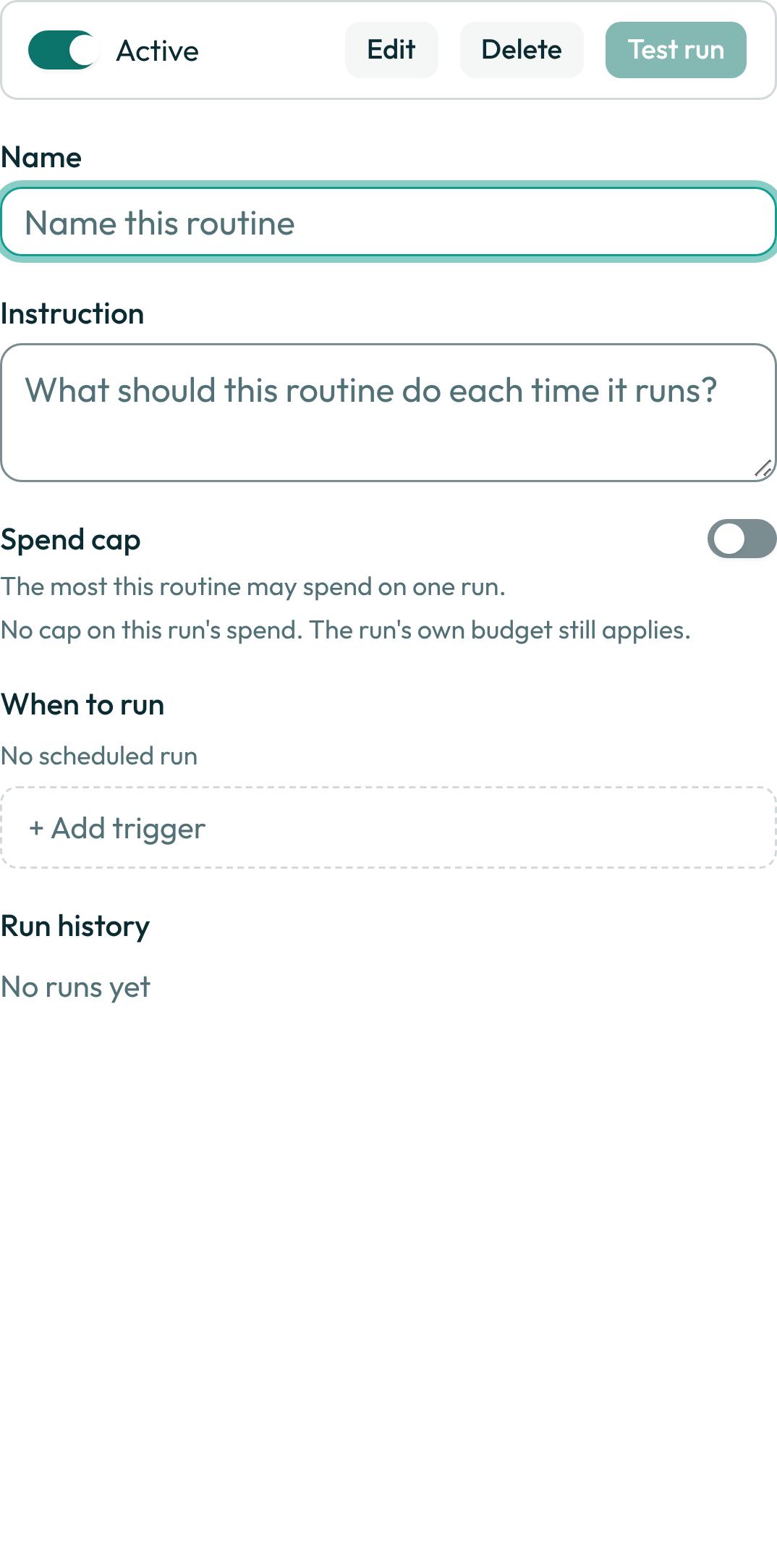
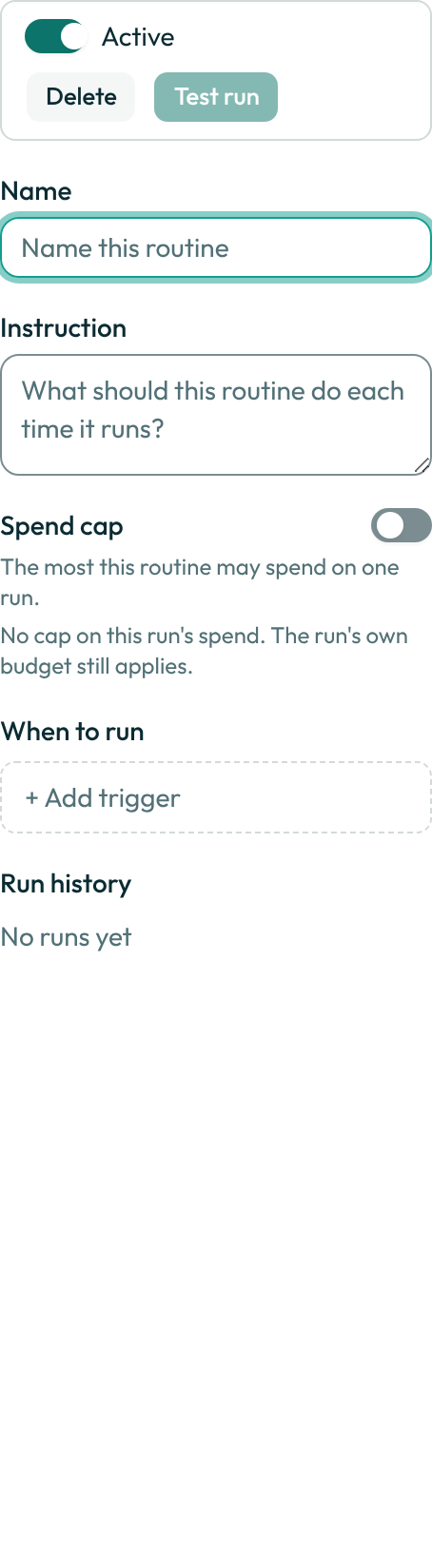
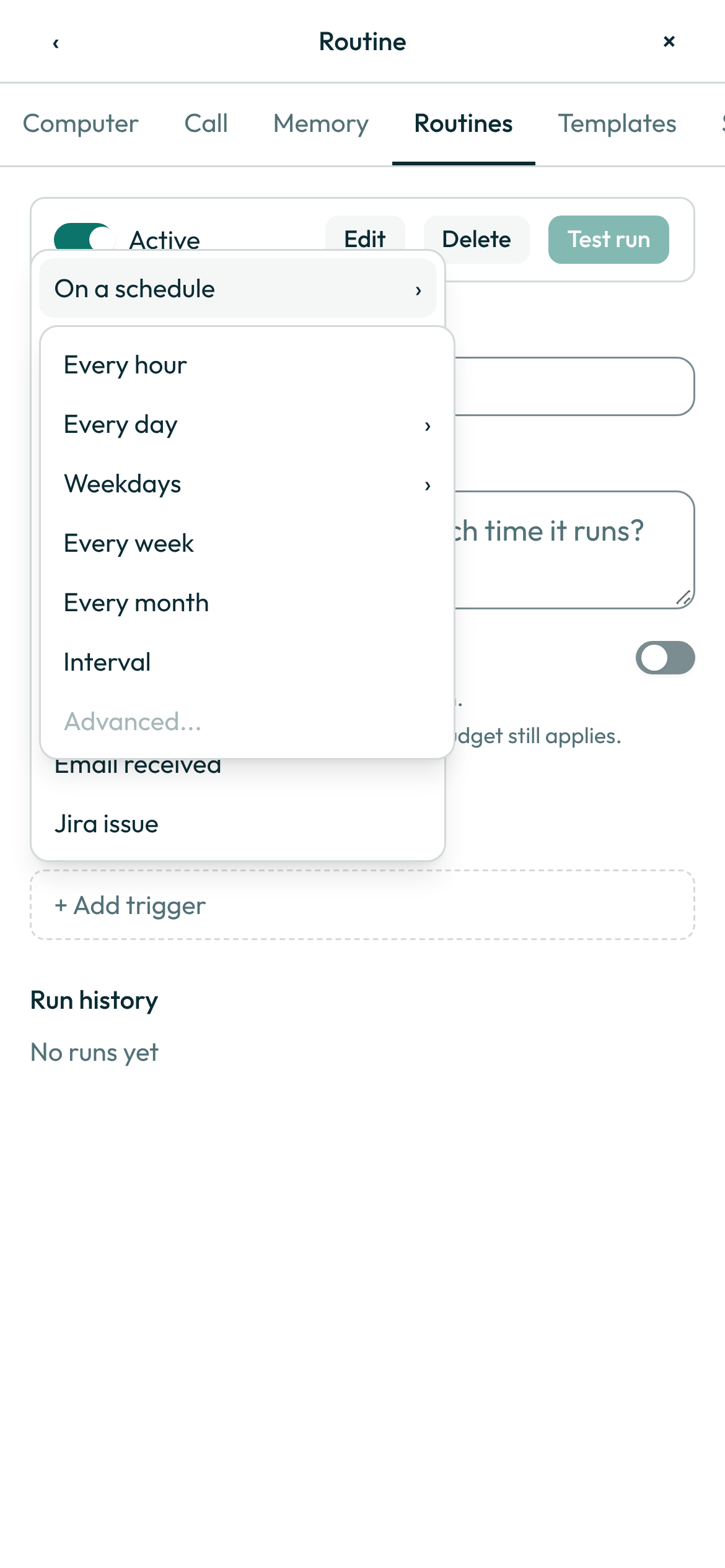
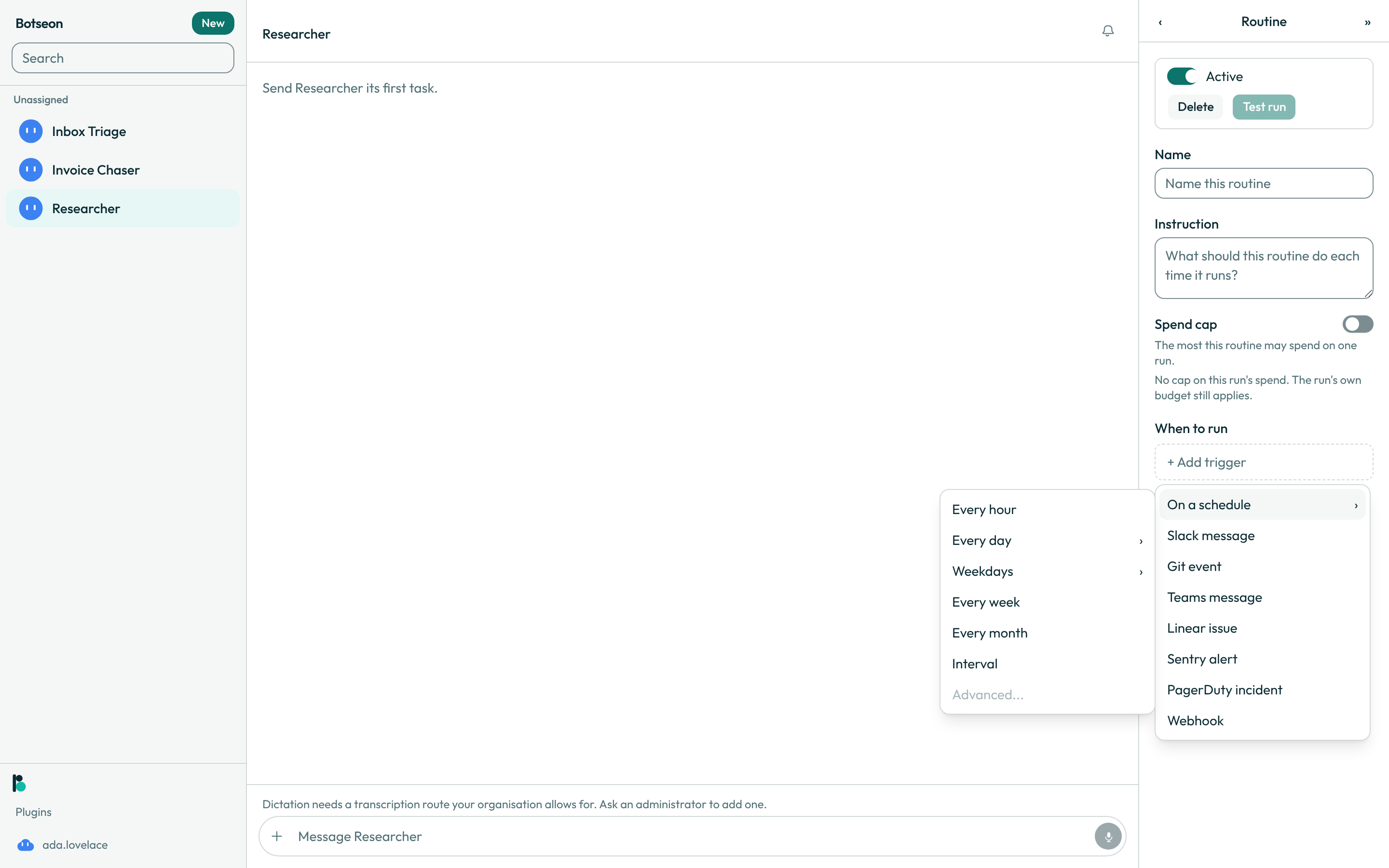
- Choose + Add trigger, then On a schedule, and pick a preset — Every hour, Every day, Weekdays, Every week, Every month or Interval (Advanced... is greyed out). Every day and Weekdays open a short time picker, confirmed with Set; the others are added straight away with a default time (Every week on Monday at 8:00 AM, Every month on the 1st at 8:00 AM, Interval every 30 minutes) that you can change from the trigger's row. Each closes into a plain-English summary line, such as "Every day at 8:00 AM".
-
To edit a trigger later, open its summary row: the edit menu offers the same presets plus Custom, which swaps the pills for a raw five-field cron expression (minute, hour, day of month, month, weekday — no seconds, no
@daily-style macros). The summary above it regenerates from whichever value you leave it on.A schedule follows your own time zone unless you give the trigger a zone of its own. Botseon needs to know your zone for that: the one you chose in Settings → General → Timezone, or the one a browser or the phone app reported. Until it knows, adding such a schedule is refused with
Set your time zone first: …, and a schedule is never run in UTC instead. Asking your bot for a routine in chat, on the web or on the phone, follows the same rule: until your zone is known, the bot does not make a schedule that follows it, and asks you which zone to use instead.When it runs. A scheduled routine starts within a minute of the time you set, in local time — the trigger's own zone, or yours. That holds across the spring and autumn clock changes too: an 8:00 AM routine runs at 8:00 AM local on the day the clocks change and on the days either side. A time that doesn't exist that night (2:30 AM, when the clocks jump from 2:00 to 3:00) runs once, at 3:00 AM; a time that happens twice (when the clocks go back from 3:00 to 2:00) runs once, the first time.
-
If the job should also start from an event rather than a clock, choose one of the other rows in + Add trigger — Slack message, Git event, Teams message, Linear issue, Sentry alert, PagerDuty incident, Webhook, Email received or Jira issue — instead of, or alongside, a schedule. Prefer the narrowest trigger that does the job. A trigger that fires on every message in a busy channel, rather than one scoped to a keyword or a specific event, costs you noise, usage and the occasional wrong-context run — narrow it at the source, not by asking the bot to ignore most of what it sees.
-
Once the routine has a name, an instruction and a trigger, Test run turns on. A test run does the real work — it sends, spends and changes whatever the instruction says, and it costs the same as a run the trigger starts on its own — so read the instruction back before you press it.
-
Turn Active on when you're ready to let the trigger fire it on its own; turn it off at any time to pause the routine without deleting it. Delete asks "Delete this routine?" first; Delete routine then removes it and stops every future run, and it cannot be undone.
A worked example
A daily inbox sweep, written the way the fields above take it:
Name: Inbox sweep
Instruction: Read unread email from the last 24 hours. Reply to anything that only needs an
  acknowledgement. Leave everything else unread for a person to handle, and say at the end how
  many you replied to versus left.
Trigger: On a schedule → Every day → 8:00 AM
Stored as: 0 8 * * *
The stored value is what the schedule actually runs on; the preset is only how you set it. Picking Custom later and typing 0 8 * * * by hand would produce the identical trigger.
What can go wrong
| What you see | Why | What to do |
|---|---|---|
The summary line reads — while you type in Custom | The cron expression doesn't parse — it needs exactly five space-separated fields, and neither seconds nor a macro like @daily are understood. Nothing is saved until it parses. | Fix the expression, or switch the trigger back to a preset from its edit menu. |
Routines run at most once every five minutes. Choose a schedule with at least five minutes between runs. | The schedule would fire two runs less than five minutes apart. | Pick a longer interval or a sparser expression. |
A bot may have at most 50 routines. | Every bot, and every group, is capped at 50 routines. | Delete or combine an existing routine before adding another. |
That routine could not be found. | The routine was deleted, or it belongs to someone else. | Reopen the Routines list and pick it again. |
That change could not be saved. Try again. | A rename, an instruction edit, the Active switch or a delete didn't reach the server. | Try the change again; if it keeps failing, check your connection. |
Name, instruction and a trigger first. | Test run stays off until the routine has all three. | Fill in whichever one is still missing. |
See also
Last verified against build c0f77aa.