Make a bot, and set it up
Member·8 minutes to read
What this does for you
This page covers the settings pane every bot has: its name, avatar, voice, and visibility, plus how you duplicate, share, organize, or delete it.
Before you start
- You already have a bot, created from the sidebar's
+button or from the first-bot creator. - To choose who can see a bot, your organisation is a team organisation — a personal organisation has no one to share with.
Steps
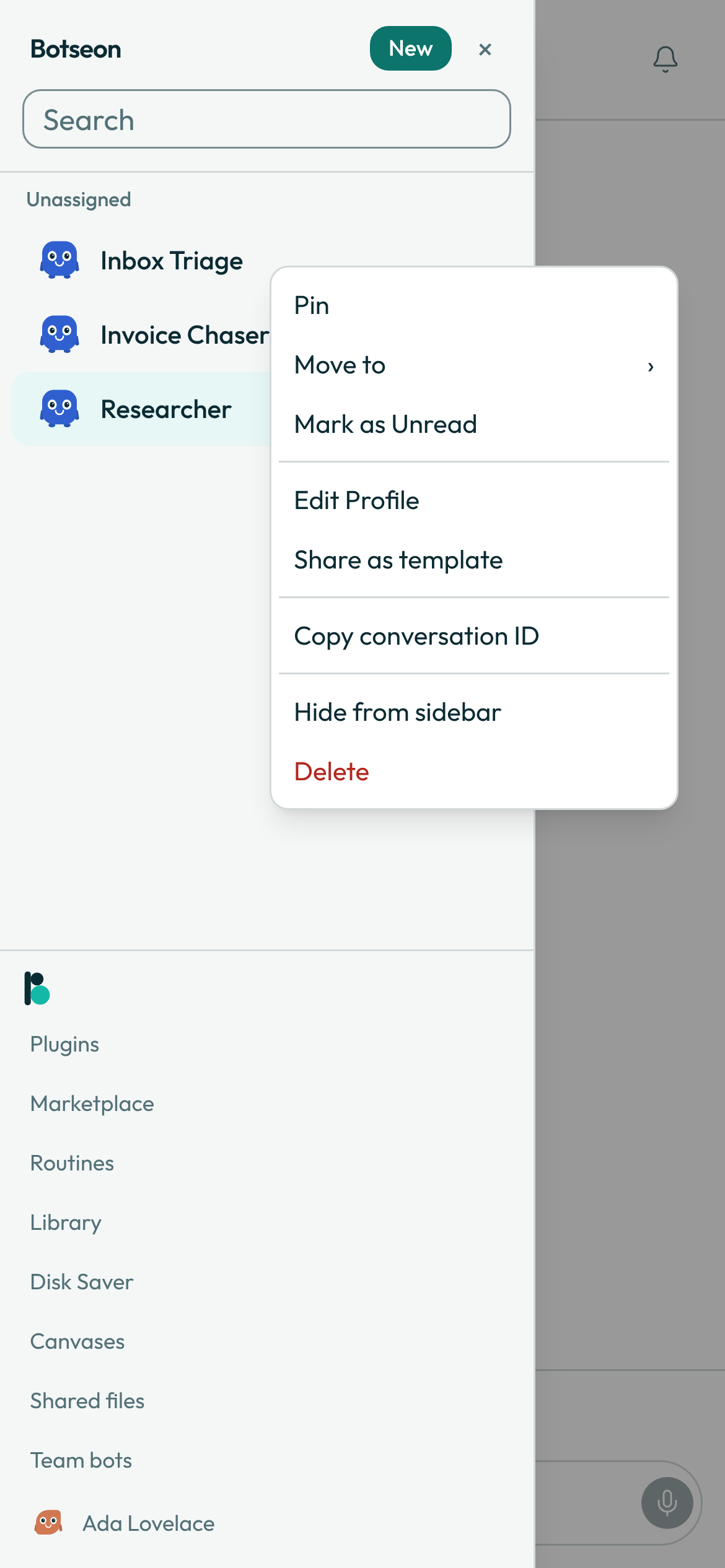
- Open a bot's settings pane. From the bot's row in the sidebar, open the context menu and choose Edit Profile, or open the gear at the top of the bot's details panel. Or choose Bot settings on the panel's Details tab (see The bot panel). On a phone-width screen, tap Details at the top of the bot's conversation first: the panel opens as a sheet over the conversation, and Close details returns you to the conversation.
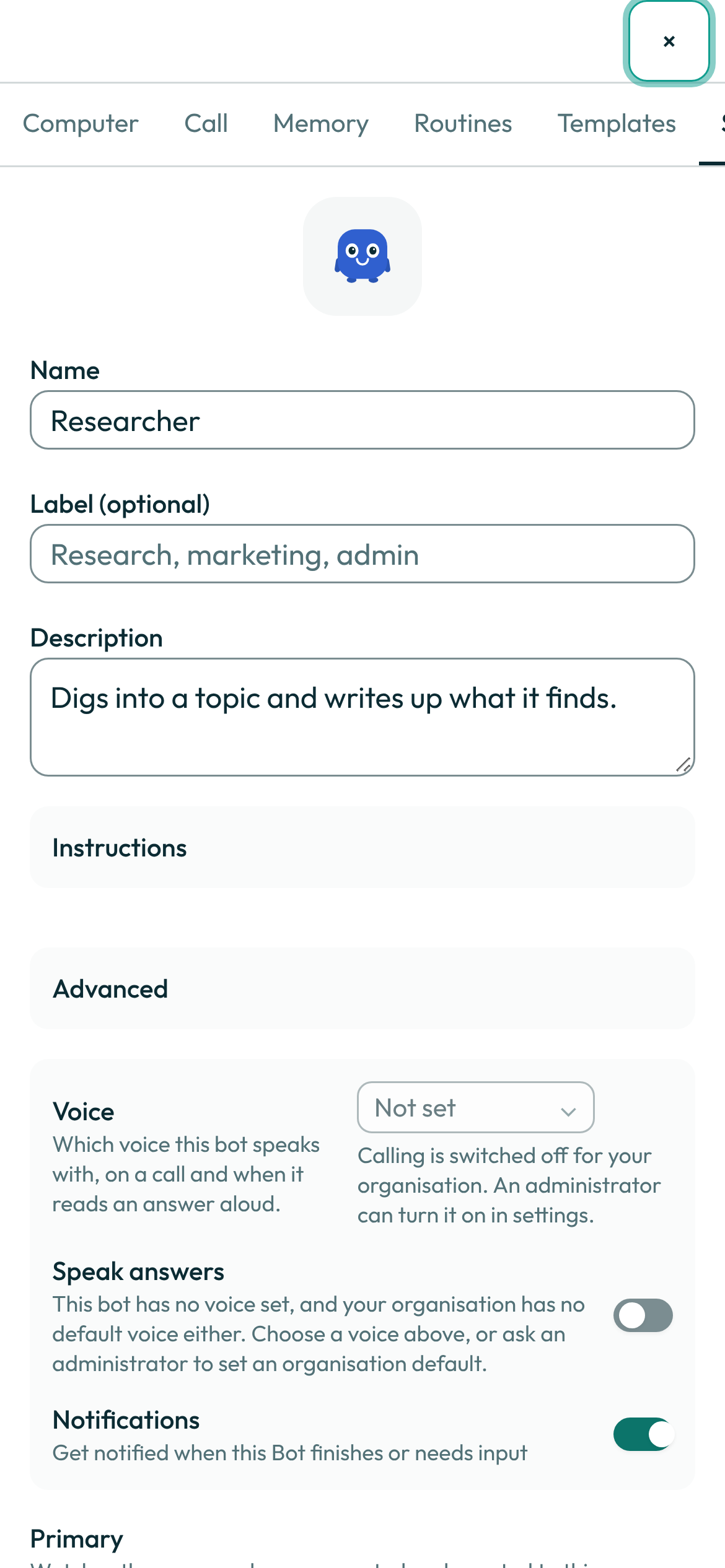
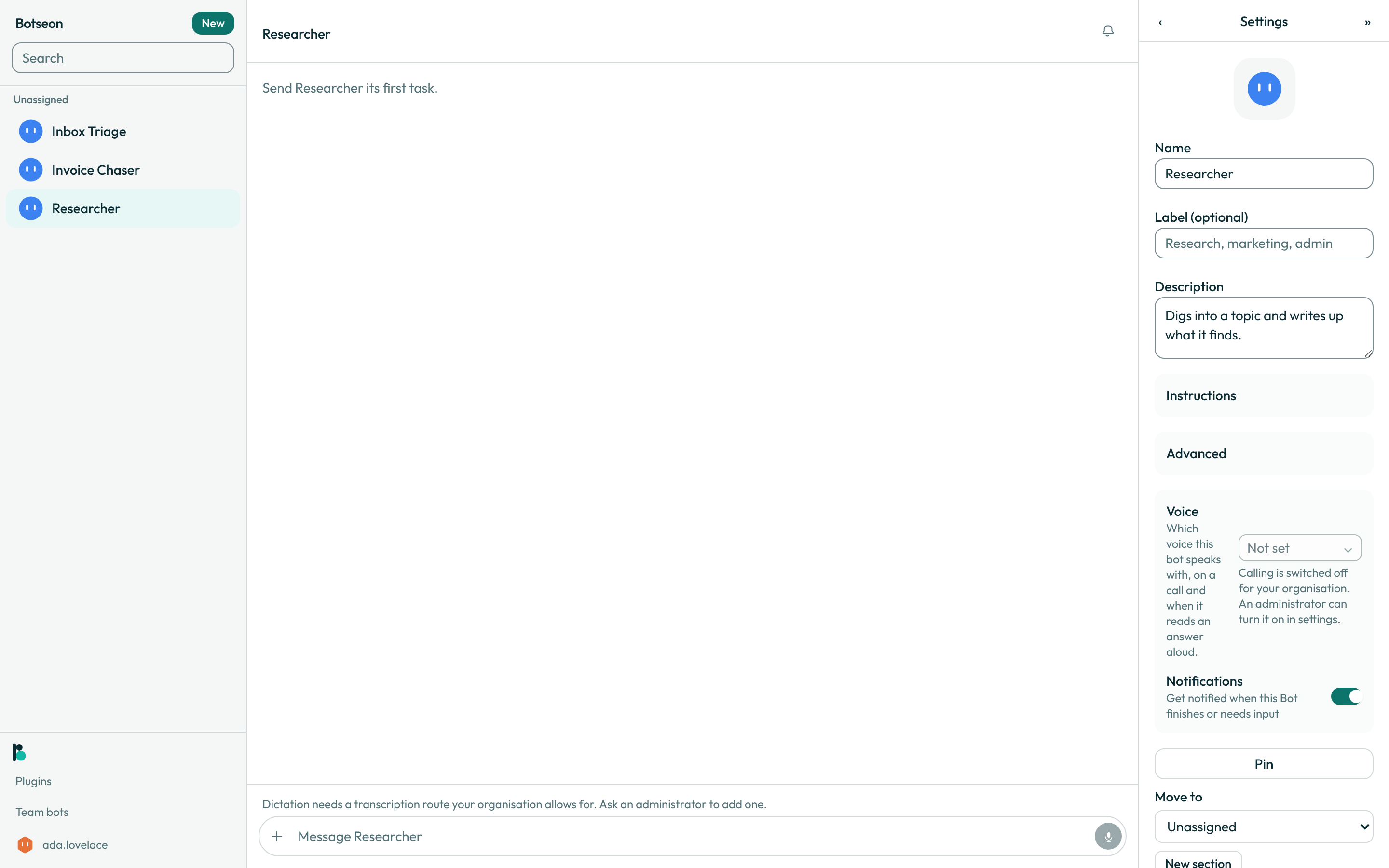
- Set its name, label, and description. The label is optional (placeholder
Research, marketing, admin); the description is what your other bots, and a group chat, read to decide which bot takes a job. There is no save button — every field commits when you leave it.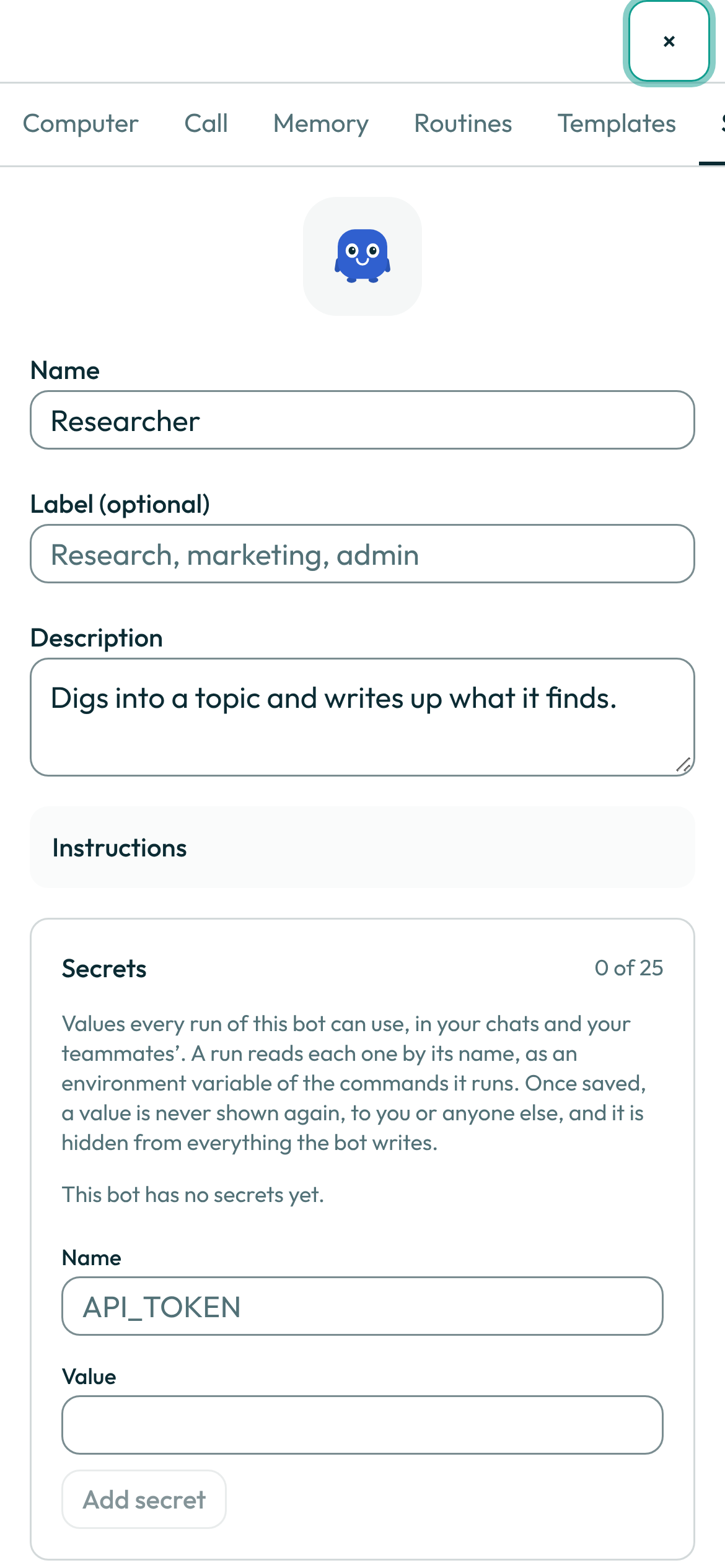
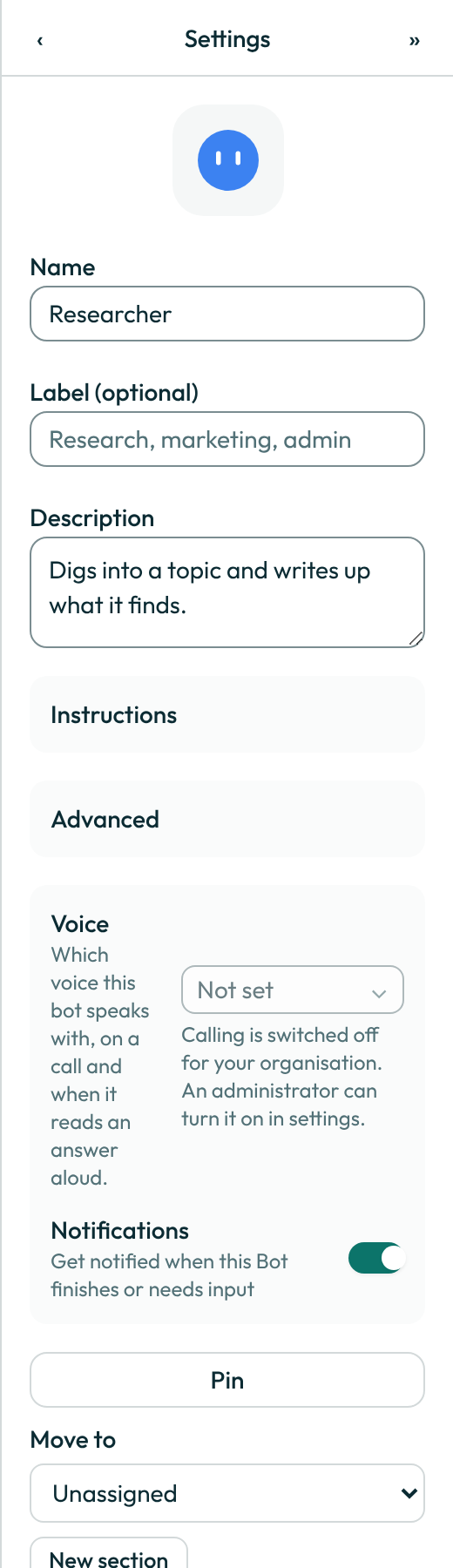
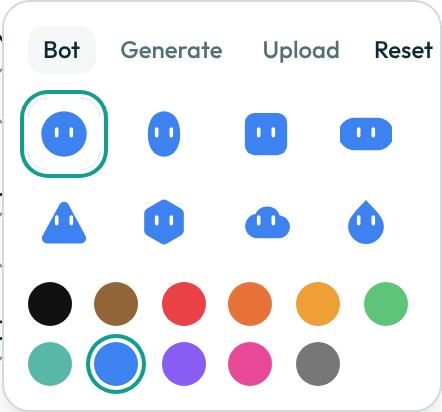
- Edit its avatar. Click the avatar to open its editor: pick one of eight shapes and eleven colours, and whether it wears a party hat, headphones, a beanie or nothing; describe one for the bot to generate, or upload a PNG or JPEG image smaller than 25 MB.
Resetreturns it to its default look. The shape is the character's body: it has a face, arms and feet, and it acts out what the bot is doing — working, waiting for you, done or failed. See What your bot's avatar is telling you for every state. Generating an avatar is on by default, also in an organisation whose residency policy is EU only: the picture is made by Google's image model, outside the EU, under the EU Standard Contractual Clauses (see the sub-processor list). An administrator who excludes Google, or narrows the model allowlist to leave no image model, turns it off. On the phone, tap the bot's name at the top of its chat to open its profile, then tap the bot's picture: Select from Gallery uploads a photo from your library (the same PNG or JPEG, smaller than 25 MB), Generate makes a picture from a description you type, and Remove Photo puts the bot back on its shape and colour. The web shows the new picture the next time it loads. Only the bot's owner gets these choices; a teammate sees the picture and nothing to tap.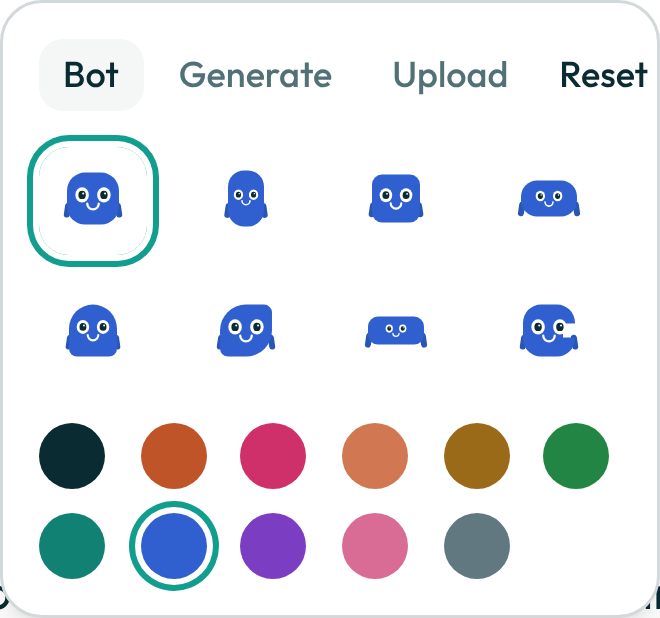
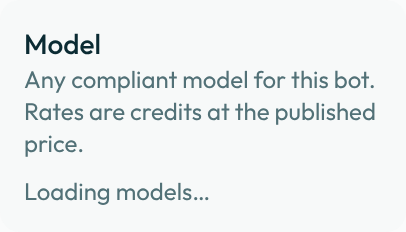
- Open Advanced to set the bot's model, temperature and the tools it may not use. Model starts on Auto (recommended), which picks the model best suited to each turn inside your organisation's routing rules; you never need to change it. To keep this bot on one model instead, pick it from the list, which shows only the models your organisation allows. Pick Auto (recommended) again to go back. If an organisation admin has pinned one model for everyone on the Policies page, that pin wins and the row says so.

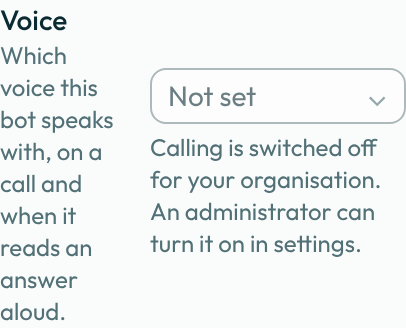
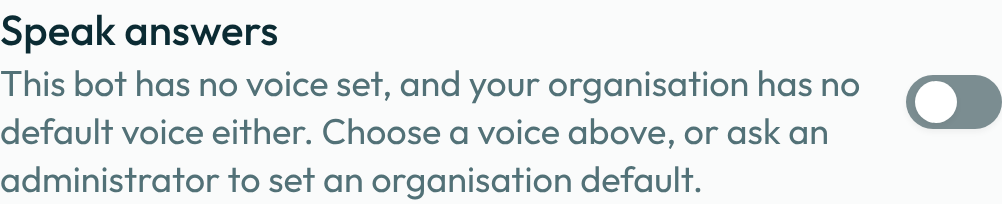
- Turn on a voice, or leave it
Not set. This opens the same picker covered in Give a bot a voice.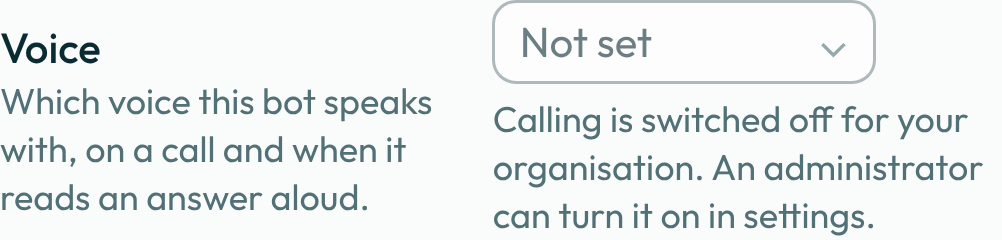
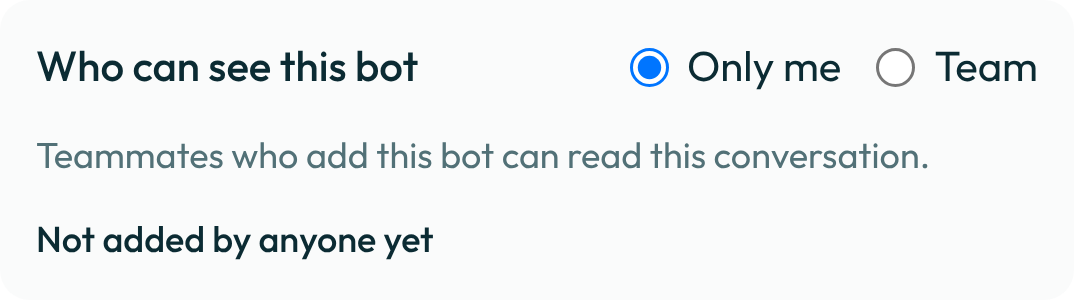
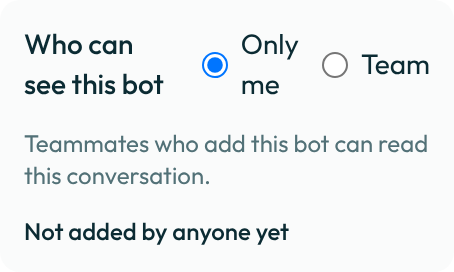
- In a team organisation, choose who can see this bot — only you, or your whole team. See Share a bot with the team for what a teammate can and cannot then do with it.
- Turn notifications on or off. This bot notifies you when it finishes a task or needs your input; it is on by default.

- Organize it in the sidebar. Pin it, move it to a section with Move to › (or create a new one from there), or hide it without deleting it — a hidden bot still runs, still holds its access, and still costs. To rename a section, double-click its name in the sidebar, or right-click it and choose Rename section. To remove one, right-click its name and choose Delete section: no bot is deleted, and the bots that were in it move to Unassigned. Sections, pins and hidden bots are yours alone and follow you to every device you sign in on. <!-- surface: bots/sidebar-sections -->
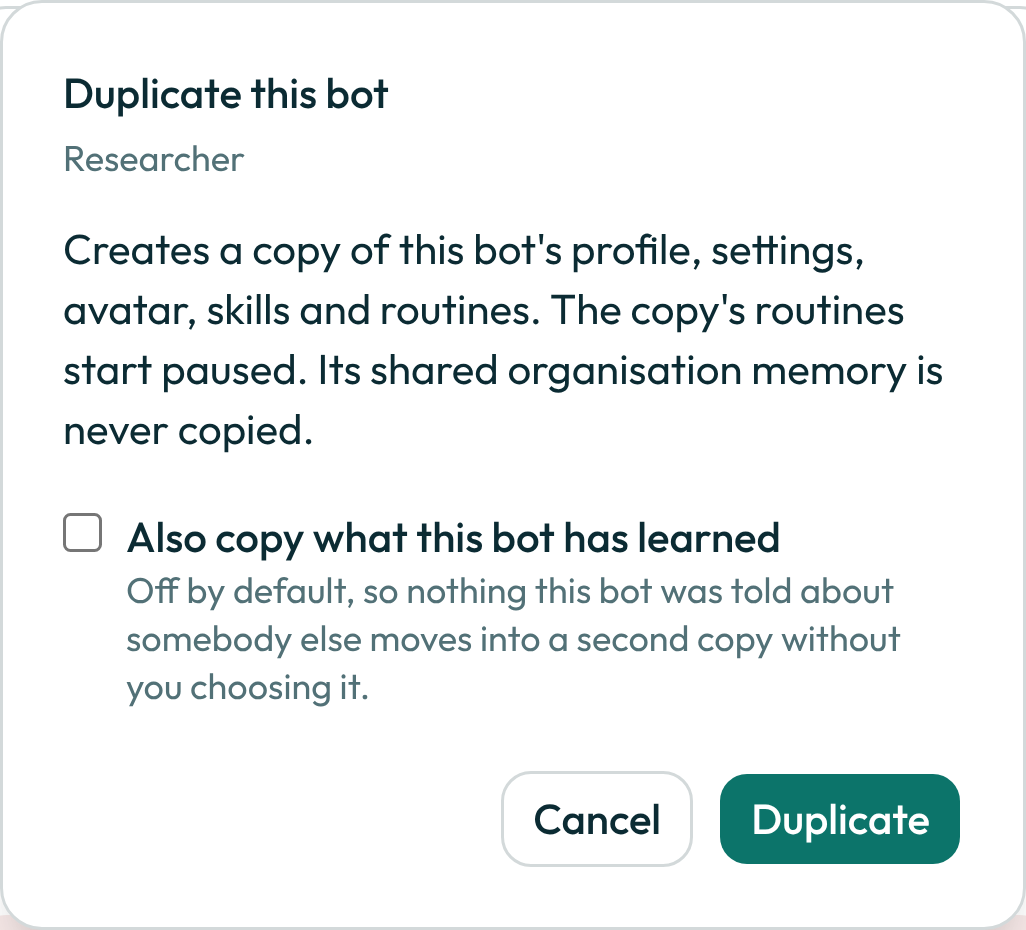
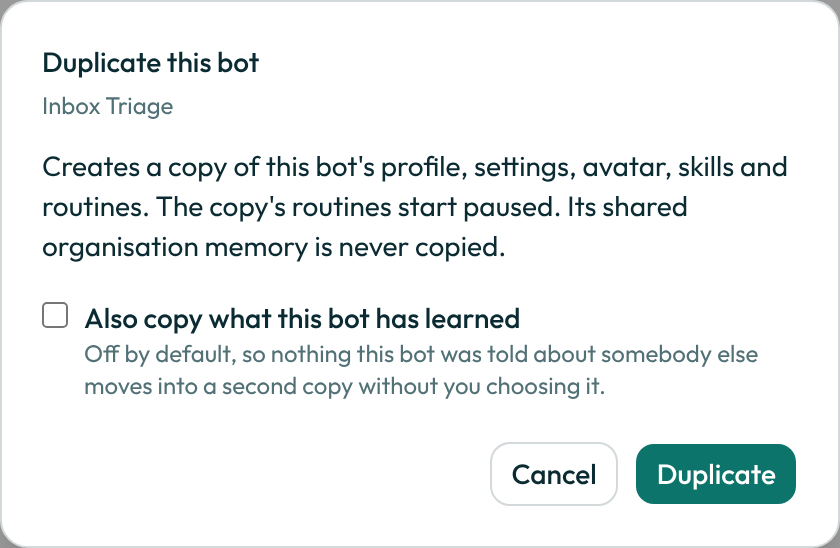
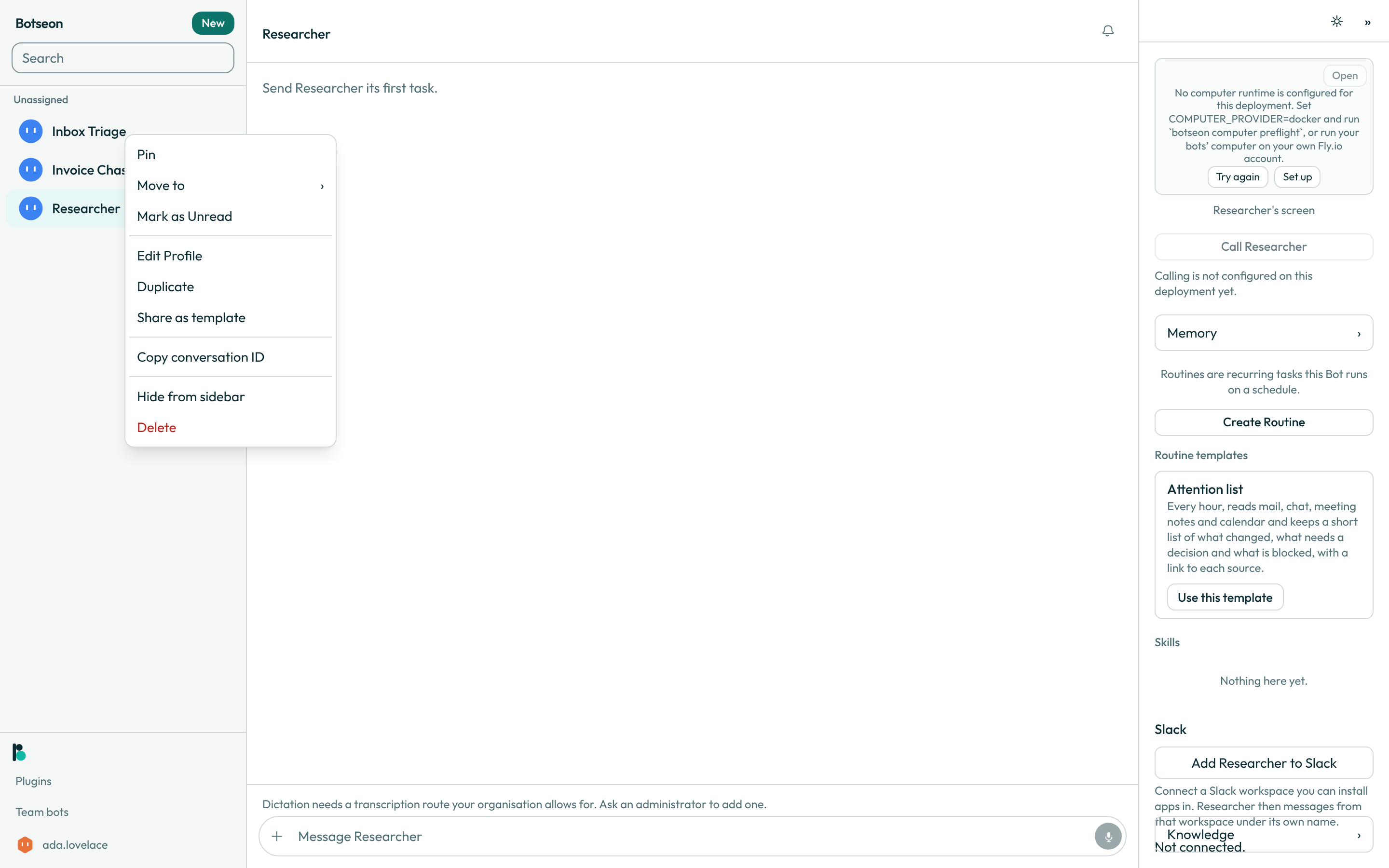 9. Duplicate it when you want a second copy, with Duplicate in this settings pane (it is not in the sidebar row's menu). The copy is named
 <name> copy and keeps the profile (title and description), settings, avatar (shape and colour), skills, and routines — routines start paused. Its shared organisation memory is never copied, and its private memory is copied only if you tick Also copy what this bot has learned, which is off by default.
 10. Share it as a template from Share as template, at the foot of the settings pane. This posts your own request into the conversation; the bot proposes what to package, and you review the scan result and the diff before anything publishes.
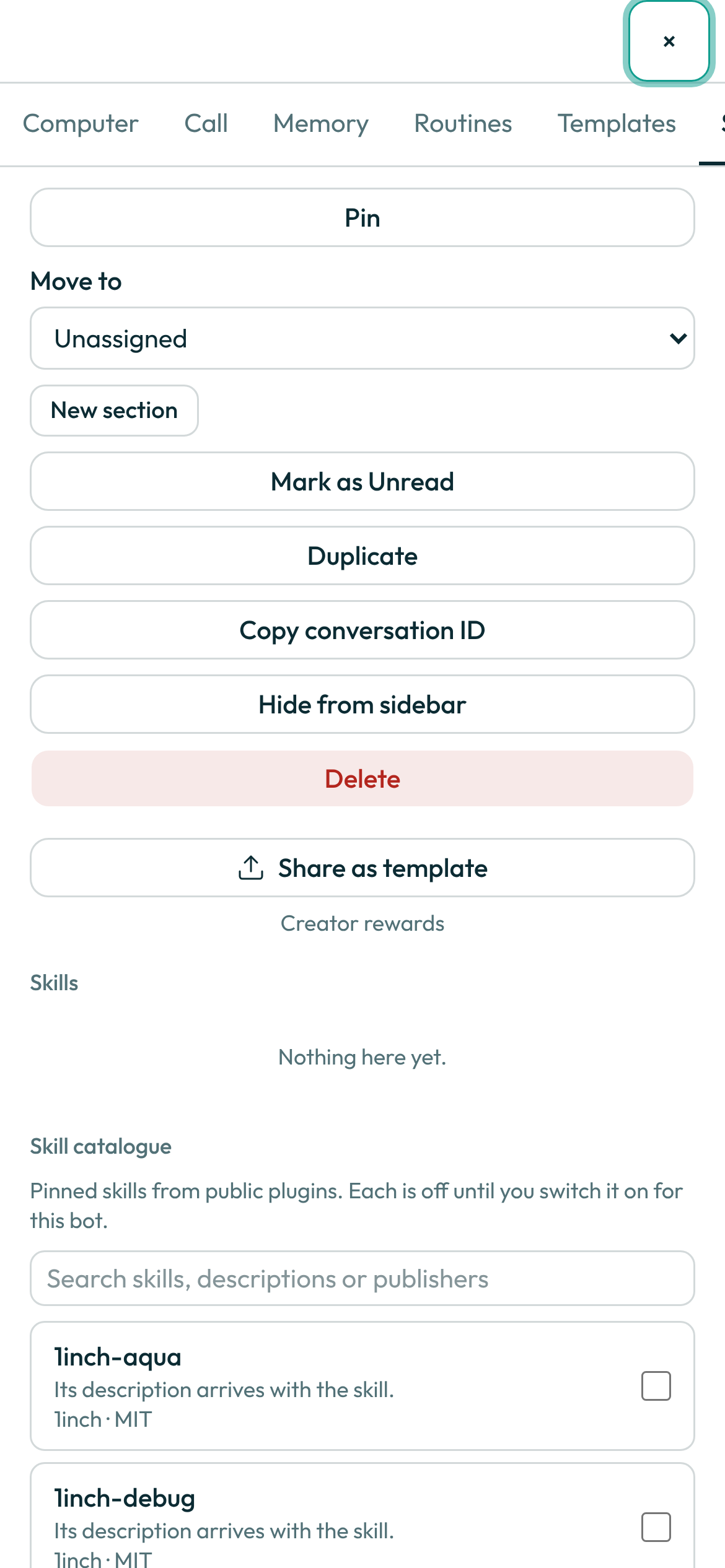
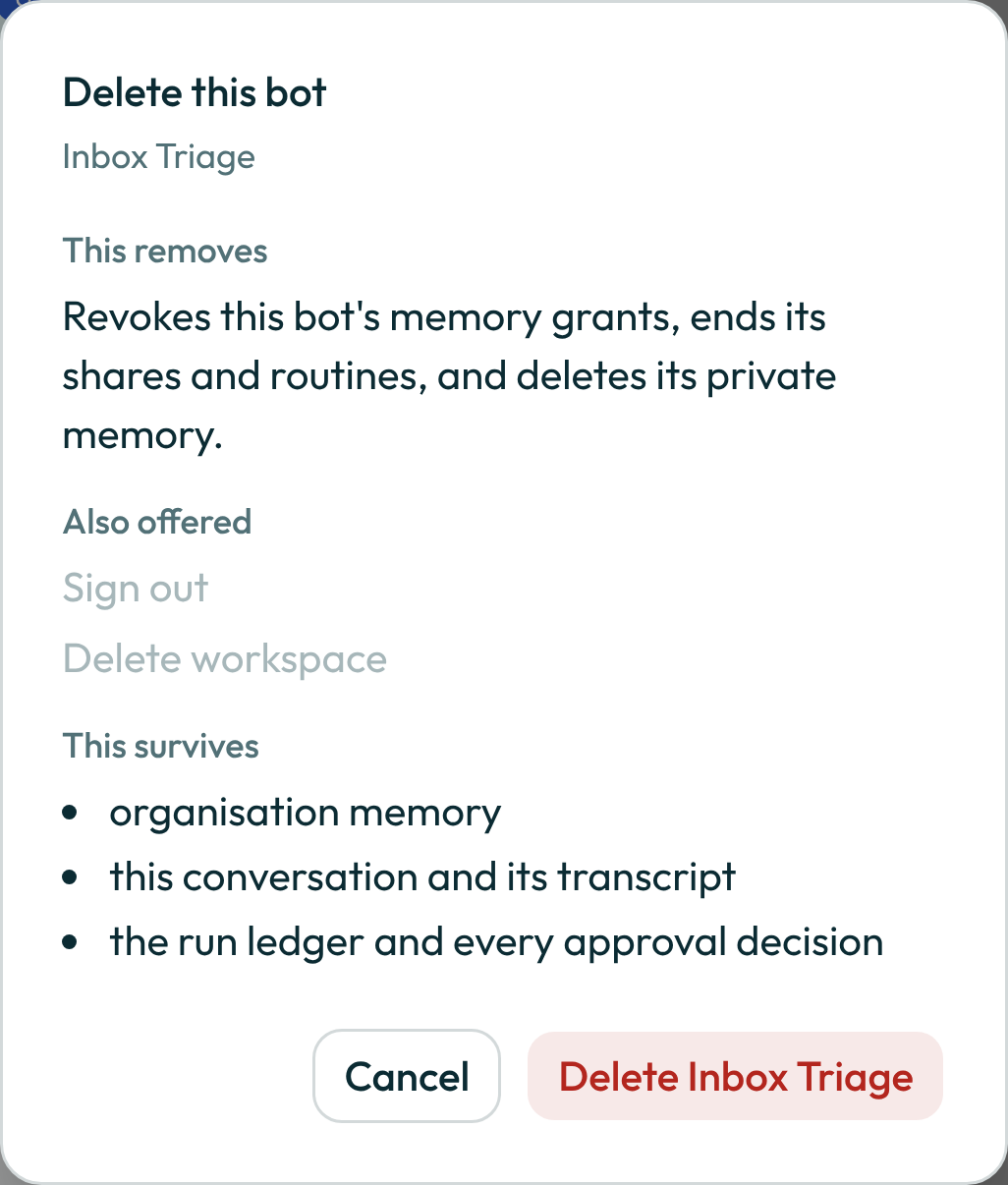
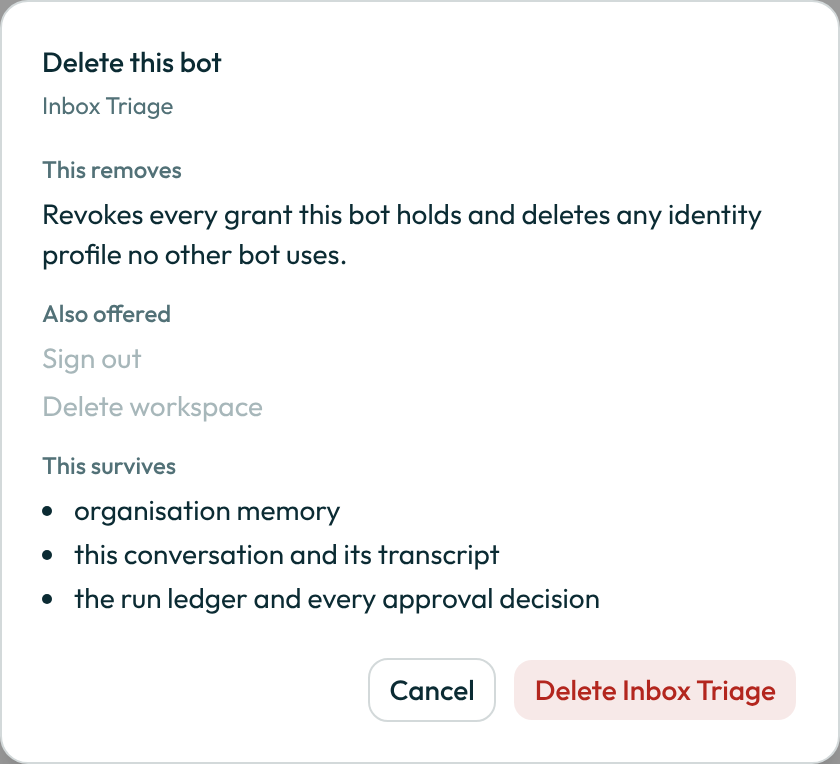
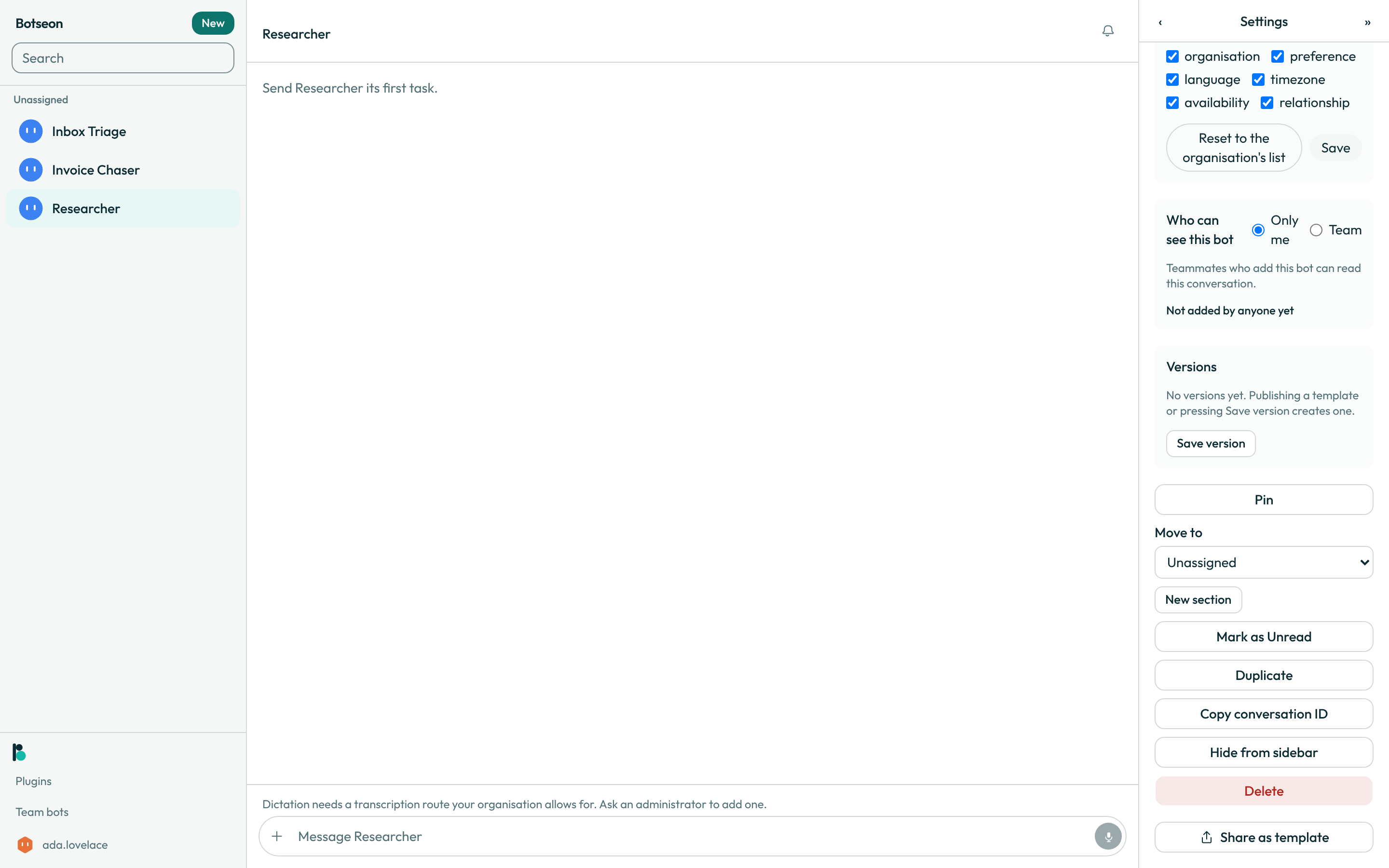 11. Delete it when you no longer need it. Deleting takes back every access you gave it and removes what it remembered privately; the confirmation lists what goes with it. The conversation and its transcript, the record of what it ran, and what your organisation remembers all stay.
A worked example
A description that tells the bot, and its siblings, what it is for:
Handles inbound support tickets tagged "billing." Drafts a reply for a teammate to review and send; never sends on its own.
What can go wrong
| What you see | Why | What to do |
|---|---|---|
That file is not a supported image type. | The avatar uploader, and the phone's Select from Gallery, only accept PNG and JPEG. | Use a PNG or JPEG image, or generate an avatar instead. |
The image must be smaller than 25 MB. | An uploaded picture must be smaller than 25 MB, on the web and on the phone. | Resize the image and upload it again. |
No image model is available under this organisation's residency policy. | This is the Generate tab's tooltip. Generating is on by default, so it shows only when your organisation's rules leave no image model: an administrator excluded Google or narrowed the model allowlist, or the deployment has no image model set up. | Ask an administrator, or use the shape-and-colour editor or upload an image instead. |
Could not duplicate this bot. Try again. | The duplicate request failed. | Try again; if it keeps failing, check your connection. |
Could not delete this bot. Try again. | The delete request failed. | Try again; if it keeps failing, check your connection. |
Only the bot's owner can do this. | Sharing as a template is a human-only, owner-only write. | Ask the bot's owner to share it, or duplicate it and share your own copy. |
See also
Last verified against build ce30cb7.