Read a transcript
Member·9 minutes to read
What this does for you
A transcript holds every message you and a bot have exchanged, and this page covers reading it, reacting to a message, and finding your way back to an earlier one.
Before you start
- You have a bot with at least one message already in it (see Start here).
- This page is about a one-to-one conversation with a bot — a group conversation reads differently (see Group chats).
Steps
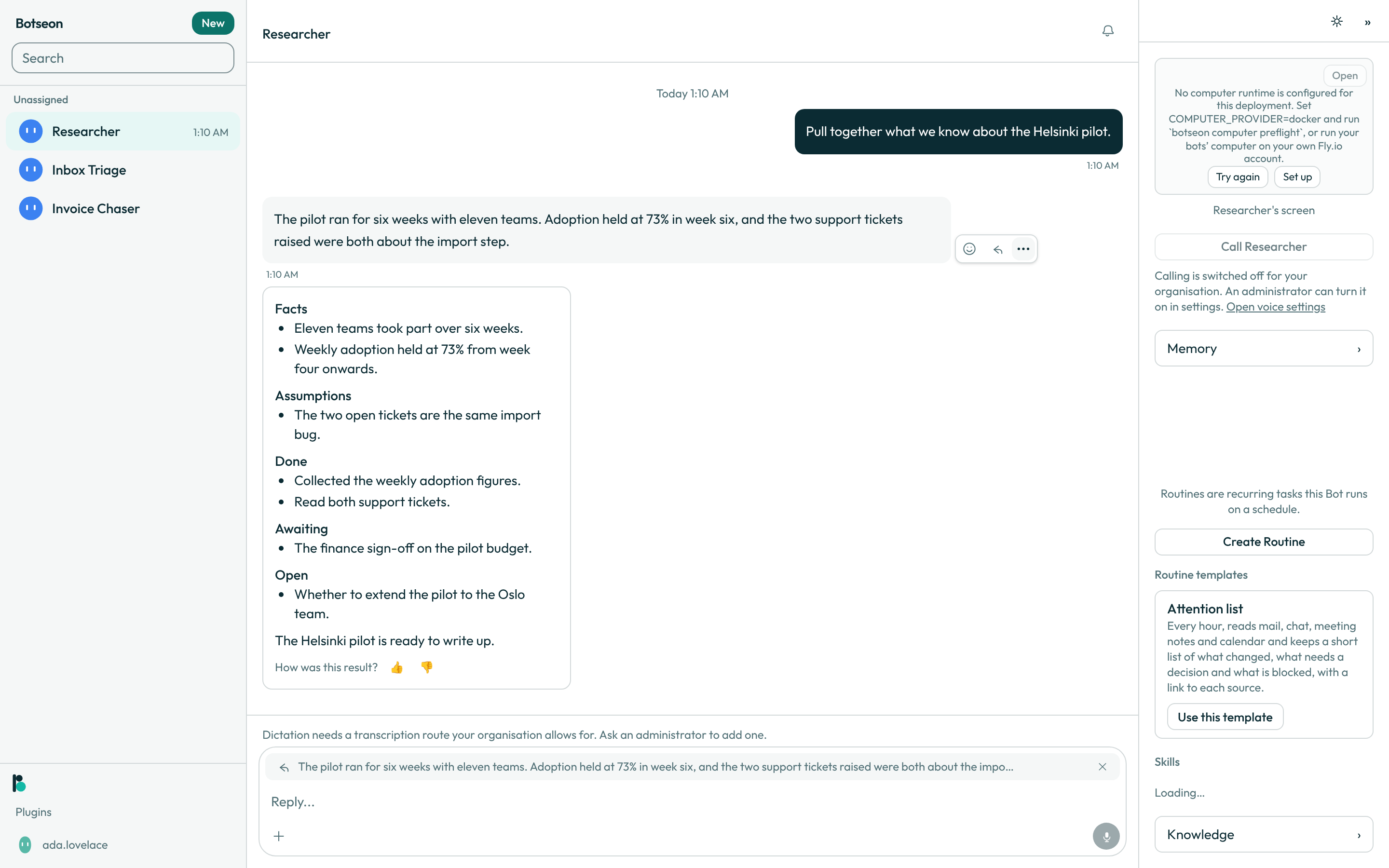
- Hover over a message to show its row of controls. React, reply and more appear outside the bubble, right beside it on its trailing side, always in that order, and the row stays visible while any of its menus is open. Under the bot's reply that ends its turn, one meta row holds the time, the thumbs and more instead; on a touch screen it is always shown. Times read
6:39 AMfor today,Yesterday 6:39 AM, or27 Oct, 6:39 AMfor earlier days. Whatever the reply changed — memory, the bot's name — sits in oneN changes · Undoline above it (see What your bot remembers).
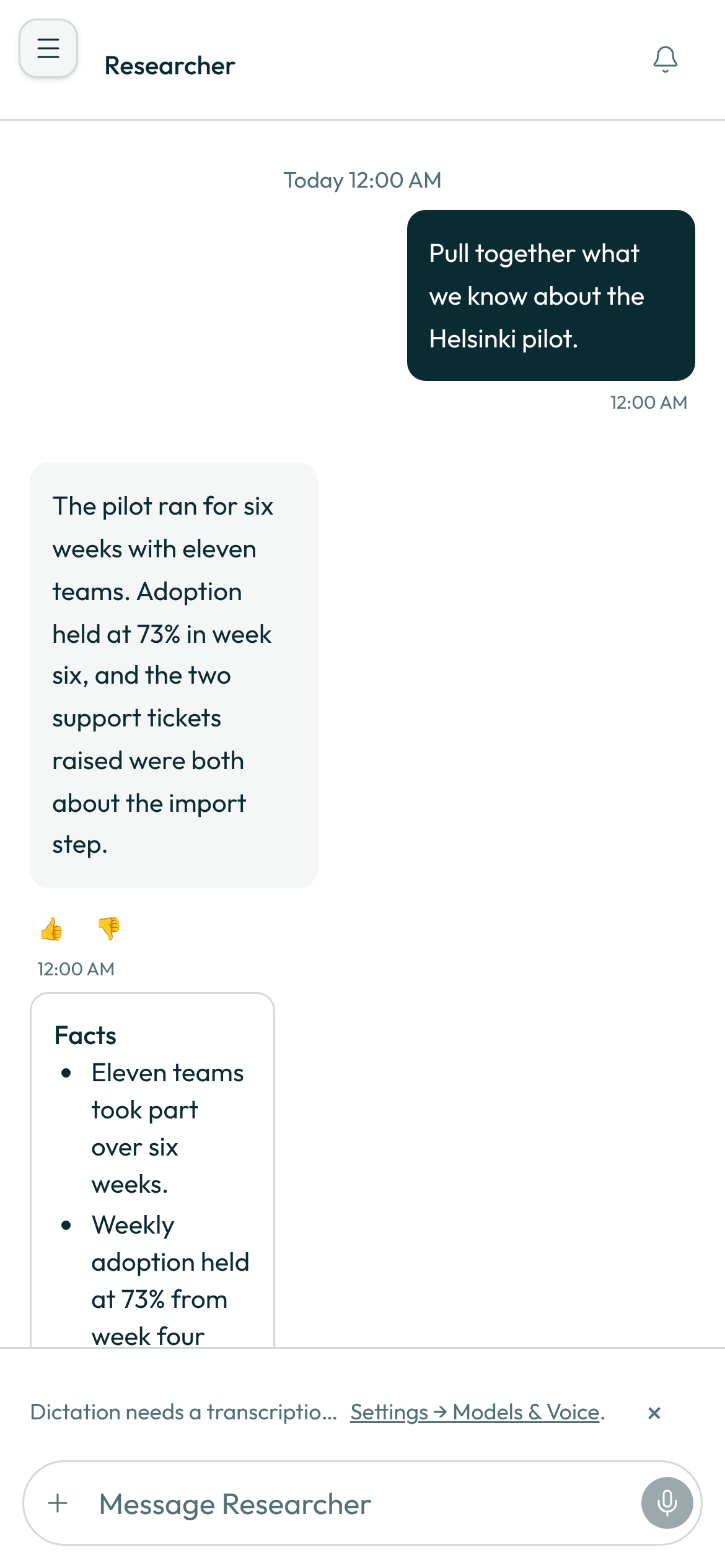
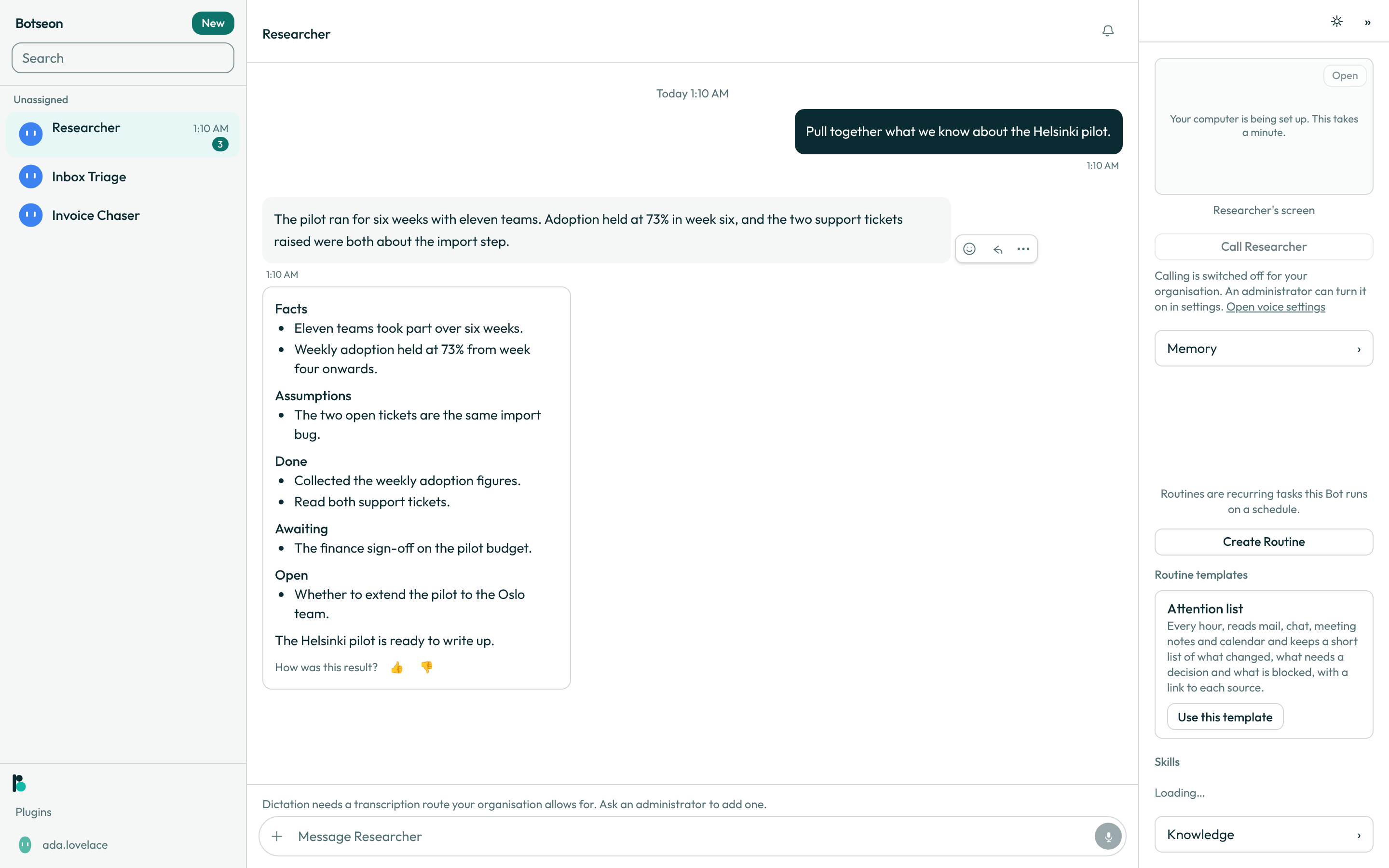
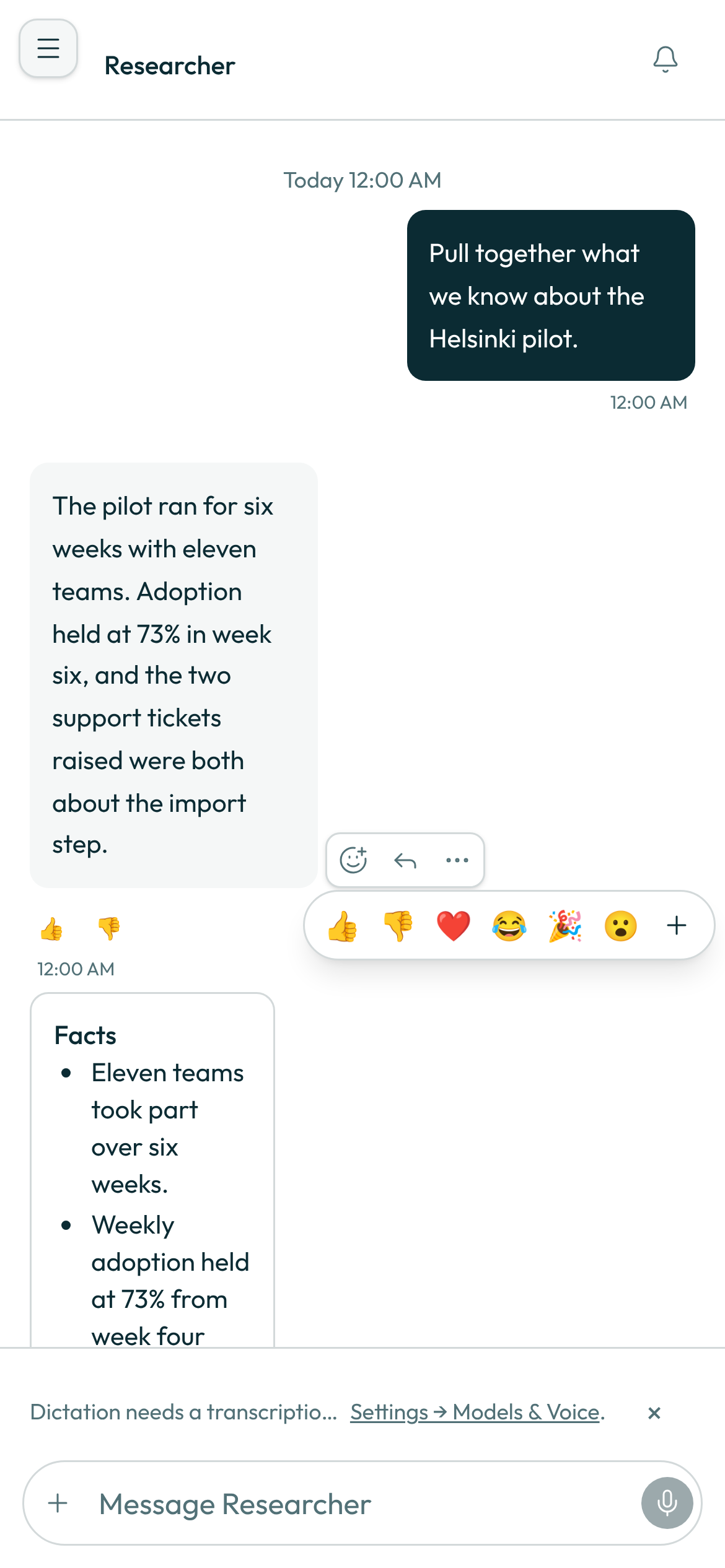
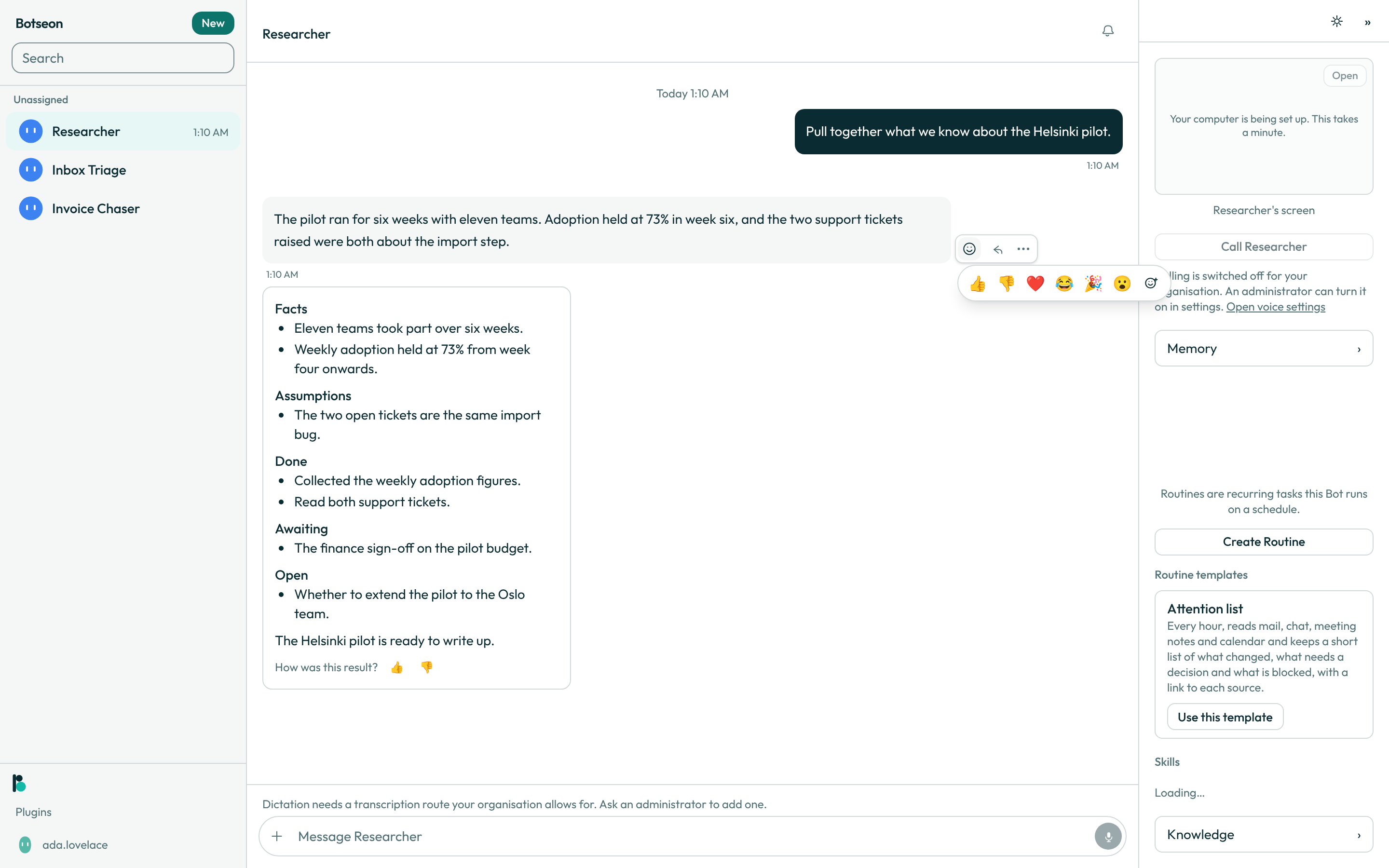
- React to a message. The react control opens six fixed emoji in a set order, followed by a control that opens a fuller picker; picking one adds a chip beneath the bubble, and clicking your own chip again removes your reaction.
- Reply to a message. The reply control attaches that message as a quote in the composer below, ready to go out with your next message — see Send a message for what happens next.
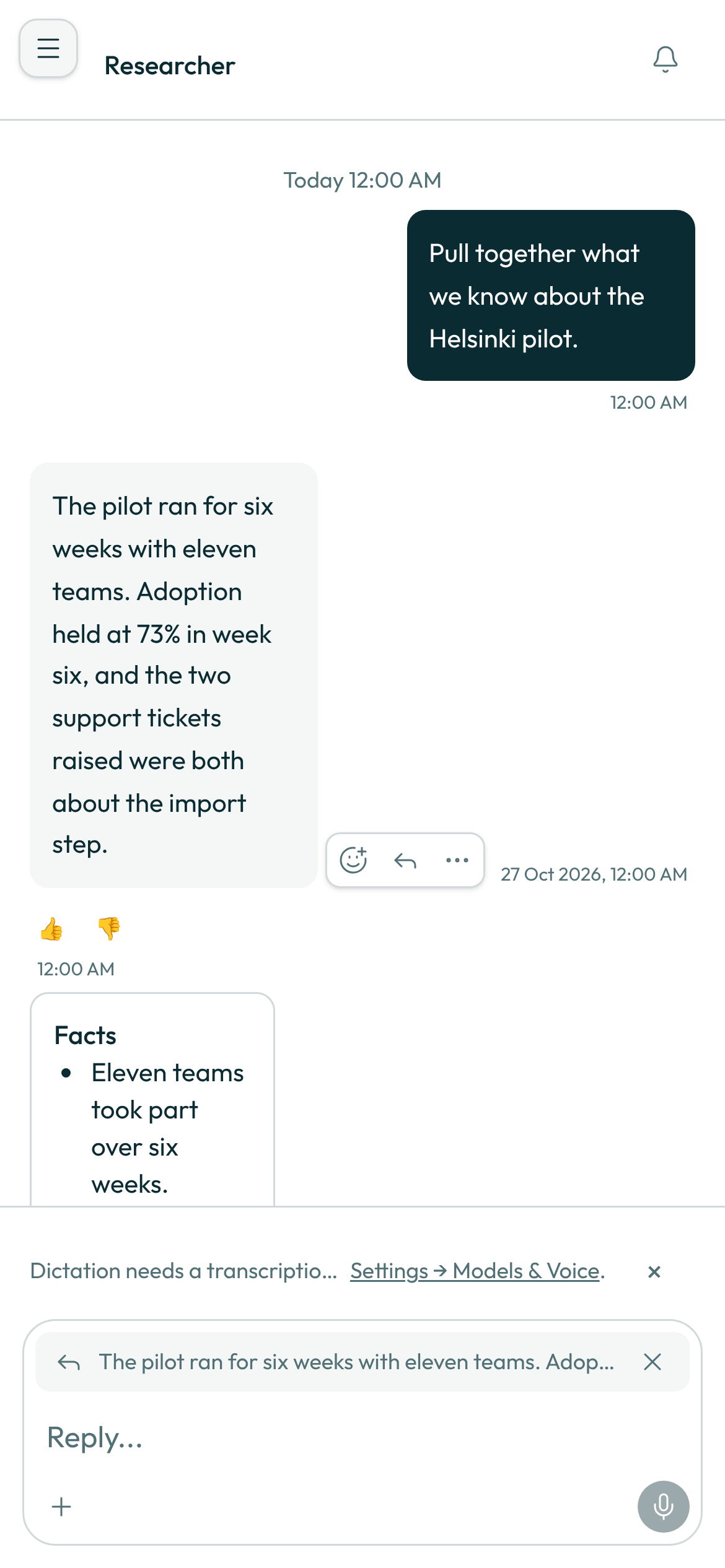
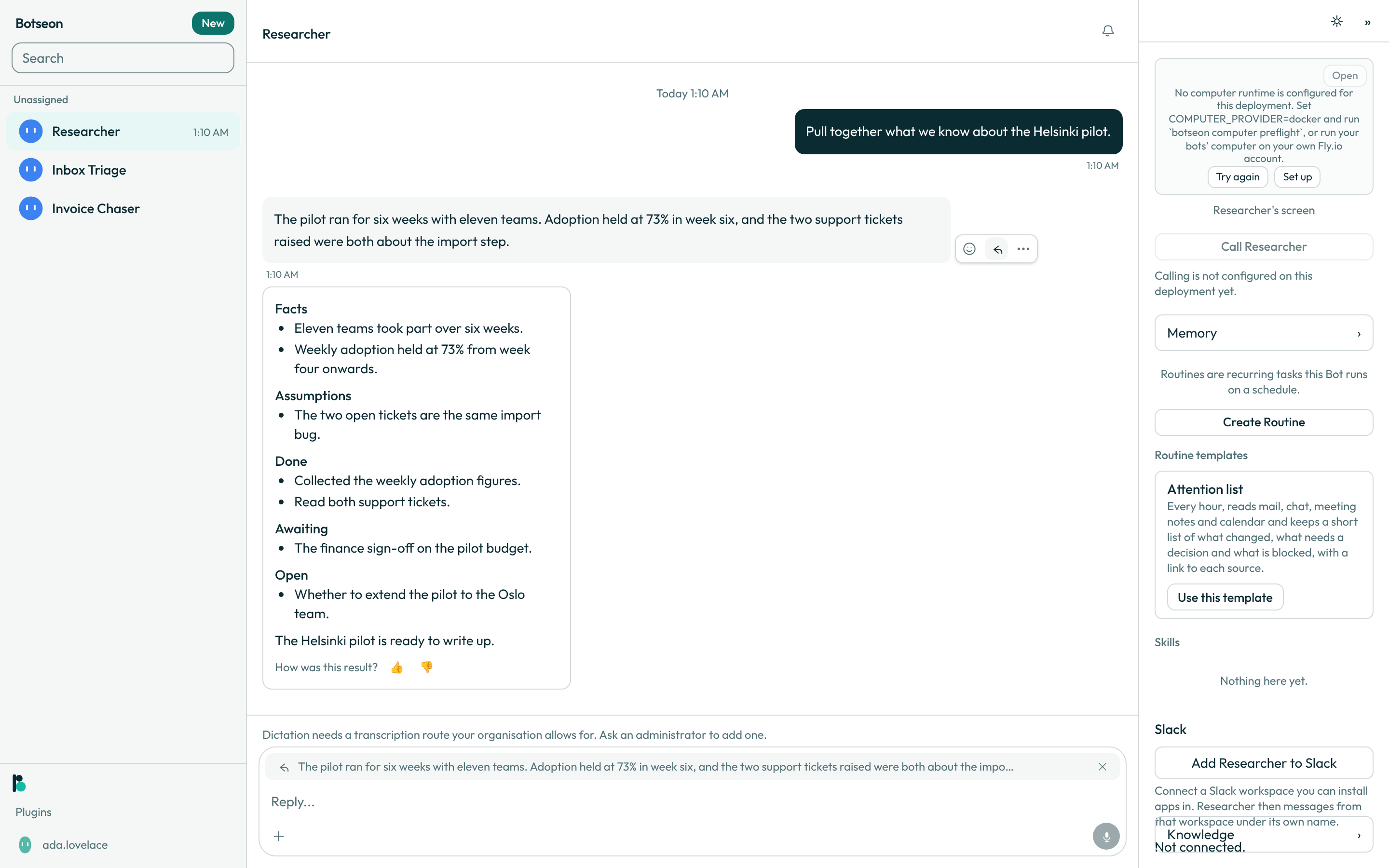
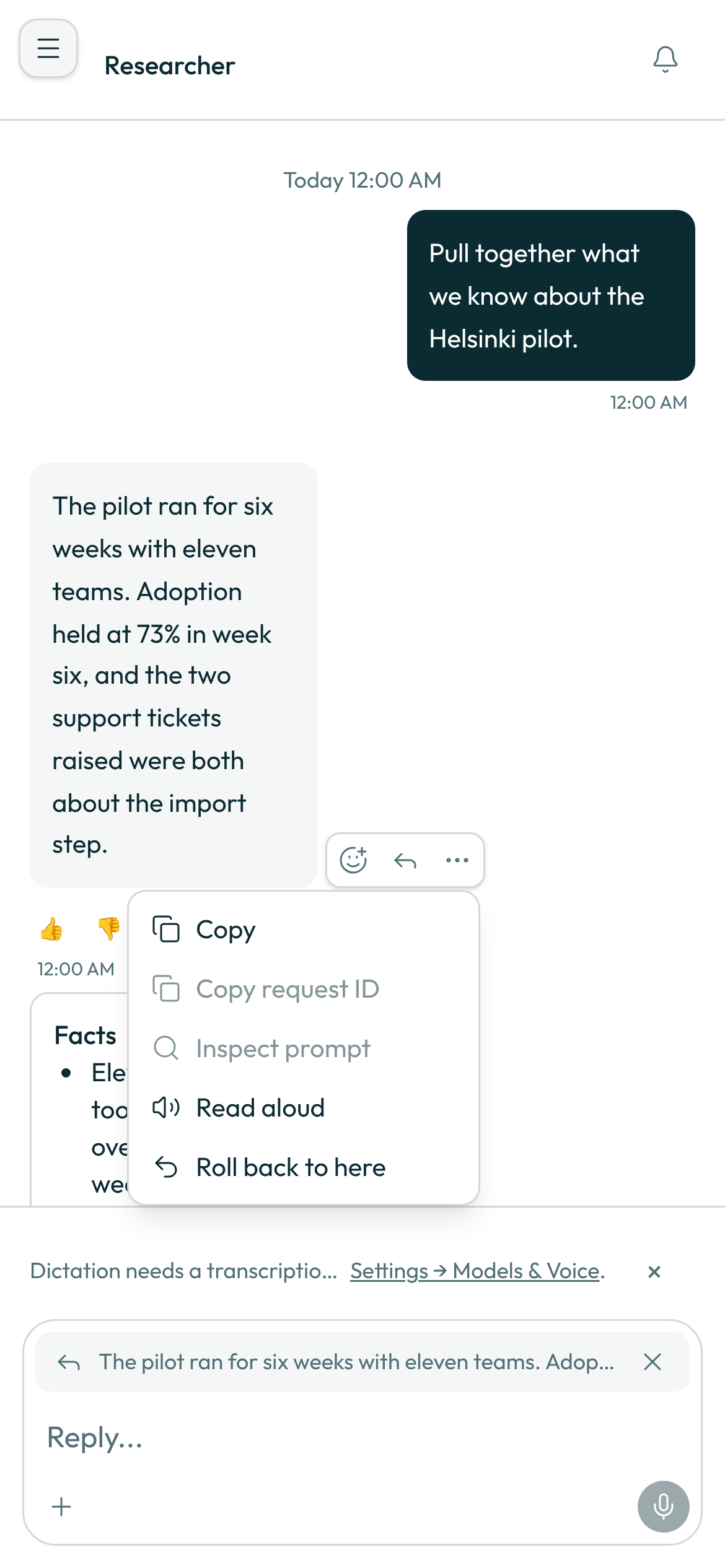
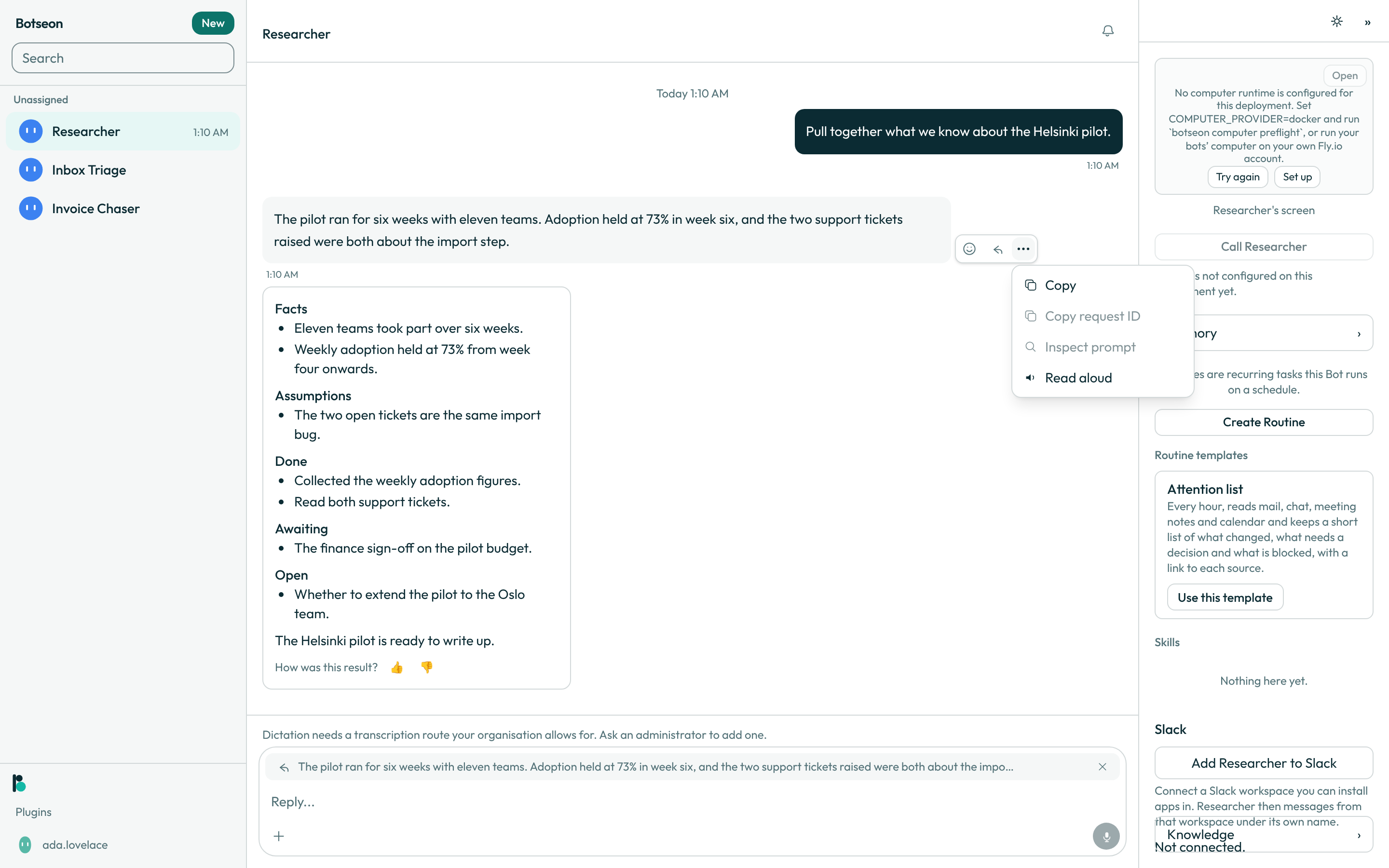
- Copy a message, or copy the id behind it. The more control opens
Copy, which copies the message's text with its markdown flattened to plain text, thenCopy request ID, which copies the id support needs to look into that message — shown disabled, with a reason, on a message with no run behind it yet. Below them sitInspect prompt,Read aloud(on a bot's message with text) andRoll back to here.
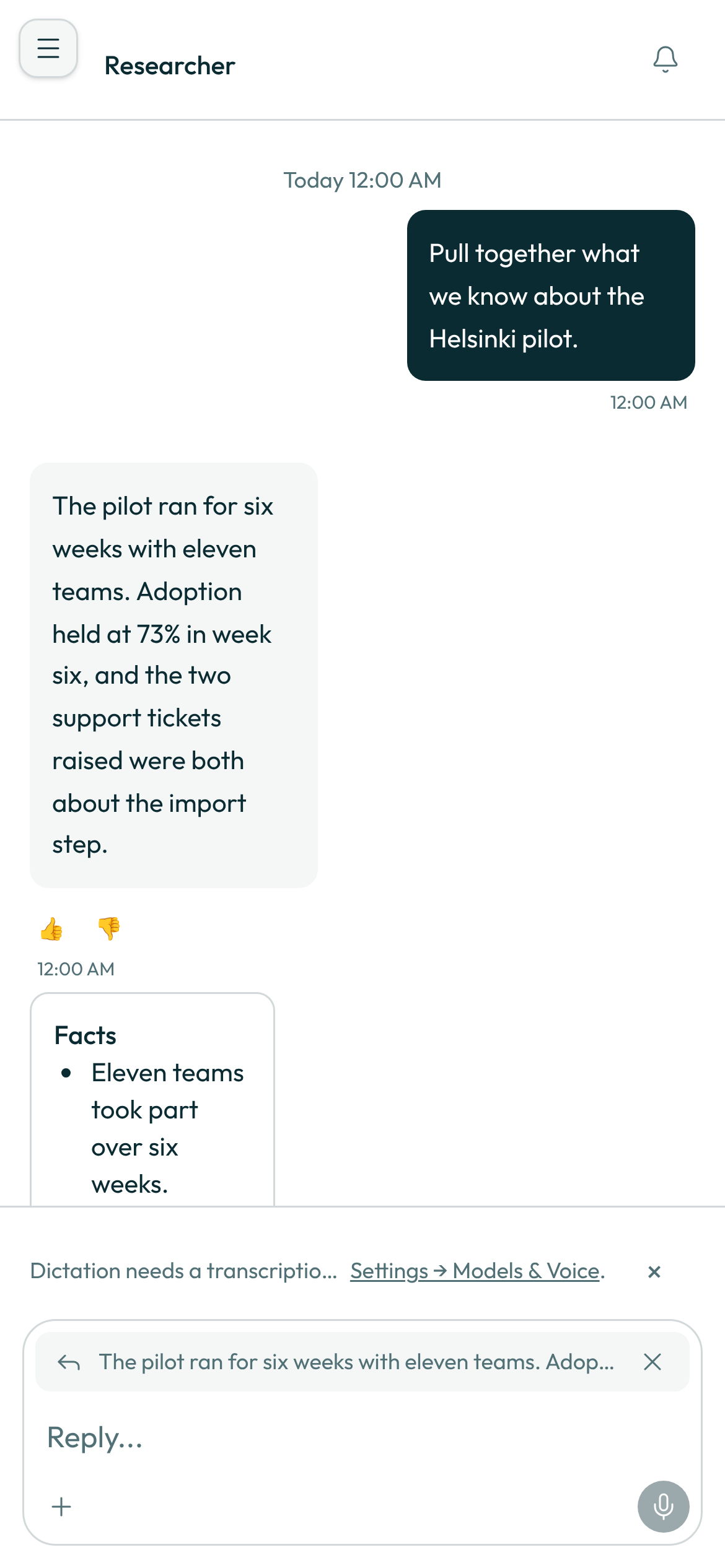
- Read a report. When your bot did real work for you, its answer comes first, in plain words, and a single line under it —
Report · 3 done · 1 open— holds the report. Click the line to open it: five fixed sections — Facts, Assumptions, Done, Awaiting and Open — each shown only when it has something in it. Click it again to fold it away. An ordinary reply has no report at all (see When your bot writes a report).
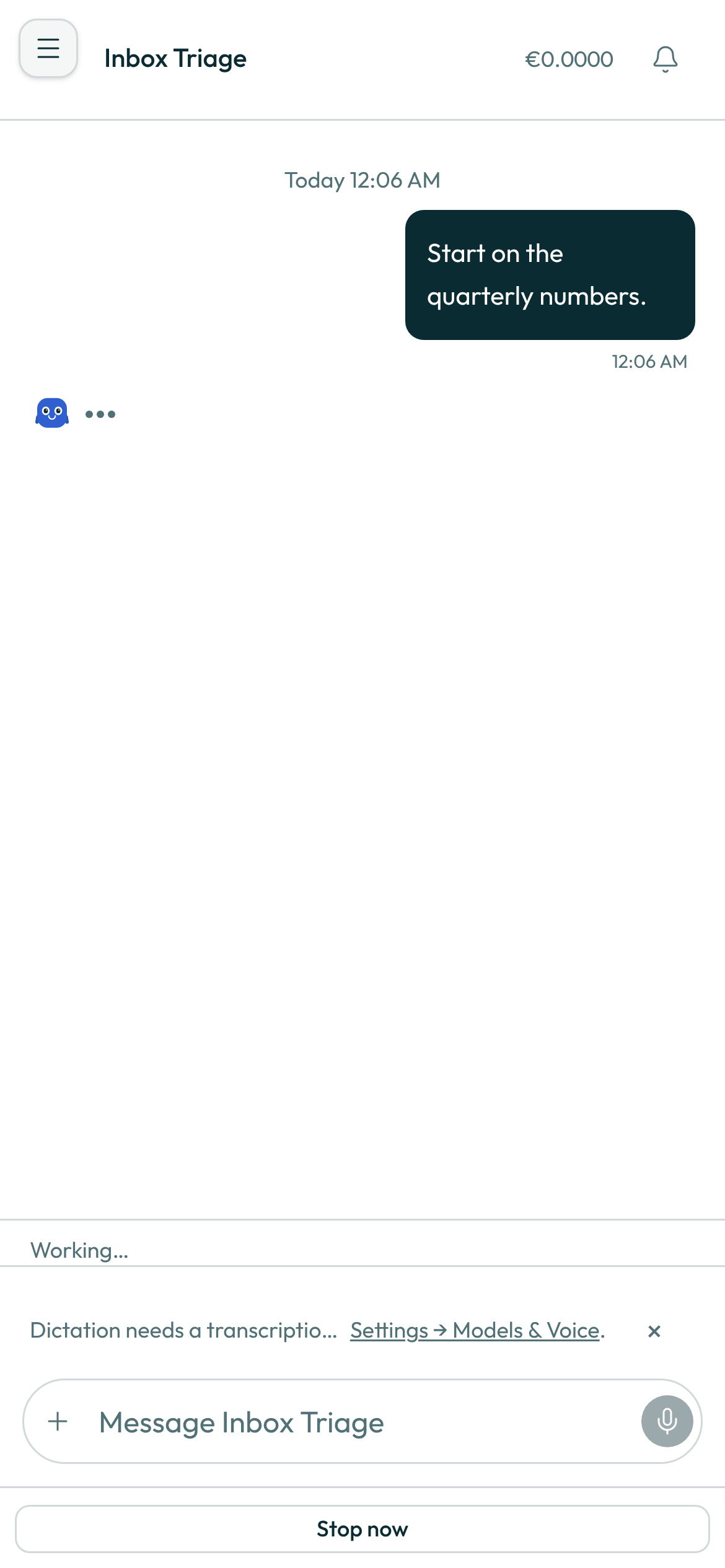
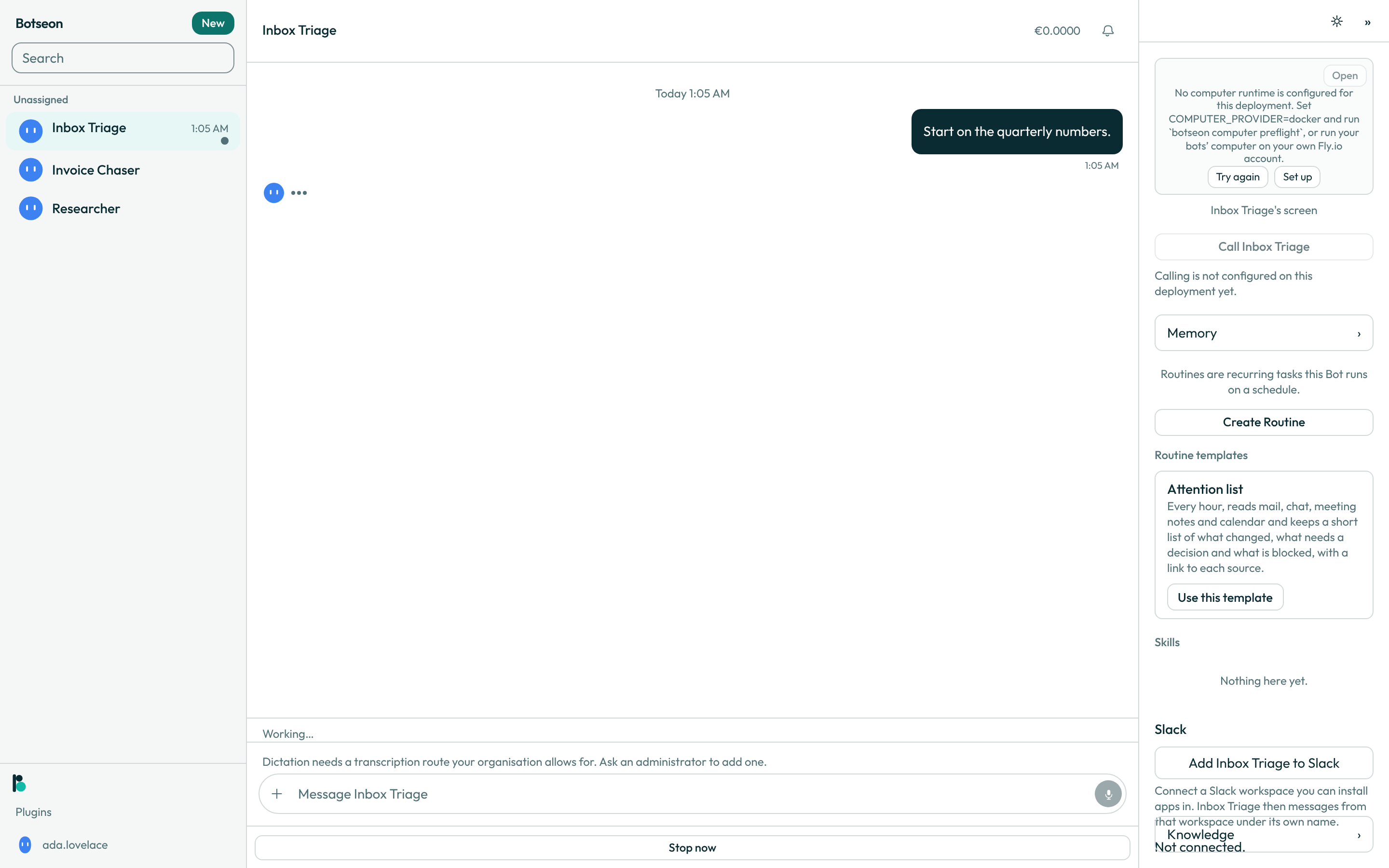
- Redirect a bot that is already working. Sending a message while a run is active queues it instead of interrupting; the queued list can be reordered or removed.
Stop, at the end of the status line under the last message, halts the running task without undoing what it already did; while nothing is typed, the send button shows Stop as well (see See what your bot is doing).
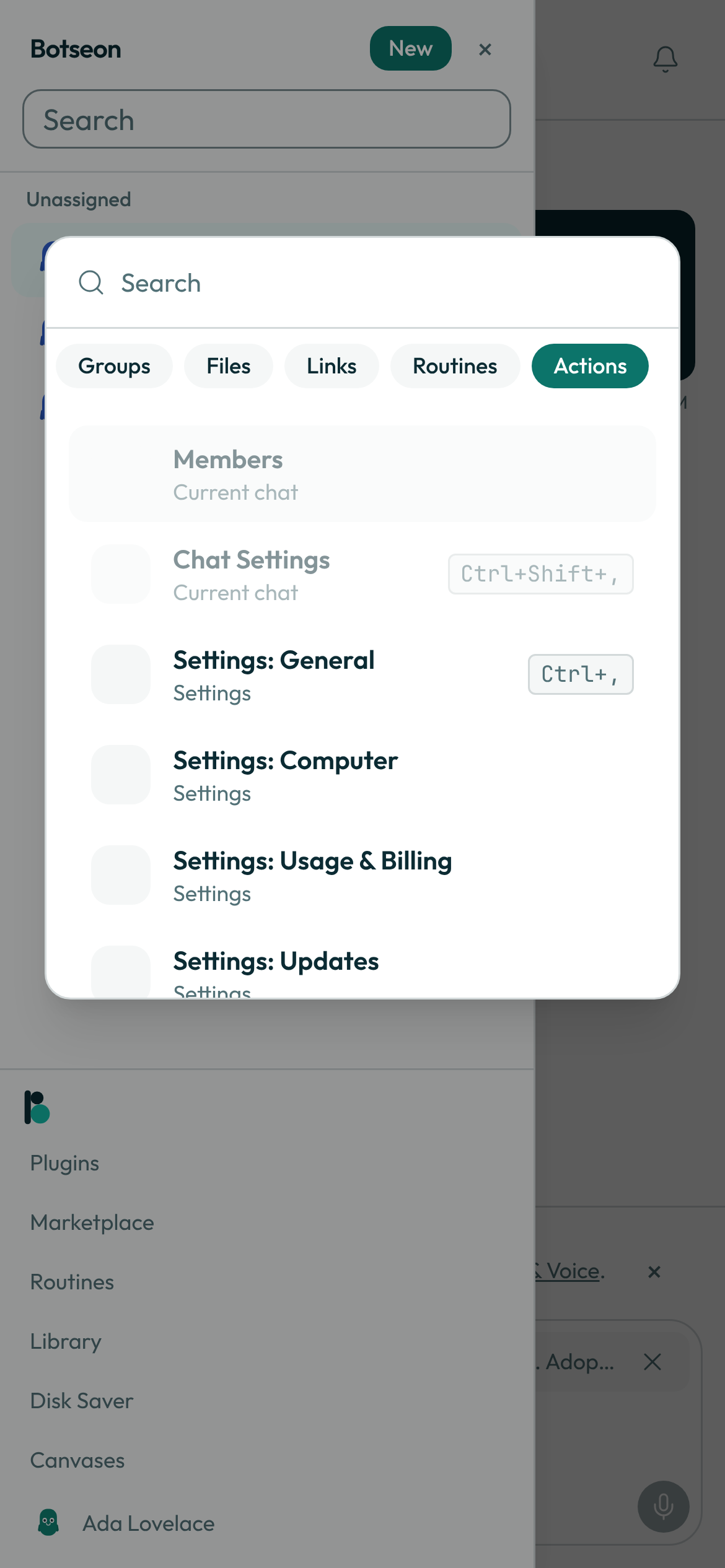
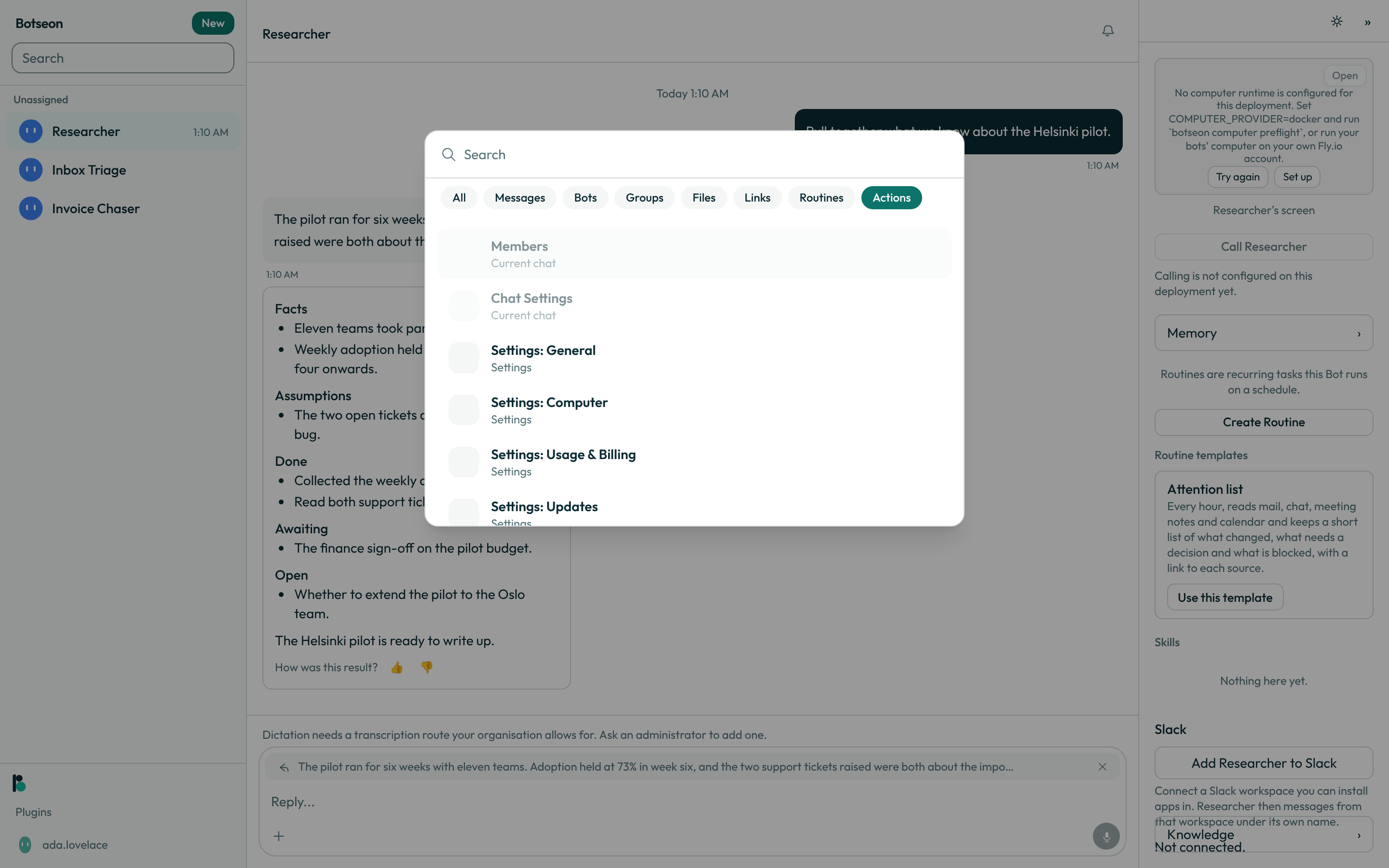
- Jump to this conversation's own settings from search. Open the search palette and switch to its
Actionsscope:MembersandChat Settingsare listed first, underCurrent chat, but they belong to a group conversation — in a one-to-one conversation with a bot they are shown disabled, with a reason.
-
Start a fresh session.
Start a fresh session, in theContextsheet thatManage contextopens, closes this session and opens an empty one in its place: nothing is deleted — the closed session stays readable underEarlier sessions ({count}), and the bot keeps everything it has learned. It is disabled, with a reason, while the session is already empty (This session is already empty.) or while the bot is working (This bot is working. Try again when it has finished.). A closed session keeps counting towards the bot's spend history exactly as it did while it was live. -
Read what was summarised. Once a session has passed its context budget,
Summarise earlier turnsreplaces its oldest turns with one summary so the thread can keep going — the transcript showsEarlier turns were summarised to keep this session going.for an automatic summary andEarlier turns were summarised.for one you asked for, either way withShow the full historyto read every message the summary covers; nothing is deleted. It is disabled, with the reasonThere is not enough here to summarise yet., while there is too little to summarise. -
Undo a summary you asked for.
Undoreverses a summary you triggered yourself — an automatic one cannot be undone — and is refused withUndoing this would put the session over its context budget again.the moment the session would immediately cross its budget without it.
When your bot writes a report
Most of what you say to a bot gets a plain answer: it replies in its own words, talks to you as "you", and asks you directly about anything it still needs to know. That includes a reply where it only saved something to its memory, renamed itself or left you a note — there is no report under it, and no Facts, Assumptions, Done or Open headings. A greeting, a thanks or a quick question is answered directly, and a bot that only looked at your other bots or your task list before answering still gives a plain reply. Your bot answers your latest message; an older message of yours that got no reply is only picked up when you refer to it.
A reply carries a report when the bot did multi-step work: two or more steps with its tools beyond memory, rename and notes — searching, reading files, drafting, sending. The answer still comes first, and the report sits collapsed under it as Report · N done · N open, so you can check what it found and did without the detail getting in the way.
Some replies always carry the report, as they did before: a routine's run, a task the bot works on in its own thread, a reply in Slack or X, and a reply in a group chat. Exporting a conversation still lists a report's parts in full.
A worked example
The report from step 5, opened:
Facts
- The support inbox had 42 unread messages this morning.

Assumptions
- A message from support@ is always high priority.

Done
- Replied to the three time-sensitive threads.

Awaiting
- Your approval to archive the newsletter thread.

Open
- Should low-priority senders be muted going forward?
What can go wrong
| What you see | Why | What to do |
|---|---|---|
Blocked — waiting for you | The run has stopped on something that needs a decision from you, such as a card asking for approval. | Scroll to the card and answer it. |
This message has no request id yet. | The message has no run behind it yet — true of text you sent a moment ago, until a reply arrives. | Wait for the bot's reply, then copy its request id instead. |
The connection to this task dropped. Reload the page to see the answer. | The live connection gave up trying to reconnect on its own. | Reload the page — the transcript itself is unaffected. |
Only a group chat has members and group settings. | Members and Chat Settings in the search palette apply to a group conversation, not to a one-to-one bot. | Use Settings: General from the same list, or open a group conversation instead. |
This session is already empty. | Start a fresh session has nothing to leave behind — the live session has no messages yet. | Send a message first, or do nothing; there is nothing to make fresh. |
This bot is working. Try again when it has finished. | A run is still active on this session, so starting fresh or undoing a summary could take the transcript out from under it. | Wait for the run to finish, or use Stop, then try again. |
There is not enough here to summarise yet. | Summarise earlier turns needs more of a transcript than this session has. | Keep chatting; the control re-enables once there is enough to summarise. |
This session already has messages in it. | Putting a closed session back only works while the session that replaced it is still empty. | Start a fresh session from the current one instead. |
Undoing this would put the session over its context budget again. | Undo is refused the moment reversing a summary would immediately put the session back over its context budget. | Keep the summary, or start a fresh session instead. |
See also
Last verified against build 71798d4.