Give a bot a voice
Member·11 minutes to read
What this does for you
This page covers choosing a voice for a bot, calling it, hearing it speak, and talking to it instead of typing.
Before you start
- The bot already exists, and you can reach its Settings pane — see Make a bot, and set it up.
- Calling and speech need a voice service your organisation allows. If this service has none set up yet, the voice list holds only
Not setuntil it does. - Calls, read-aloud and spoken answers are on by default, with no approval step. An organisation's administrator can turn calling off in voice settings; while it is off, none of them work.
Steps
-
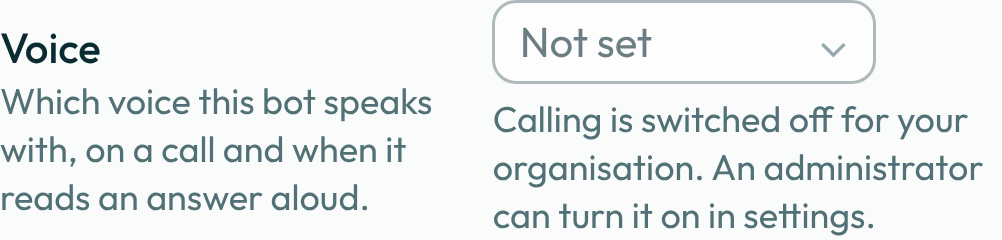
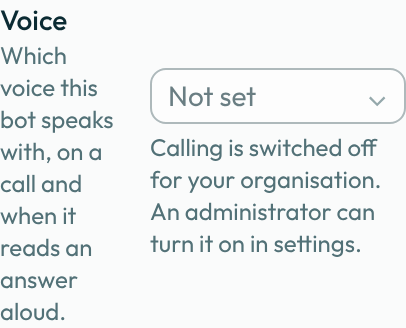
Open the bot's Settings and find the Voice row.
-
Choose a voice from the list.
Not setis first and is the default, with no preview button on it; every other voice is listed alphabetically, each with a▷you can press to hear a sample without leaving the list. Until your organisation has a voice service it allows, the list holds onlyNot set. -
Start a call from the Computer tab of the bot's details panel (see The bot panel), once it has a voice chosen. There is nothing to accept first: no notice and no approval step. Where call audio is processed is set out in the privacy policy.
-
Talk with the bot. If your organisation keeps voice data in the EU, the call takes turns: hold the button while you speak and release it when you're done. Otherwise, speak whenever you like and the bot answers as you go.
While the call is being set up the panel reads
Connecting; once the bot can hear you it readsOn a call, with the time elapsed beside it. -
End the call when you're done. A call also ends on its own after 30 minutes. The chat then shows a call card,
Call withthe bot, with when the call started, how long it was and the transcript of what you both said. -
Ask the bot to speak a passage back to you instead of typing it, for a digest or a summary you'd rather hear. The audio is always marked as synthetic, so you know it was generated rather than recorded.
-
Hold the composer's microphone button to dictate a message instead of typing it, when your organisation has a transcription service it allows.
Microphone and voice buttons in the composer
The composer is one rounded box: + on the left, then the text you type, then the microphone, the voice button and send. On a phone the text gets the box's whole top row and the buttons sit beneath it.
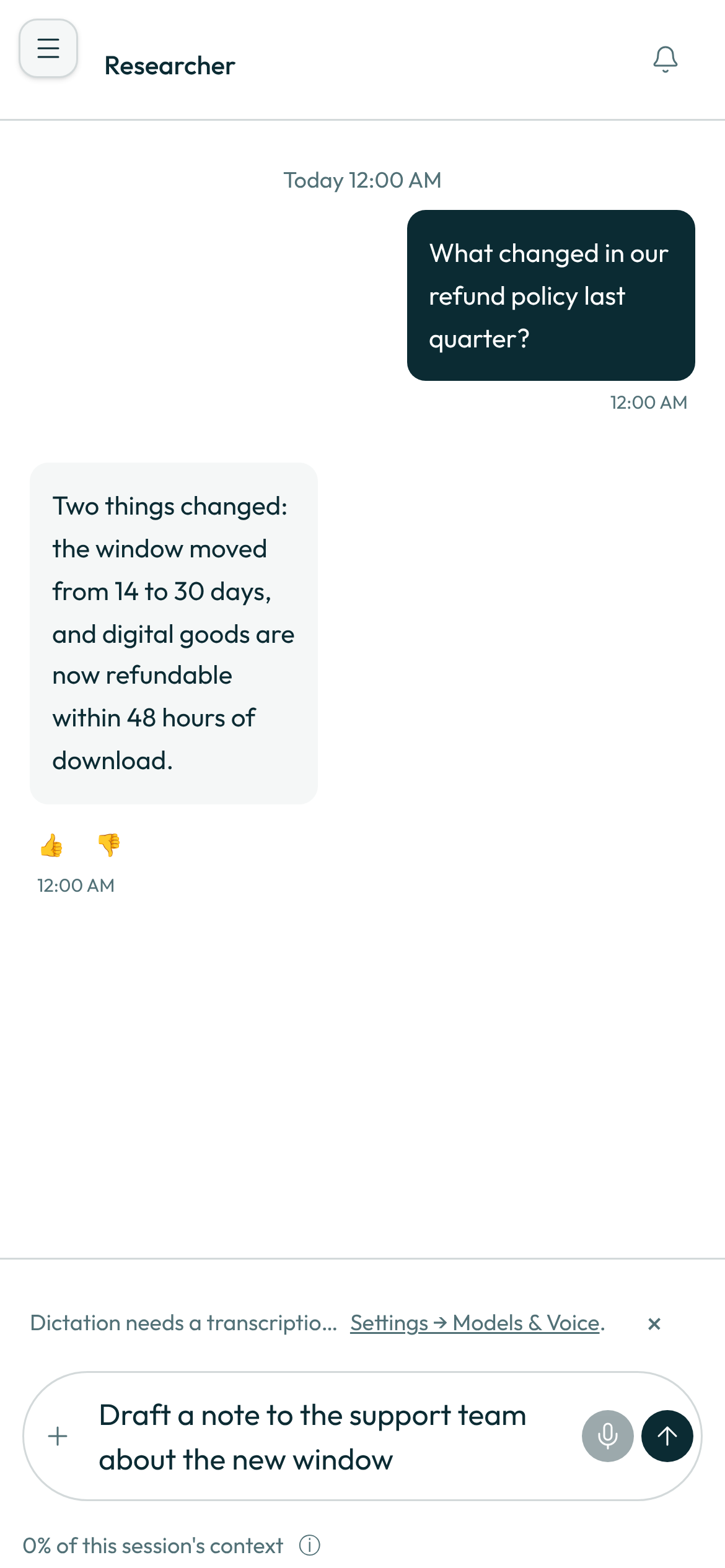
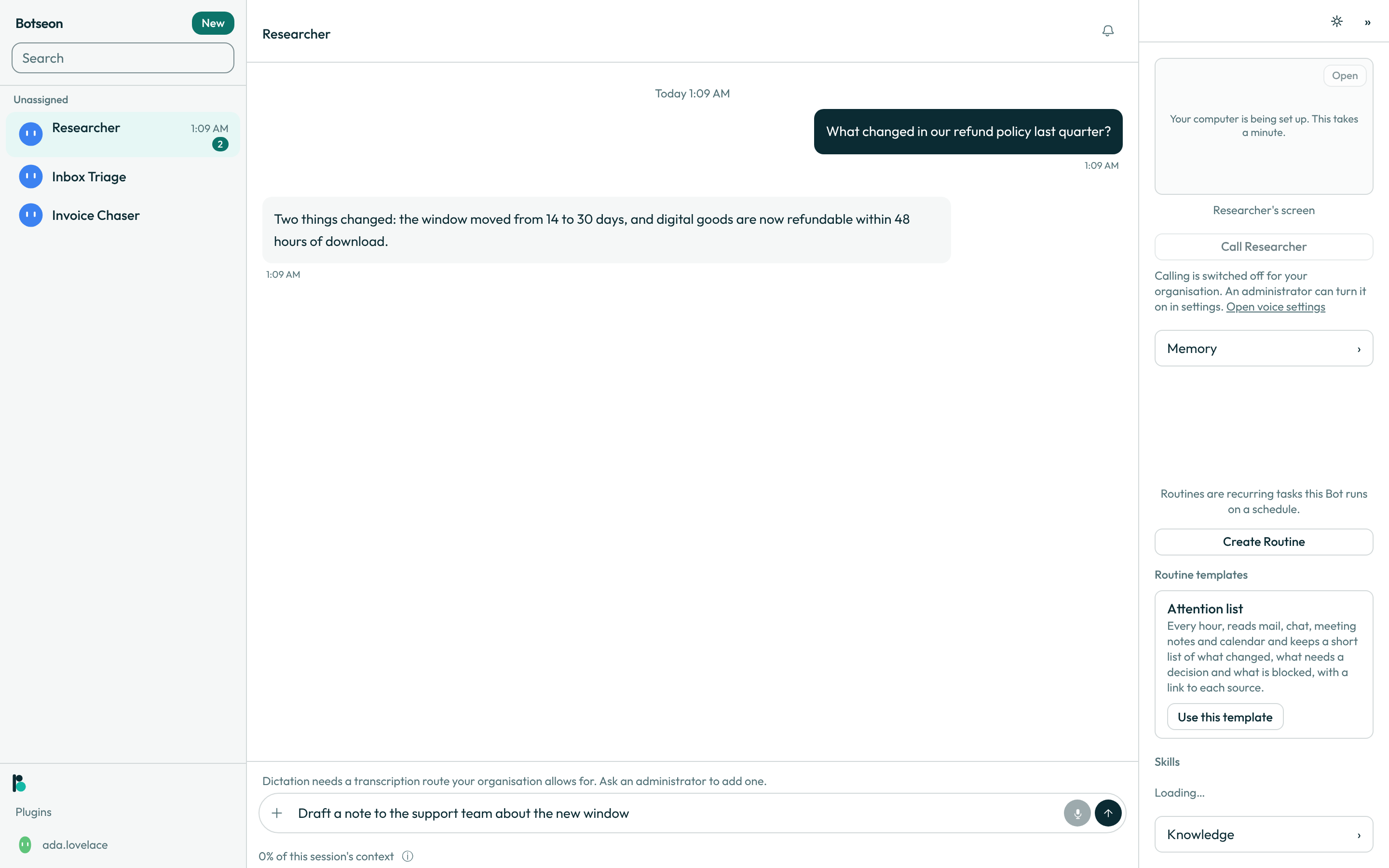
- The microphone dictates into the box, as in step 7. It shows only where dictation is available to you. Where it is not — the service has no transcription provider, or your organisation's settings allow none — there is no microphone at all, and no message about it: type instead. An administrator turns dictation on in Settings → Models & Voice.
- The voice button starts a voice chat with the bot, the same call as
Callin the details panel, and opens the details panel so you can see the call. It shows only where a voice chat with this bot can start. Where it cannot — calling is off, the bot has no voice yet, or the service has none — there is no voice button, and no message about it. The details panel'sCallcontrol tells you why, as below. - While a voice chat with this bot is running, the voice button stays highlighted; press it to bring the call back into view. If a voice chat with another bot is running, you are asked
End the current voice chat?first, as in the details panel.
When voice or calling is not available
The Voice row and the Call control always stay on screen. When one of them cannot be used, it looks dimmed, and the panel shows no warning text of its own. Press the control to see why: the reason appears just under it, and a screen reader announces it.
What the reason tells you to do depends on who can change it:
- On your own account (no organisation), nobody else has to approve anything. If calling is off, the reason reads
Calling is off. Turn on Voice calling in Settings → Voice.PressOpen voice settingsbeside it, switchVoice callingon, and theCallcontrol turns on. You are never asked to find an administrator. - If you own or administer an organisation, you read the same sentence and turn calling on the same way.
- If you are a member of an organisation, the reason reads
Calling is switched off for your organisation. An administrator can turn it on in settings.Only the organisation's administrators can change it. - If this service has no voices at all yet, the reason reads
No voices are available on this service yet, so there is no voice to choose.There is nothing to switch on; it becomes available once the service adds voices. - If the bot has no voice yet, choose one on its Voice row and the
Callcontrol turns on.
Voice chat with a teammate's Team Bot
You can talk by voice with a Team Bot a teammate made and published, not only with your own bots.
- Open your own chat with the Team Bot, from the web or the phone. If you have not opened one yet, choose Add beside the bot in Team bots — see Publish a bot so each teammate gets their own chat.
- Start the call from the details panel, as in step 3 above, and talk with the bot as you would with your own.
- When you end the call, its call card lands in your own private chat with the Team Bot. Only you can see it: the bot's maker, its managers and your other teammates cannot read the card or the transcript.
The call's usage counts against you, the member who held it, not against the bot's maker. Voice with team bots is on by default; an administrator can turn it off in Organisation > Policies, and the call control then stays on screen, disabled, with a sentence saying so. A voice chat is with one bot: a group chat has no call control.
A voice chat is with one bot at a time. If you start a voice chat with a second bot while one is running, you are asked End the current voice chat?; End and chat ends the first call, saves its call card in that chat and starts the new one, and Cancel keeps the first call running.
Start a voice chat from the iPhone Action Button
On an iPhone with an Action button you can start a voice chat without opening a chat first.
- Open the phone's Settings app, tap Action Button, swipe to Shortcut, tap Choose a Shortcut, then pick Start Voice Chat under Botseon. The same shortcut is in the Shortcuts app and works with Siri.
- Press the Action Button. The app opens on your bot's chat and the voice chat starts.
- To choose which bot it talks to, open the app's Settings and pick one under Voice chat shortcut. Until you do, it talks to the bot at the top of your list.
If a voice chat is already running, pressing it takes you back to that call. With no bot yet, it opens the bot creator.
Answer before your bot joins a meeting
When you ask a bot to sit in on a meeting by dial-in, nothing is dialled until you answer the card it leaves in your chat first. The card is the same on the web and in the phone app.
- Read the card's heading,
Send the bot to “<meeting>”?, and the line under it that says where the meeting came from:From a dial-in link,From a calendar eventorFrom a dial-in number, withMarked internalwhen you marked it so. - Read the sentence under
The first thing the room will hear:. That is what the bot says first, word for word, so the people in the room know an AI assistant has joined for you. The bot does not record; it keeps a written transcript for your summary. - Tap
Jointo send the bot in, orNot nowto keep it out.
The card shows your answer once you have given it: The bot joined the meeting., You chose not to send the bot. or The bot could not join this meeting.. An answer given on one device shows on every other — answer on your laptop and the phone shows the same answer with no buttons — and a card can be answered only once: a second answer is refused with That card has already been answered.. Where your service has no meeting attendance set up, Join is refused with a sentence that says so, and nothing is dialled.
Image generation in a bot's answers, and a bot sitting in on a video meeting by its link rather than by dial-in, are not available yet.
A worked example
Asking a bot to speak a digest instead of writing it out:
Read me this morning's digest instead of posting it as text.
What can go wrong
| What you see | Why | What to do |
|---|---|---|
No voices are available on this service yet, so there is no voice to choose. | This service has no voice your organisation is allowed to use yet. | Nothing to switch on: it becomes available once the service adds voices. |
Calling is off. Turn on Voice calling in Settings → Voice. | Calling was turned off on your own account, or in an organisation you own or administer. | Press Open voice settings and switch Voice calling on. |
Calling is switched off for your organisation. An administrator can turn it on in settings. | Calling is on by default, and an administrator of your organisation turned it off. | Ask an administrator to turn it back on. |
An admin turned off voice with team bots in this organisation. You can keep chatting by text. | An administrator turned off voice with team bots in your organisation. | Keep chatting by text, or ask an administrator to turn it back on in Organisation > Policies. |
This team bot isn't shared with you, so you can't call it. Ask the teammate who made it to share it with you. | The Team Bot is not published to you, its audience leaves you out, or its maker withdrew it. | Ask the teammate who made it to share it with you. |
This Bot has no voice yet. Choose one in Settings and the call control turns on. | The bot's own Voice field is still Not set. | Choose a voice in the bot's Settings. |
That is too long to turn into one audio file. Ask for a shorter passage. | The passage you asked the bot to speak is over the length a single audio file can hold. | Ask for a shorter passage, or split it into more than one. |
See also
Last verified against build 9e6bdf2.