Recover a computer
Member·8 minutes to read
What this does for you
This page orders every way to fix a stuck or broken computer from least to most destructive, and states exactly what each one keeps and what it throws away.
Before you start
- You are signed in as a member of the organisation the bot belongs to.
- You know which is wrong: the app around the computer (a stuck tab, a stale build) or the computer itself (a bot's screen will not open, or a task keeps failing).
- For the last four steps below, you can reach Settings → Updates. Check for Updates works only in the desktop app.
Steps
Try these in order. Each one undoes less of your work than the next, so do not reach for Reset first.
| Step | Keeps | Loses | Disk |
|---|---|---|---|
| Retry | everything | nothing | unaffected |
| Restart the app | everything | nothing | unaffected |
| Check for an update | everything | nothing | unaffected |
| Recover | whatever the last snapshot held | changes since that snapshot | replaced by the last snapshot |
| Update (a software update) | files, logins and installed apps | nothing | unaffected |
| Update (a computer update) | files and logins | installed apps and packages | the computer is replaced; your files are untouched |
| Reset | files, settings and sign-ins from the last saved snapshot; /workspace from the last saved copy; conversations | installed apps, and changes since the last saved copy | a new machine on a volume rebuilt from the last saved snapshot; the old volume is scheduled for erasure |
When the bots' computer can't be reached
One problem shows as one notice. When the bots' computer can't be reached, the conversation shows a
single notice just above the message box, with a yellow-brown edge — not a red bar across the top
of the chat. It says Your bots' computer can't be reached. and offers one button, Retry.
- Retry asks for the computer again. If it comes back, the notice goes away by itself.
- If it still can't be reached, the same notice says
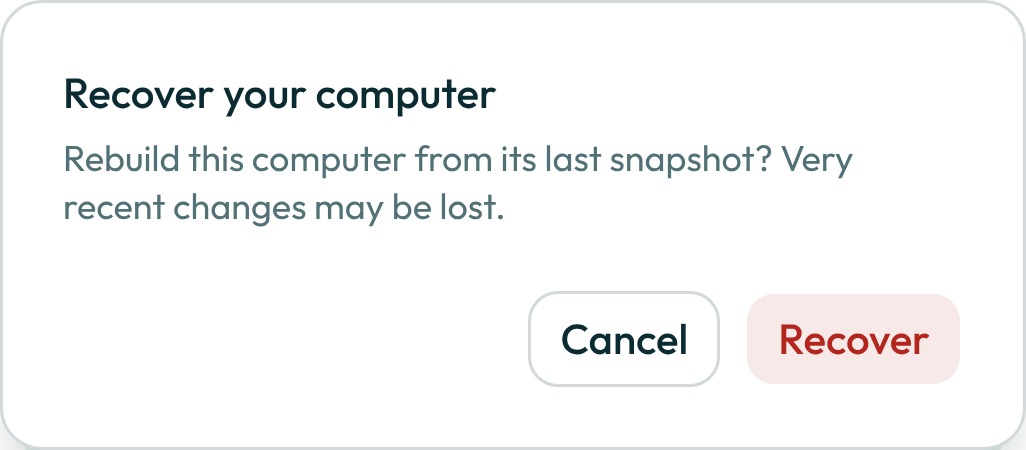
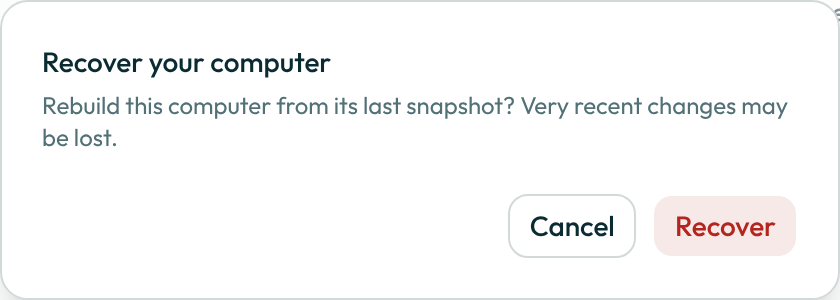
Your bots' computer still can't be reached; Recover rebuilds it from your last saved copy.and its one button becomes Recover, which asks you to confirm first (step 4 below).
While the notice is showing, the bot's screen on the side panel's Computer tab just says
Screen not available.
It has no notice or buttons of its own: the notice above the message box is the one place to act.
Which failure you are looking at
When a bot's screen cannot open, the screen names one of five classes. Two of them are not yours to fix, and the product says so rather than offering you a control that would change nothing: their Try again is shown, greyed, with the reason beside it.
| Class | What the screen says | Does trying again help? |
|---|---|---|
| Not answering | The computer started but did not answer. It is being rebuilt. | Yes. Start at step 1. |
| No room just now | There was no computer available just now. | Yes. Wait a minute and start at step 1. |
| Secure storage | The computer could not open its secure storage, so it stopped before starting. Your files and logins are untouched. | No. This needs an operator. |
| Credentials | The computer refused this deployment's credentials. | No. This needs an operator. |
| No computer set up | This deployment cannot run a bot's computer at all. | No. The control is Set up a computer, which opens Settings → Computer. |
"Not answering" is also the honest answer when the cause is not known — the computer is not responding and nothing sharper has been recorded. It is never a guess at a cause.
-
Retry. Close whatever refused and try again — a screen that would not open, a task that failed. Most failures are transient and clear on their own. This step has no screen of its own: it repeats whatever action failed.
-
Restart the app. Close and reopen the browser tab, or quit and relaunch the desktop app. This clears a stuck client without touching the computer at all. This step has no screen of its own: it happens outside the product.
-
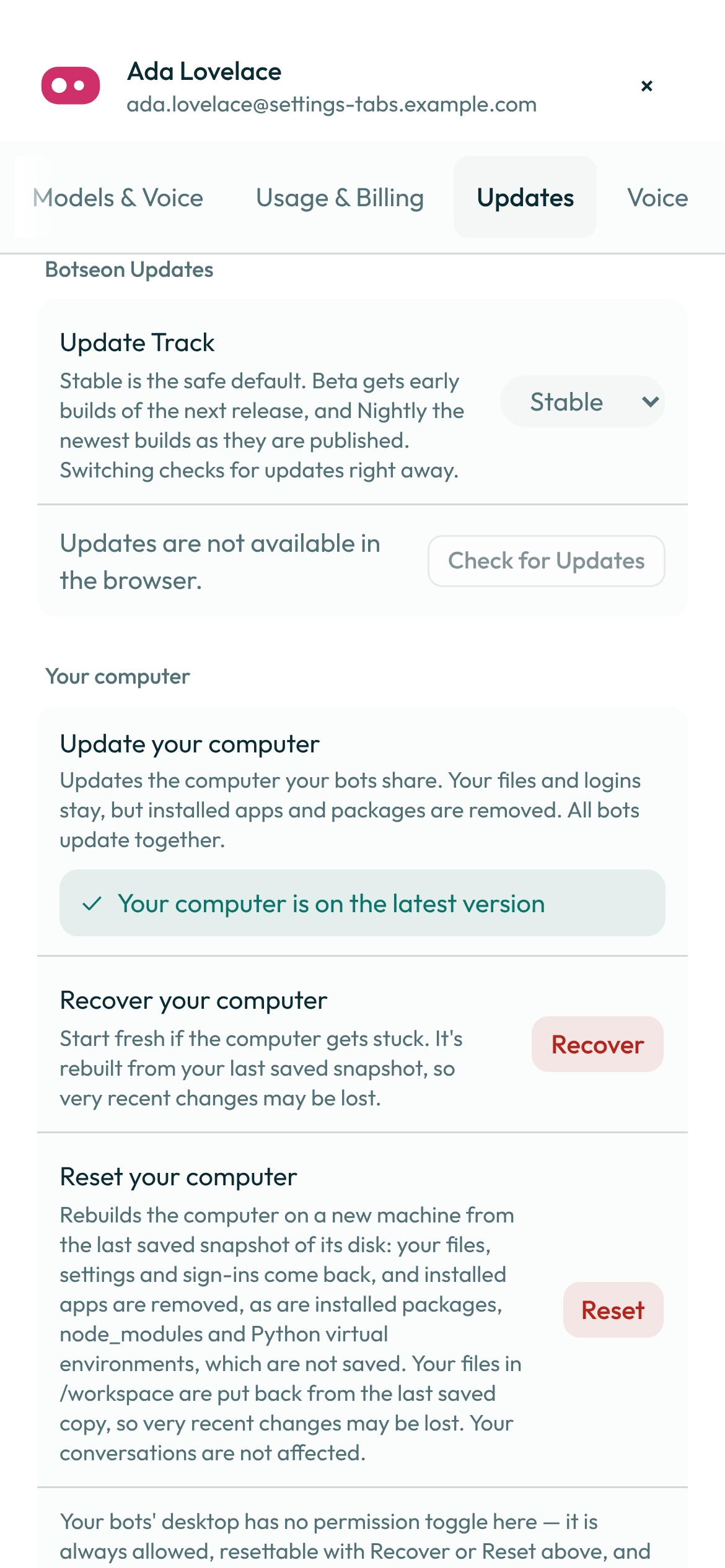
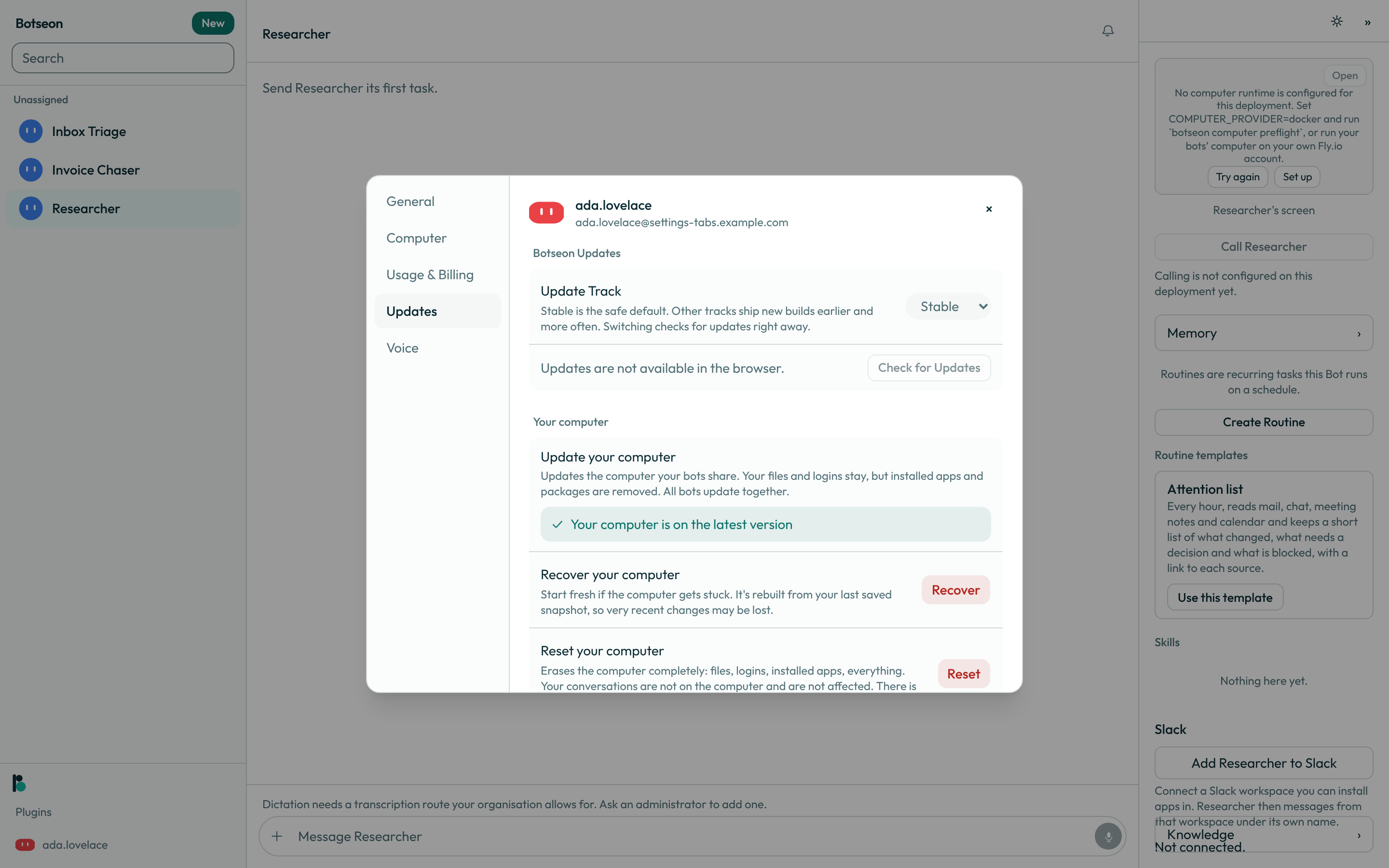
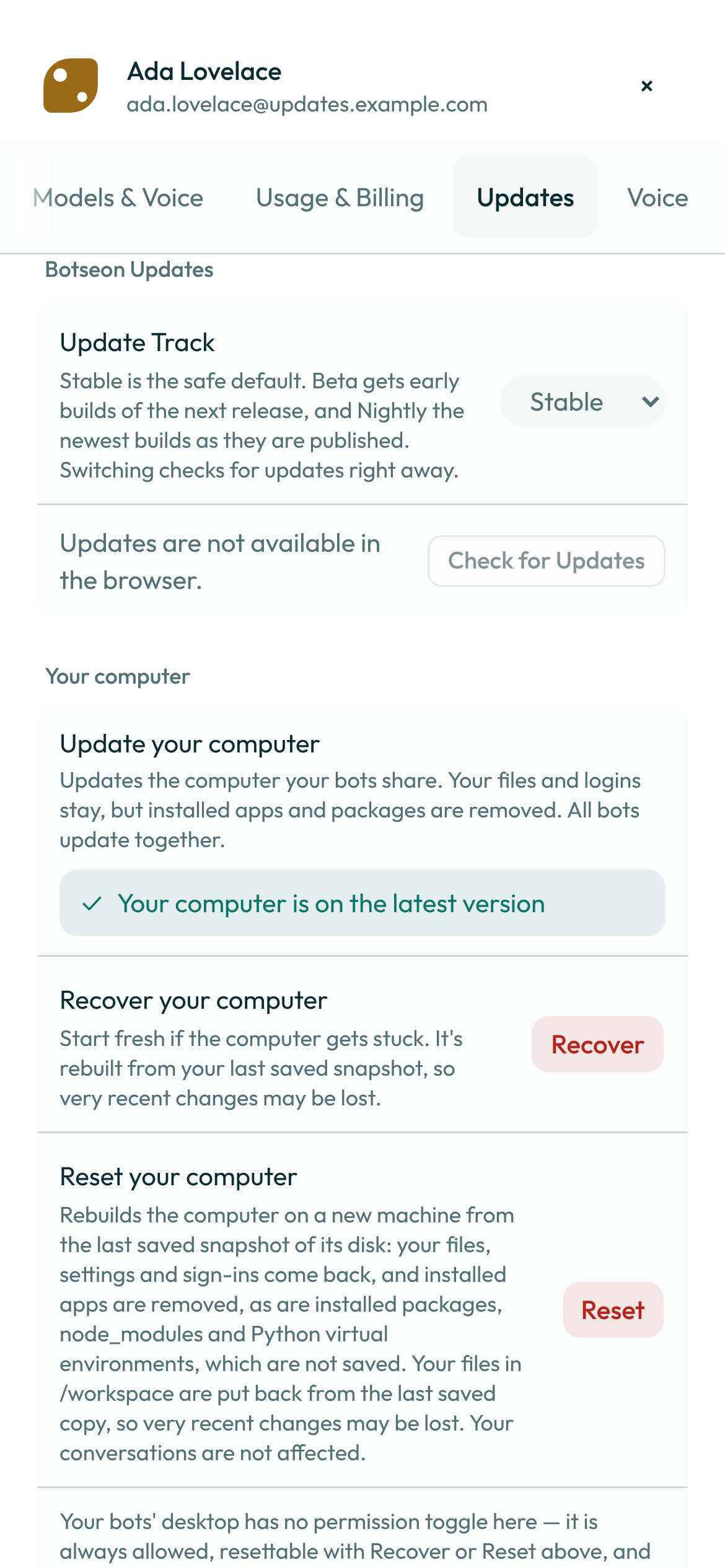
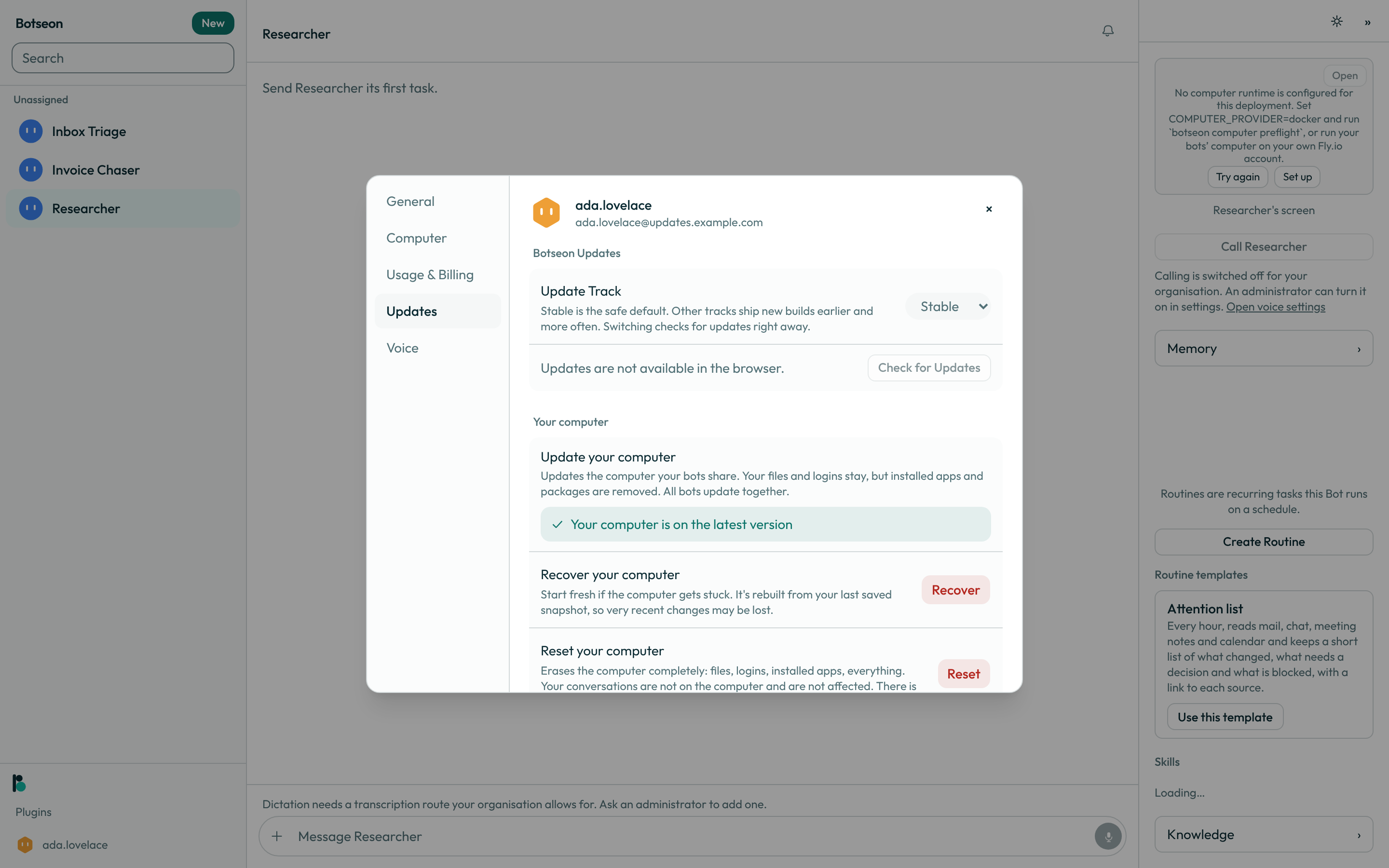
Check for an update. Open Settings → Updates and click Check for Updates in the top section. A client bug is sometimes already fixed in a newer build.
-
Recover. In Settings → Updates, under Your computer, click Recover. This rebuilds the computer from its last saved snapshot; confirm once you understand you may lose very recent changes. Reach for this when the computer will not respond and you do not know why.
-
Update. When an update is waiting, the same section shows Update your computer with an Update button in place of
Your computer is on the latest version. The line under it says which kind of update it is:A software update is waiting. Your installed apps are kept.— files, logins and installed apps all stay.A computer update is waiting. It replaces the whole computer, so installed apps are removed. Your files and logins stay.— for this kind, Update later lets you pick a time for it instead, and Schedule sets it.
Bots that use the computer pause while it updates and carry on by themselves when it is back.
-
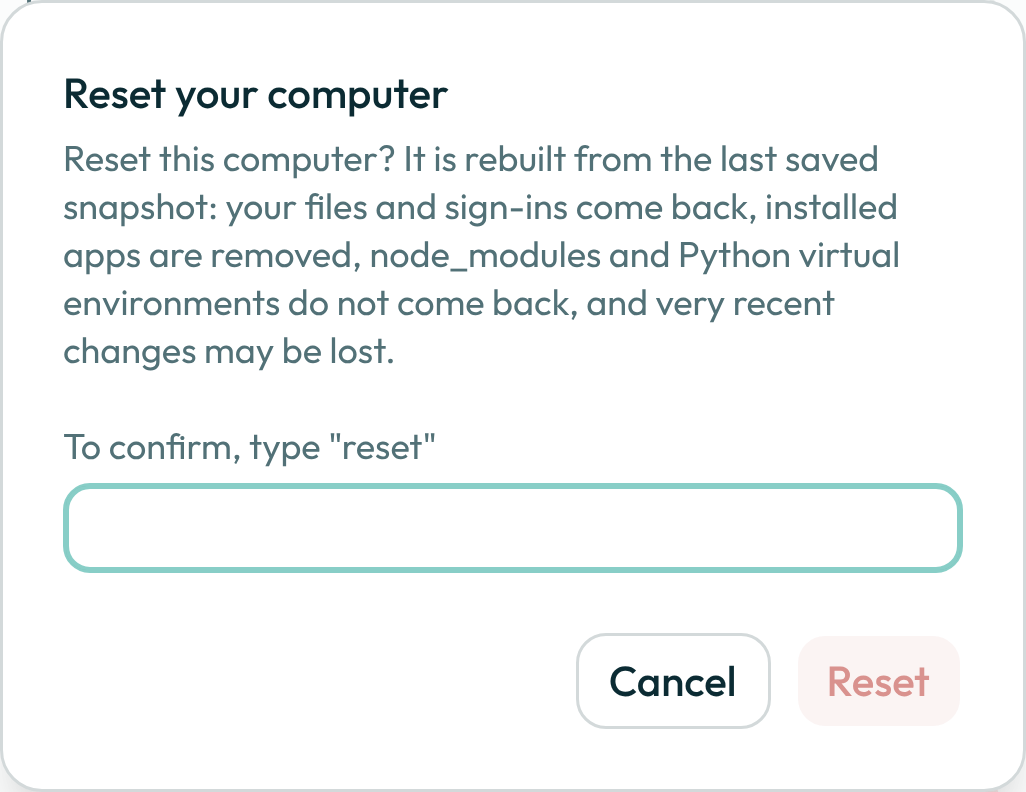
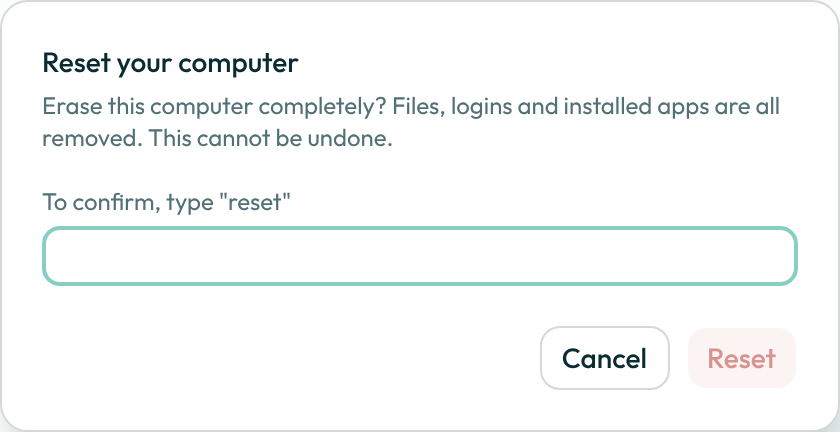
Reset. Click Reset, then type
resetto confirm. This rebuilds the computer on a new machine from the last saved snapshot of its disk: your files, settings and sign-ins come back, your files in/workspaceare put back from the last saved copy, and installed apps are removed, as arenode_modulesand Python virtual environments. Very recent changes may be lost. Your conversations are not stored on the computer and are not affected. On the home edition, Reset puts back/workspaceand your sign-ins from the saved copy.
If the computer's disk is ever lost, the next time it opens it is rebuilt the same way, from the last saved snapshot and the last saved copy of /workspace.
When the computer starts on a new disk
If your computer's disk is lost — the provider replaced it, or it could not be read — the computer starts on a new, empty one, and /workspace is put back from the last saved copy. You do not have to do anything. Settings → Computer then says so, with the day it happened and the day that copy was saved, so you know which of your changes came back: anything you changed in /workspace after that copy was saved is not on it.
A worked example
Reset asks you to type the word below, case-insensitively, before the button will confirm:
reset
What can go wrong
| What you see | Why | What to do |
|---|---|---|
Your computer is being set up. This can take a minute. | The computer has not finished setting up for the first time. | Wait — the actions on this page are disabled until it is running. |
No computer runtime is set up for this deployment. Set COMPUTER_PROVIDER=docker and run botseon computer preflight to see what is missing, or run your bots’ computer on your own Fly.io account. | Self-hosted only: no computer provider is configured at all. | Follow the message — retrying does not help until a provider is configured. |
The computer provider refused the request. Try again in a few minutes. | The underlying provider (Fly.io or Docker) rejected the request. | Retry after a few minutes; if it keeps happening, try Recover. |
The computer provider has no capacity right now. Try again in a few minutes. | The provider is temporarily out of room to run the computer. | Retry after a few minutes. |
The computer started but could not be reached. Try again. | The computer started but the program inside it that Botseon talks to never answered. | Retry; if it keeps failing, try Recover. |
Could not queue that. Try again. | Update, Recover or Reset failed to queue the job. | Try again; if it keeps happening, restart the app first. |
See also
Last verified against build 1c545f3.