The phone app
Member·8 minutes to read
What this does for you
The phone app carries your bots, your approvals and your notifications with you, and it is deliberately smaller than the desktop app everywhere editing and management belong on a bigger screen.
Before you start
- You're signed in on the web first.
- The phone app installed. The downloads band near the end of the botseon.com homepage lists it under Phone, for iPhone and Android, with a link to its store page once it is published there.
- Your account and appearance settings are shared with the desktop app — see Your account and settings.
- Anything the table below marks as web- or desktop-only still needs one of those, even while you're carrying the phone.
Steps
-
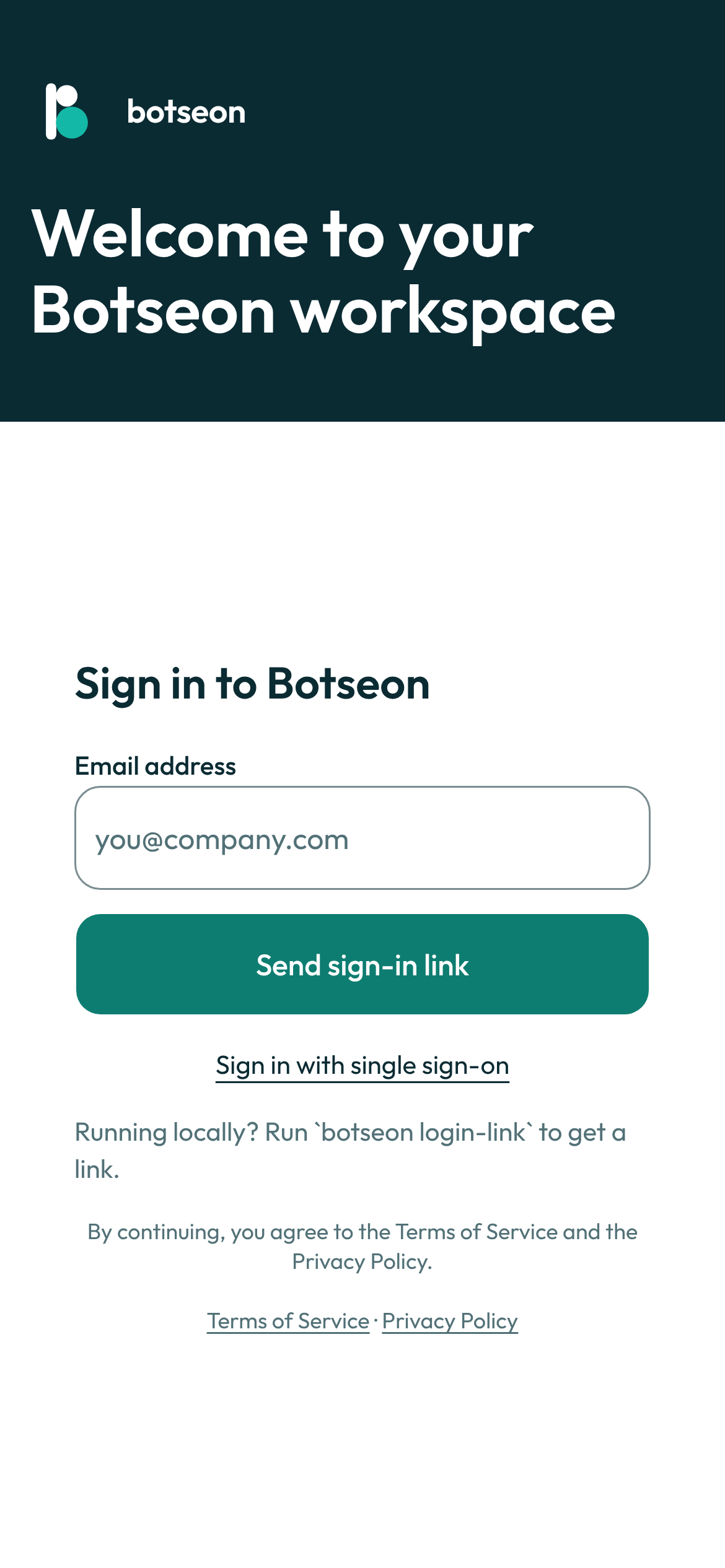
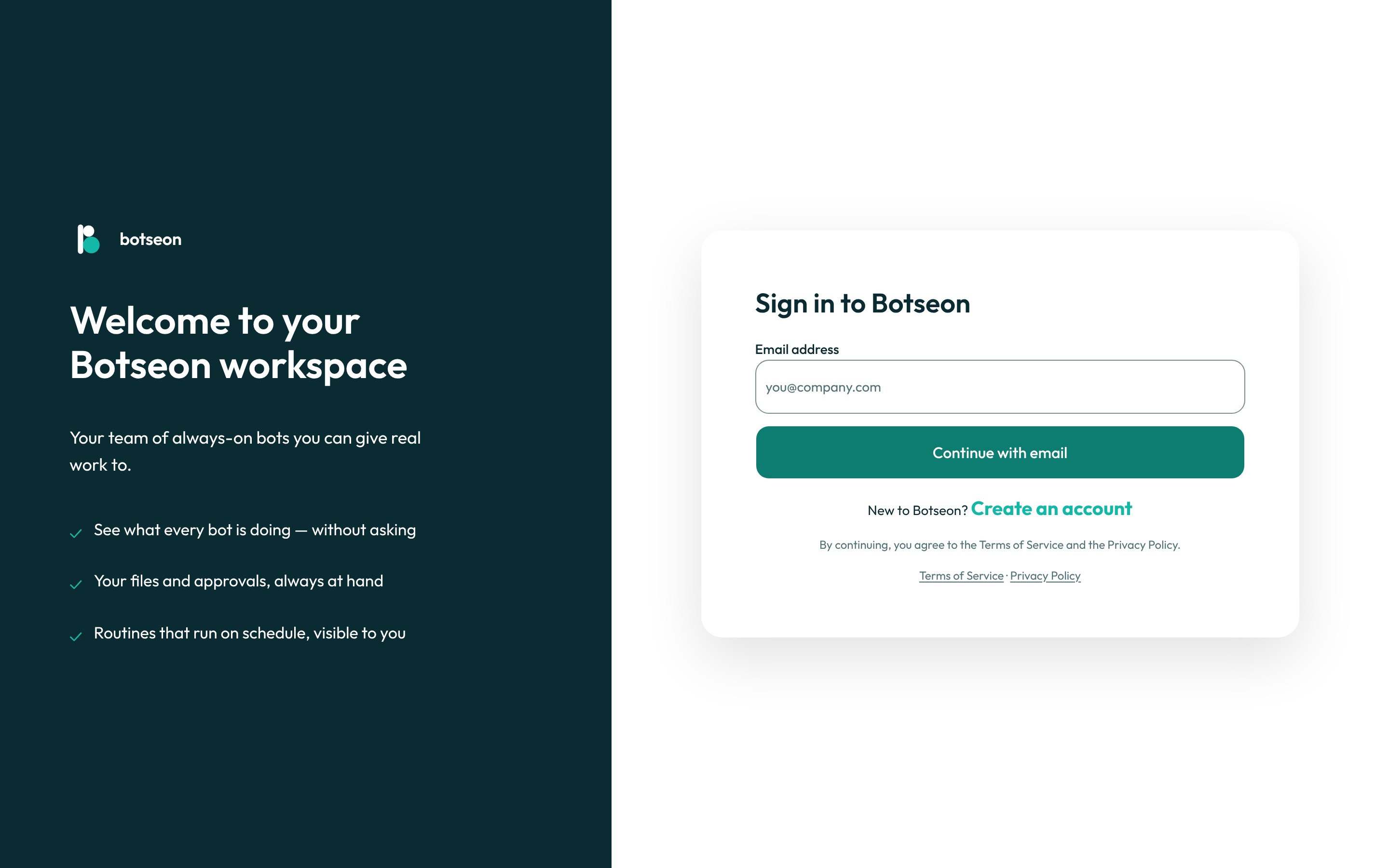
Sign in; a failed or cancelled sign-in tells you which happened rather than leaving you guessing.
-
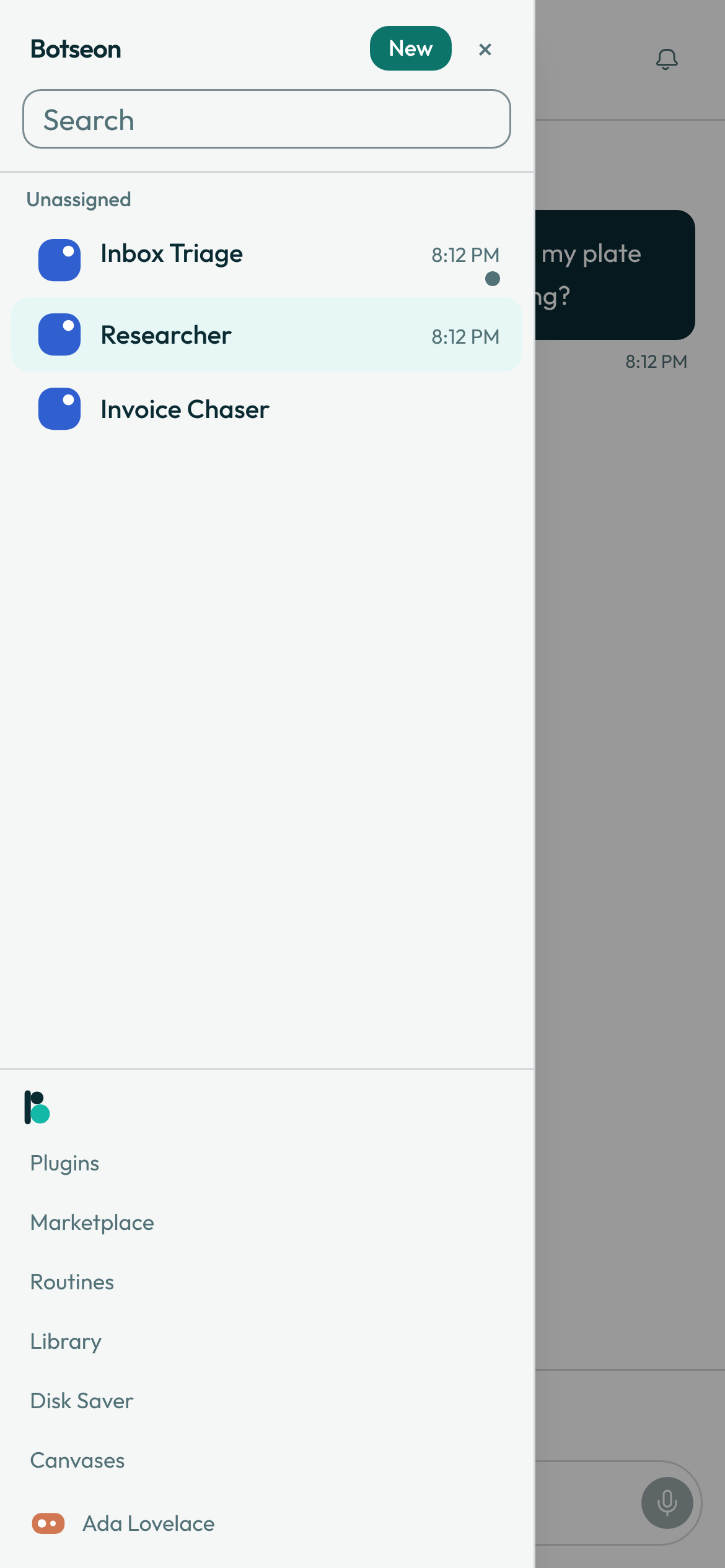
Swipe a row in your bot list for its quick actions, or start a new bot or group from the same screen.
-
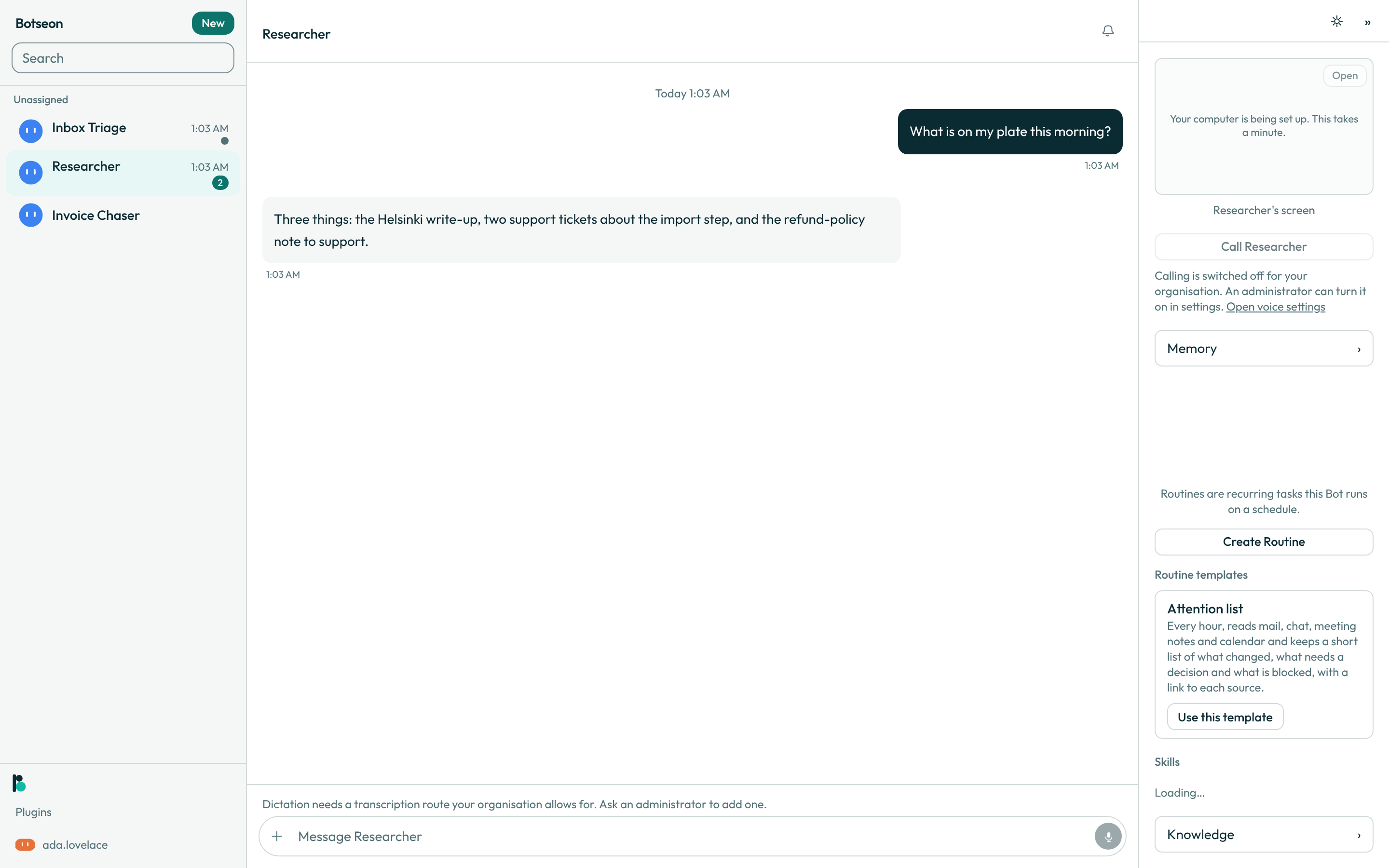
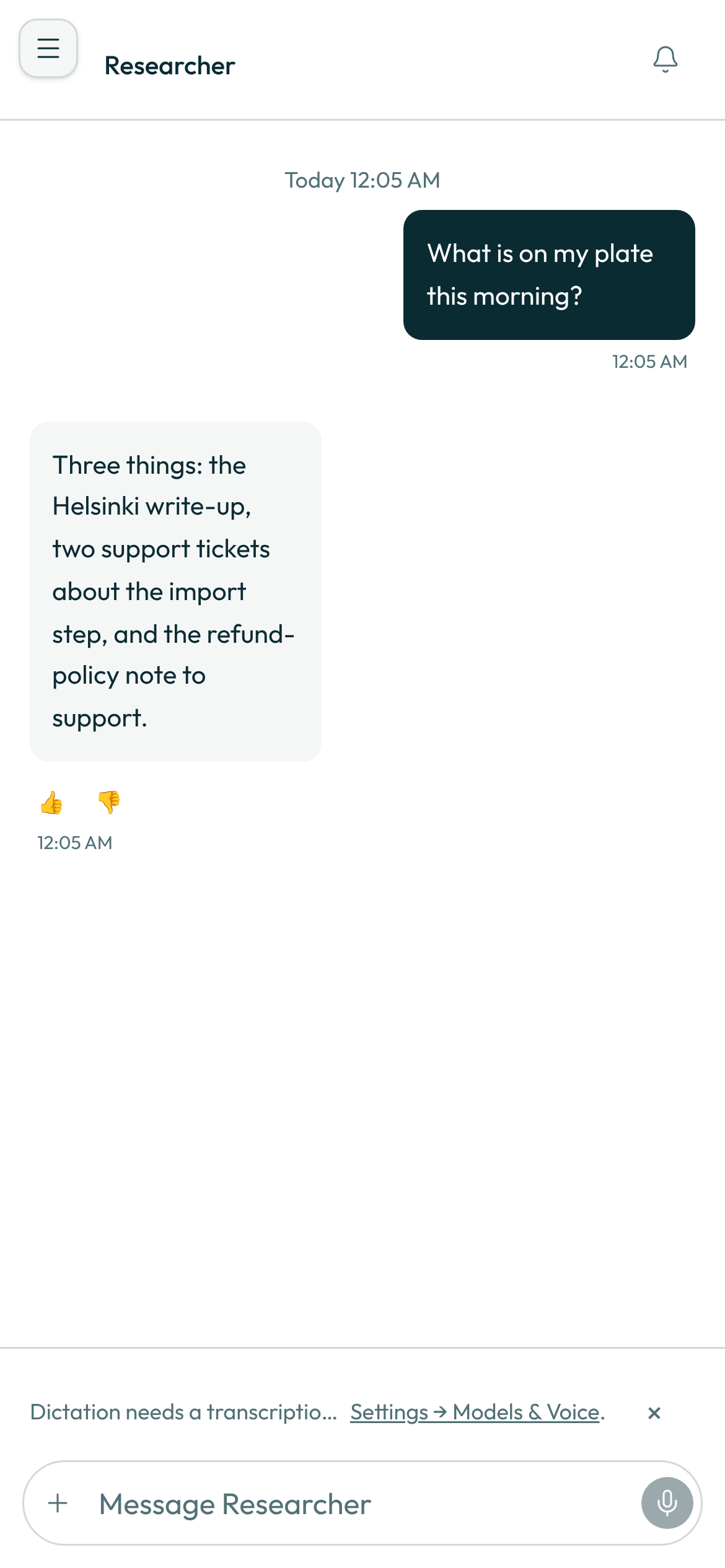
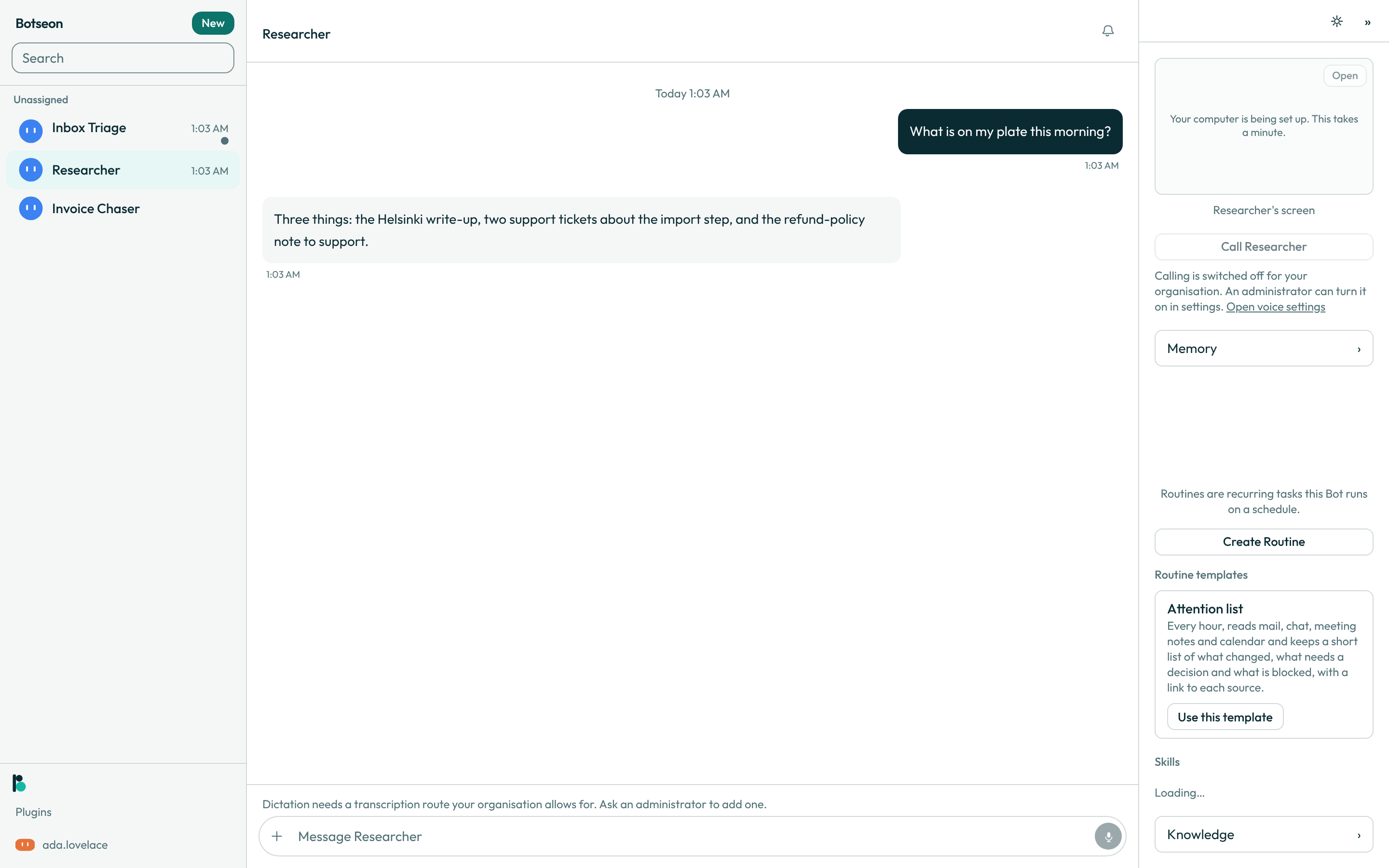
Open a bot to chat, dictate a message with the microphone, or attach a photo from your camera or library.
-
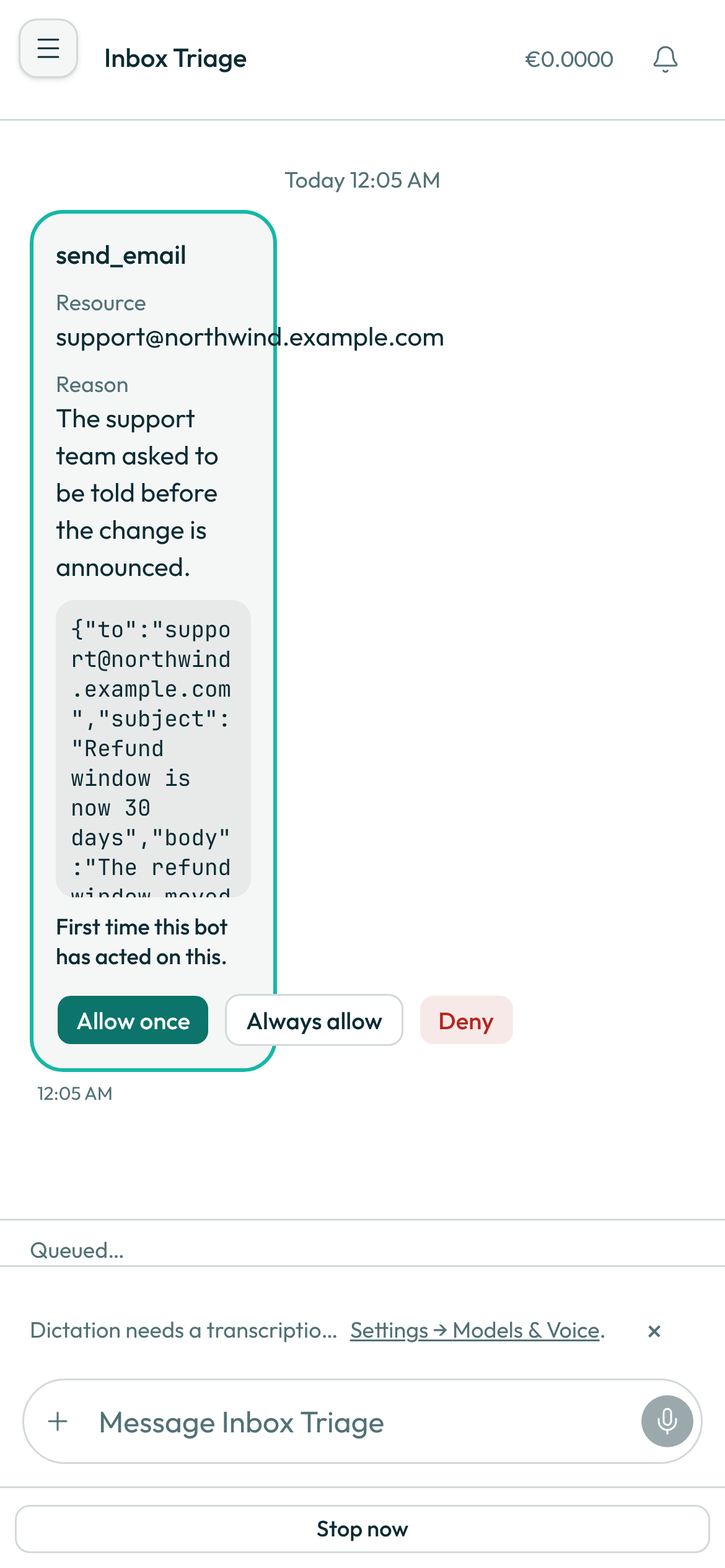
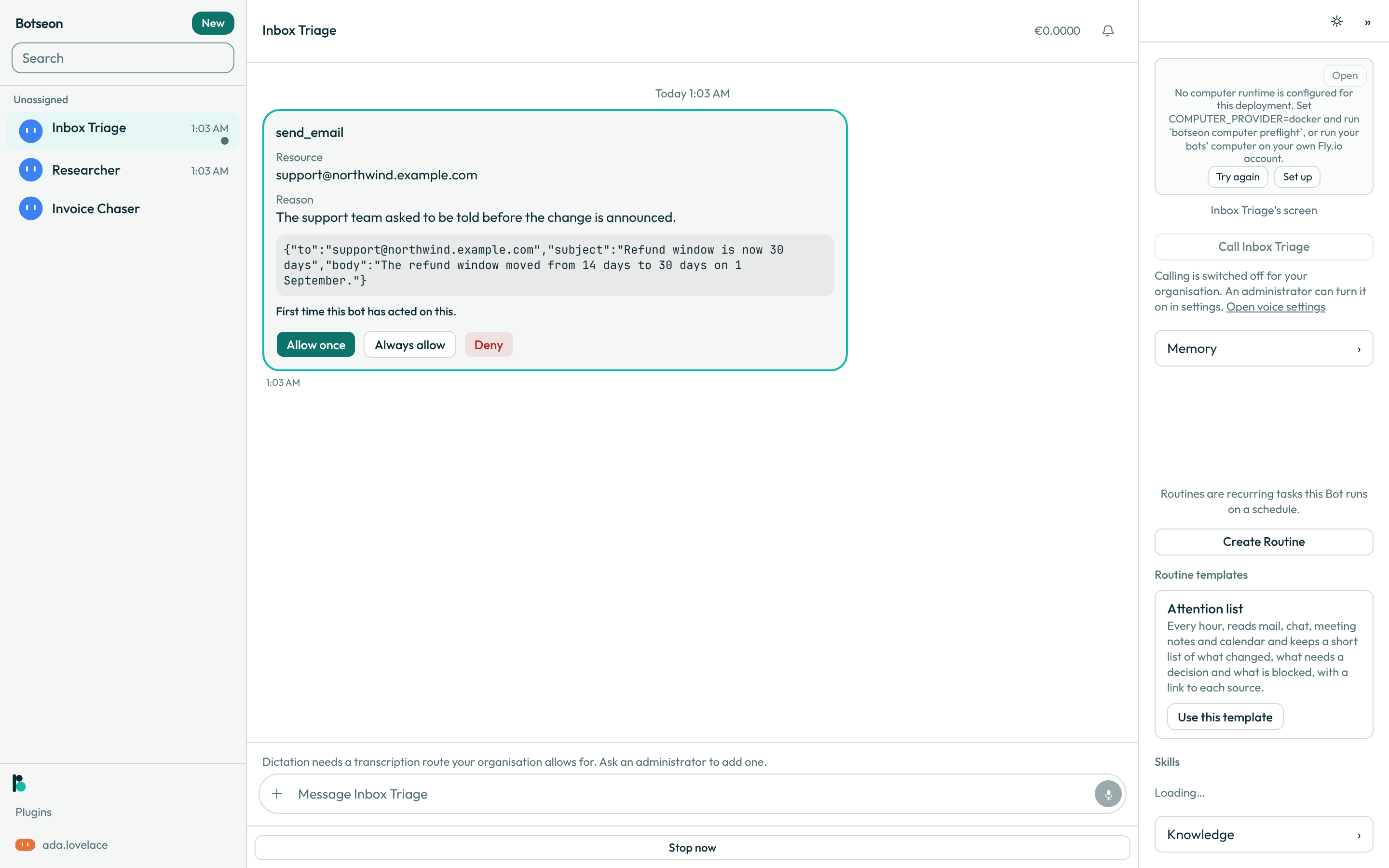
Decide a waiting approval with Approve once or Deny — the phone never offers Always allow, so every approval on it is a single, deliberate decision.
-
Open a bot's screen to watch it work, and take over when you need to act yourself.
-
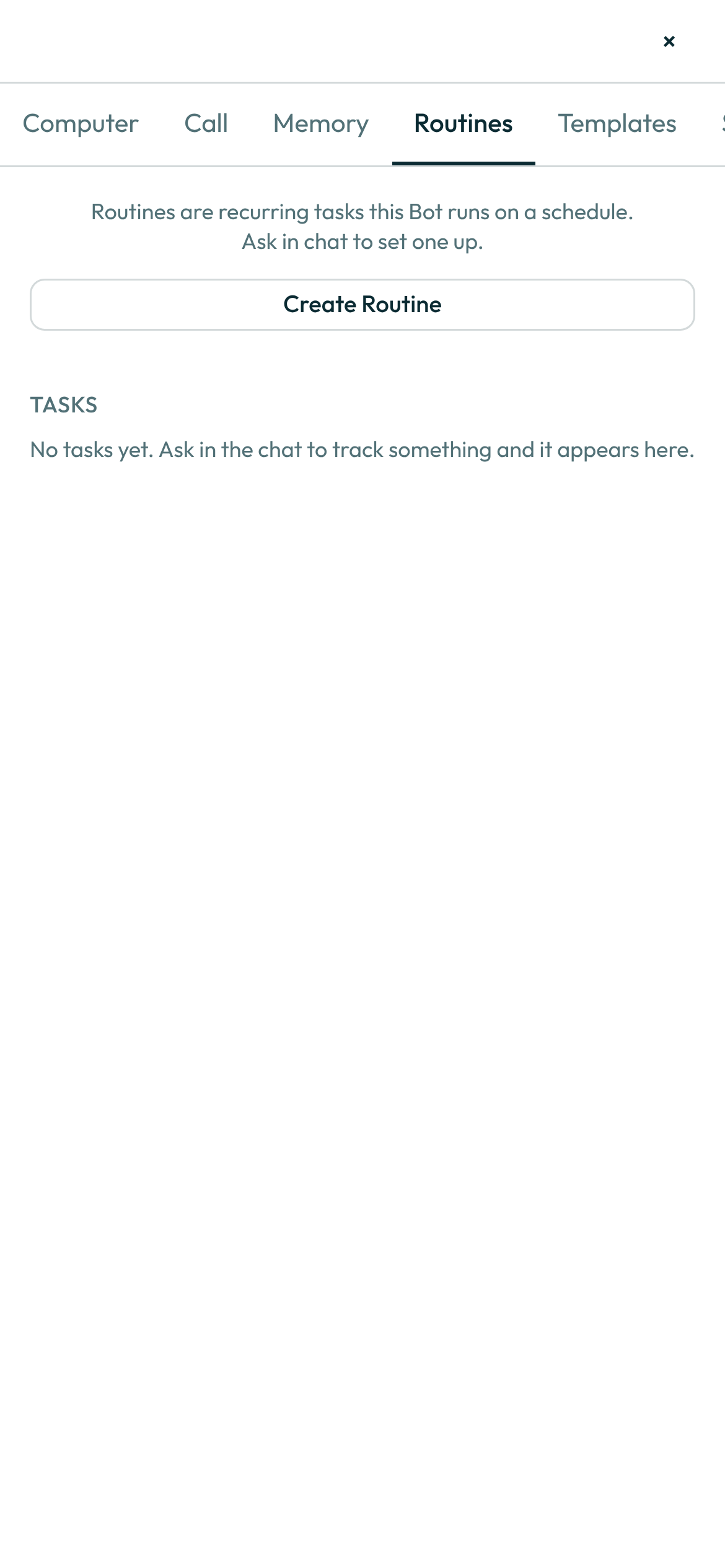
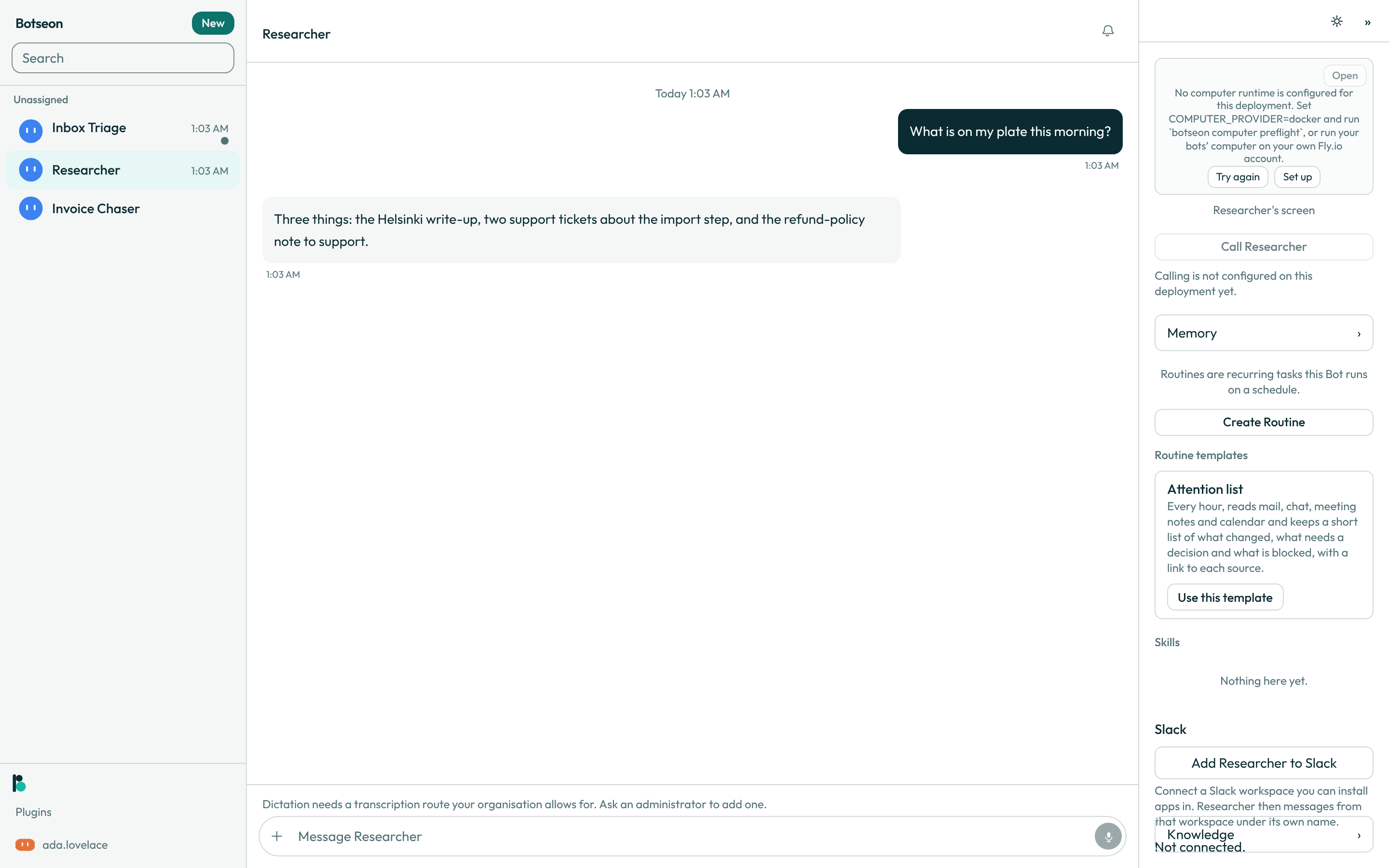
Turn a routine active or paused from its own row, or open it to read its instruction and run history or to delete it; editing the schedule or the instruction, and test runs, stay on the web or in the desktop app.
-
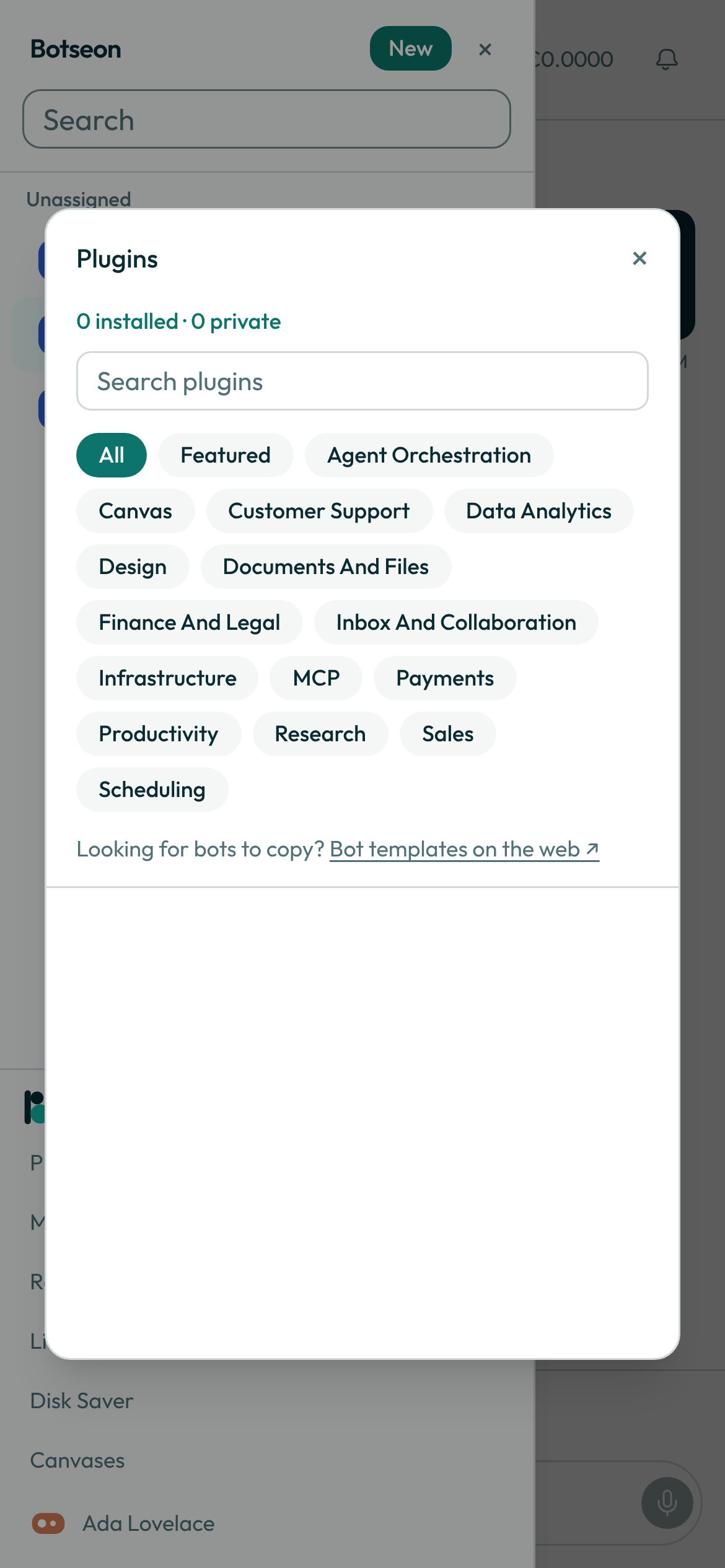
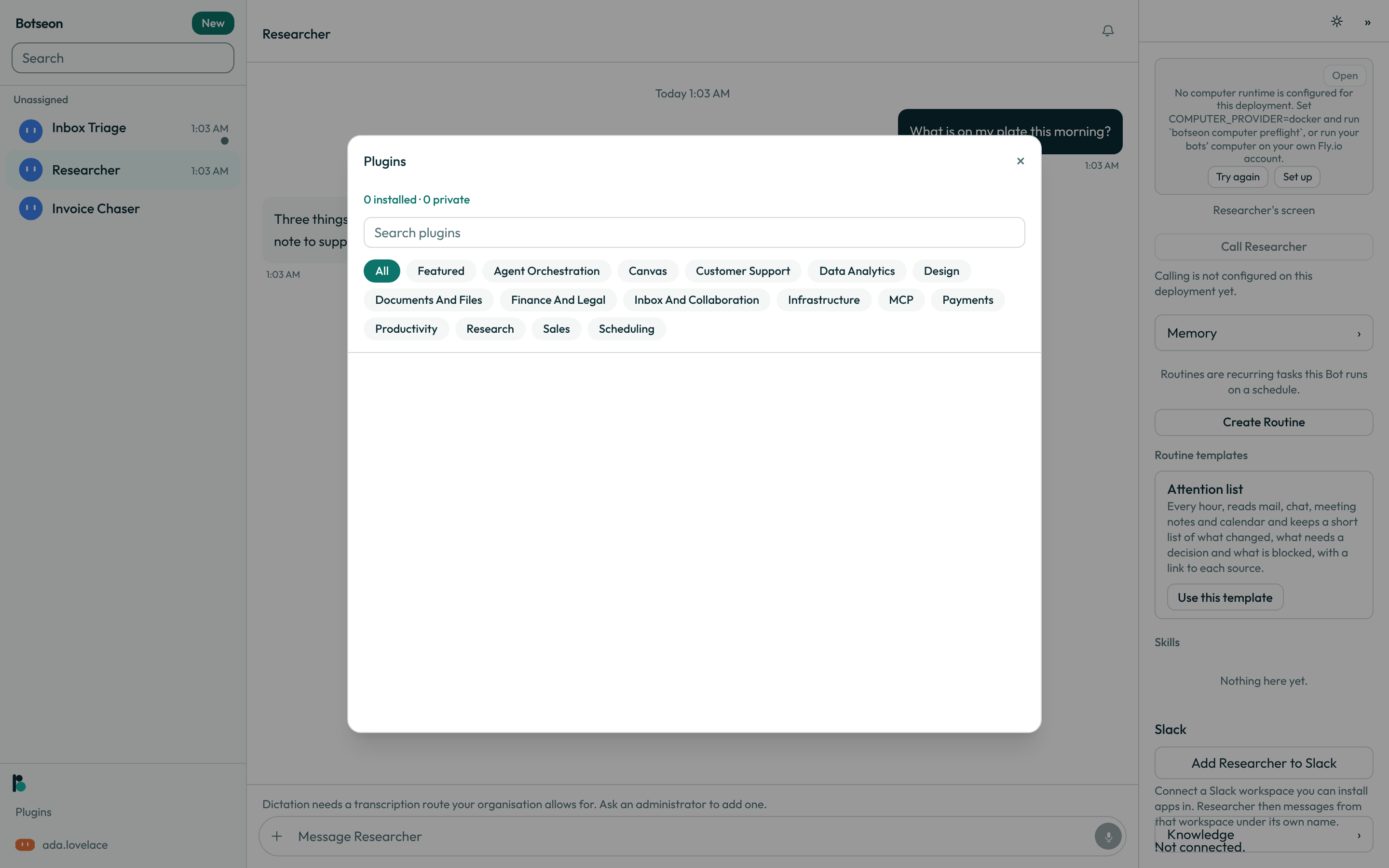
Add, sign in to or remove a connector from your organisation's catalogue, and review, reconnect or remove your own MCP servers; adding an MCP server stays on the web or in the desktop app.
-
Turn on notifications when asked; a preview of your message travels through Apple's and Google's push services to reach your phone, and tapping one opens straight into the conversation.
Search, reactions, bots and groups
- Search everything. The search button beside the list's filter opens a search across Messages, Bots, Group Chats, Files and Routines, or all of them at once. Opening a message takes you to that message in its conversation.
- React and mention. Press and hold a message to react to it; tap your reaction again to take it back. In a group, type
@to pick one of its bots, or@everyoneto address them all. - A bot's profile. Tap a bot's name at the top of its conversation to change its name, label, description and avatar, to turn its own Notifications on or off, or to delete it after confirming. The switch is the same one the bot's settings show on the web.
- A group's members. Tap a group's name to rename it or to add and remove its bots. Leave the name empty to name the group after its members again.
- A question from an MCP server. When one of your MCP servers needs more information in the middle of a call, the card names the server first, then its question and each thing it asks for, marked
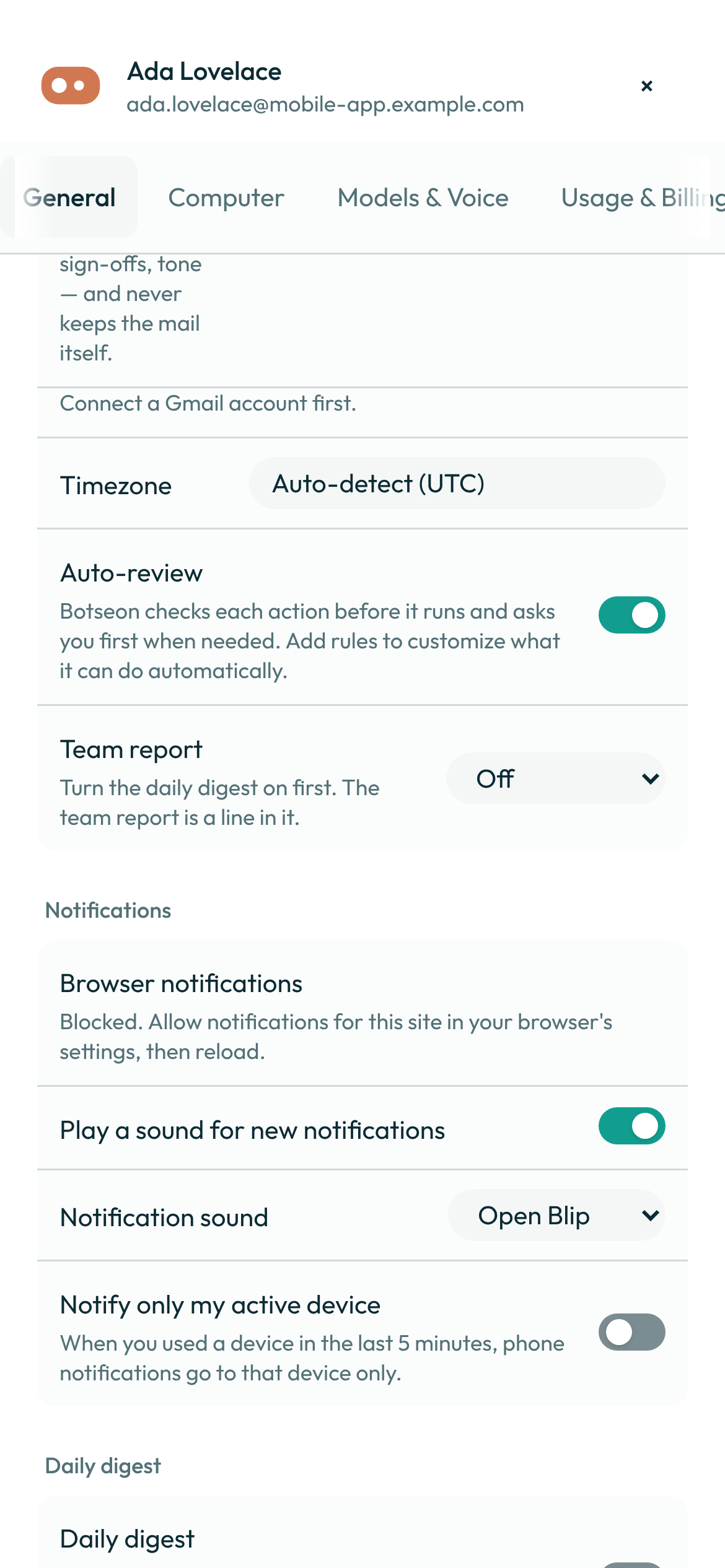
(required)where it must have one. Answer by typing in the conversation, as on the web; the card has no field or button of its own, and a server asking for a password, a key or a one-time code is refused before it reaches you. - Usage and your account. Settings shows this week's usage and the days until it resets. Delete account deletes your account the same way the web does, once you have typed your email address.
Where the phone and the desktop differ
| Capability | Phone | Desktop and web |
|---|---|---|
| Bot list, new bot or group | Yes, with swipe actions | Yes |
| Search across messages, bots, group chats, files and routines | Yes | Yes |
| Reactions, and mentions in a group | Yes | Yes |
| A bot's name, label, description, avatar and Notifications switch; deleting a bot | Yes (shape, colour, and a picture from your gallery or a generated one) | Yes |
| A group's name and members | Yes | Yes |
| Weekly usage, Delete account | Yes | Yes |
| Chat, dictation, photo attach | Yes | Yes, with file attach |
| Approvals | Approve once, Deny | Approve once, Deny, Always allow |
| Screen view and take-over | Yes | Yes |
| A team of bots your bot proposes | Each bot with what it does, its routine, its connectors and its estimate; Approve or Deny. Changing the proposal says to use Edit on the web | Approve, Edit, Deny, and Use mine or Create new for a bot you already have (the phone keeps Use mine) |
| What an MCP tool returned | Each item named Image, Recording, Document or Something else, with a preview of a picture it kept; a document's link opens in the phone's browser, and an item the phone cannot show says Open on the desktop | The same card, with a preview of a link and a tool's own small page drawn in place |
| Routines | Active or paused, instruction and run history, delete | Create, edit, schedule, test run, history, delete |
| Activity across every bot | See, stop and open work (See what your bots are doing) | Yes |
| Plugins | Connectors: add, sign in, remove; MCP servers: review, reconnect, remove | Install, configure, remove |
| Push notifications | Yes | No |
| Plans and billing | Manage Subscription is present and disabled | Full plan picker, checkout and portal |
| Seeing a teammate's shared bot, browsing and installing a shared template | Not yet on the phone | Yes |
| Setting who can see a bot, publishing a bot as a template | Web only, by design — a human decision the phone never makes | Yes |
A worked example
A message you might dictate or type into a bot's composer on the phone, the same way you would on the web:
Reply to any email from ida@example.test with a one-line summary and flag it for follow-up.
What can go wrong
| What you see | Why | What to do |
|---|---|---|
Sign-in could not be completed. Try again. | The sign-in attempt failed. | Try again; check your connection first. |
Couldn't load this. Try again. | A list failed to load — distinct from a list that is genuinely empty. | Try again. |
Couldn't change that. Try again. | Turning a routine active or paused, or a similar toggle, didn't save. | Try again; the row keeps its previous state until it does. |
That decision wasn't recorded. Try again. | Approving or denying a request failed to save. | Try again before you leave the screen. |
That is not your email address. | Delete account compares what you typed with your own address. | Type the address shown at the top of Settings. |
Plans are managed on the web for now. | The phone's subscription row is present but never opens anything. | Open Botseon on the web to change your plan. |
Update required covers the app | Your deployment no longer supports this version of the phone app. The screen stays until the app is updated; the back button does not close it. | Tap Update: it opens the app's page in the App Store or on Google Play. Install the update, then open Botseon again. |
The store could not be opened. Open it yourself and update Botseon. under Update required | The phone could not open the store page. | Open the App Store or Google Play yourself, find Botseon and update it. |
See also
Last verified against build 2ba34c8.