Install a template
Member·7 minutes to read
What this does for you
Installing a template creates a new bot from someone else's shared instructions, skills, routines and memory, ready to use with no extra setup beyond what its checklist names.
Before you start
- You are signed in, and the organisation you want the new bot in is your active one.
- You have a link to the template, or you are picking one from the carousel your role suggests when you create your first bot.
- Or you are browsing the bot templates on the web marketplace at
/marketplace: the new-bot screen'sMarketplacetab and theBot templates on the weblink under the plugin marketplace's chips both open it, and a card'sAddthere creates your own copy of that bot in one step. - If the template's risk class is not
standard, read the note the install review page shows before you continue.
Steps
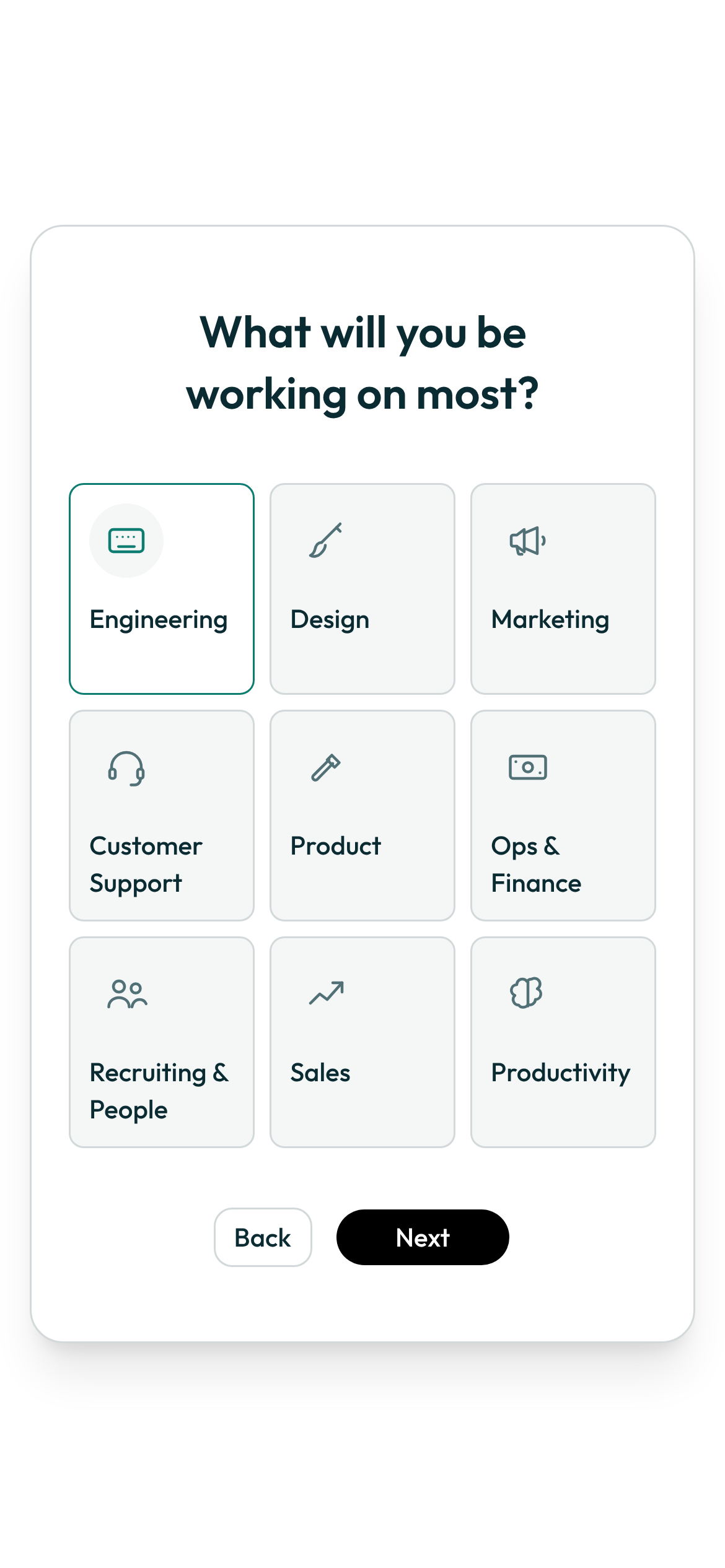
- During onboarding, or on the create-first-bot screen, pick the role tile that matches what you do most.
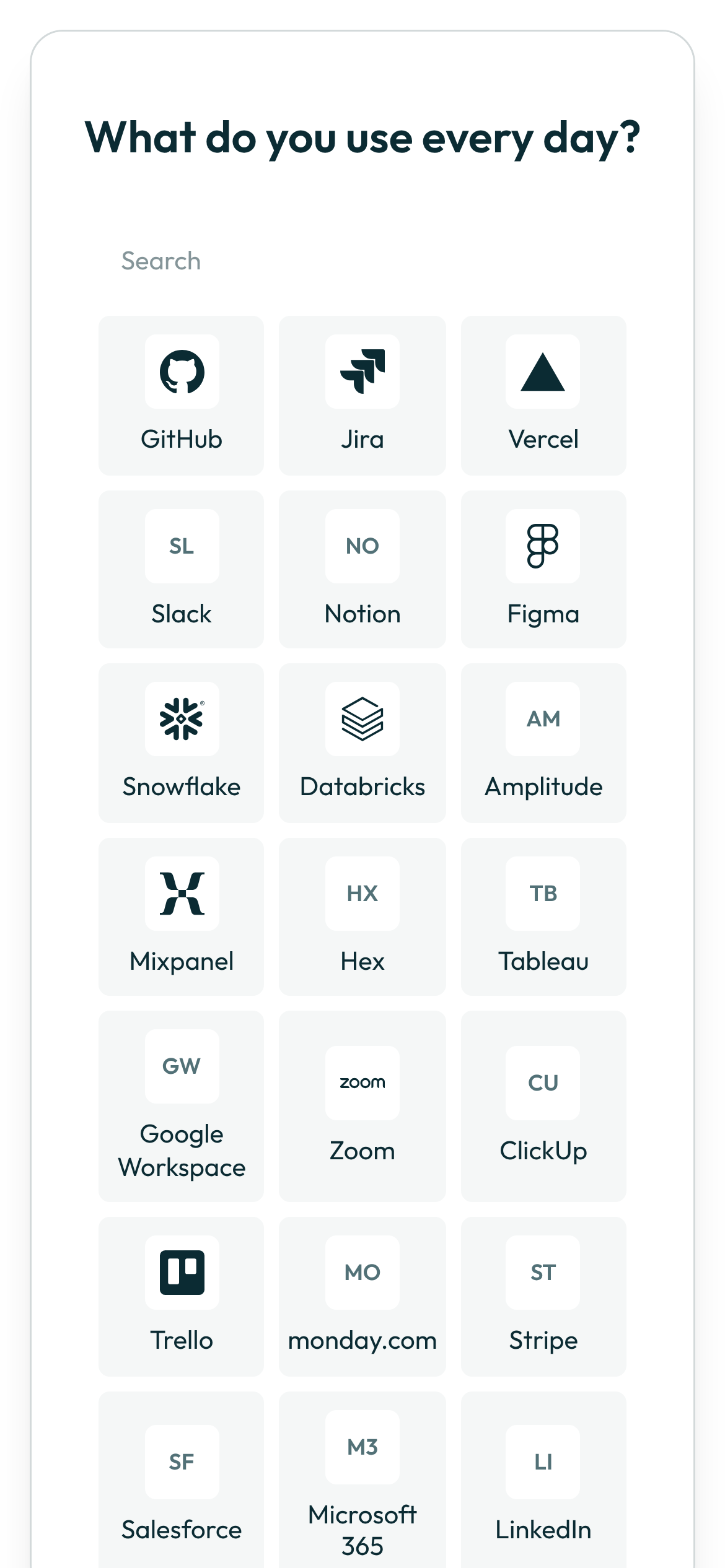
- On the step that follows, select the products you use every day, or continue with none selected — this step never blocks you from moving on.
-
Back on the create-first-bot screen, browse the carousel of starter templates suggested for your role (listed below) and select one: it fills in the bot's name and shape, and Get started creates the bot from it.
-
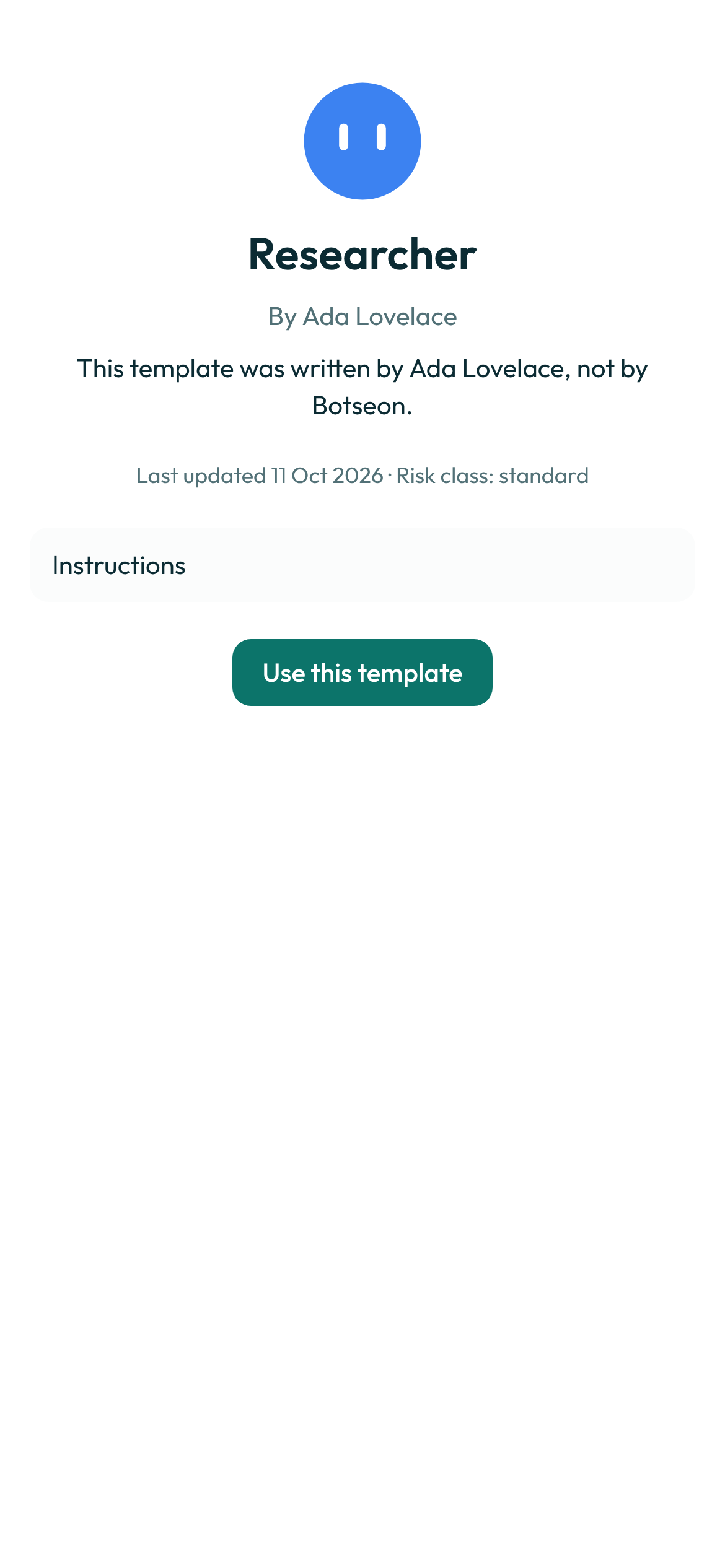
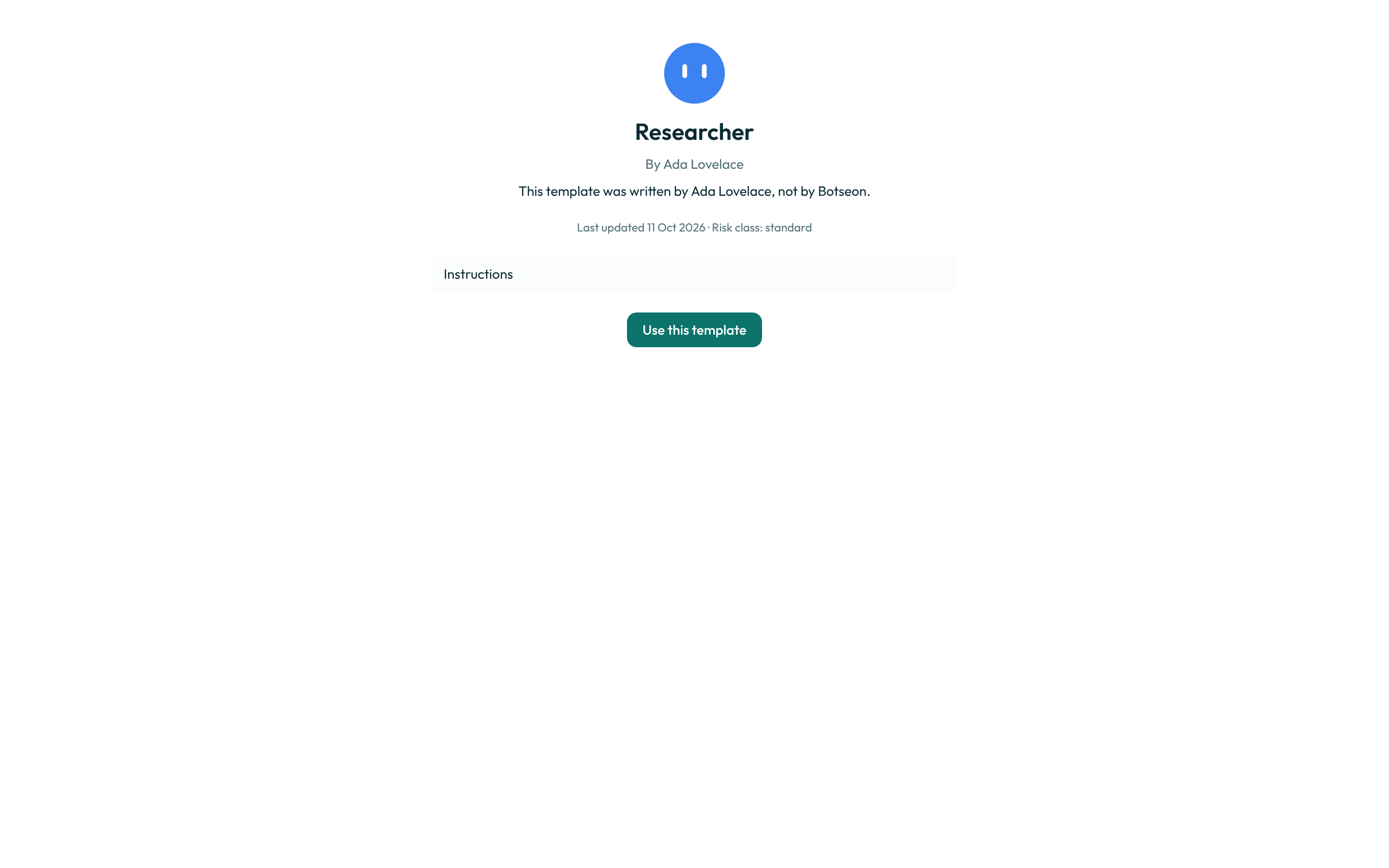
To install a template someone shared with you instead, open its link and review what it includes — its instructions, and its memories, skills, routines and integrations where it has any — on the template's page.
-
Select Use this template. On the review page, note the last updated date and the risk class, tick "I understand this template was written by a third party," then select Create bot.
-
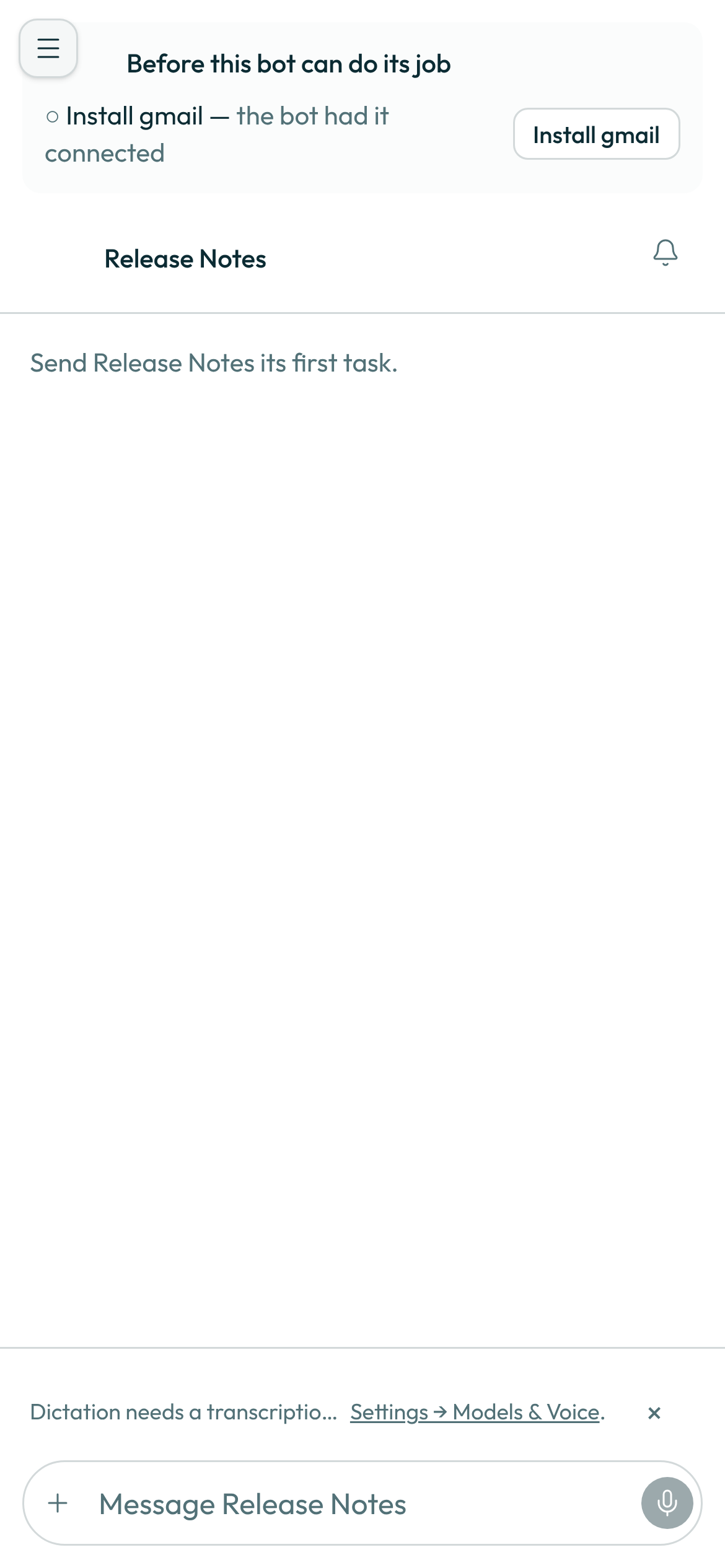
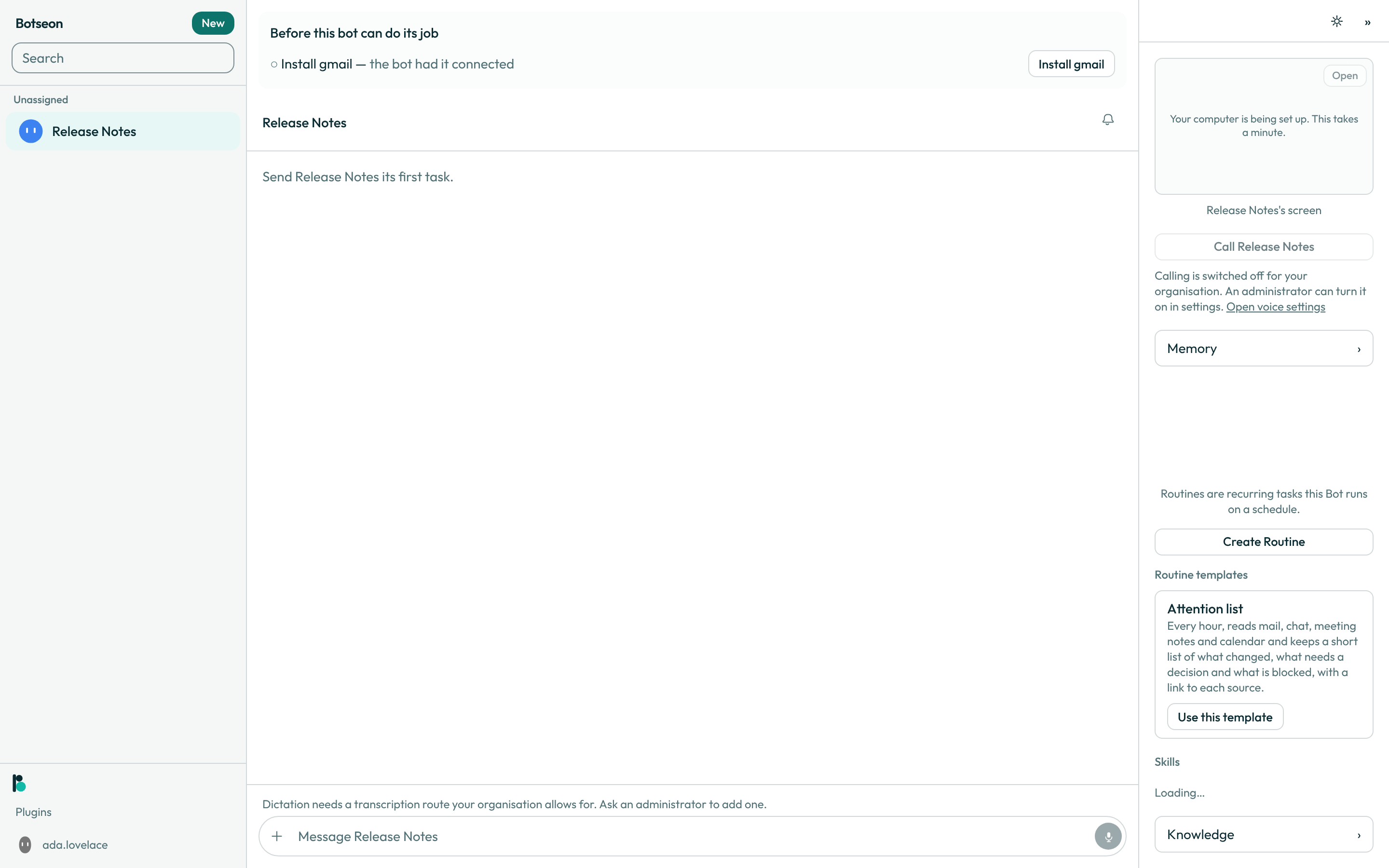
Resolve the setup checklist pinned above the new bot's transcript — install any plugin it names, set any secret, or attach any file it assumes — before asking the bot to work.
The starter templates
Every role tile resolves to at least one of these, plus Chief of Staff.
Inbox Triage
Sorts what's urgent from what can wait, and drafts replies for the routine ones. Suggested for Productivity, Customer Support, Recruiting & People and Sales. Install it the same way as any other template.
Researcher
Digs into a topic across what's already out there and writes up a clear summary. Suggested for Engineering, Product, Design, Marketing, Sales and Recruiting & People. Install it the same way as any other template.
Lookout
Watches for the thing you care about and flags it the moment it changes. Suggested for Engineering, Product, Marketing, Customer Support and Sales. Install it the same way as any other template.
Invoice Chaser
Tracks who owes what and chases the ones running late. Suggested for Ops & Finance. Install it the same way as any other template.
Chief of Staff
Takes the ask, finds the bot that owns it, and hands it off. Suggested for every role. Install it the same way as any other template.
Which role suggests which template
| Role | Templates suggested |
|---|---|
| Engineering | Researcher, Lookout, Chief of Staff |
| Design | Researcher, Chief of Staff |
| Marketing | Researcher, Lookout, Chief of Staff |
| Customer Support | Inbox Triage, Lookout, Chief of Staff |
| Product | Researcher, Lookout, Chief of Staff |
| Ops & Finance | Invoice Chaser, Chief of Staff |
| Recruiting & People | Inbox Triage, Researcher, Chief of Staff |
| Sales | Inbox Triage, Researcher, Lookout, Chief of Staff |
| Productivity | Inbox Triage, Chief of Staff |
Installing a template from a guide
The guides publish templates of their own — one per job a guide teaches, listed on the guides index at /guides. A guide's job block carries an Install template link, and that link is the second way into this screen:
https://your-workspace.example.test/templates/install/guide/support-triage
The last path segment is the template's own name in lower case with hyphens, and there is nothing after it — no query string, and nothing that identifies you or the guide you came from. Open the link and you get the same review page as any other template: what the bot is for, the routine it runs and when, the rules it will ask your approval for, and the permission tags it uses. Nothing is created until you tick the acknowledgement and select Create bot, and the bot lands in whichever organisation is active for you at that moment.
Two differences from a shared template's link. A guide's templates are part of the product rather than something a member published, so they are the same on every installation and the link never stops working because someone withdrew it. And nothing tracks that you installed one, so opening the same link twice creates a second bot rather than telling you about the first.
If you are not signed in, the link takes you to the sign-in page first and brings you back to the review afterwards.
A worked example
A shared template's link carries a 21-character id and works the same whether you are signed in or not:
https://your-workspace.example.test/t/aB3dE5fG7hJ9kL1mN3pQr
What can go wrong
| What you see | Why | What to do |
|---|---|---|
You have reached the limit of bots and group chats for this account. | Your account already holds the maximum of 50 bots and group chats, on every plan. | Delete or archive one, then try again. |
This template is no longer available. | Its author withdrew the template between your loading the page and selecting Create bot. For a guide's template, the template is no longer part of the product. | Ask them for a current link, or pick another template. |
You already created Inbox Triage from this template. | You already installed this exact template at its current version. | Open the existing bot from the notice's link, or select Create bot again — a second copy is allowed. |
A skill in this template could not be copied, so no bot was created. If you already have a skill with the same name, rename yours and try again. | One of the template's skills clashed with a skill of yours and could not be copied under a new name, so the whole install was rolled back. | Rename your own skill of that name, then select Create bot again. |
Tick the box above first. | Create bot stays disabled until you confirm you understand the template was written by a third party. | Tick the acknowledgement checkbox above the button. |
See also
Last verified against build 9e6bdf2.