The bot's computer
Member·9 minutes to read
What this does for you
This page explains what your bots' shared computer is, what a screen shows you, and where the security boundary between your bots actually sits.
Before you start
- You are signed in as a member of the organisation the bot belongs to.
- The bot has been used at least once, so its computer has started — a computer starts the first time a bot needs one.
- To see your own machine's row later in these steps, install the desktop app and sign in from it, then open Settings → Computer.
Steps
-
Open the screen from the bot's details pane. The screen is on the panel's Computer tab (see The bot panel). Hover the screen thumbnail and choose Open, or click the thumbnail itself. The screen opens as a full-window overlay above the conversation — the conversation stays visible and dimmed behind it, not hidden.
-
Read the two controls in the top-right corner.
Teach a taskstarts a recorded walkthrough; the collapse control (two inward arrows) closes the overlay. There is noTake overbutton and no connection-status indicator on this view — your pointer and keyboard input pass straight through to the desktop from the moment the overlay opens. -
Know what a screen is not. A screen is a work surface, not a security boundary. Unless your organisation has chosen otherwise (see Where this bot runs), one computer is shared by every bot you own: the same signed-in websites, the same encrypted store of saved sign-ins and the same
/workspacefolder are all reachable from any of your bots' screens, not only the one you happened to open. This step has no screen of its own — it names a fact about the computer, not a control on it. -
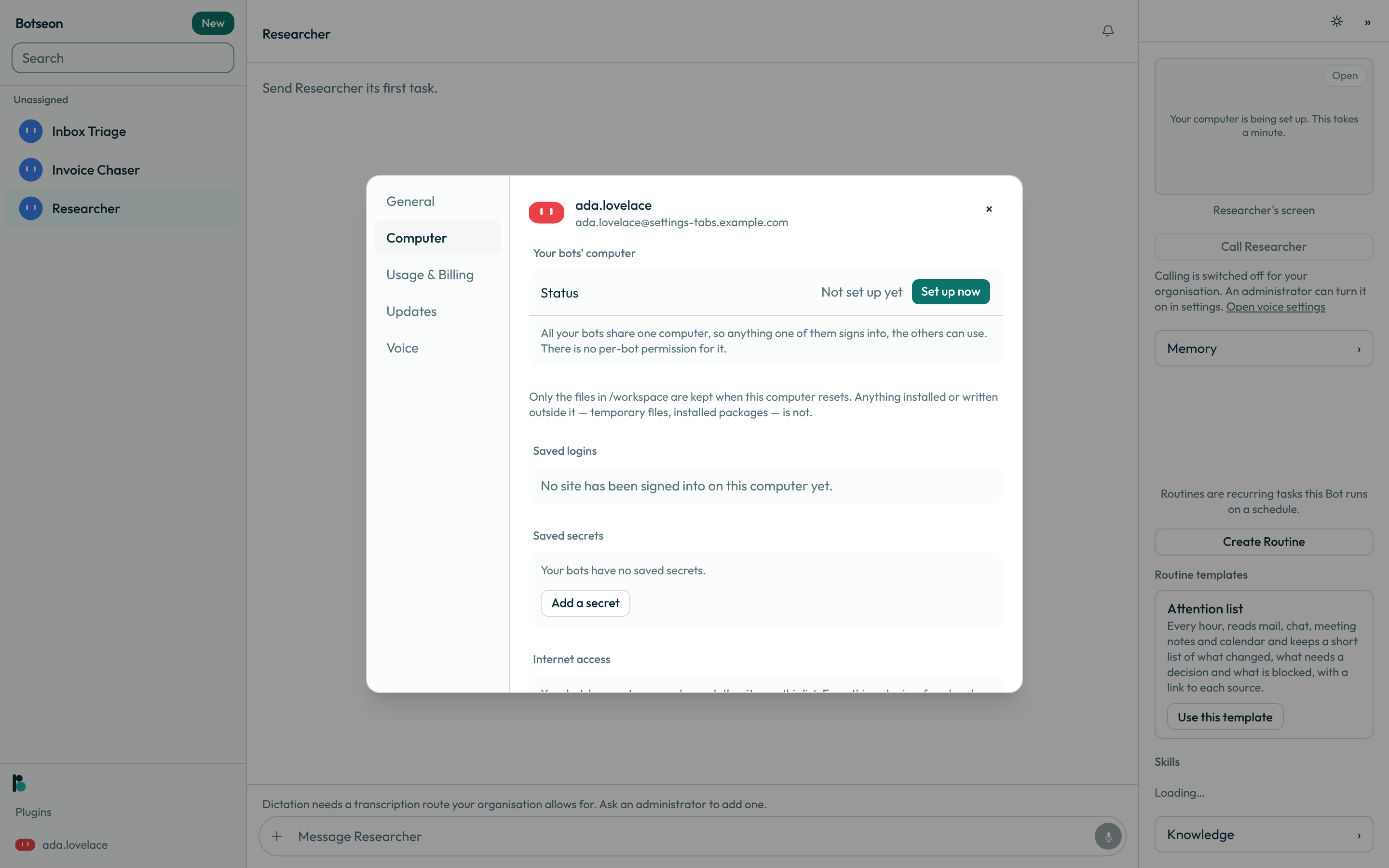
Check your own machine's permission. Open Settings → Computer. The machine you are using now is marked, and it carries its own execution setting —
Ask every time,Always alloworNever allow— for whether a bot may run commands on your device, separately from anything the shared cloud computer does.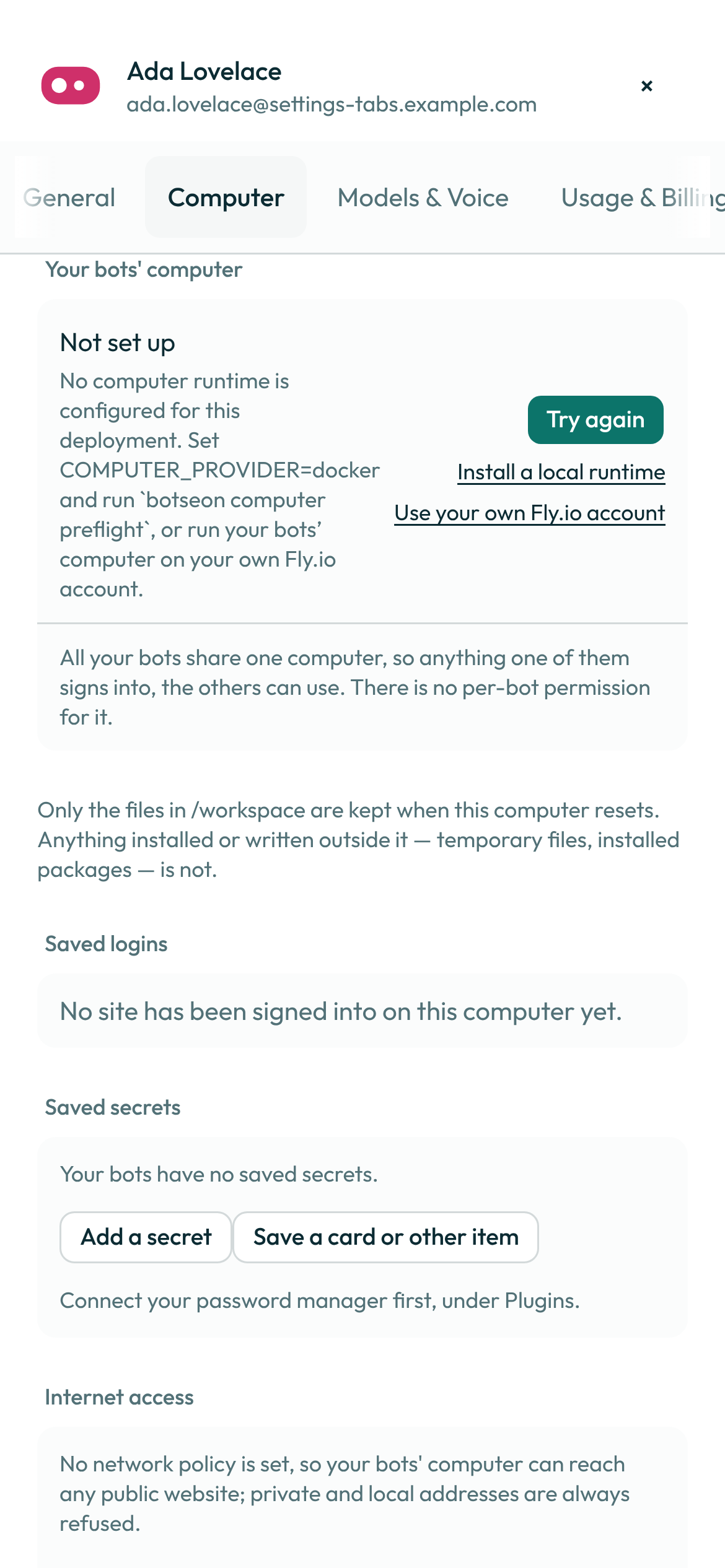
Settings has a separate Security Key toggle, under General, for a hardware security key your own browser session uses. It is unrelated to which machines a bot may run commands on, and every use still asks you to approve it.
Where this bot runs
Every team organisation picks one of three levels for where its bots' computers run. An administrator sets it under Isolation in Organisation → Policies, and it can be changed for one bot from that bot's own Computer card:
- One computer per person — every bot a person owns shares one computer.
- A pool per person — each person's bots are spread across a pool of their own. One stuck computer stops the bots on it, not the rest.
- One computer per bot — each bot gets its own. This uses the most computers, and a problem on one computer reaches the fewest bots.
Whatever the level, a person's bots only ever run on computers of their own; no level puts two people's bots on one computer. A change applies to each bot the next time its computer is idle.
A stuck computer only ever affects the bots sharing it — the level above decides how many bots that is, from every bot you own down to just the one.
Isolation limits what one stuck computer can stop. It is not an access boundary between bots — a bot's tools and connectors are decided by its own settings, wherever it runs.
Telling your bots' screens apart
Each bot that works on your computer gets a screen of its own, and each screen says whose it is:
- The prompt names the bot. A terminal on a bot's screen shows
bot@<name>.botseonbefore the folder, where<name>is the bot's name in lower case with spaces turned into dashes — a bot called Sales Helper showsbot@sales-helper.botseon. Two of your bots with the same name are told apart by a short code after the name, such asbot@helper-1a2b.botseon. - The wallpaper is the bot's colour, the same colour as its avatar.
A bot's screen is named the first time a task of that bot uses it, and again at the start of each later task, so a renamed bot shows its new name from its next task on.
While a bot clicks, scrolls, drags or moves the pointer on the screen you have open, a ring in the bot's colour marks the spot it is acting on, and disappears as soon as that action ends. Typing and key presses have no spot of their own and draw no ring. On a phone inspecting the screen at full size, no ring is drawn, because the picture moves under it.
One bot carries on another's work
Because your bots share one computer, the files one bot writes in /workspace, the command-line tools it signs in to (their logins live in /workspace/.home) and the websites it signs in to are all there for your next bot. A terminal you or a bot opens on any screen uses that same home, so a command-line login made there works in every bot's shell, and every screen's browser saves its downloads to /workspace/.home/Downloads. To hand work over, open Settings → Computer: Work on this computer lists what each of your bots recently did there — the files it wrote, the commands it ran, the pages it opened and what it left open. Pick another bot under Continue with and choose Continue: that bot is sent a message asking it to carry on, and you land in its chat. You can also just ask a bot to carry on; it can look up the same list itself before it starts.
A coding task on a separate computer
A bot can hand a self-contained coding task — a build, a test run, a script, some data processing — to a separate computer of its own, and carry on talking with you while it runs. Ask for the work as usual; the bot decides when a task is worth handing off and tells you it has. The task runs on a fresh computer that starts empty and holds none of your sign-ins or files (on a self-hosted install, a second container beside yours). When it finishes, the bot posts the task's report in the same chat, with the images and files the report names attached, and copies them to /workspace/delegated/<task>/ on its own computer so it can keep working with them. The separate computer is then deleted.
An organisation administrator can turn this off with Delegate coding tasks to separate computers in Organisation → Policies. While it is off, a bot asked to delegate says it cannot, and offers to do the work on its own computer instead. A personal account always has it.
The computer's clock follows your time zone
The computer runs in the time zone set under Settings → General → Timezone — there is no separate setting for it. date in the bot's terminal and the clock every website sees in the computer's browser both read that zone, and they move with summer time on their own.
- Changing the setting reaches a running computer within a minute, without restarting it or closing any tabs. A computer that is asleep picks the new zone up as it wakes.
- On Auto-detect the computer follows the zone your own device reports. Until a device of yours has reported one, the computer keeps the zone it already has rather than switching to UTC.
A worked example
Opening the terminal during a take-over shows the identity a bot's own commands run under:
$ whoami
operator
$ pwd
/workspace
operator is a fixed account name for every bot's shell — not your own user account — and /workspace is the one folder every bot's files, downloads and skills share.
What can go wrong
| What you see | Why | What to do |
|---|---|---|
Your computer is still being set up. | The shared computer has not finished setting up yet. | Wait — this usually takes under a minute — then open the screen again. |
Your computer is not running right now. | The computer stopped (idle, or as part of a lifecycle action) and has not restarted yet. | Open the screen again; opening it starts the computer. |
All screens on the shared computer are in use. | Only two of the computer's screens run at once; a third bot's screen waits its turn. | Close a screen you are not using, or try again shortly. |
A person is already driving this screen. | Someone else in your organisation is already using this screen's mouse and keyboard. | Wait for them to stop — the screen frees itself after a minute with no input. |
Teach a task isn't available right now. | The screen's connection has closed, or nothing on this page can start a walkthrough. | Reopen the screen and try Teach a task again. |
See also
Last verified against build 52d90ec.