Send a message
Member·6 minutes to read
What this does for you
The composer is where you type, attach a file to, and send a message to a bot, and where you watch it start working once you do.
Before you start
- You have a bot open in a one-to-one conversation (see Start here).
- You can write to this conversation — a shared team bot's reader accounts can read it but not send to it (see Team bots).
Steps
-
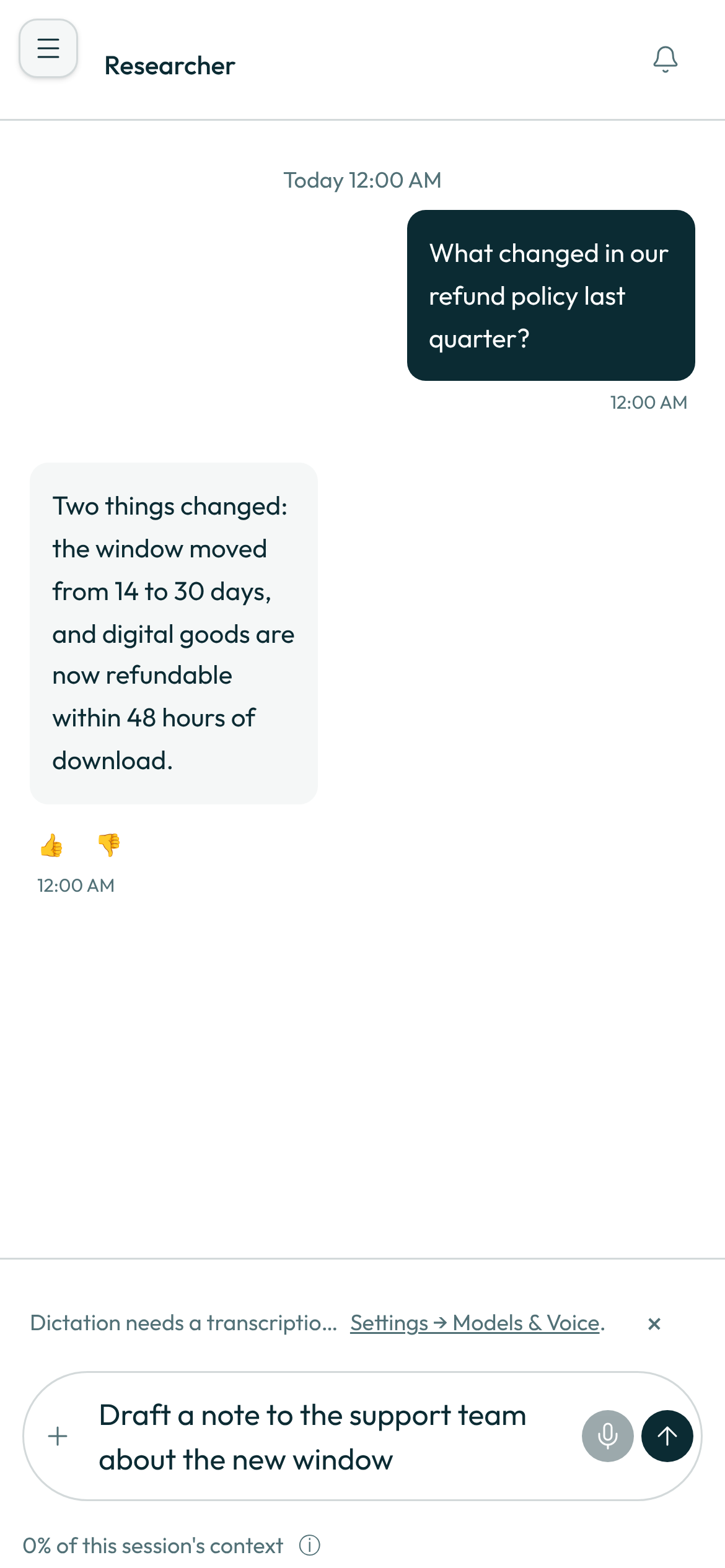
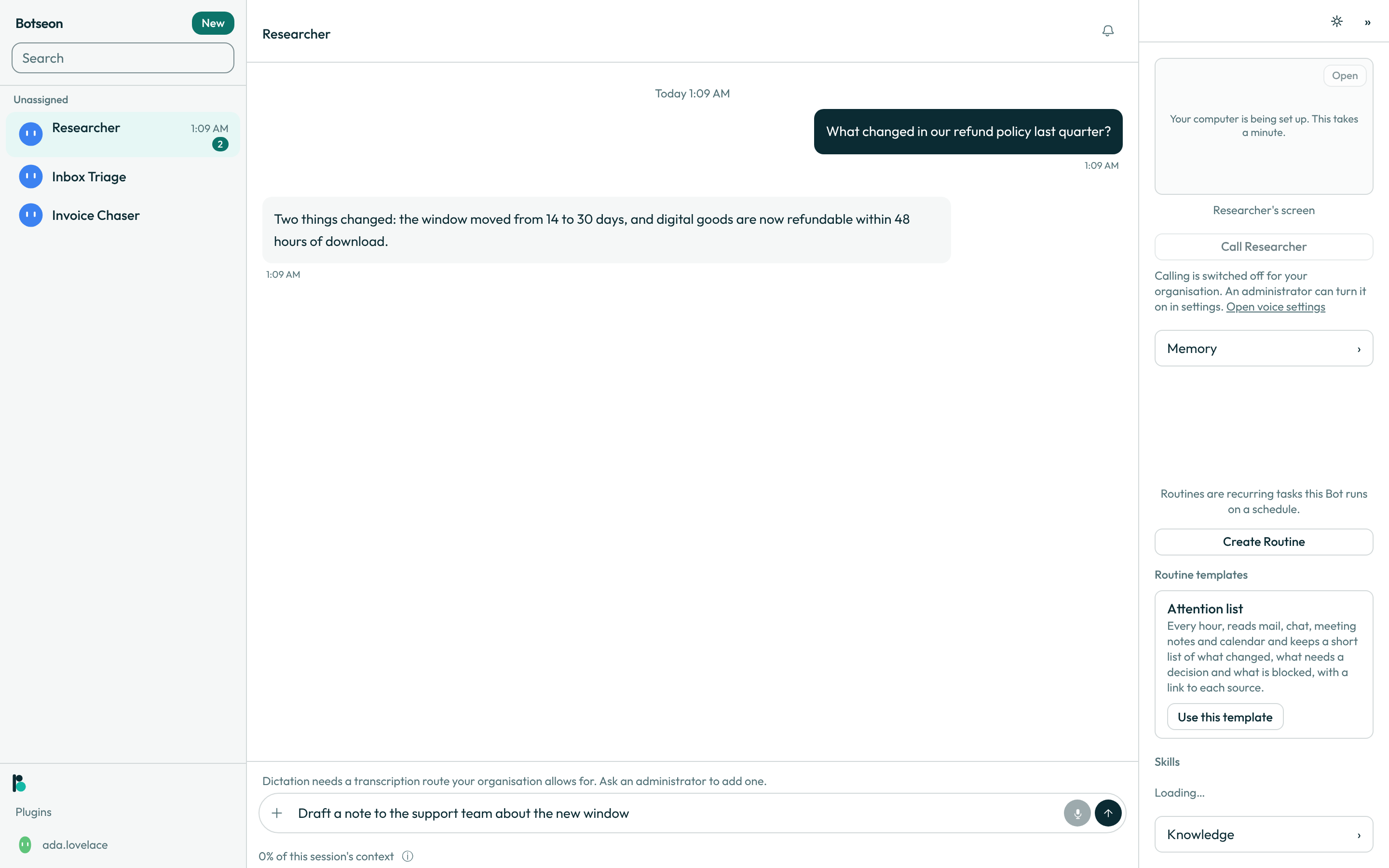
Type your message. The composer is a single-row pill with the placeholder
Message <bot>; what you type is saved as a draft a fraction of a second after you stop, so it is still there if you switch away and come back.Spelling is checked as you type, in the language Botseon is shown in, unless you have turned off
Check spellingin Settings: a misspelt word is underlined, and right-clicking it offers corrections (in the desktop app too, where the menu also offersAdd to Dictionary). On a phone, your keyboard's autocorrect and sentence capitals work in the composer. Spelling is checked on your device; nothing you type is sent anywhere for it.
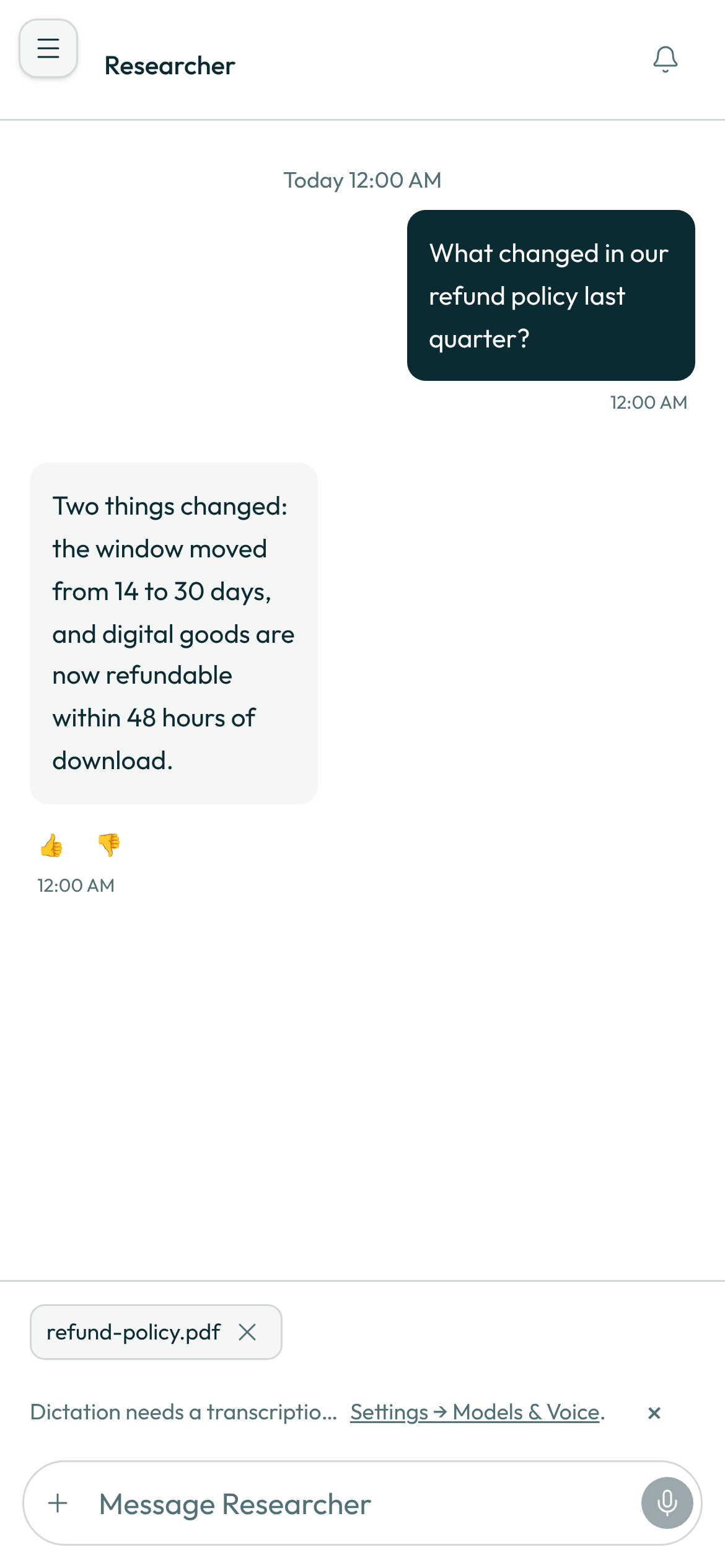
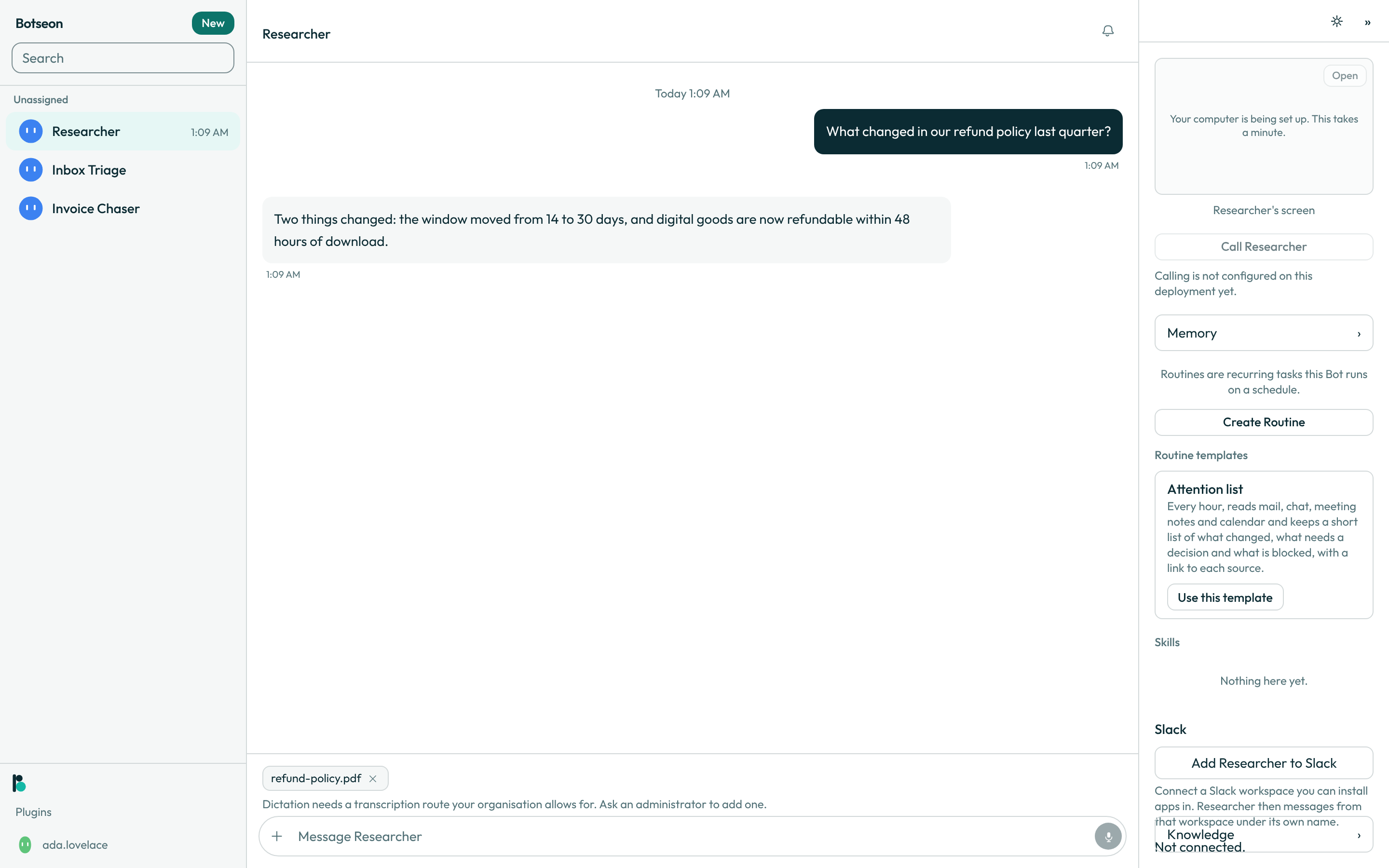
- Attach a file. The
+menu offers three items,Attach files,Teach a taskandRecord a voice note; a picked file becomes a chip above the field, up to twenty chips per message, each with a×to drop it before you send.
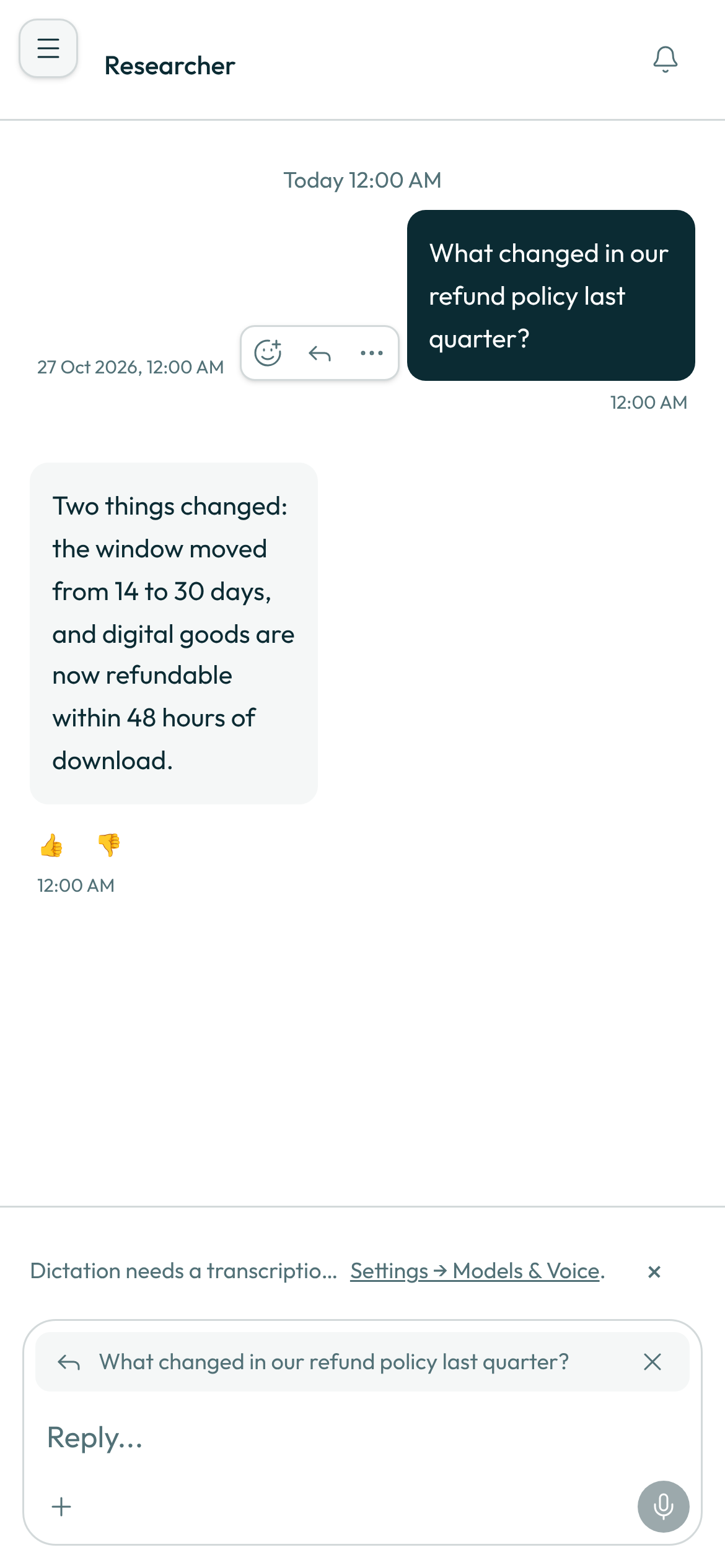
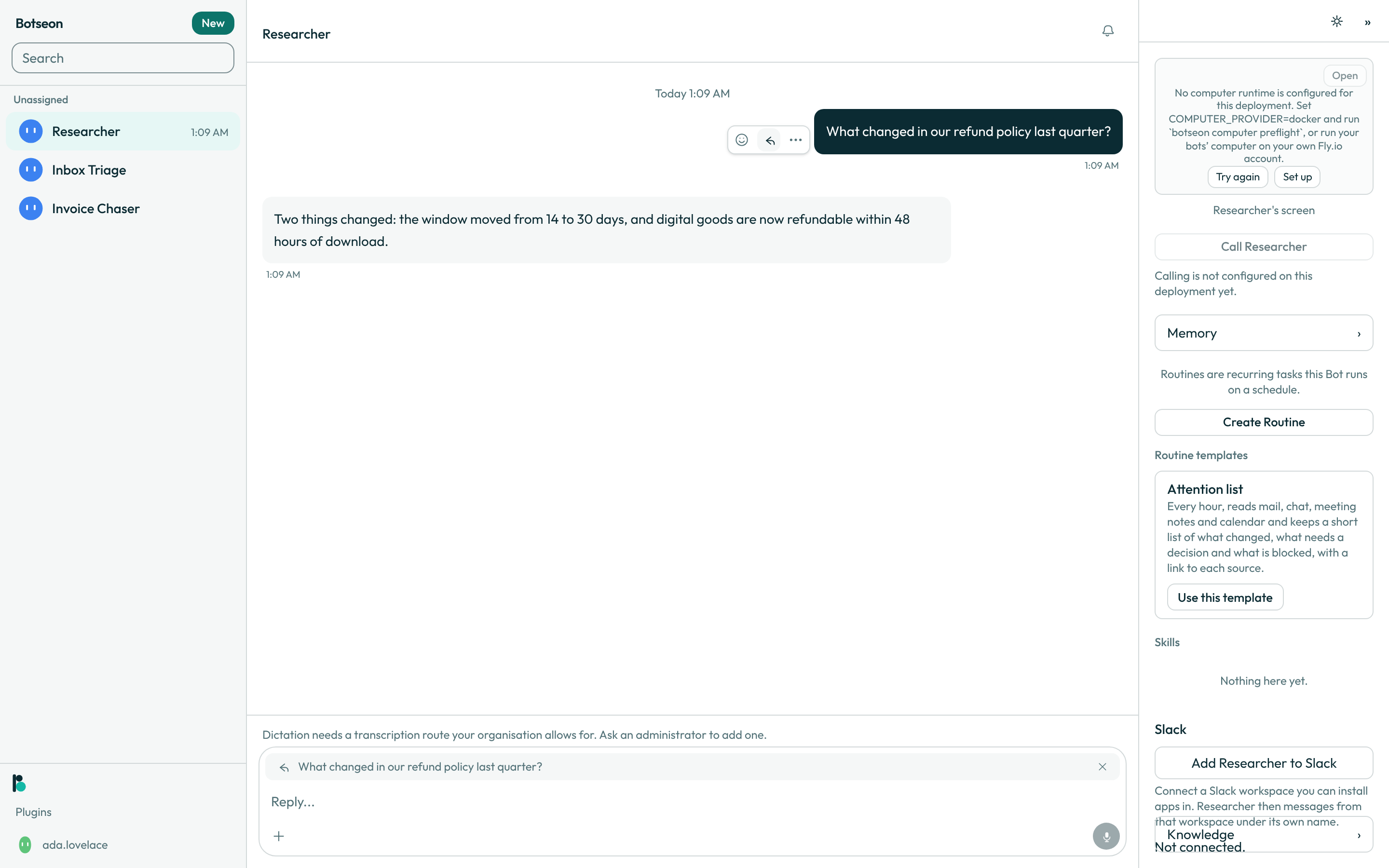
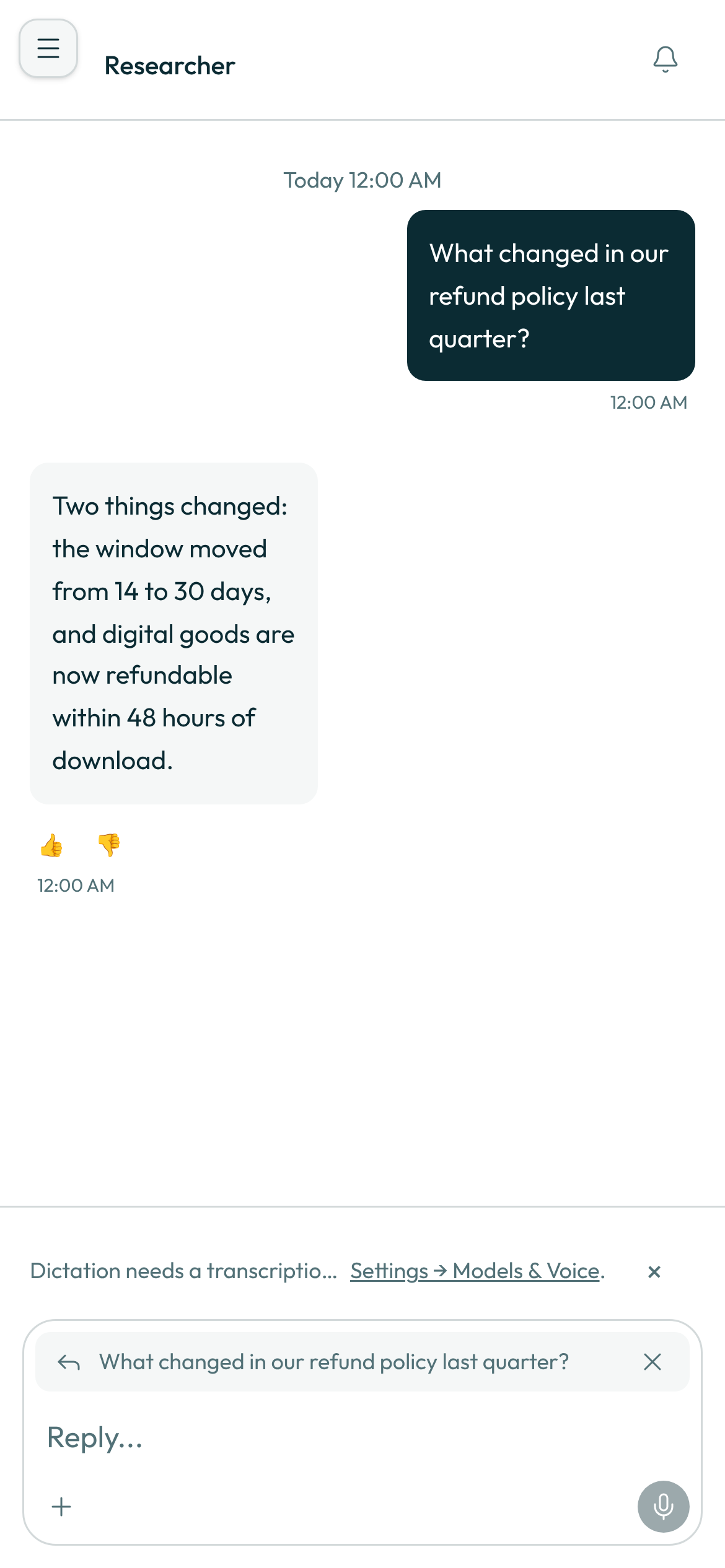
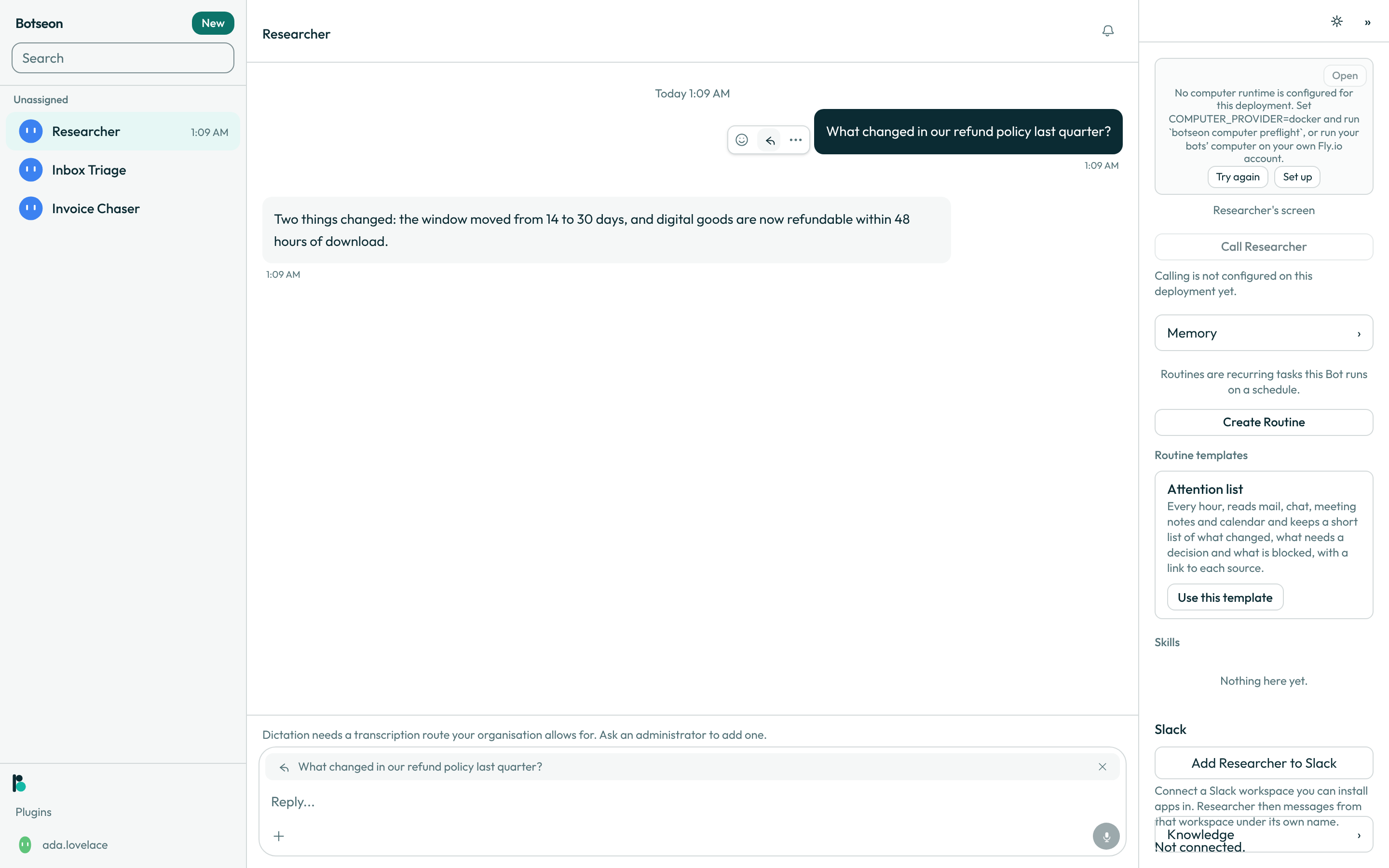
- Reply to a message. Once you start a reply from the transcript, the composer grows from the single-row pill into a three-row block: a quote chip carrying a reply glyph and one ellipsised line of the quoted message, the input itself with the placeholder
Reply..., and the control row beneath it. The quote's×cancels the reply.
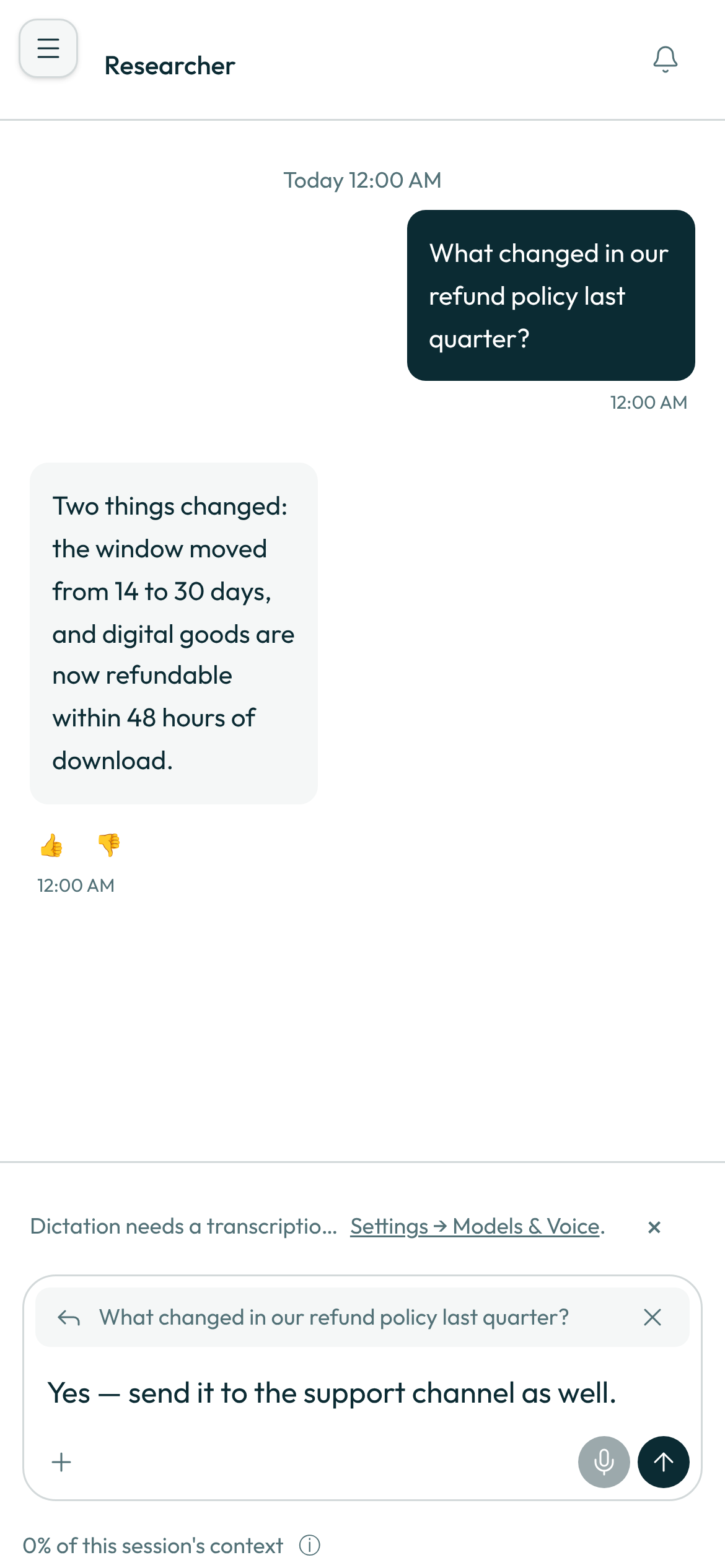
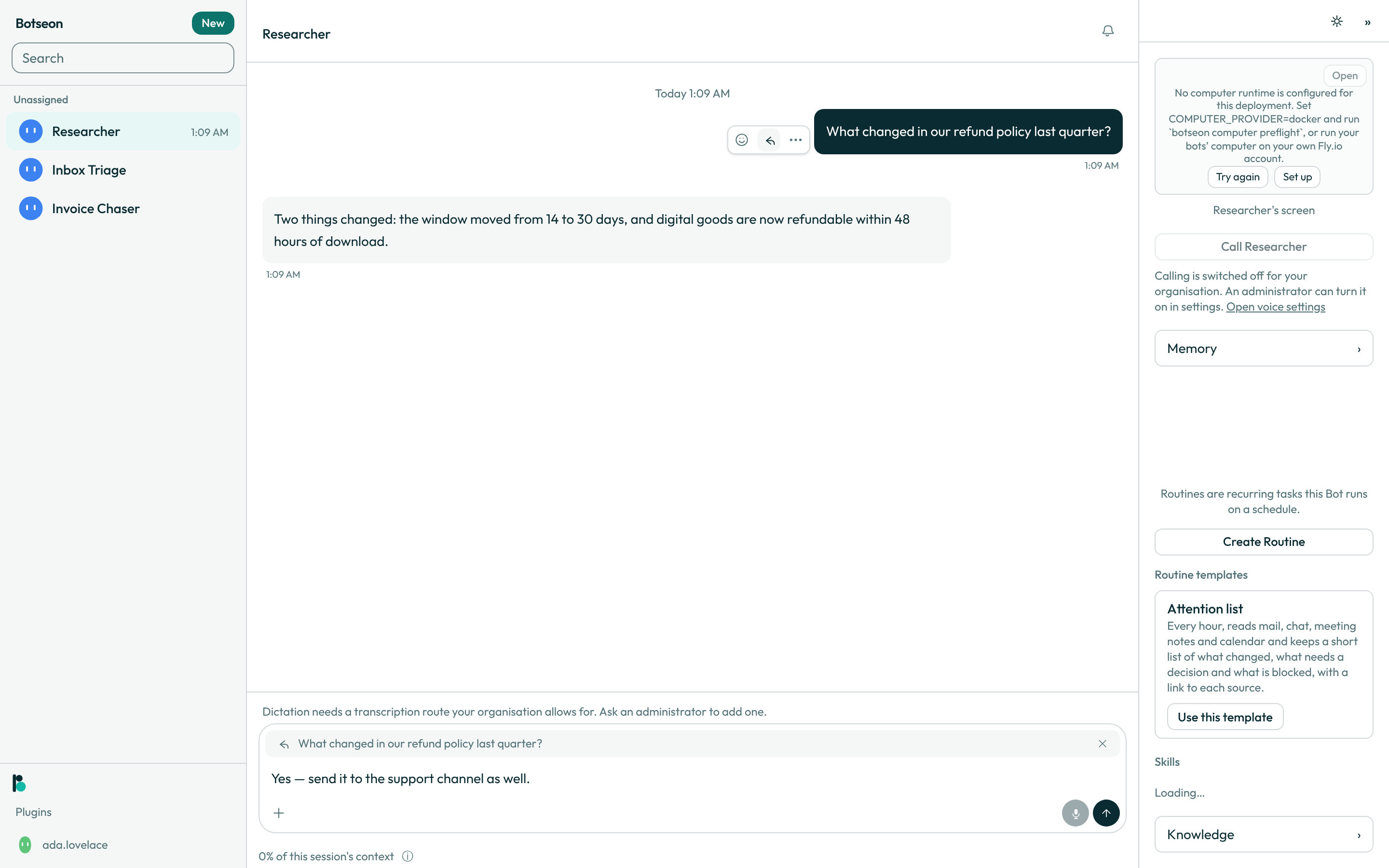
- Send it. An
↑button appears once the field holds text; pressing it, or pressing Enter in the field, sends the message and clears the composer straight away.
- Watch it land in the transcript. Your own messages line up on the trailing side, a bot's replies on the other; several messages from the same side in a row sit closer together with one shared timestamp, and a centred label marks the point a new day begins.
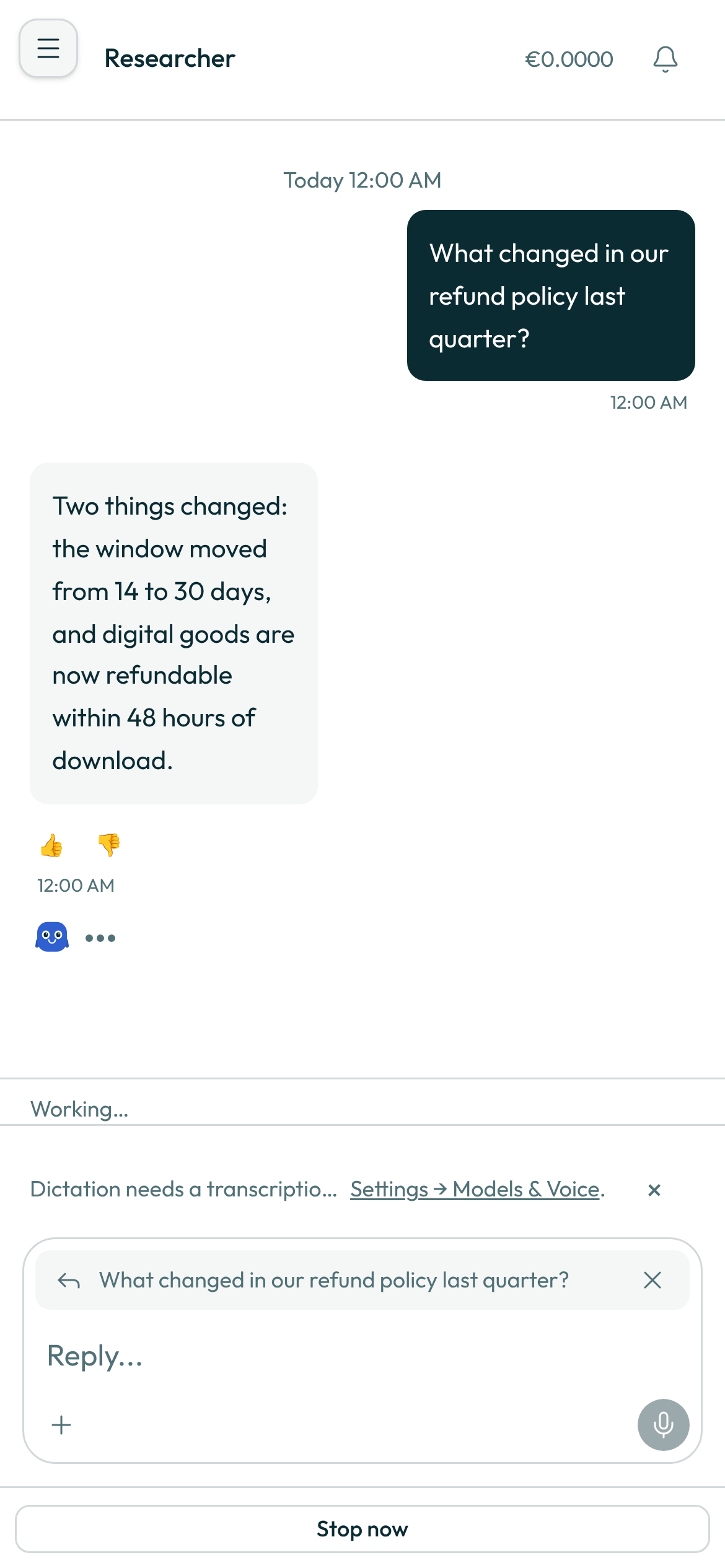
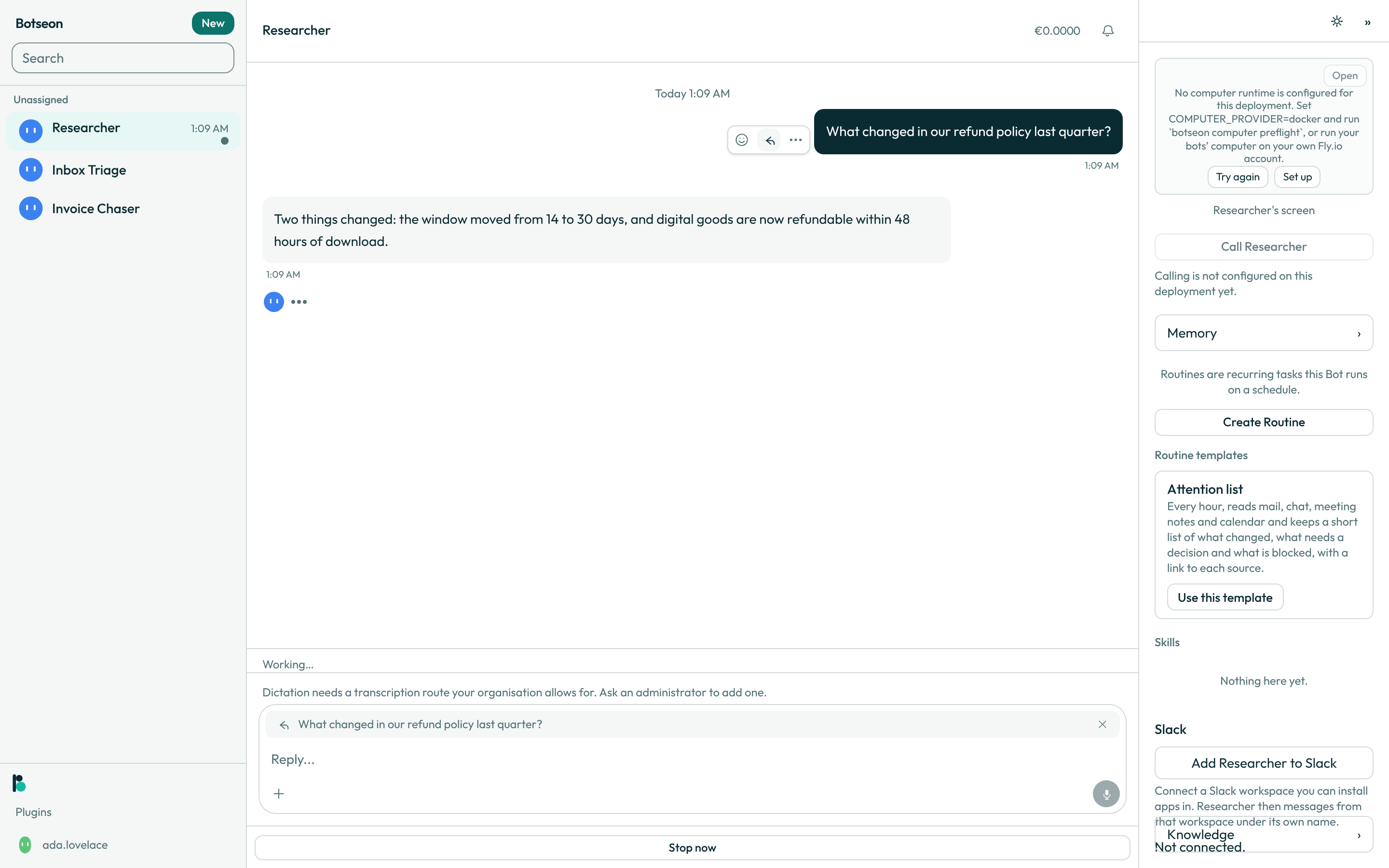
- Watch the bot work. While a run is active, its own avatar appears alone on a line with no bubble and no name, and its steps arrive live over the connection one at a time as it completes them.
-
Read the meter line before you send. Once you have typed something, a line appears beneath the composer showing what share of this session's context it holds. If that share has grown large, the line gains a
Manage contextcontrol. -
Manage the session's context.
Manage contextopens a sheet showing the bar, the token count behind it, and how many times this session has already been summarised.Summarise earlier turnscompacts the oldest part of the transcript on demand — nothing is deleted, and the notice it leaves in the transcript carries aShow the full historycontrol.Start a fresh sessioncloses the current session (still readable underEarlier sessions) and opens an empty one; reopening it is offered back while the new session is still empty. -
Send while you are offline. When your browser loses its connection, a line beneath the composer reads
You're offline.and the send button still works: each message you send goes into a queue under the composer, captionedSent while offline, with a×to drop it. When the connection comes back the queue sends itself, in the order you wrote it, each row readingWill send when reconnecteduntil it lands in the transcript. A message is never sent twice, even if two tabs reconnect at once. If the server refuses a queued message, it keeps its place with the reason beside it and aTry againbutton.
A worked example
Draft a reply to the supplier's email in this thread, attach the signed PDF, and hold it for my approval before sending.
What can go wrong
| What you see | Why | What to do |
|---|---|---|
That file is larger than 250 MB. | Documents, images and audio are capped at 250 MB; only a video file gets the higher 1 GB ceiling (That file is larger than 1 GB.), decided from the file's own bytes rather than its declared type. | Compress or trim the file, or send a link to it instead. |
Your organisation has run out of space for files. | Every attachment counts against one shared storage allowance for your organisation, checked before the file is written. | Ask an administrator to free up space, or remove attachments from old conversations. |
A message carries at most 20 attachments. | The composer stops offering a twenty-first chip once twenty are staged, and the server enforces the same ceiling. | Send this message, then attach the rest in a follow-up message. |
See also
Last verified against build 71798d4.