Let a bot use one of your apps
Member·9 minutes to read
What this does for you
With the desktop app installed and signed in, a bot can use one app on your own computer while you keep working: read the app's buttons and fields, press a button, fill in a field, scroll a list and take a picture of the app's window. It works through your computer's accessibility features (UI Automation on Windows), the same ones screen readers use, so the app does the work in the background. Your real pointer and keyboard stay yours.
While a bot is using an app you see three things: a glow round the app's window, a drawn pointer on the control it is acting on, and a small window that says Botseon is using <app> with a Stop button.

On a Linux Wayland desktop you see only the Stop window: Wayland does not let one app draw over another or take pictures of it, so there is no glow, no drawn pointer and no picture of the app's window. The Stop window is listed in your task bar and in Alt-Tab, so you can always find it, even when it ends up behind your other windows.
Some tasks need real keys or the real pointer, for example dragging parts in a modelling app that has no control for it. For those a bot can ask to take over the whole screen. On macOS, on Windows, and on Linux in an X11 session, you are asked every time, whatever this computer's setting, and Escape ends it at once.
What the bot never does:
- It never reads the text of a password field, even in the app you gave it.
- It never moves your pointer or types on your keyboard while using an app in the background, and never takes over the whole screen without asking you that time. On a Linux Wayland session it cannot take over the whole screen at all; it is refused before you are even asked.
- It never presses the Super (Windows) key or, on Linux, the desktop's own Ctrl+Alt shortcuts (a terminal, the lock screen, another workspace), and on Linux it has no
cmdkey: only the keys Botseon lists can be pressed. - It never turns on your desktop's app accessibility by itself: only your Turn on does.
- On Windows it never brings an app to the front or moves your pointer to press a button: the app does the work in the background.
Before you start
- The desktop app runs on this computer and you are signed in. It works on macOS, on Windows, and on Linux in an X11 session (GNOME on Xorg, KDE Plasma X11, Cinnamon, Xfce, MATE) or a Wayland session (the default on Ubuntu and Fedora). On Wayland the bot reads, presses, fills and scrolls an app's controls as on X11, but takes no pictures of the app's window.
- Open Settings → Computer and check this computer's setting. With
Ask every timeyou are asked before a bot starts using an app; withAlways allowa bot may pick an app without asking; withNever allownothing is ever touched. - On macOS, Botseon needs the Accessibility permission (and Screen Recording for pictures of a window) in System Settings → Privacy & Security.
- On Windows there is no permission to turn on: this computer's setting and your answer when you are asked are all it needs. A PC whose administrator has locked PowerShell down (Constrained Language Mode, often set by AppLocker or WDAC) cannot be controlled this way at all.
- On Linux, your desktop's app accessibility has to be on: apps only show their controls to assistive tools while it is. The steps below turn it on.
Steps
- Ask a bot to do something in one of your apps, for example "fill in the order form in the vendor's app with the values from this sheet".
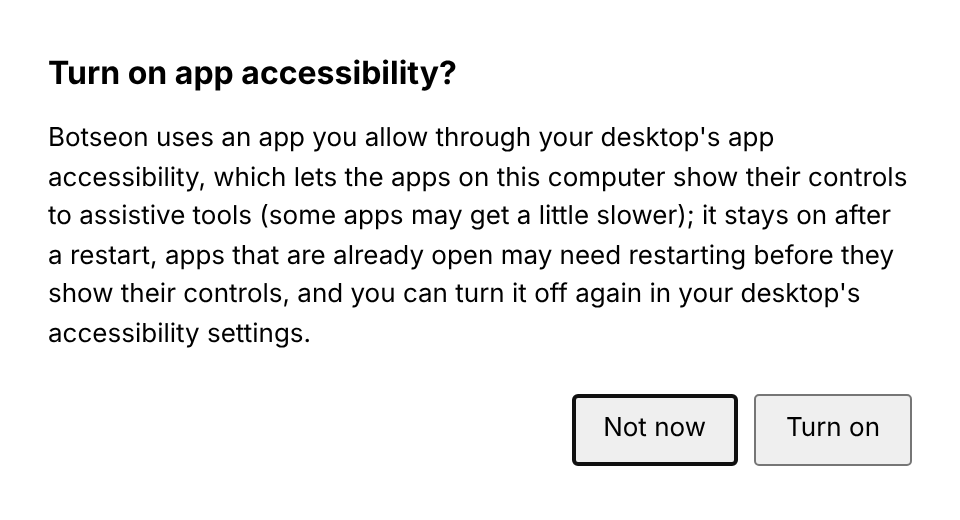
- On Linux, turn app accessibility on if Botseon asks. If it is off, the bot opens Botseon's own window, Turn on app accessibility?, which says what turning it on does. Not now is selected; nothing changes until you choose Turn on. The switch stays on after a restart, and apps that were already open may need restarting before they show their controls. To turn it off later, switch off assistive technologies in your desktop's accessibility settings.
- Say yes to the app. With
Ask every time, your computer asksUse <app> in the background, with the app's own name, or, for an app that is not open yet,Open <app> and use it in the background. This starts: <command>, showing what will start. On Windows the apps a bot can open are the ones in your Start menu, and an app it opens starts minimised, so it does not take your screen. The bot can use only that app until you stop it; any other app is refused. - Watch it work. The glow marks the app, and the drawn pointer shows which control the bot is acting on. On Linux without a compositing desktop effect, and on any Wayland desktop, the glow and the pointer are not drawn; the Stop window still is.
- Stop it whenever you like. Choose Stop in the small window. On Wayland, if it is behind another window, pick it from your task bar or with Alt-Tab. Control ends at once, the glow goes, and the bot's next step is refused. Setting this computer to
Never allowin Settings → Computer also stops everything within half a minute, and so does quitting the desktop app.
Letting a bot take over the whole screen
- Say yes to the takeover. When a bot needs keys or the real pointer, your computer asks
Take over the whole screen, keyboard and pointer until you press Escape. You are asked every time, even when this computer is set toAlways allow. If you say no, nothing changes: a bot that was using one app keeps using only that app. - Watch it work. The small window says
Botseon is controlling this screen. Press Escape to stop.with a Stop button. The bot presses keys and moves the real pointer, at the places it saw on a picture of your screen. On a high-resolution display its clicks are converted by your display's scale, and they never land outside your main display.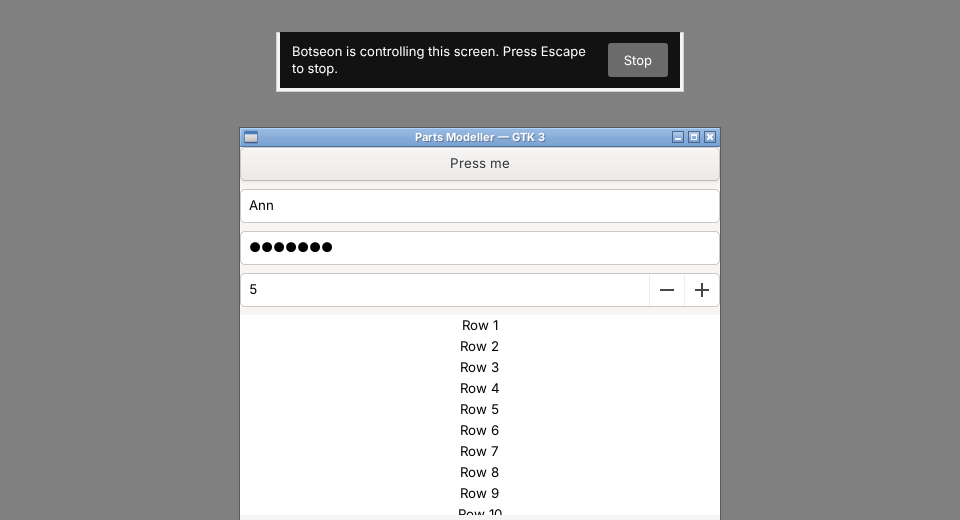
- Press Escape to get the screen back. Control ends at once and the bot's next key or click is refused. Stop in the small window does the same.
On a Linux Wayland session the bot is told the whole screen cannot be taken over on this computer before you are asked anything; it can still use an app in the background where that is supported.
A worked example
You run Linux Mint with Cinnamon and want a bot to copy twenty rows from a spreadsheet into a supplier's order app while you answer email.
- You ask: "Enter the rows of orders.csv into the Supplier Orders app, one order per row."
- App accessibility is off, so the Turn on app accessibility? window opens. You choose Turn on, then quit and reopen Supplier Orders so it shows its controls.
- Your computer asks
Use Supplier Orders in the background. You choose to allow it. - The order app glows, and the drawn pointer moves from field to field as the bot fills each order and presses Save. Your own pointer stays in your email.
- Halfway through you notice a wrong price list, and choose Stop. The glow goes, and the bot tells you it was stopped.
What can go wrong
| What you see | Why | What to do |
|---|---|---|
| The bot says the computer cannot be controlled this way | On Linux, the desktop app found no display session at all. On Windows, PowerShell is locked down on this PC (Constrained Language Mode). | On Linux, start the desktop app from your desktop session, not from a remote terminal. On Windows, ask your administrator; Botseon does not work around the lock. |
| On Wayland, the bot says it cannot take a picture or take over the screen | Wayland does not let one app capture or control another's screen. | Nothing to do: the bot works through the app's controls instead. If you need pictures or the whole screen, log in with an X11 session (often called "on Xorg" on the login screen). |
| The bot says it cannot take over the whole screen | This is a Linux Wayland session, another app already uses the Escape key as a shortcut so the takeover could not be stopped, or on Windows the PC would not let Botseon load what it needs to press keys. | On Linux, log in with an X11 session; otherwise quit the app that holds Escape. |
The bot says cmd is a Mac key | This computer is not a Mac. | Nothing to do: the bot uses ctrl instead. |
| The bot says a permission is missing | On Linux, app accessibility is off. On macOS, Accessibility or Screen Recording is off. | On Linux, choose Turn on in the window the bot opens. On macOS, turn the permission on in System Settings. |
| The bot cannot find any controls in an app you just let it use | The app was open before you turned app accessibility on. | Quit the app and open it again. |
| On Windows, the bot says it could not take a picture of the app's window | The app's window is minimised (as it is right after the bot opened it), so there is nothing to take a picture of. A minimised window is never answered with a picture of something else. | Restore the window from the task bar if the bot needs to see it. |
| The bot says filling in a field failed | Some apps (some GTK 4 apps among them) do not let assistive tools set a field's text. | Fill in that field yourself; the bot types nothing in its place. |
See also
Last verified against build 36962ab.