Share a bot with the team
Member·13 minutes to read
What this does for you
This page covers sharing one of your bots with your team, and adding a teammate's shared bot to browse read-only.
Before you start
- Your organisation is a team organisation — a personal organisation has no one to share with.
- You either own the bot you want to share, or a teammate has already set theirs to Team visibility.
Steps
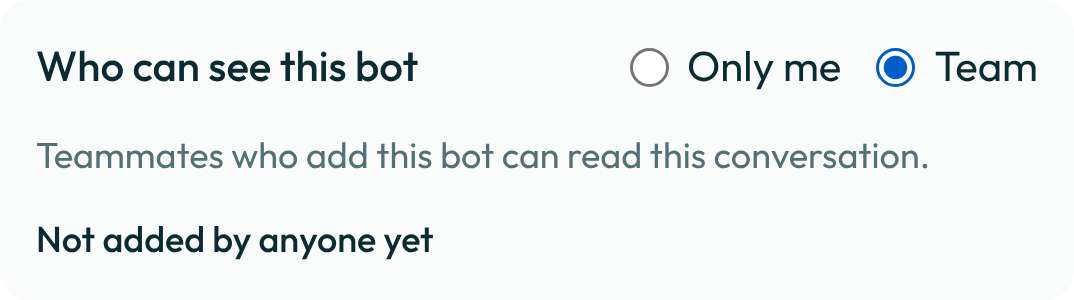
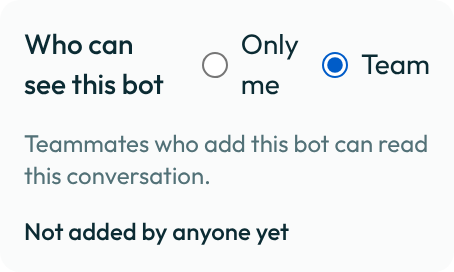
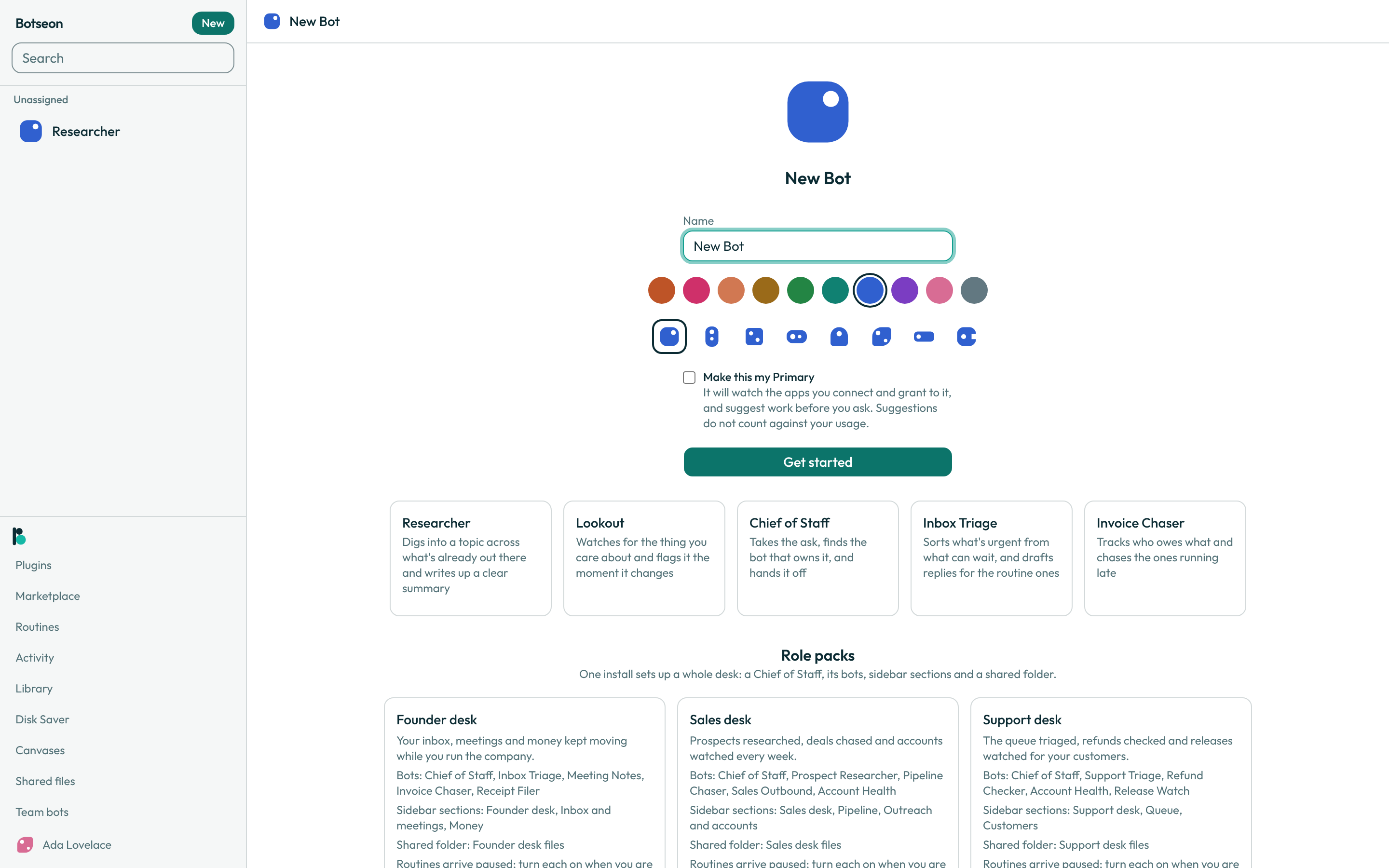
- Set your bot's visibility to Team, in the Visibility card of Make a bot, and set it up. Only the bot's owner can change this.
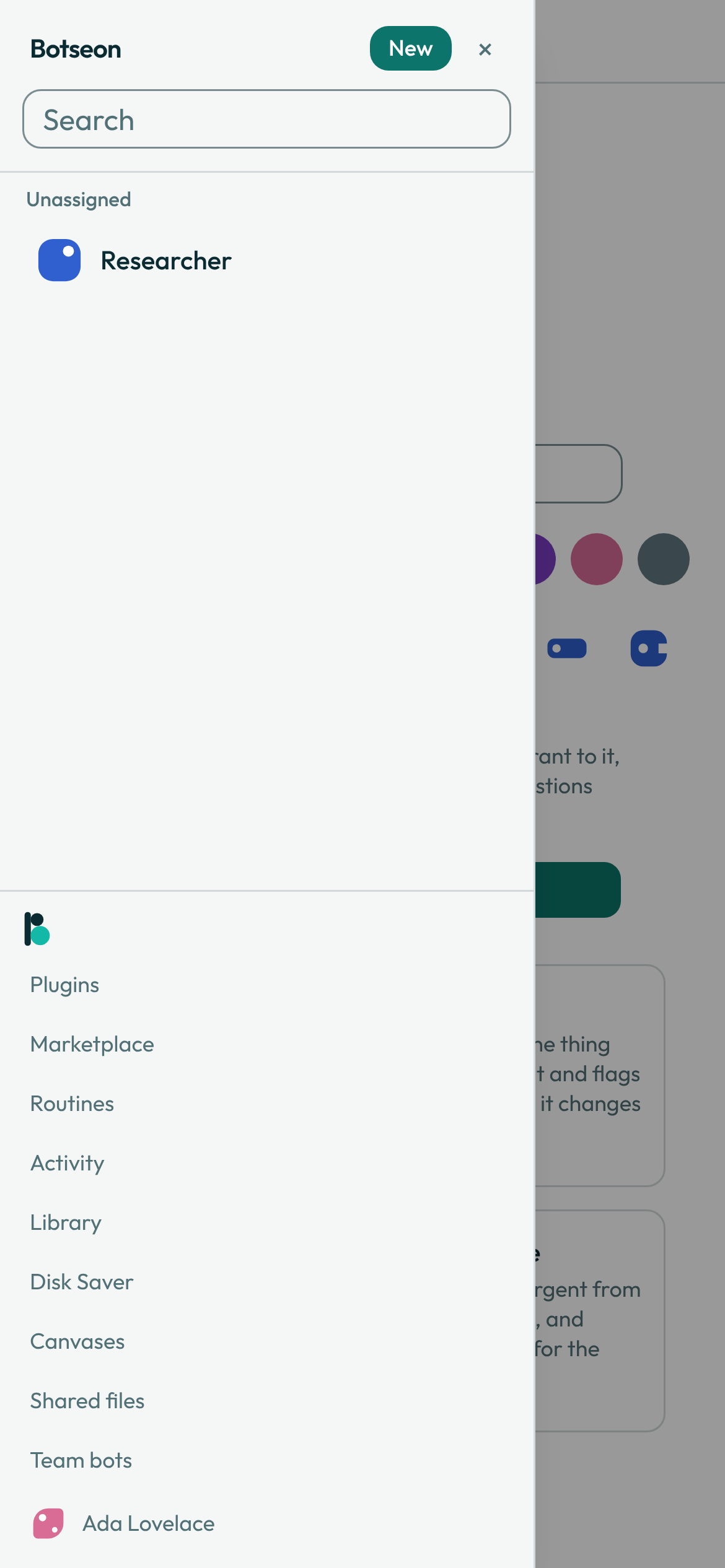
- Open your account menu (your avatar at the foot of the sidebar), then More → Team bots. It's shown only in a team organisation.
- Browse what your teammates have shared. Each row shows the bot's avatar, name, title, and who owns it; your own bots never appear here.
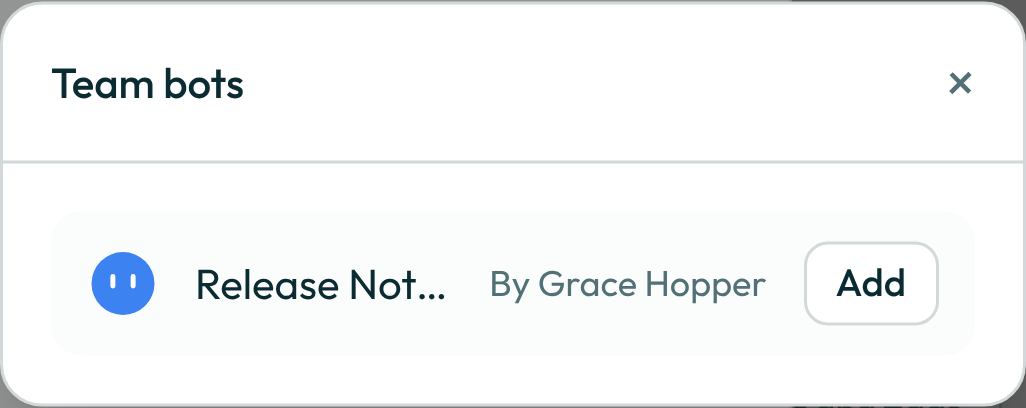
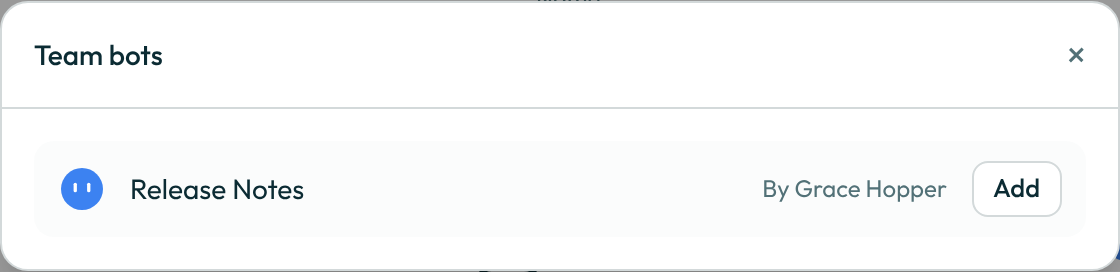
- Add a bot with its Add button. This gives you a read-only view of the owner's own conversation with that bot, not a conversation of your own.
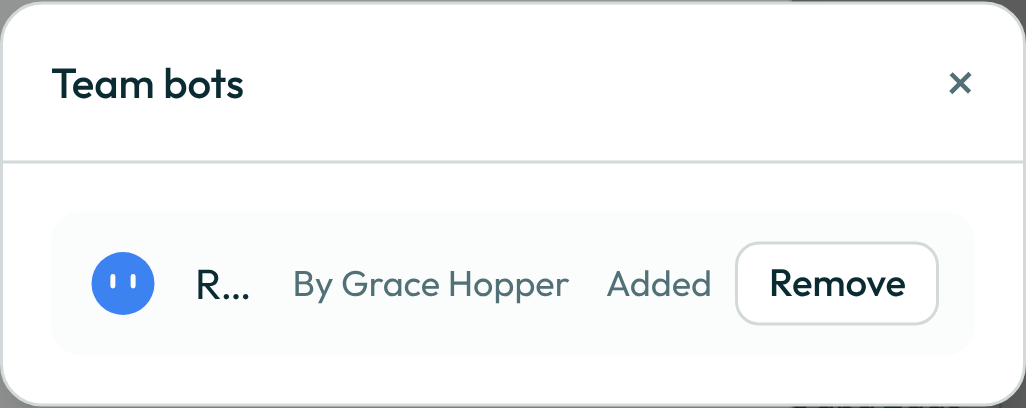
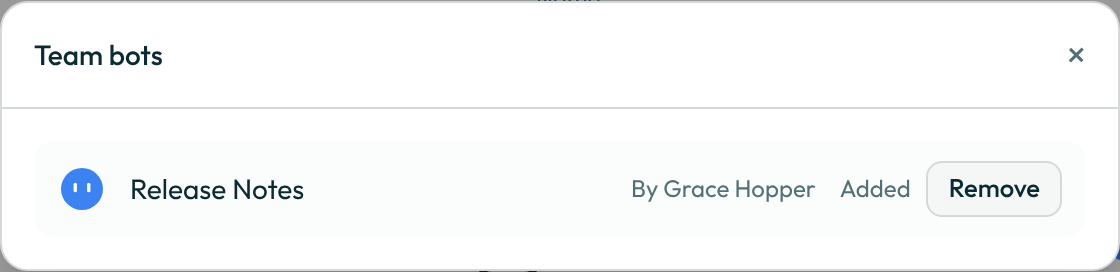
- Open the added bot from your sidebar. Its composer is replaced with a notice naming the owner, and its Settings show the same fields as plain text, with no input and no button. On a phone the notice takes one line, with a Clear button (×) beside it; a cleared notice stays hidden for that bot in this browser.
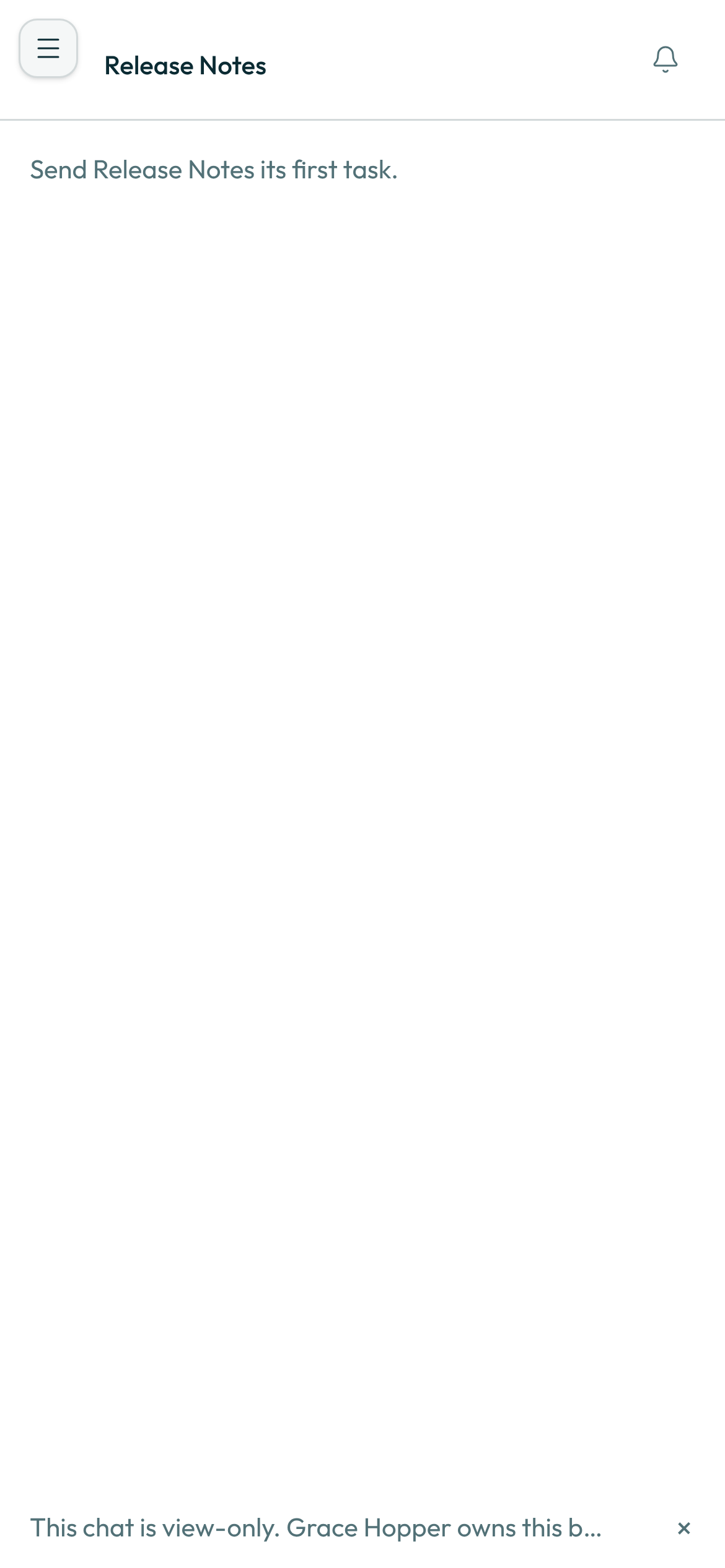
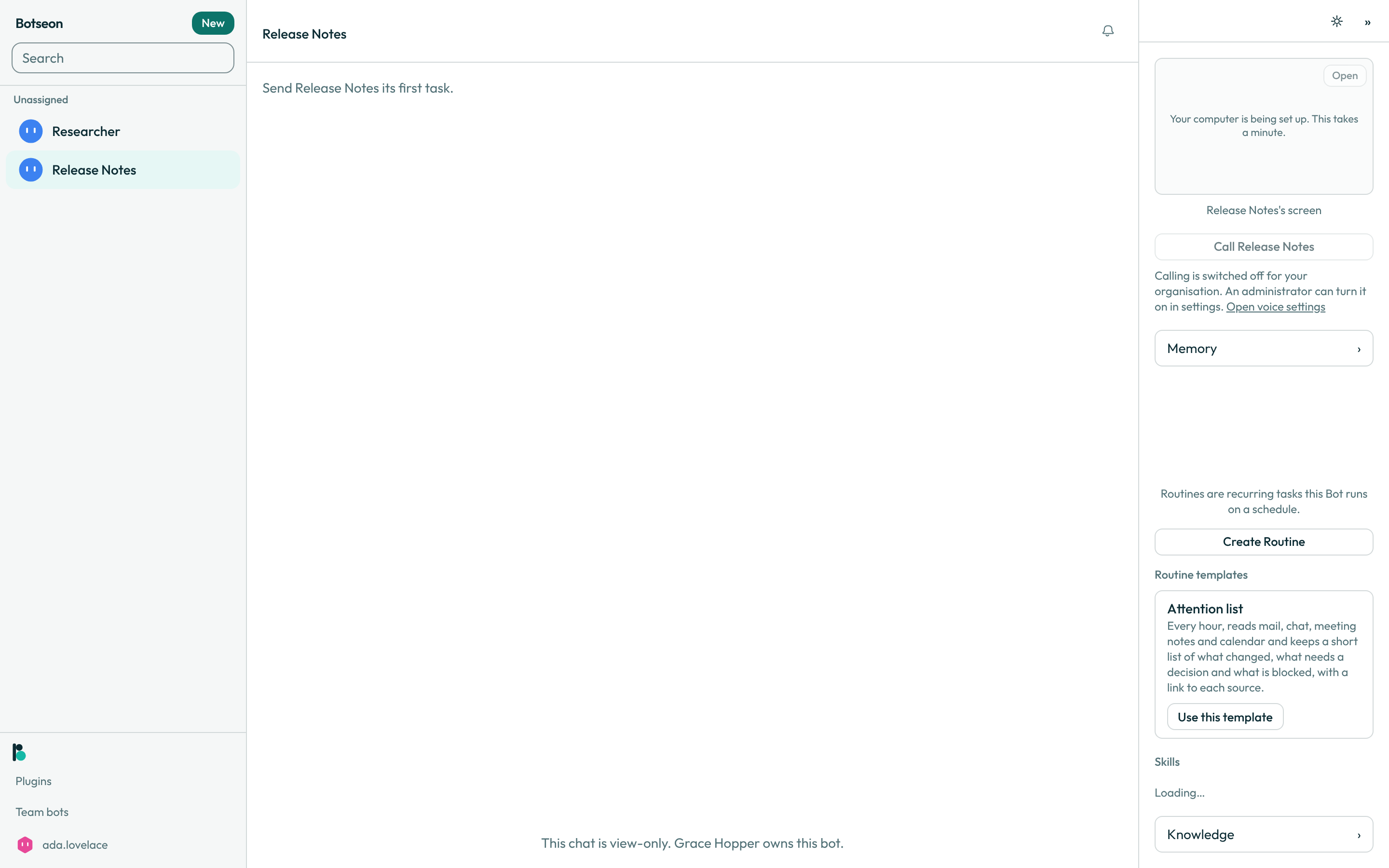
- Remove a bot you no longer want to follow with Remove, or stop sharing your own bot by switching its visibility back to Only me — this ends every teammate's access to it at once.


Publish a bot so each teammate gets their own chat
Sharing above lets teammates follow your own conversation. Publishing goes further: every teammate gets a private chat of their own with the bot.
- Open your bot's Settings and find the card Publish to the team. Say in a few words what the bot is for, then choose Publish. Withdraw on the same card stops anyone opening a new chat with it.
- A teammate opens Team bots and chooses Add beside your bot. That opens their own private chat with it: you cannot read it, and neither can their other teammates.
- In that chat the teammate types to the bot, or talks to it in a live voice chat, as with a bot of their own; see Voice chat with a teammate's Team Bot. The call card lands in the teammate's own chat, and the call counts against them, not against you.
See who used your bot this month
A published bot's Settings end with Who used this bot this month: one line per teammate with the credits their chats with it drew, the highest first, and the date the count starts again. Work the bot did on its own, such as a routine on a schedule, is the line The bot itself. You see it as the bot's owner. A teammate who only uses the bot does not.
Let a teammate manage your bot
Once your bot is published to the team, its Settings show a Managers card below the Publish card. Pick a teammate under Add a manager and choose Add; Remove beside a name takes it back. Only teammates who can open the bot are offered.
A manager adds the bot from Team bots like anyone else. Its Settings are then editable for them: the name, label, description, avatar mark and instructions. A manager can also turn their own skills on for the bot, connect one of their own MCP servers to it, fill in a secret that one of its plugins asks for, and add it to your organisation's Slack workspace. A secret is stored on the manager's own account and is never shown again once saved.
A manager cannot delete or withdraw the bot, change its visibility, voice or spend cap, or choose other managers. A manager never sees your teammates' private chats with the bot.
Assign, delete and read the log of a team bot (administrators)
An administrator manages every published team bot from Organisation → Team bots.
- Assign a bot to All members, None or Selected groups. A change takes effect on each member's next request: someone taken out of the assignment loses the bot, and someone added sees it.
- Delete removes a bot for everyone, whoever owns it. You type the bot's exact name to confirm. Its owner and every teammate lose it at once, and their chats with it disappear from their chat lists; opening an old link to one says it was not found. Its routines stop, and its own Slack app is uninstalled and its token revoked.
- Log lists what happened to the bot, newest first, with who did it and when. That covers publishing, assignment changes, managers named or removed, its Slack app being connected and its deletion. It also lists each change to the bot's skills, by its owner or a manager (a skill switched on or off, or set to everyone's chats or only the owner's), and each teammate's Slack account being linked or unlinked on the bot's own Slack app. The log never holds what was said in a chat, and it never shows anyone's Slack account ID.
Voice chat with a teammate's Team Bot
Once a teammate publishes a Team Bot to you, you can talk with it by voice as well as by text. Open your own chat with it, on the web or the phone, and start the call from the details panel: the control reads Call and the bot's name, as it does for your own bots. The call card lands in your own private chat with the bot, and only you can read it. An administrator can turn voice with team bots off in Organisation > Policies; the control then stays on screen, disabled, with a sentence saying so. See Give a bot a voice for the call itself.
A voice chat is with one bot at a time, in your own one-to-one chat with it. A group chat has no call control, so you cannot voice chat with a Team Bot, or any bot, in a group.
Bring a team bot to your team's Slack
The bot's owner, or a manager, can add a published team bot to Slack from the bot's Settings. Under Bring to your team’s Slack choose Add to Slack, pick the workspace on Slack's page and approve. You come back to the card, which now says the bot is in that workspace and the handle teammates mention it by. Nobody types an app id or a secret: the bot posts through your deployment's Slack app, under its own name and picture. Add to another workspace does the same for a second workspace. The bot's first message in a workspace is a direct message to whoever added it, saying it is there now and how to reach it.
If that workspace only lets an admin approve new apps, the card shows Awaiting admin approval instead:
- Send request in Slack opens Slack's page, where you send the request to your Slack admins.
- Check approval goes back to Slack once an admin has said yes, and finishes adding the bot.
- My request was denied is for when Slackbot tells you in Slack that an admin turned it down. Slack does not tell the app, so you report it here; the card then reads Request denied, Denied, reported on that day. Talk to the admin, then Resubmit (a Workspace Owner may need to lift the restriction on the app first).
- Cancel request (or Cancel setup before you sent one) stops it. Nothing is added to Slack, even if an admin approves later.
You do not have to keep checking. Slackbot tells you in Slack once an admin has reviewed the request, and when it is approved its install link brings you back here and finishes adding the bot you were waiting on. If an admin turns the request down, Slackbot tells you that too, but Slack does not tell the app: choose My request was denied, and the card reads Request denied, still with Resubmit and Cancel request.
Remove from Slack, next to a workspace on the card, takes the bot out of that one workspace. It stays in the app and keeps working everywhere else; adding it again later brings it back with the same handle.
If the card is not there, your deployment has no Slack app set up, or its operator has turned Add to Slack off. The bot's own Slack app, under the card, is the advanced route and works either way.
Link your Slack account once
A team bot in Slack answers only people whose Slack account is linked. Open Settings → General → Team bots: under Slack accounts there is one line per Slack workspace your team's bots are in. Choose Link, approve at Slack, and you land back on the same section with the workspace marked linked. That one link counts for every team bot in that workspace, whichever way each was added to Slack. Unlink takes it back for all of them at once; after that no team bot there answers you until you link again.
If you post to a team bot in Slack before you have linked, only you see its reply: a short note with a Link account button. A Slack account linked to someone who has left the organisation gets a private note that it is not on the team, and no answer.
Whose plugins it uses
In a conversation one teammate has with the bot (its chat, or a Slack direct message with it), a plugin you sign in to uses that teammate's own account, and the bot asks them before it uses it the first time. A plugin set up with a key uses the key you gave the bot, for everyone. A remote server uses the key you stored, or each teammate's own sign-in when the server signs in that way.
When the bot asks a teammate about their own account, the card offers four answers:
- Allow once — the bot uses the account in this conversation only. In Slack that means this thread only: a new thread asks again.
- Always allow for this bot — this bot uses it in any conversation they are in, without asking again.
- Always allow for all team bots — every team bot does.
- Skip — the bot does not use the account in this conversation. In Slack, that holds in this thread only.
The two Always answers hold in every conversation and every Slack thread. The teammate can forget all of them with Clear under Remembered connection answers in Settings → General → Team bots; every team bot then asks again.
In a Slack channel, a thread in one or a Slack group DM everyone there reads the answer, so the bot uses only your plugins, exactly as you granted them, whoever asks. It reads with them there without asking anyone, because granting a plugin to the bot is your go-ahead. Anything that would change something (send, post, delete, pay) is not done there.
Who approves what
A team bot asks the person who asked it, never you on their behalf:
- In your own chat with the bot it asks you, as any bot does.
- In a teammate's own chat with it, or their Slack direct message with it, the approval card appears in that conversation and the teammate approves or declines it there. You see no card and cannot answer it.
- In a Slack thread the card is posted into the thread under the bot. Only the person who asked can press Approve or Decline; anyone else in the thread, you included, is told it is not theirs. They can also decide it in the app.
- In a group chat (the app's, or a Slack group DM) there is no card: the bot does only what its permissions already allow and skips anything else.
A teammate is never asked to approve a send, post, delete or payment on your plugins: those stay not done, as above. When an administrator turns on Enforce Auto-review on the Team bots page, actions in a group chat and in a teammate's own chat go through Auto-review first, even for a teammate who has it off. In a group chat what the review does not clear is skipped; in a teammate's chat it still needs their approval. In Slack a teammate's DM or thread keeps their own Auto-review setting, and the action needs the approval of the person who asked.
A worked example
Asking a teammate to share their bot with the team:
Can you set BillingBot's visibility to Team? I'd like to add it and follow along.
What can go wrong
| What you see | Why | What to do |
|---|---|---|
That bot is not shared with the team. | The bot's owner has not set it to Team visibility, or has since turned sharing off. | Ask the owner to set its visibility to Team. |
Only the bot's owner can change who sees it. | Visibility is an owner-only write. | Ask the bot's owner to change it. |
Only the bot's owner can change this bot. | You've opened a shared bot read-only; every write on it is owner-only. | Ask the owner to make the change, or duplicate the bot for your own copy. |
Only the owner can stop this run. | A shared bot's run belongs to its owner, even while you're watching it. | Ask the owner to stop it. |
Only the person who asked can decide this approval. They can decide it here or in the app. | You pressed Approve or Decline on a team bot's card in a Slack thread someone else asked in. | Leave it to the person who asked; they can decide it in the thread or in the app. |
A personal organisation has no members to manage. | Sharing needs a team organisation. | Switch to a team organisation, or create one. |
See also
Last verified against build 9e6bdf2.