Your account and settings
Member·6 minutes to read
What this does for you
The account menu and the Settings sheet are where you find your sign-in details, your appearance and default behaviour, and the switch that deletes your account.
Before you start
- You're signed in.
- Organisation-wide policy, such as who can join or what plugins are allowed, belongs to an administrator, not to this page.
- Your plan and your weekly allowance live on the same sheet's Usage & Billing tab — see Plans and the trial and Usage, the meter and spend caps.
Steps
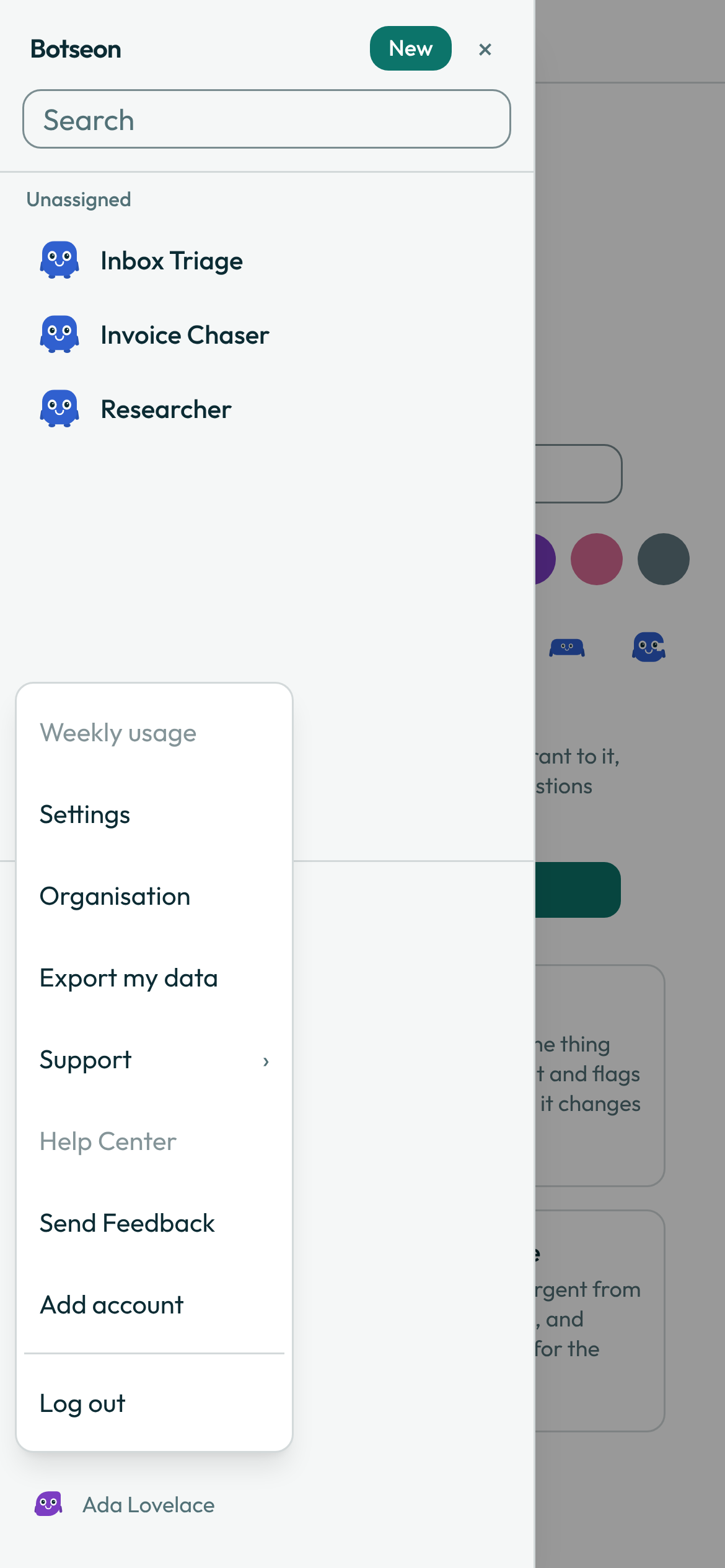
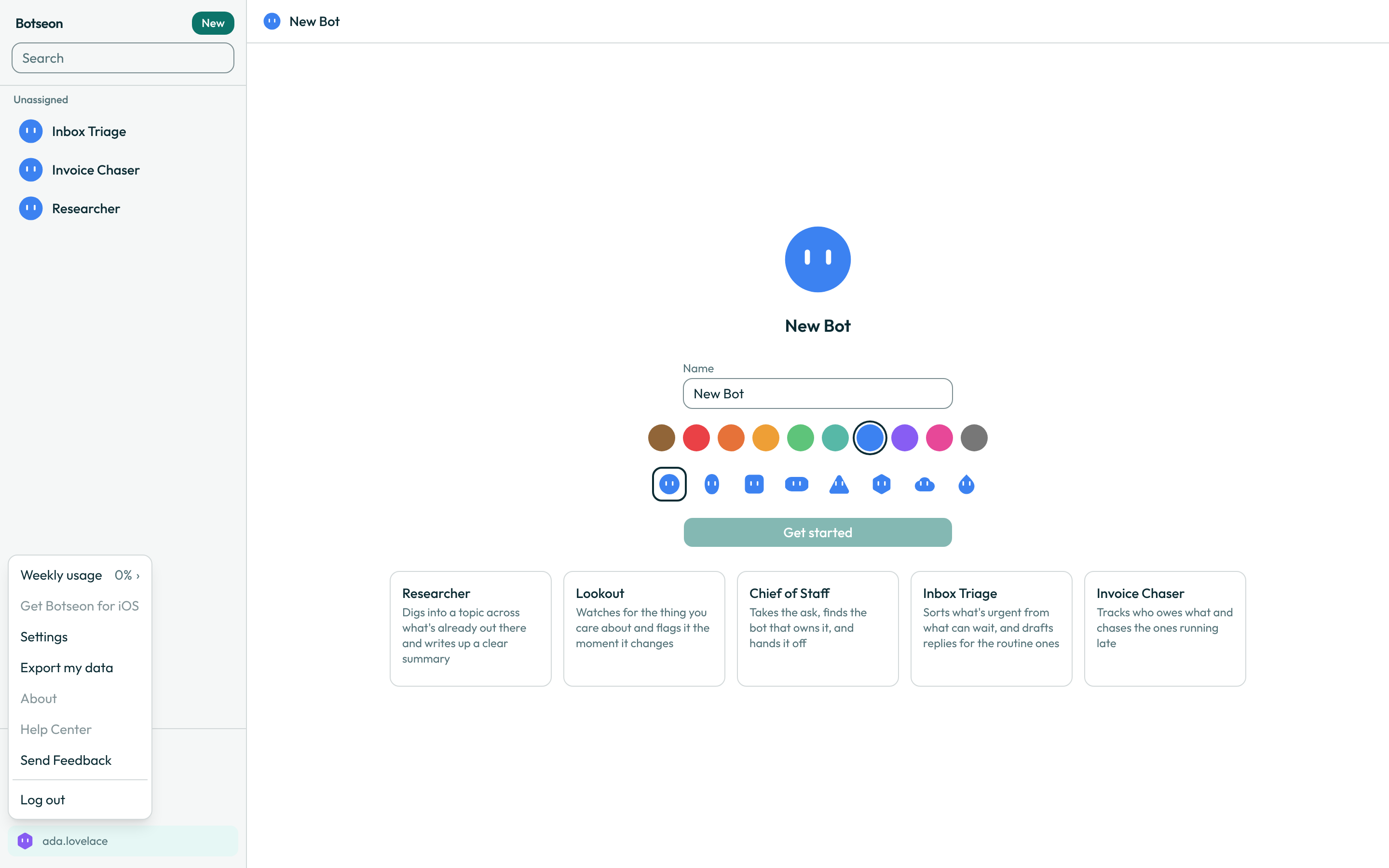
- Click your avatar at the bottom of the sidebar to open the account menu. Its first rows are Activity, Routines, Library, Marketplace and More (see Finding your way). Below them it shows your plan and your weekly usage percentage with a submenu, a link to get Botseon for iOS, Settings, Organisation (in a team organisation), Export my data, a Support submenu, Help Center, Send Feedback, a way to switch or add an account, and Log out. Export my data sends you a copy of what is kept about you — the rules your bots learned from you included, each with its words, whether it is on or off, when it was learned and the words or message it came from.
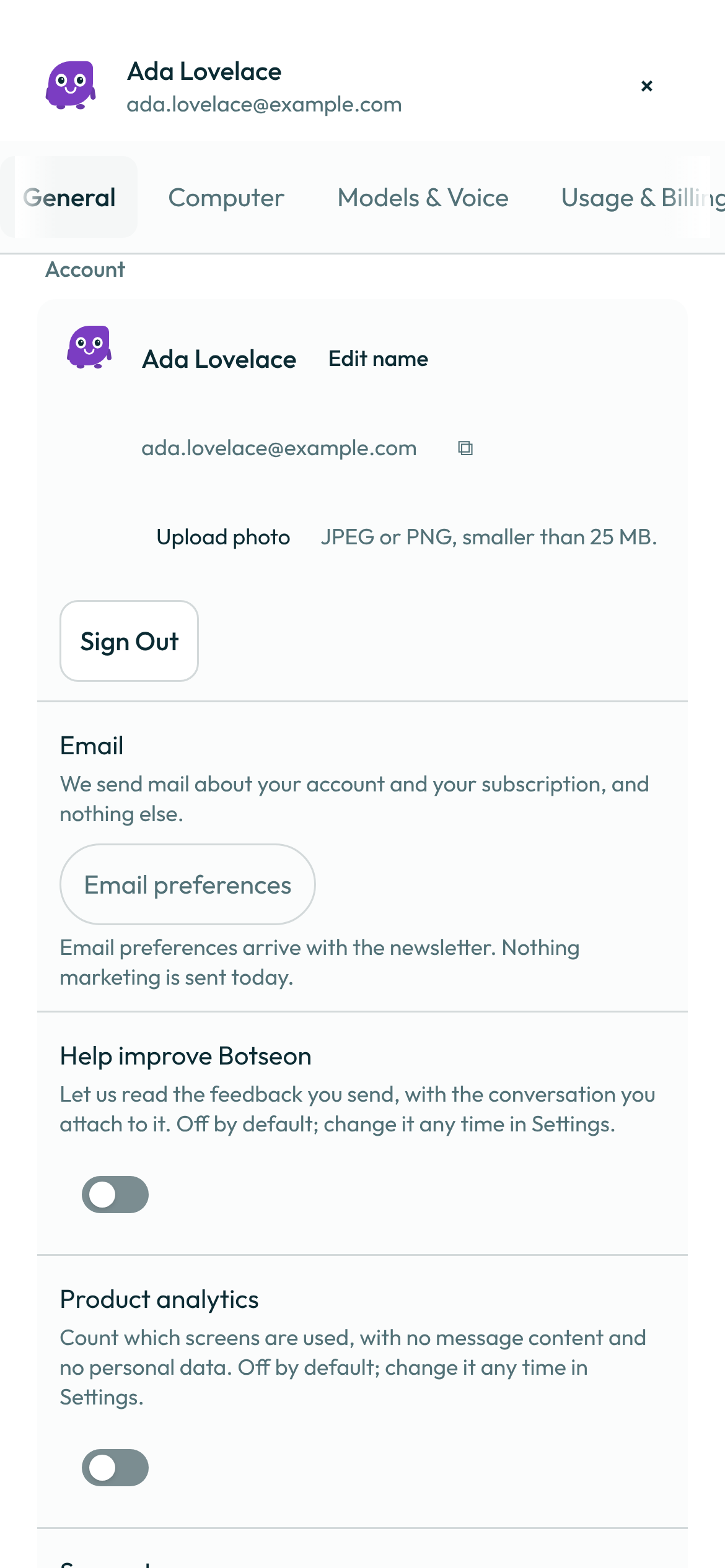
- Choose Settings to open the sheet on the General tab, alongside Computer, Usage & Billing, Updates and Voice (a self-hosted deployment also shows Models & Voice). The Account block shows your avatar, your display name, and your sign-in email with a control that copies it; Edit name and Change photo let you change your name and photo. A photo follows the same rules as a bot's picture: a JPEG or PNG smaller than 25 MB. A larger one is refused with The image must be smaller than 25 MB., and your current photo stays. A second Sign Out button sits beside it.
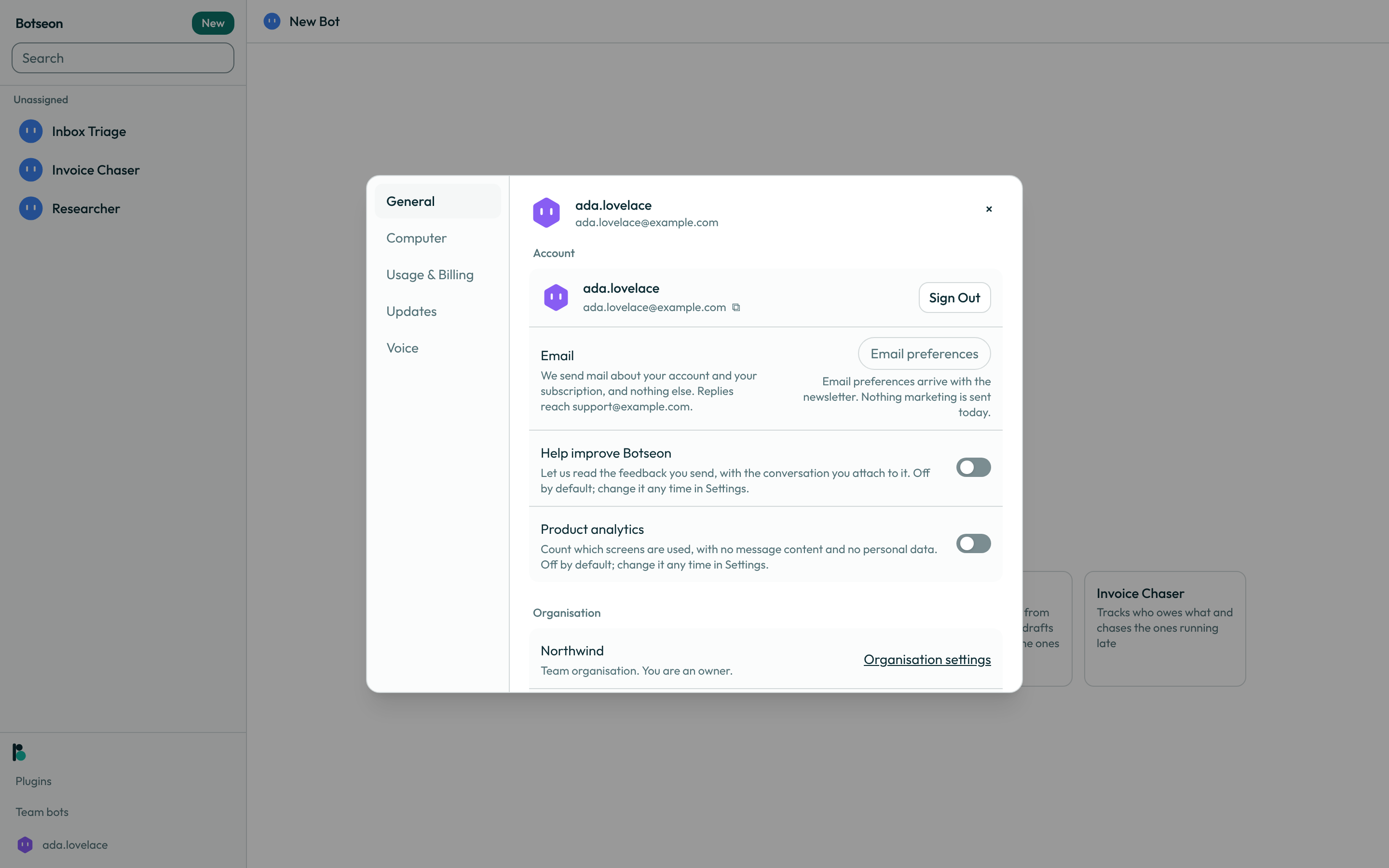
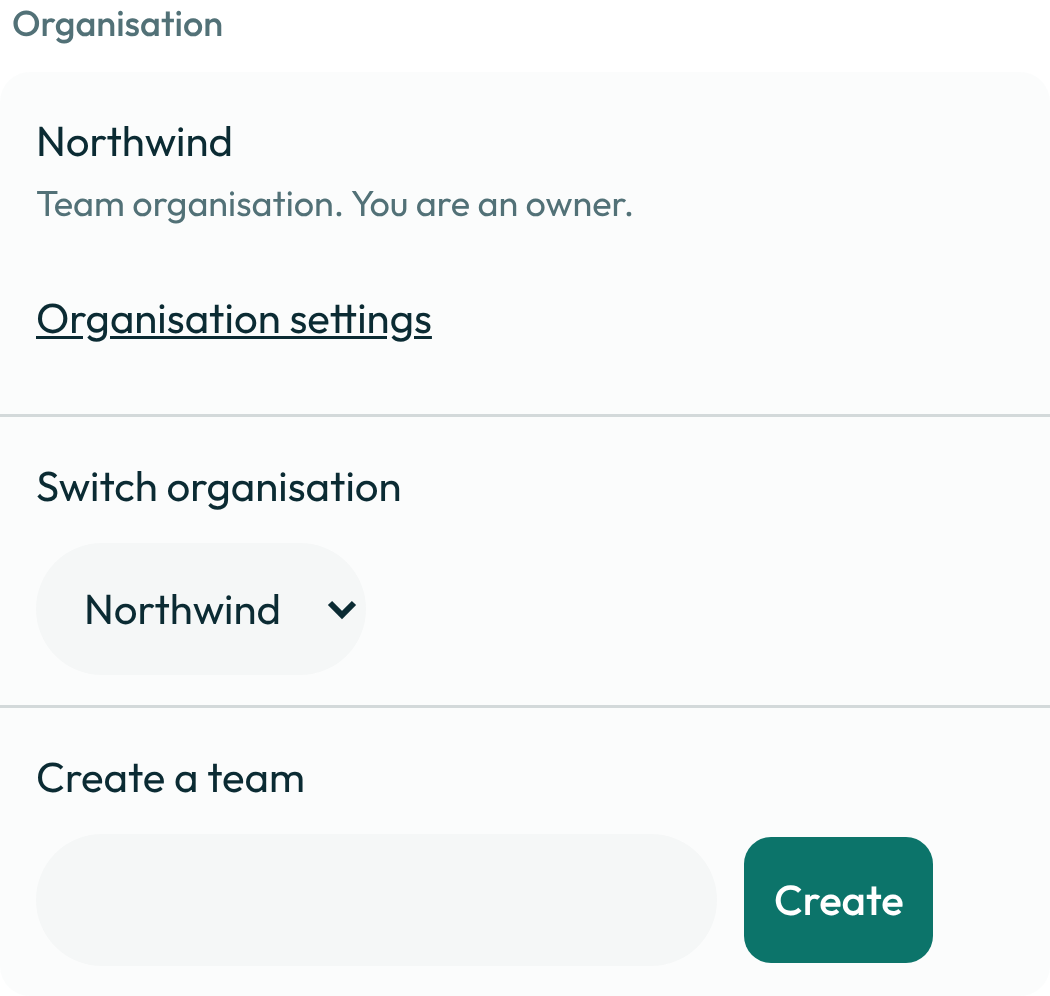
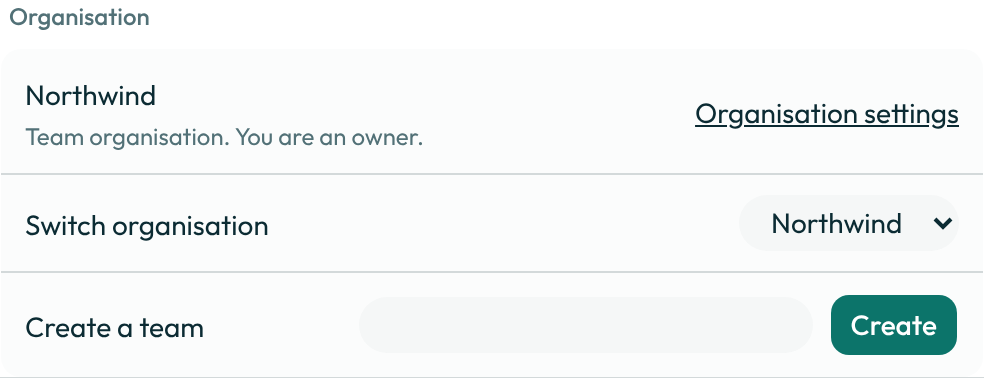
- The Organisation section names the organisation you are working in, says whether it is personal or a team, shows your role, and offers a switcher and a Create a team control.
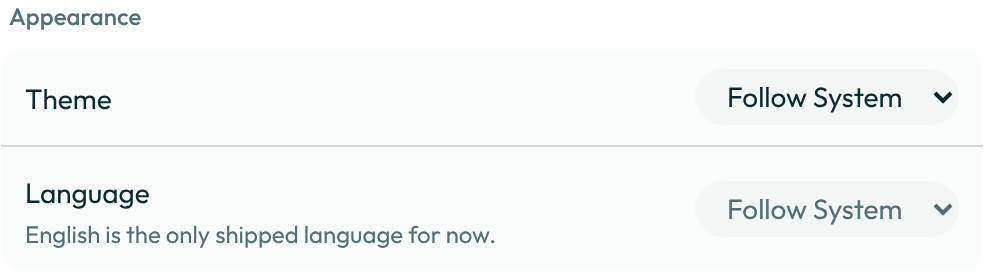
- Under Appearance, set Theme to Follow System, Light or Dark. Language stays on Follow System; English is the only shipped language for now.
Three more Appearance rows set how your bots' avatars behave, for you alone: Calm mode keeps every state and drops the extras (no idle bits, sweat, dizziness or confetti); Avatar sounds plays little synthesised sounds when a bot knocks, giggles or finishes, and is off until you turn it on; Avatar motion is Follow your system setting, Reduced or Full. If your organisation has turned lively avatars off, the rows are locked and say
Your organisation has turned lively avatars off.See What your bot's avatar is telling you.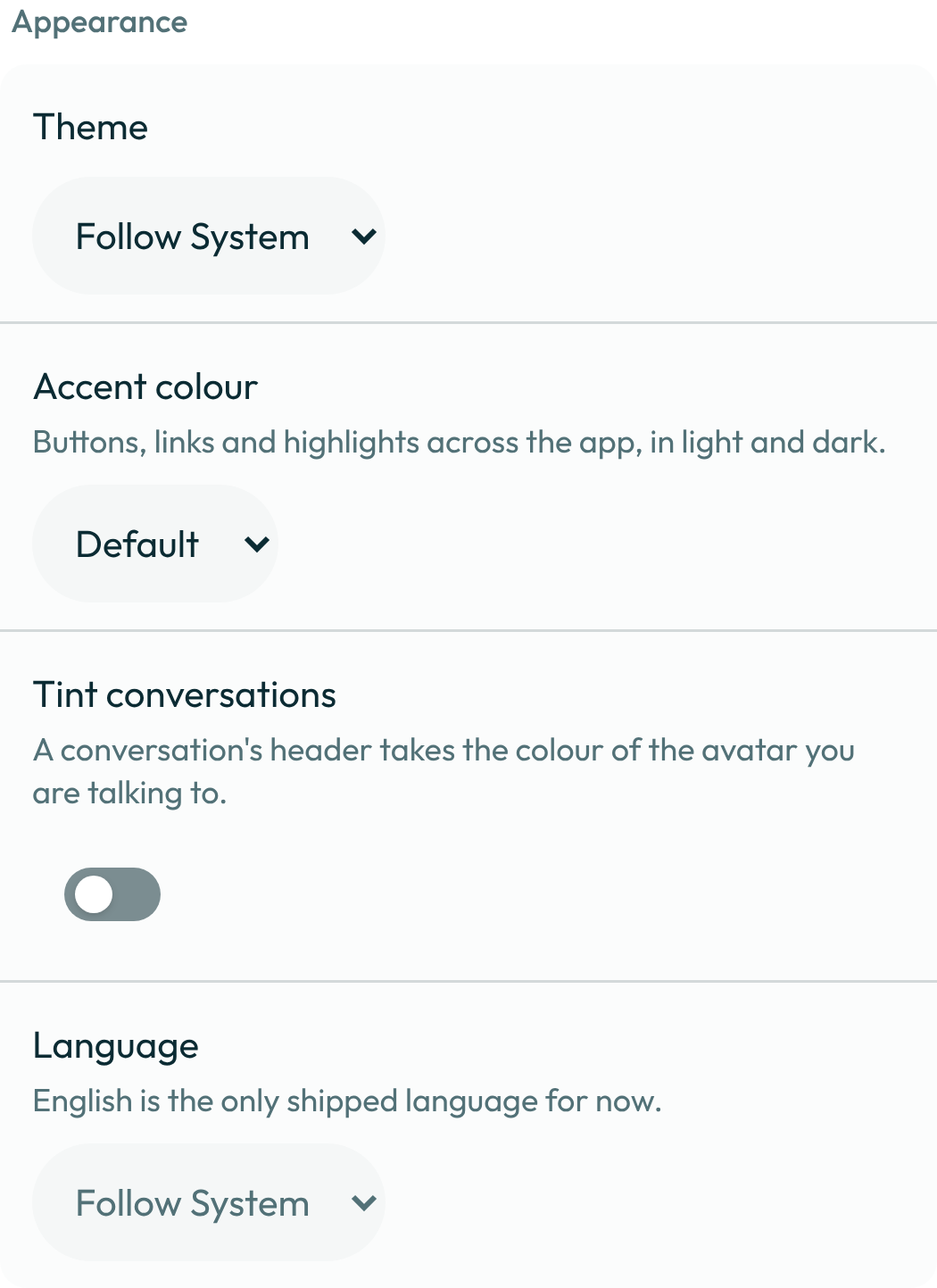
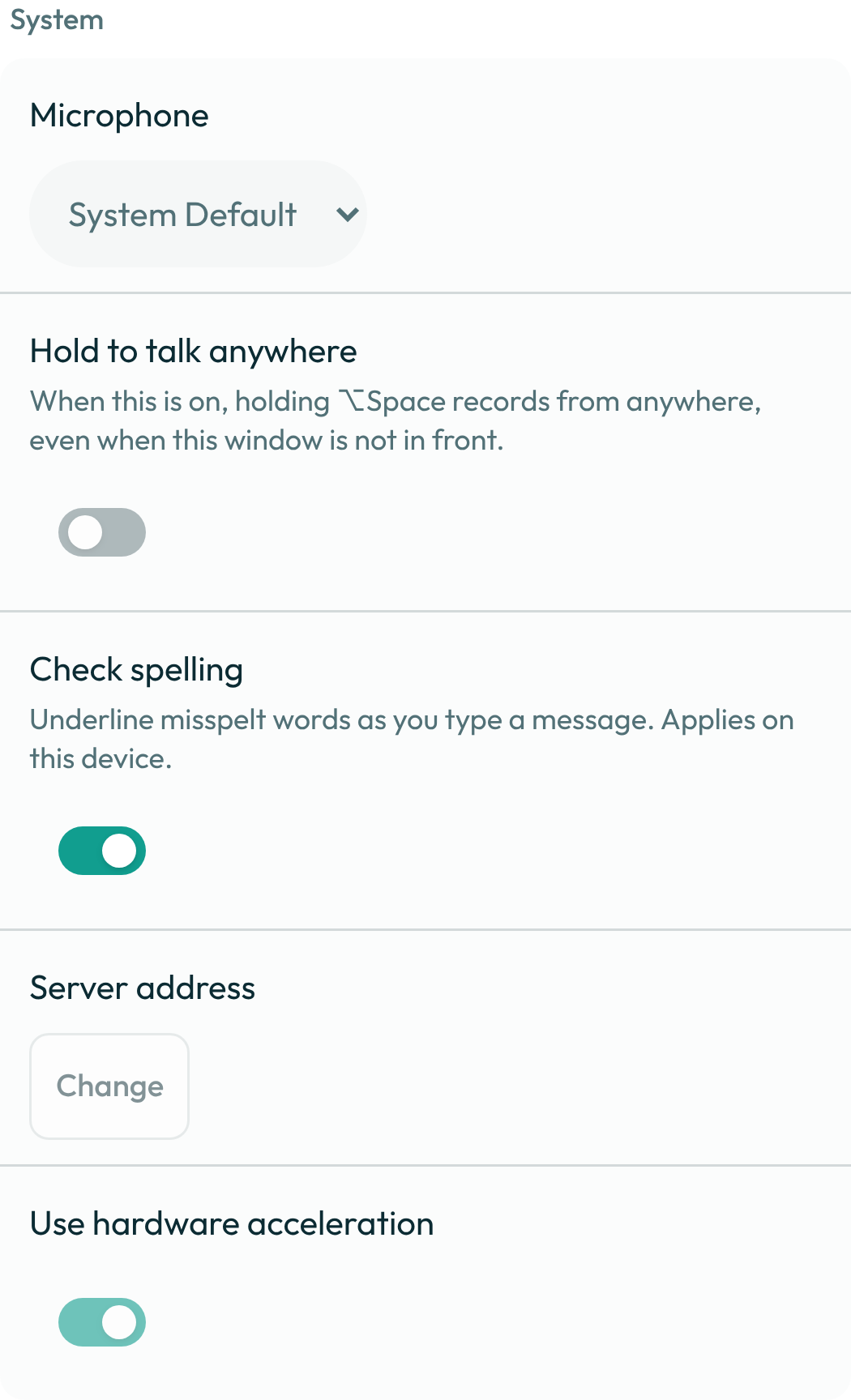
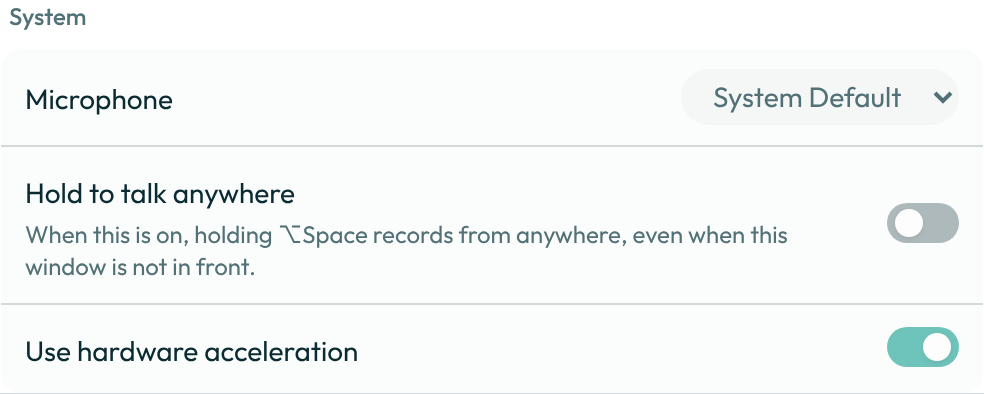
- Under System, the microphone row shows your system default, and Use hardware acceleration is a switch you can turn off — it only applies in the desktop app, and changing it asks you to restart.
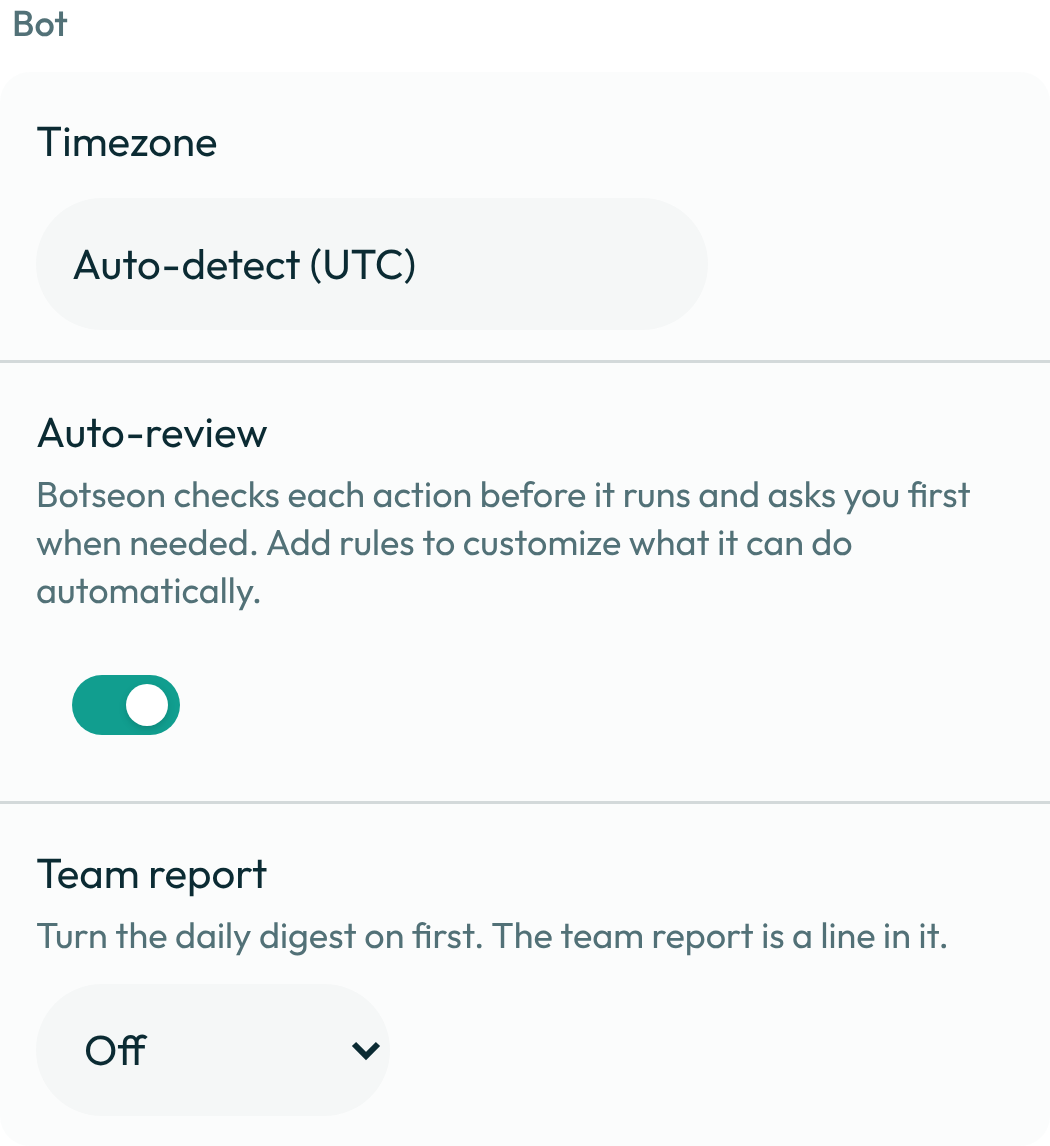
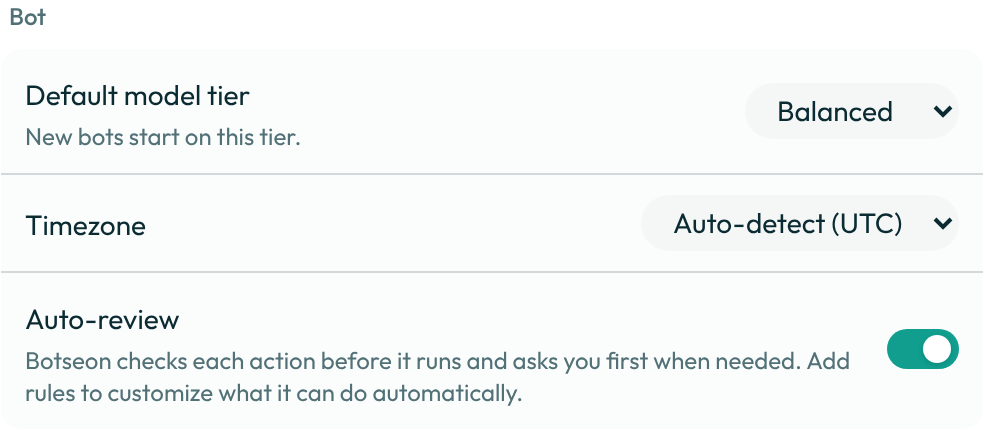
- Under Bot, set your writing style, and your timezone (Botseon auto-detects it and shows the resolved zone; your bot's computer runs on this clock too — see The bot's computer), and turn Auto-review on or off — this controls whether Botseon asks you first before an action, for you alone.
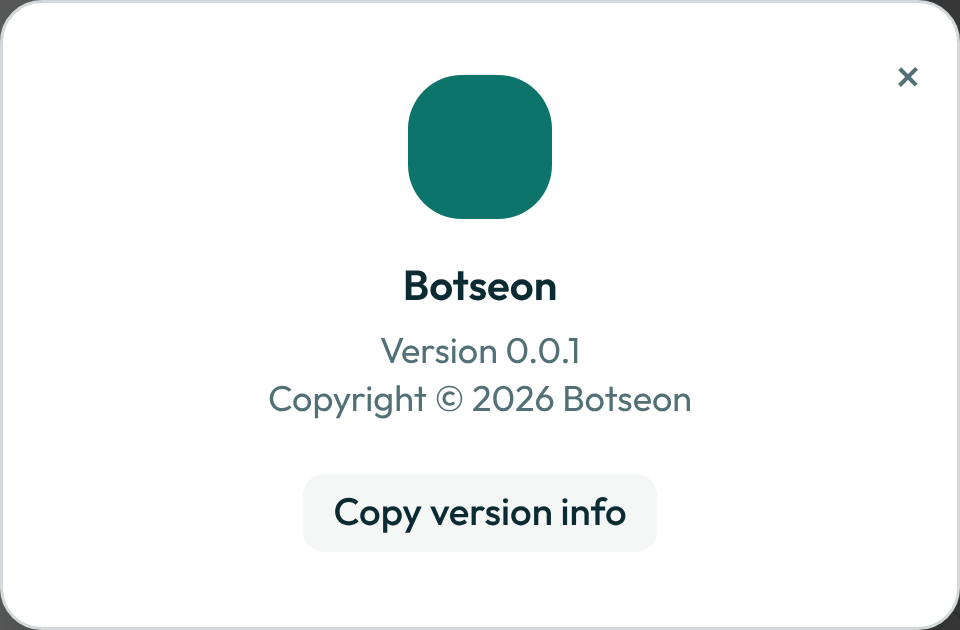
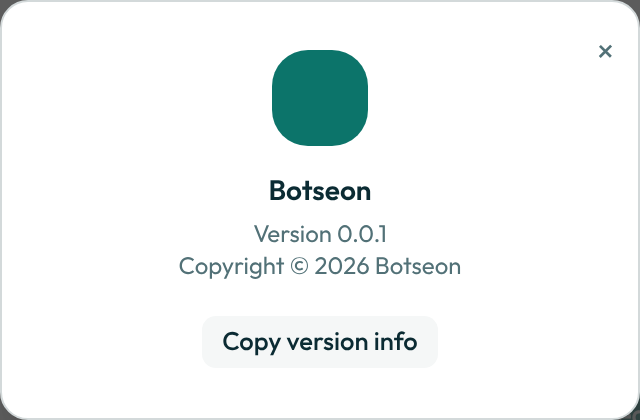
- In the account menu, open Support and choose About (the command palette's About opens the same dialog). It shows your version, with a Copy version info button that copies your version, your release track, your operating system, your account id, your organisation id and — inside a conversation — its id as plain text for support.
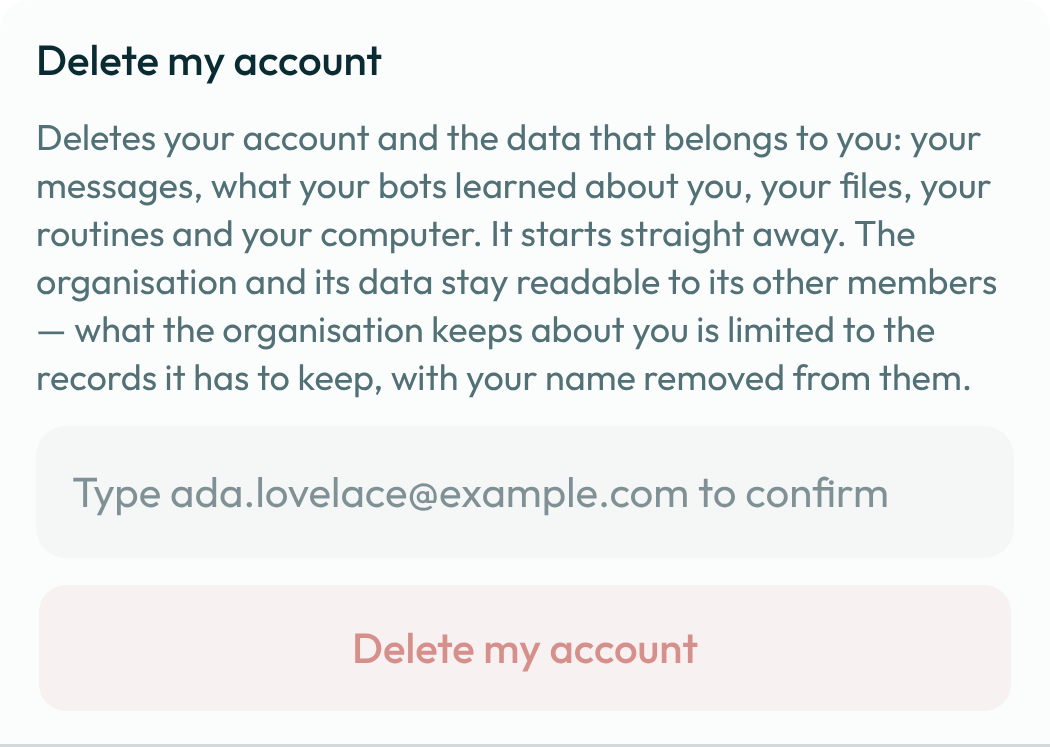
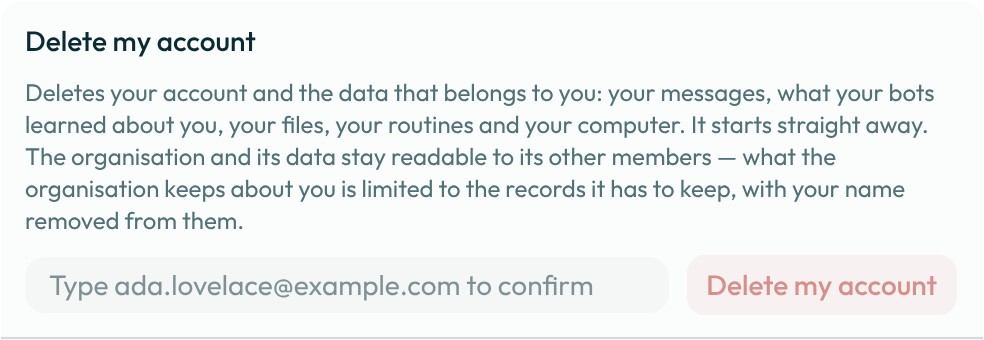
- If you need to delete your account, scroll to the Danger zone at the foot of General. Under Delete my account, type your sign-in email address where the box asks for it, then press Delete my account. This deletes your messages, what your bots learned about you, the rules they learned from you, your files, your routines and your computer, and it starts straight away. The organisation and its other members keep their data; what the organisation keeps about you is limited to the records it has to keep, with your name removed from them.
A worked example
The Copy version info button on the About dialog copies a plain-text block shaped like this, useful when you write in for support:
Botseon <version>
Build <version>
Release track <stable, beta or nightly>
OS <your operating system, such as macOS 14.5, Windows 10 or Linux>
Account <your account id>
Organisation <your organisation id>
Conversation <conversation id, only when one is open>
The release track is the Update Track you chose in the desktop app's Settings → Updates; a browser tab has no update track and reports stable. The operating system is read from the app itself; when it cannot be recognised the line reads OS Unknown OS. Nothing in the block is a password, a token or your email address, so it is safe to paste into a ticket.
What can go wrong
| What you see | Why | What to do |
|---|---|---|
That change could not be saved. Try again. | A settings write failed, usually a dropped connection. | Retry the change; reload the page if it keeps failing. |
Restart the app to finish changing hardware acceleration. | The desktop app only applies this switch at startup. | Restart the desktop app when it's convenient. |
The email address does not match. | What you typed is not your sign-in email address. Account deletion asks for it exactly, so you can't delete your account by accident. | Retype the address exactly as the box shows it, then confirm again. |
Could not do that. Try again. | The deletion or cancellation request failed to save. | Try again; send feedback from the account menu if it persists. |
See also
Last verified against build 2ba34c8.