The bot panel
Member·5 minutes to read
What this does for you
Every bot's chat has a panel on the right with everything about that bot: what it has cost you this month, what it remembers, its routines, its files and the pages it made for you, and its own computer. The panel is a short header and three tabs, so you see one thing at a time instead of one long column.
Before you start
- You have a bot and have opened its chat (see Start here).
- On a phone-width screen the panel is not beside the chat: tap Details at the top of the conversation to open it as a sheet, and Close details to go back.
Steps
- Read the header. At the top of the panel are the bot's avatar, its name and its label. A bot with no label yet shows Add a label there, which opens the bot's settings. Beside the header, the "…" button opens the panel's menu, and on a wide screen the gear opens the bot's settings and
»folds the panel away.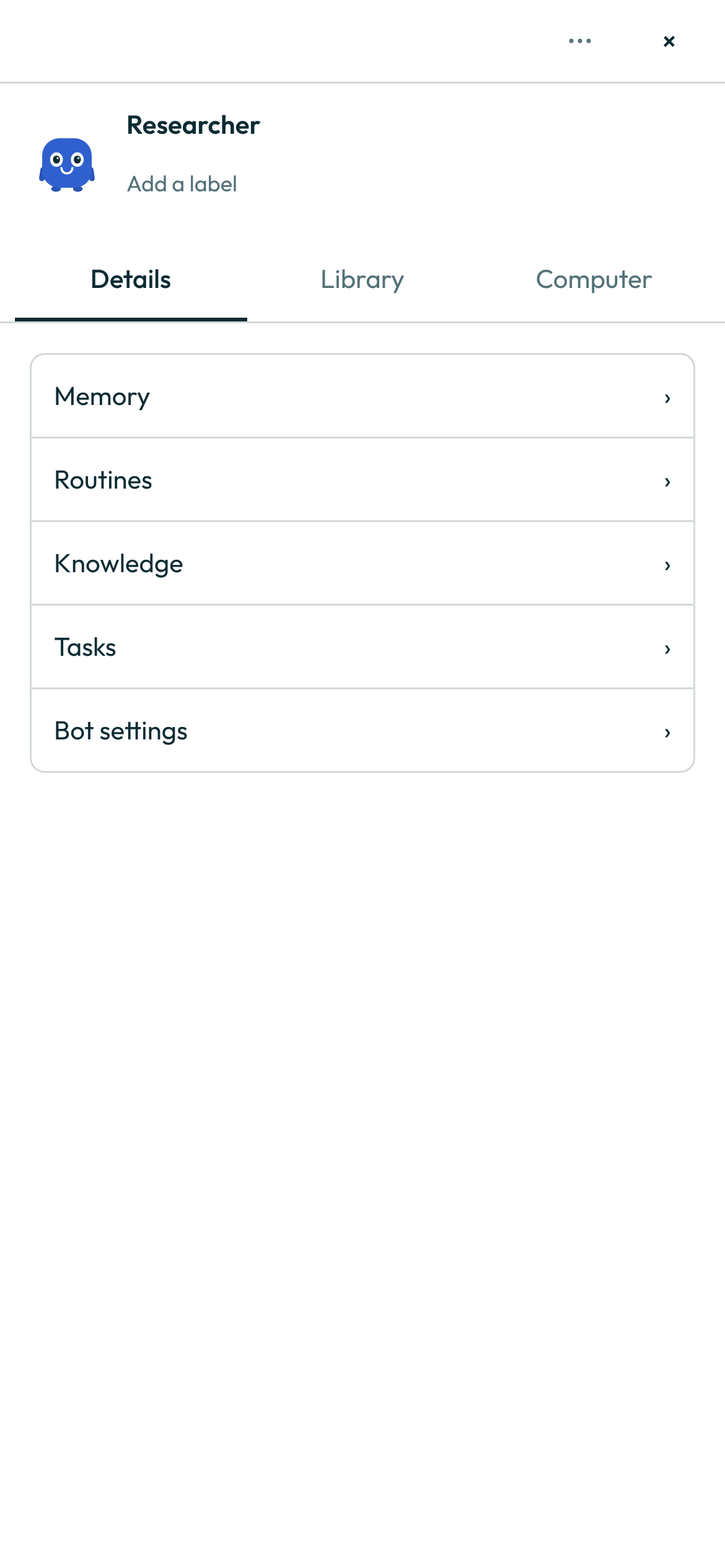
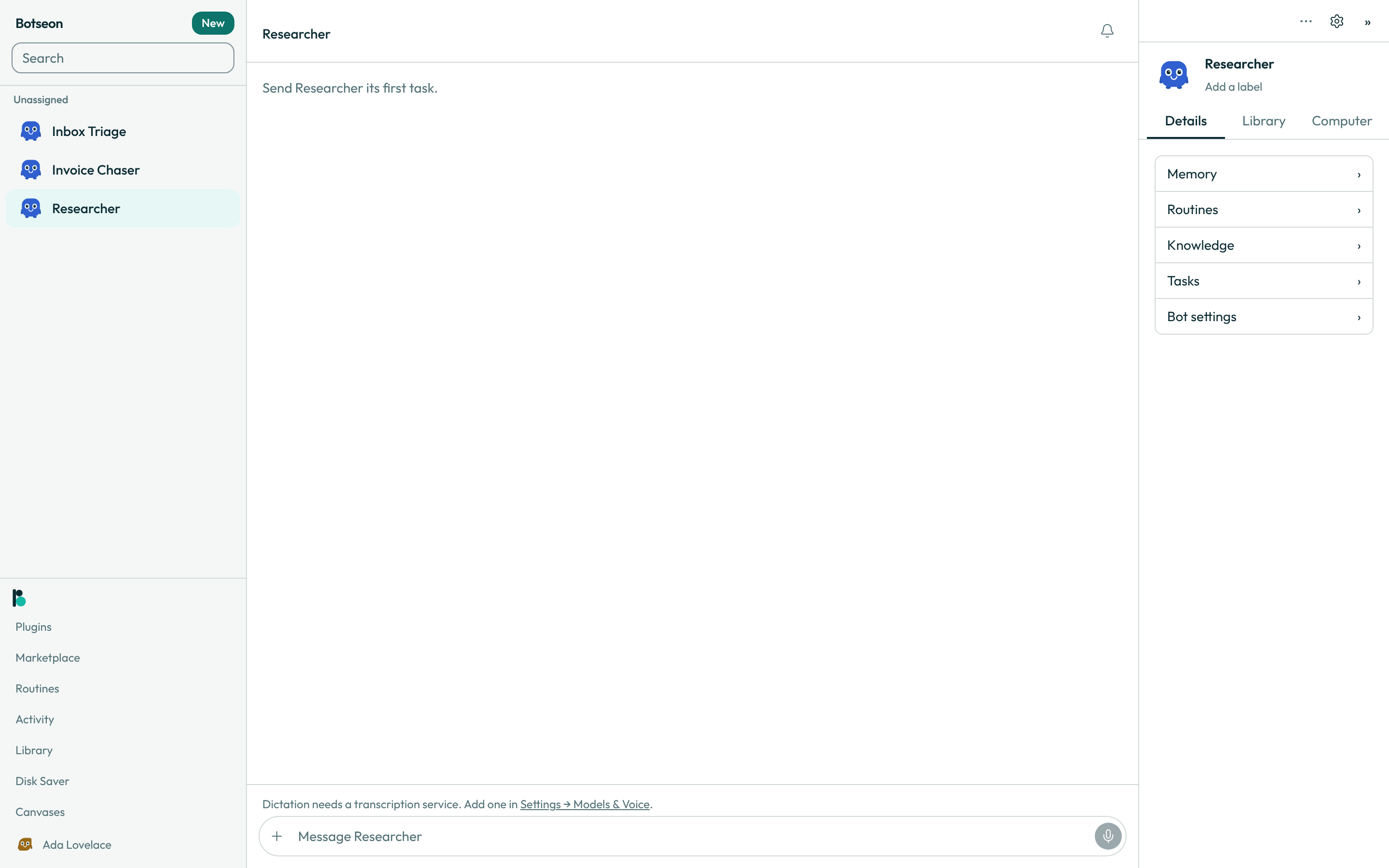
- Use the Details tab. The panel always opens on it. It is a short list, one line each: Spend this month (what your own conversations with this bot have cost since the 1st), Memory, Routines, Knowledge, Tasks and Bot settings. Choose a line to open it;
‹brings you back to the tab. Create Routine and the routine templates are inside Routines, next to the bot's routines. See Create a routine and What your bot remembers. - Use the Library tab. It holds what this bot made and keeps for you: its Files (shown to the bot's owner) and its Pages and apps, the pages it built for you. Choose a page to open it; a page you published is marked Published. Every page from every bot is also listed on the Canvases page.
- Use the Computer tab. It holds the bot's screen and the call: open the screen from its thumbnail (see The bot's computer), or start a call with the call button (see Give a bot a voice).
- Export the conversation. Open the "…" menu in the panel's header and choose Export conversation. Your browser downloads the whole conversation as a Markdown file, each message under its author and its time.
- Move between the tabs with the keyboard. With a tab focused, the left and right arrow keys move along the tabs, Home and End jump to the first and the last, and Enter or Space opens the focused tab.
A worked example
You want your bot to post a summary of the week's sales every Monday. You open its chat, and the panel beside it opens on Details. You choose Routines: the panel shows the bot's routines, Create Routine and the routine templates. You choose Create Routine, name the routine and set it to run on Mondays at 9:00. ‹ takes you back to Details.
The next week the bot has made a sales dashboard page for you. You choose the Library tab, and the page is listed under Pages and apps. You choose it to open it.
Before a meeting you want a copy of the whole chat. You open the "…" menu in the panel's header and choose Export conversation, and the Markdown file downloads.
What can go wrong
| What you see | Why | What to do |
|---|---|---|
| There is no panel beside the chat. | The window is phone-width, or the panel was folded away with ». | Tap Details at the top of the conversation, or choose the ‹ at the right edge to open the panel again. |
| Files is not on the Library tab. | The bot's files belong to its owner, and you are a teammate using a shared bot. | Ask the bot's owner. |
| Pages and apps says there is nothing yet. | This bot has not made a page for you. | Ask the bot in chat to make one. |
| You cannot find the bot's skills or its Slack, WhatsApp, Microsoft Teams or X settings. | They are part of the bot's settings now, below its profile. | Choose Bot settings on the Details tab. |
See also
- The panel looks the same on every screen size: the header, then Details, Library and Computer. Only where it opens differs — beside the chat on a wide screen, as a sheet on a phone-width one.
- Make a bot, and set it up — everything under Bot settings.
- Create a routine — what to put in a routine.
- What your bot remembers — the Memory view.
- The bot's computer — the screen on the Computer tab.
Last verified against build 7e2ca1d.